

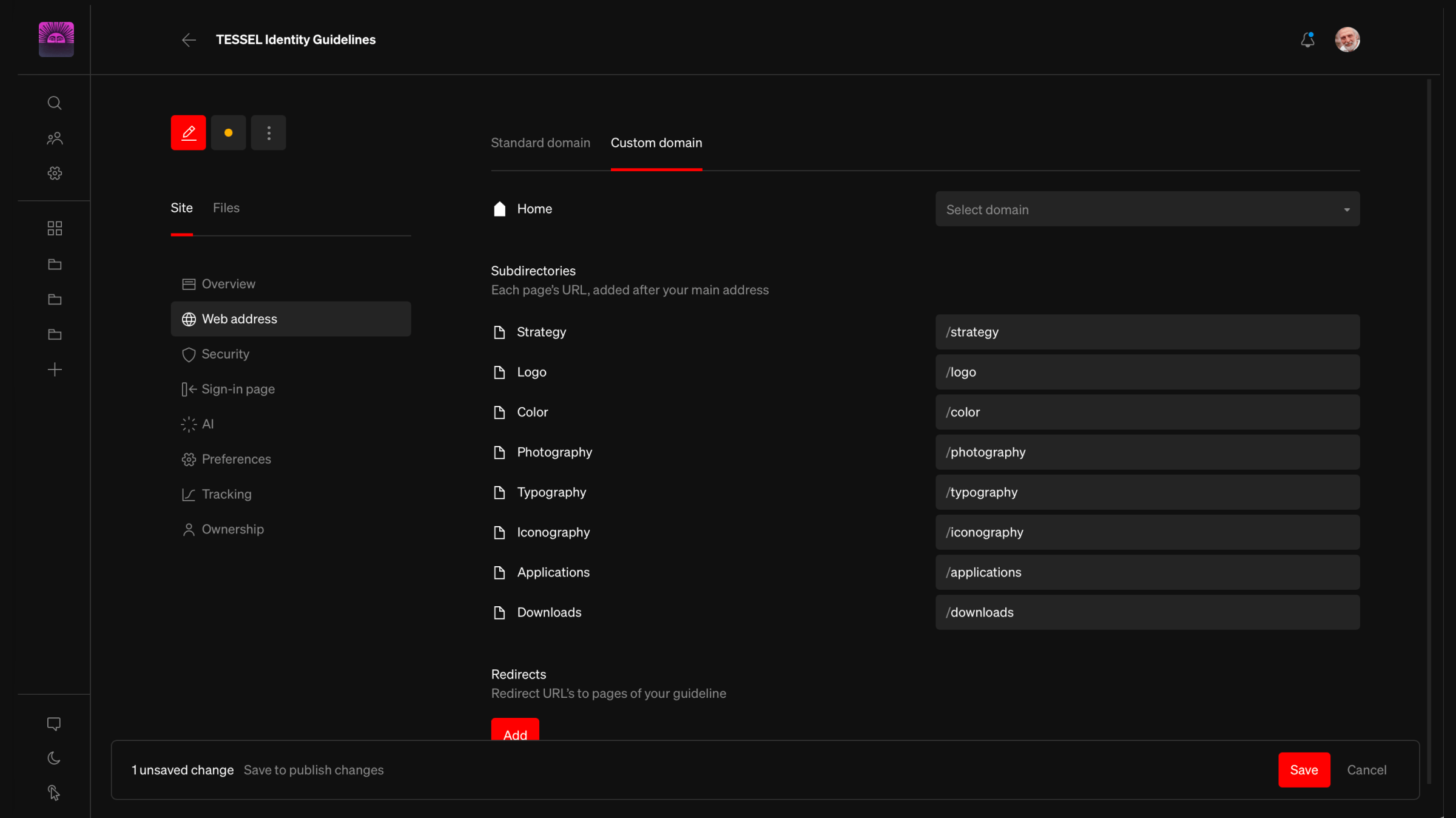
Open the Web address page
1
Select guideline
From the dashboard, select the guideline you want to manage
2
Open Web address
Select Web address from the left column
Save in the bar at the bottom of the page. The home page URL, subdirectories, and redirects are all saved together.
Once saved, web address changes apply to a published guideline right away. You don’t need to publish again.
Home page
The home page URL is the primary URL of your guideline, and the address viewers see in their browser’s address bar. Choose one of two options:- Standard: Your guideline is published to live.standards.site/ followed by your chosen address, for example live.standards.site/acme-brand. Addresses must be unique across Standards, so you’ll be asked to choose another if yours is taken.
- Custom domain: Publish to a domain or subdomain you own, such as brand.acme.com. Choose from the domains connected to your workspace, or select the option to add a new one. Learn more about Custom Domains.
Subdirectories
Every page other than the home page has its own URL, shown as /page-name after the home page URL. These are typically the name of the page, such as /logo rather than /page-01.- Each page’s URL must be unique. Matching URLs are flagged as Already in use, and must be fixed before publishing.
- Some URLs are reserved by Standards and can’t be used, such as /file, /download, and /ai.
- Hidden pages aren’t published, so they aren’t listed.
Page URLs are now set only from the Web address page. They’re no longer part of the page settings in the editor.
Redirects
Redirects send visitors from one URL to a page of your guideline. They’re useful when a page has been renamed or moved, so old links and bookmarks keep working.1
Add a redirect
Under Redirects, select
Add2
Enter the old URL
Enter the URL to redirect from. It’s added after your home page URL, for example live.standards.site/acme-brand/old-logo-page.
3
Choose a page
Choose the page to redirect to
4
Save
Select
Save in the bar at the bottom of the pageKeep in mind
- A redirect can’t use a URL that’s already used by a page or another redirect.
- Redirects can only point to published pages. If a page is hidden or deleted, choose a new page for its redirects.
Guidelines published before this update
Guidelines published with an earlier version of Standards need to be re-published for web address and security changes to take effect. When you save changes to one of these guidelines, you’ll be asked toSave and publish. After that first publish, future changes apply right away.
Troubleshooting
This URL is taken
This URL is taken
Standard web addresses are shared across every guideline on live.standards.site. Choose another address, or publish to a custom domain.
This domain is not available
This domain is not available
Each custom domain can be used by one guideline at a time. Check whether another guideline in the workspace is published to it, and that the domain has finished connecting from Settings › Domains.