

Sign into your account
1
Open Standards in your browser

2
Fill your credentials
Enter your credentials or select Google, Microsoft, or SAML SSO—whichever you set the account up with.
3
Save for later
Bookmark app.standards.site, this is the URL you will always use to log into your workspace.
Reset your password
1
Open Standards in your browser
2
Reset
Select
Reset Password3
Enter credentials
Enter the account email address. if there is an account registered under that email address, Standards will send a password reset email.
4
Check email
Open the password reset email and select
Reset your password.5
Set new password
Enter a new password and confirm, then select
Submit to update password.Troubleshooting
Sometimes access emails get lost in spam folders or blocked by firewalls. If you’ve requested access to use Standards, make sure to check your spam folder. If you still haven’t found your activation email, please contact us at [email protected].Single Sign On - Google & Microsoft
If your account uses one of the Single Sign On (SSO) options such as Microsoft or Google, your access is managed through those platforms. Your SSO credentials will match the email and password you use to sign into those services. Simply select the Google or Microsoft option from the sign in page and use your usual credentials.Single Sign On - SAML
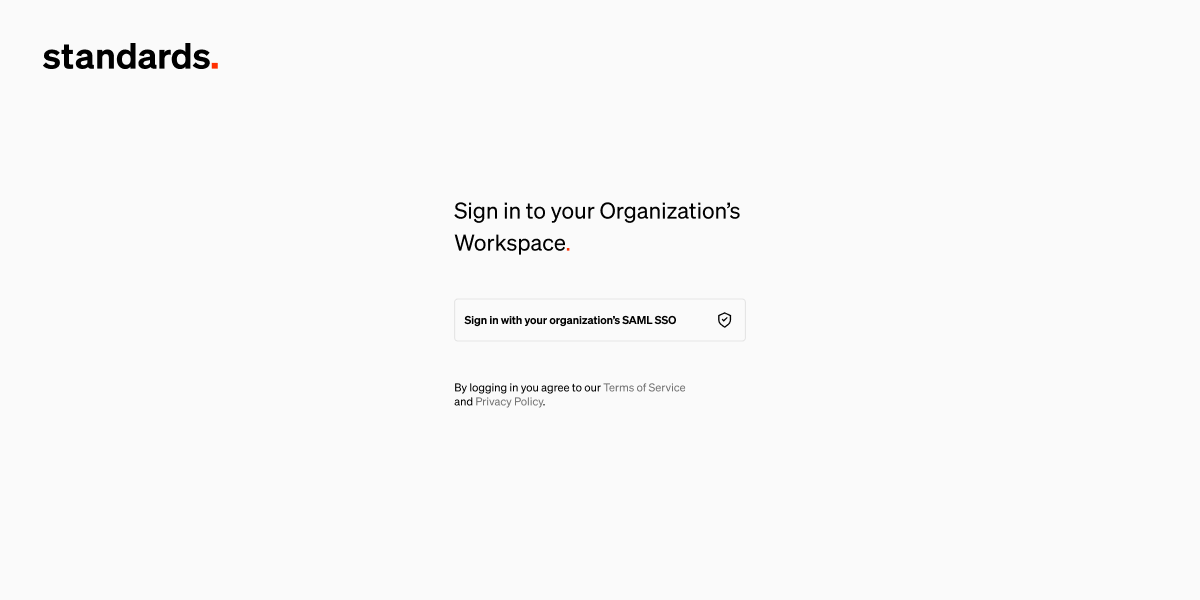
Enterprise If your organization uses SAML SSO, you will need to log in using your oranization’s workspace log in page. This is a unique URL used only by your organization to sign in.1
Navigate to unique workspace log in URL
2
Sign in
Use your SAML SSO credentials to sign in. These will likely be the same you use accross your organization.
Need assistance?
Contact [email protected] for help finding your workspace login URL, or if you would like to upgrade to enable SAML SSO.Troubleshooting
What happened to my activation email?
What happened to my activation email?
Sometimes access emails get lost in spam folders or blocked by firewalls. If you’ve requested access to use Standards, make sure to check your spam folder. If you still haven’t found your activation email, please contact us at [email protected].
What is my organization's workspace URL?
What is my organization's workspace URL?
If you are the workspace owner, you can see this on the Settings page of your workspace. Log into Standards and select settings from the left sidebar, then look for the workspace sign in page list item. Copy the link and share it with your team.