Web accessibility ensures that content is usable and inclusive for all individuals. These accessibility descriptions also enable better search results.
When using Media throughout your project, it is important to keep accessibility in mind. Standards allows you to include meta descriptions for both Media elements, and the Files themselves.
Image descriptions are short text based statements that describe the subject or the meaning of visual content, and are programmed to display when that visual content is not available, such as when browsing with a screen reader. They are also used for aria-labels such as on buttons without text, and on groups to demarcate sections.
When writing a description for a Media element, it is often best practice is to describe the context or meaning of the media rather than the subject, since the file could easily change. Example: “Demonstration of proper logo clearspace equal to the logotype’s x-height”
Within the design or content mode of the editor, select a media element
2
Enter image description
When in design mode, enter the description into the right sidebar in the Description settings group at the bottom. In content mode, enter the image description in the contextual popup.
Within the editor, select the Files tab from the top of the right sidebar. Then select the desired file.
2
Enter description
From the file detail panel, enter the description into the Description field.
Note: Replacing a file will reset the image description
When writing a description for a File, the best practice is to simply describe the subject or content rather than the meaning, since it could be placed in any context.
Standards can draft accessibility descriptions for you using AI, so you can describe media at scale and then refine the wording. The same tool is also available for page descriptions.
Within the editor, select a Media element (or other element with an Accessibility description field). You can select multiple elements to generate descriptions for all of them at once.
2
Select the bolt icon
In the Accessibility settings group, select the Generate description button (bolt icon) beside the Description field. The field shows a loading state while the description is generated, then fills in automatically.
3
Review and edit
AI-generated descriptions are a starting point. Review each one for accuracy and tone, and edit it to capture the context or meaning you intend.
Availability: AI features are available on Pro workspaces, and on Enterprise workspaces where an admin has enabled AI features. If the bolt icon is disabled, AI features may be turned off for your workspace.
Tip: Generation considers the element’s content (including the image itself for media) and the page it sits on, so descriptions are tailored to where the element appears.
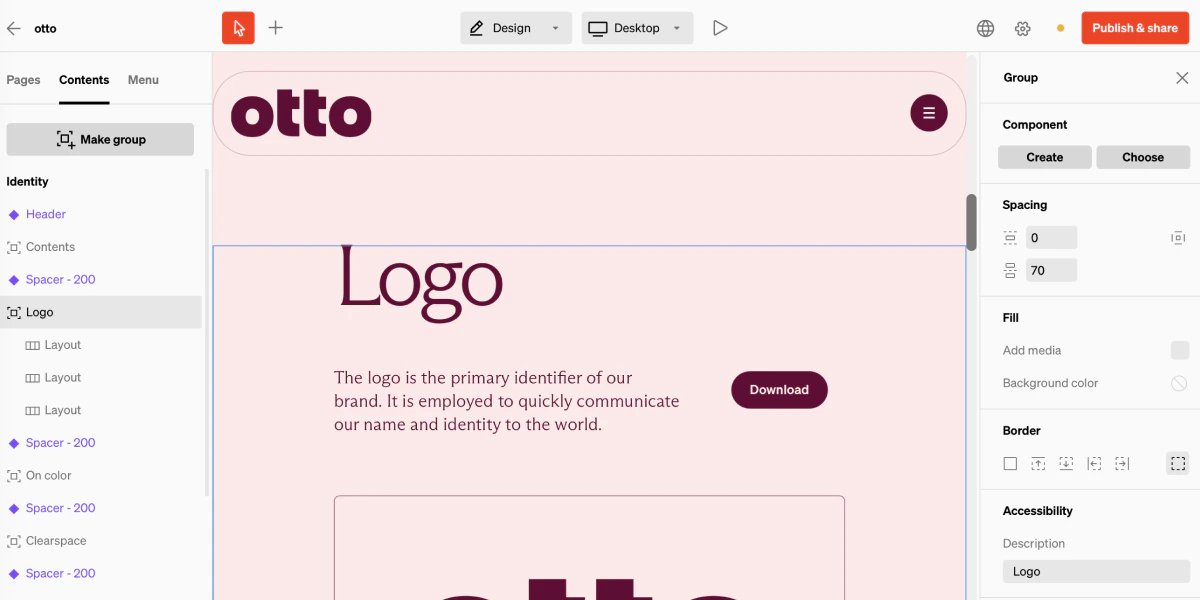
Improve navigation for screen readers by labeling sections of a page. Add a label to each major section of your page. This label is used by screen readers to identify the section and enables jump navigation for keyboard users.
This is a good practice while working to stay organized. Select contents layers then group them together by pressing Make group in the sidebar, or commandG
2
Input labels into accessibility fields
With the group or layout layer selected, look for the Accessibility settings group in the right sidebar. Enter the appropriate section label — for example, “Brand Colors” or “Typography.”
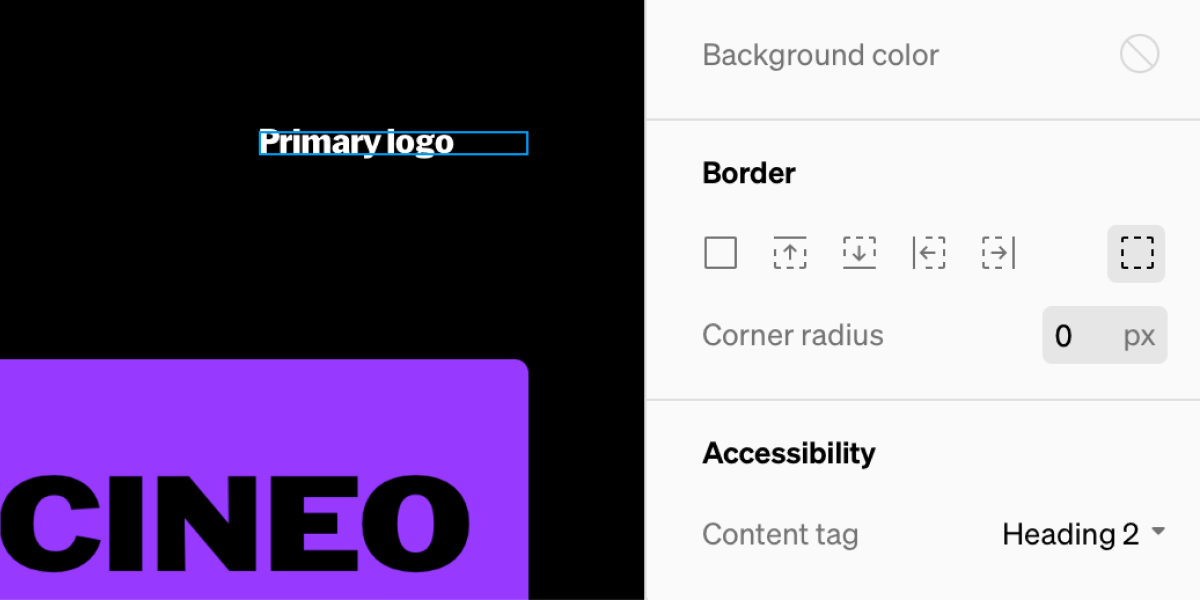
Adding content tags to text provides data that may be used by browsers and search engines to infer the hierarchy of text content without visual cues, and may effect how the text is displayed on screen readers or in other environments.
Within the editor, select a text block from the contents list in the left sidebar, or from the in-body content.
2
Select proper content tag
In the right sidebar at the bottom, there is a settings group named Accessibility. Select the Content tag dropdown, then select the tag that best fits the text content
Additional accessibility features can be enabled on Standards projects with the UswerWay plugin. UserWay allows site visitors to control a range of accessibility options like increasing text size. Learn more about UserWay.
Note: This requires a UserWay account, allowing for additional features. Additionally, the integration is only available when published to a custom domain.
1
Log into UserWay
Log into your UserWay account on userway.org. If you don’t have an account, sign up for one.
2
Select embed code
In the UserWay dashboard, select the Embed code tab from the left sidebar.
3
Copy ID
From the embed code, look for the ID just after data-account= between the quotation marks. Copy the ID to your clipboard, ctrl+Con your keyboard
Example ID. Copy the code that displays on your UserWay dashboard
4
Open project settings in Standards
Back in Standards, enter the project editor by selecting the gear icon from the top bar.
5
Paste ID
Within the project settings in the right sidebar, look for the Accessibility settings group. Paste the ID into the Account ID field.
6
Publish
Publish the changes from the Publish & share window. The UserWay plugin now viewable on your live site.
{"docsConfig":{"theme":"mint","$schema":"https://mintlify.com/docs.json","name":"Standards Help Center","colors":{"primary":"#FF2E00","light":"#FF2E00","dark":"#FF2E00"},"logo":{"light":"https://mintcdn.com/standards/D3jCbH2xT6ExxFnz/logo/light.svg?fit=max\u0026auto=format\u0026n=D3jCbH2xT6ExxFnz\u0026q=85\u0026s=7141085eb2f6ac991c2feb17b2511e94","dark":"https://mintcdn.com/standards/D3jCbH2xT6ExxFnz/logo/dark.svg?fit=max\u0026auto=format\u0026n=D3jCbH2xT6ExxFnz\u0026q=85\u0026s=5f0ea4b2f16dbbc357e0951349e341bb"},"favicon":"https://mintlify.s3.us-west-1.amazonaws.com/standards/favicon.svg","navbar":{"links":[{"href":"mailto:[email protected]","label":"Support"}],"primary":{"type":"button","label":"Dashboard","href":"https://dashboard.mintlify.com"}},"footer":{"socials":{"instagram":"https://www.instagram.com/standards.site","x":"https://x.com/standards_site","linkedin":"https://www.linkedin.com/company/standards-site","slack":"https://join.slack.com/t/standardscommunity/shared_invite/zt-3hoc7wxit-JKFIo3O1Sh0KJxc6QICK~Q"}},"seo":{"metatags":{"og:image":"/images/meta-tag.png"}},"fonts":{"heading":{"family":"Soehne","weight":600,"source":"fonts/soehne-halbfett.woff2","format":"woff2"},"body":{"family":"Soehne","weight":400,"source":"fonts/soehne-buch.woff2","format":"woff2"}},"contextual":{"options":["copy","view","chatgpt","claude","perplexity","mcp","cursor","vscode"],"display":"header"},"styling":{"latex":false},"navigation":{"global":{"anchors":[{"anchor":"Release Notes","href":"https://standards.site/news/category/release-notes/"},{"anchor":"News","href":"https://standards.site/news/"}]},"pages":[]}},"deployment":{"deploymentMetadataValue":{"subdomain":"standards","hasAudioNarration":false,"actualSubdomain":"standards","customDomains":["help.standards.site"],"gitSource":{"type":"github","owner":"standards-site-inc","repo":"help-center","deployBranch":"main","contentDirectory":"","isPrivate":true,"mountPath":"","label":""},"chroma":{"liveDeploymentHistoryId":"6aca9d2a83864fb69bac7660","collectionId":"aed79588-e8cf-4d6c-9b1b-f526982c9e71","schemaVersion":"v3","latestBuiltDeploymentHistoryId":"6aca9d2a83864fb69bac7660"},"entitlements":{"AI_CHAT":{"status":"ENABLED"},"WEB_MCP":{"status":"ENABLED"},"NARRATION":{"status":"ENABLED"}},"buildId":"6aca9d2a83864fb69bac7660","clientVersion":"0.0.3964","searchFilterCounts":[{"language":"default","tag":"Guides","count":57},{"language":"default","tag":"AI","count":18},{"language":"default","tag":"API Reference","count":12},{"language":"default","tag":"Editor \u0026 Design","count":11},{"language":"default","tag":"Get Started","count":11},{"language":"default","tag":"MCP","count":9},{"language":"default","tag":"Content Elements","count":7},{"language":"default","tag":"Workspace \u0026 Account","count":7},{"language":"default","tag":"Reference","count":7},{"language":"default","tag":"Publishing \u0026 Access","count":5}]},"assistantConfig":{"enableAskAiButton":false,"enableStarterQuestions":false,"enableAskAiSearchBar":true,"deflection":{"enabled":true,"email":"[email protected]","showHelpButton":true}},"hasChatPermissions":true,"hasWebMcpPermissions":true,"toggles":[{"name":"kill-isr","enabled":true,"variant":{"name":"disabled","enabled":false,"feature_enabled":true},"impressionData":false},{"name":"agent-mintlify-slack","enabled":true,"variant":{"name":"disabled","enabled":false,"feature_enabled":true},"impressionData":false},{"name":"editor-v7-file-tree","enabled":true,"variant":{"name":"disabled","enabled":false,"feature_enabled":true},"impressionData":false},{"name":"agent-integrations-settings","enabled":true,"variant":{"name":"disabled","enabled":false,"feature_enabled":true},"impressionData":false},{"name":"automations-pr-grouping","enabled":true,"variant":{"name":"disabled","enabled":false,"feature_enabled":true},"impressionData":false},{"name":"custom-prefix","enabled":true,"variant":{"name":"disabled","enabled":false,"feature_enabled":true},"impressionData":false},{"name":"analytics-v7","enabled":true,"variant":{"name":"disabled","enabled":false,"feature_enabled":true},"impressionData":false},{"name":"user-flows-analytics","enabled":true,"variant":{"name":"disabled","enabled":false,"feature_enabled":true},"impressionData":false},{"name":"no-publish-flow","enabled":true,"variant":{"name":"disabled","enabled":false,"feature_enabled":true},"impressionData":false},{"name":"workos-onboarding","enabled":true,"variant":{"name":"disabled","enabled":false,"feature_enabled":true},"impressionData":false},{"name":"llms-txt-v2","enabled":true,"variant":{"name":"disabled","enabled":false,"feature_enabled":true},"impressionData":false},{"name":"pause-universal-search-reconcile","enabled":true,"variant":{"name":"disabled","enabled":false,"feature_enabled":true},"impressionData":false},{"name":"snapshot-serving-live","enabled":true,"variant":{"name":"disabled","enabled":false,"feature_enabled":true},"impressionData":false},{"name":"stripTemperatureMiddleware","enabled":true,"variant":{"name":"disabled","enabled":false,"feature_enabled":true},"impressionData":false},{"name":"per-site-search-delta","enabled":true,"variant":{"name":"disabled","enabled":false,"feature_enabled":true},"impressionData":false},{"name":"support-platform-pylon-zendesk","enabled":true,"variant":{"name":"disabled","enabled":false,"feature_enabled":true},"impressionData":false},{"name":"snapshot-serving","enabled":true,"variant":{"name":"disabled","enabled":false,"feature_enabled":true},"impressionData":false},{"name":"instant-rollback","enabled":true,"variant":{"name":"disabled","enabled":false,"feature_enabled":true},"impressionData":false},{"name":"granular-notifications-server","enabled":true,"variant":{"name":"disabled","enabled":false,"feature_enabled":true},"impressionData":false},{"name":"granular-notifications","enabled":true,"variant":{"name":"disabled","enabled":false,"feature_enabled":true},"impressionData":false},{"name":"editor-private-page-search","enabled":true,"variant":{"name":"disabled","enabled":false,"feature_enabled":true},"impressionData":false},{"name":"automations-fable","enabled":true,"variant":{"name":"disabled","enabled":false,"feature_enabled":true},"impressionData":false},{"name":"fixed-ai-action-pricing","enabled":true,"variant":{"name":"disabled","enabled":false,"feature_enabled":true},"impressionData":false},{"name":"automation-resolve-merge-conflict","enabled":true,"variant":{"name":"disabled","enabled":false,"feature_enabled":true},"impressionData":false},{"name":"scoped-publishing","enabled":true,"variant":{"name":"disabled","enabled":false,"feature_enabled":true},"impressionData":false},{"name":"mintql","enabled":true,"variant":{"name":"disabled","enabled":false,"feature_enabled":true},"impressionData":false},{"name":"page-level-analytics","enabled":true,"variant":{"name":"disabled","enabled":false,"feature_enabled":true},"impressionData":false},{"name":"editor-version-history-v2","enabled":true,"variant":{"name":"disabled","enabled":false,"feature_enabled":true},"impressionData":false},{"name":"editor-nav-generations","enabled":true,"variant":{"name":"disabled","enabled":false,"feature_enabled":true},"impressionData":false},{"name":"billing-page-v2","enabled":true,"variant":{"name":"disabled","enabled":false,"feature_enabled":true},"impressionData":false},{"name":"workspace-projects","enabled":true,"variant":{"name":"disabled","enabled":false,"feature_enabled":true},"impressionData":false},{"name":"assistant-v5","enabled":true,"variant":{"name":"disabled","enabled":false,"feature_enabled":true},"impressionData":false},{"name":"byok-sep-25","enabled":true,"variant":{"name":"disabled","enabled":false,"feature_enabled":true},"impressionData":false},{"name":"fork-pr-previews","enabled":true,"variant":{"name":"disabled","enabled":false,"feature_enabled":true},"impressionData":false},{"name":"revalidation-jwt","enabled":true,"variant":{"name":"disabled","enabled":false,"feature_enabled":true},"impressionData":false},{"name":"vite-origin","enabled":true,"variant":{"name":"disabled","enabled":false,"feature_enabled":true},"impressionData":false},{"name":"editor-agent-model-picker","enabled":true,"variant":{"name":"disabled","enabled":false,"feature_enabled":true},"impressionData":false},{"name":"billing-updated-9-15","enabled":true,"variant":{"name":"disabled","enabled":false,"feature_enabled":true},"impressionData":false},{"name":"hobby-abuse-scan","enabled":true,"variant":{"name":"disabled","enabled":false,"feature_enabled":true},"impressionData":false},{"name":"dashboard-inbox","enabled":true,"variant":{"name":"disabled","enabled":false,"feature_enabled":true},"impressionData":false}],"isAtlas":false,"googleFontsInlined":false},"customCss":[{"filePath":"global.css","content":":root{--color-dark-black:#fff;--color-dark-black-rgb:255, 255, 255;--color-dark-white:#000;--color-dark-white-rgb:0, 0, 0;--color-dark-grey-0:#101010;--color-dark-grey-0-rgb:16, 16, 16;--color-dark-grey-1:#242424;--color-dark-grey-1-rgb:36, 36, 36;--color-dark-grey-2:#333333;--color-dark-grey-2-rgb:51, 51, 51;--color-dark-grey-3:#3a3a3a;--color-dark-grey-3-rgb:58, 58, 58;--color-dark-grey-4:#666666;--color-dark-grey-4-rgb:102, 102, 102;--color-dark-grey-5:#898989;--color-dark-grey-5-rgb:137, 137, 137;--color-dark-grey-5-half:rgba(137, 137, 137, 0.55);--color-dark-overlay-tint:rgba(0, 0, 0, 0.6);--color-blue-10:rgba(35, 149, 231, 0.1);--color-light-black:#000;--color-light-black-rgb:0, 0, 0;--color-light-white:#fff;--color-light-white-rgb:255, 255, 255;--color-light-grey-0:#fafafa;--color-light-grey-0-rgb:250, 250, 250;--color-light-grey-1:#e6e6e6;--color-light-grey-1-rgb:230, 230, 230;--color-light-grey-2:#dfdfdf;--color-light-grey-2-rgb:223, 223, 223;--color-light-grey-3:#d7d7d7;--color-light-grey-3-rgb:215, 215, 215;--color-light-grey-4:#bebebe;--color-light-grey-4-rgb:190, 190, 190;--color-light-grey-5:#737373;--color-black:var(--color-light-black);--color-black-rgb:var(--color-light-black-rgb);--color-white:var(--color-light-white);--color-white-rgb:var(--color-light-white-rgb);--color-grey-0:var(--color-light-grey-0);--color-grey-0-rgb:var(--color-light-grey-0-rgb);--color-grey-1:var(--color-light-grey-1);--color-grey-1-rgb:var(--color-light-grey-1-rgb);--color-grey-2:var(--color-light-grey-2);--color-grey-2-rgb:var(--color-light-grey-2-rgb);--color-grey-3:var(--color-light-grey-3);--color-grey-3-rgb:var(--color-light-grey-3-rgb);--color-grey-4:var(--color-light-grey-4);--color-grey-4-rgb:var(--color-light-grey-4-rgb);--color-grey-5:var(--color-light-grey-5);--color-highlight:#2395e7;--color-green:#0dbc49;--color-highlight-rgb:35, 149, 231;--gray-600:var(--color-grey-1);--gray-700:var(--color-black);--gray-900:var(--color-black)}.dark{--color-black:var(--color-dark-black);--color-black-rgb:var(--color-dark-black-rgb);--color-white:var(--color-dark-white);--color-white-rgb:var(--color-dark-white-rgb);--color-grey-0:var(--color-dark-grey-0);--color-grey-0-rgb:var(--color-dark-grey-0-rgb);--color-grey-1:var(--color-dark-grey-1);--color-grey-1-rgb:var(--color-dark-grey-1-rgb);--color-grey-2:var(--color-dark-grey-2);--color-grey-2-rgb:var(--color-dark-grey-2-rgb);--color-grey-3:var(--color-dark-grey-3);--color-grey-3-rgb:var(--color-dark-grey-3-rgb);--color-grey-4:var(--color-dark-grey-4);--color-grey-4-rgb:var(--color-dark-grey-4-rgb);--color-grey-5:var(--color-dark-grey-5);--color-grey-5-rgb:var(--color-dark-grey-5-rgb)}@font-face{font-family:\"Soehne\";src:url(/fonts/soehne-buch.woff2) format(\"woff2\");font-weight:400;font-style:normal}@font-face{font-family:\"Soehne\";src:url(/fonts/soehne-halbfett.woff2) format(\"woff2\");font-weight:600;font-style:normal}@font-face{font-family:\"Soehne Mono\";src:url(/fonts/soehne-mono-web-buch.woff2) format(\"woff2\");font-weight:400;font-style:normal}*{letter-spacing:0!important;-webkit-font-smoothing:antialiased;-moz-osx-font-smoothing:grayscale}.sm\\:text-3xl{font-size:2.5rem;line-height:1.275em}h1,h3{font-family:\"Soehne\",sans-serif!important;font-weight:400!important}.prose :where(h2):not(:where([class~=\"not-prose\"], [class~=\"not-prose\"] *)){font-family:\"Soehne\",sans-serif!important;font-weight:400!important;font-size:2rem}.sidebar-title,h5{font-family:\"Soehne\",sans-serif!important;font-weight:600!important}.group:hover .group-hover\\:stroke-gray-600{stroke:var(--color-black)}:not(pre)>code{background-color:var(--color-grey-1)}.bg-gray-100,.bg-gray-50,.bg-primary\\/10,.hover\\:bg-gray-100:hover,.hover\\:bg-gray-600\\/5:hover{background-color:var(--color-grey-1)}.dark\\:bg-primary-light\\/10:is(.dark *),.hover\\:dark\\:bg-gray-800:is(.dark *):hover{background-color:var(--color-grey-1)}.prose hr:is(.dark *),.prose tr:is(.dark *){border-color:var(--color-grey-2)}.data-\\[shape\\=\\'pill\\'\\]\\:rounded-full[data-shape=pill]{background-color:rgba(var(--color-highlight-rgb),.1);border-color:var(--color-highlight);border-width:1px;color:var(--color-highlight)}.bg-\\[\\#3064E3\\]{background-color:var(--color-highlight)!important}.bg-blue-400\\/20{background-color:rgba(var(--color-highlight-rgb),.1)!important}.text-blue-700{color:var(--color-highlight)!important}.dark\\:bg-blue-400\\/20:is(.dark *){background-color:rgba(var(--color-highlight-rgb),.1)!important}.dark\\:text-blue-400:is(.dark *){color:var(--color-highlight)!important}.dark:text-green-700,.text-green-700{color:var(--color-green)!important}.dark:text-green-400:is(.dark *){color:var(--color-green)!important}.bg-\\[\\#2AB673\\]{background-color:var(--color-green)!important}.text-green-700{color:var(--color-green)!important}.toc-item a:not(.group){font-weight:600}.prose,.text-gray-700,.text-gray-900{color:var(--color-black)}.accordion svg,.prose ul>li:before{background-color:var(--color-black)}.group{background-color:transparent!important}*,.border-gray-200,.border-standard,:after,:before{border-color:var(--color-grey-2)}.bg-gray-200\\/70{background-color:var(--color-grey-2)}.from-gray-200{--tw-gradient-from:rgb(var(--color-grey-2-rgb))}.\\[text-shadow\\:-0\\.2px_0_0_currentColor\\2c 0\\.2px_0_0_currentColor\\]{text-shadow:none!important}.font-mono,code,kbd,pre,samp{font-family:\"Soehne Mono\",sans-serif!important}[data-component-part=step-title]{font-weight:600!important}.border-blue-200{border-color:var(--color-highlight)}.bg-blue-50{background-color:rgba(var(--color-highlight-rgb),.1)!important}pre.shiki span[style*=\"color:#953800\"]{color:var(--color-primary)!important}.text-blue-800,pre.shiki span[style*=\"color:#0550AE\"]{color:var(--color-highlight)!important}pre.shiki span[style*=\"color:#0A3069\"]{color:var(--color-black)!important}pre.shiki span[style*=\"color:#116329\"]{color:var(--color-green)!important}.prose :where(ul > li):not(:where([class~=\"not-prose\"], [class~=\"not-prose\"] *)){list-style:none}[data-component-part=search-ask-ai-item] .text-green-700,[data-component-part^=search-item-] mark{color:#ff2e00!important}"}],"page":{"pagePath":"accessibility","slug":"/accessibility","pageMetadata":{"title":"Accessibility","description":null,"href":"/accessibility"},"pageType":"default","mdx":{"mdxSource":{"compiledSource":"\"use strict\";const{Fragment:_Fragment,jsx:_jsx,jsxs:_jsxs}=arguments[0];const{useMDXComponents:_provideComponents}=arguments[0];function _createMdxContent(props){const _components={a:`a`,code:`code`,hr:`hr`,li:`li`,p:`p`,strong:`strong`,ul:`ul`,..._provideComponents(),...props.components},{Frame,Heading,Info,OptimizedImage,Step,Steps}=_components;if(!Frame)_missingMdxReference(`Frame`,true);if(!Heading)_missingMdxReference(`Heading`,true);if(!Info)_missingMdxReference(`Info`,true);if(!OptimizedImage)_missingMdxReference(`OptimizedImage`,true);if(!Step)_missingMdxReference(`Step`,true);if(!Steps)_missingMdxReference(`Steps`,true);return _jsxs(_Fragment,{children:[_jsx(_components.p,{children:`Web accessibility ensures that content is usable and inclusive for all individuals. These accessibility descriptions also enable better search results.`}),`\n`,_jsx(Frame,{children:_jsx(OptimizedImage,{src:`https://mintcdn.com/standards/btYwQSrqcmJjqRAF/images/accessibility-hero.png?fit=max\u0026auto=format\u0026n=btYwQSrqcmJjqRAF\u0026q=85\u0026s=20a378056babe8684520a3d870eaf3c9`,alt:`Accessibility Hero`,\"data-og-width\":`1200`,width:`1200`,\"data-og-height\":`600`,height:`600`,\"data-path\":`images/accessibility-hero.png`,\"data-optimize\":`true`,\"data-opv\":`3`,srcset:`https://mintcdn.com/standards/btYwQSrqcmJjqRAF/images/accessibility-hero.png?w=280\u0026fit=max\u0026auto=format\u0026n=btYwQSrqcmJjqRAF\u0026q=85\u0026s=a76a2f7205e12091448938f73ad02ddc 280w, https://mintcdn.com/standards/btYwQSrqcmJjqRAF/images/accessibility-hero.png?w=560\u0026fit=max\u0026auto=format\u0026n=btYwQSrqcmJjqRAF\u0026q=85\u0026s=aa6978766511f76907daafcca5cd6f80 560w, https://mintcdn.com/standards/btYwQSrqcmJjqRAF/images/accessibility-hero.png?w=840\u0026fit=max\u0026auto=format\u0026n=btYwQSrqcmJjqRAF\u0026q=85\u0026s=62c67b956674365919dd832a9eee997f 840w, https://mintcdn.com/standards/btYwQSrqcmJjqRAF/images/accessibility-hero.png?w=1100\u0026fit=max\u0026auto=format\u0026n=btYwQSrqcmJjqRAF\u0026q=85\u0026s=ad089446c3c70d9634dcc0990f302412 1100w, https://mintcdn.com/standards/btYwQSrqcmJjqRAF/images/accessibility-hero.png?w=1650\u0026fit=max\u0026auto=format\u0026n=btYwQSrqcmJjqRAF\u0026q=85\u0026s=05c8be922e610423d6415a4285d072e9 1650w, https://mintcdn.com/standards/btYwQSrqcmJjqRAF/images/accessibility-hero.png?w=2500\u0026fit=max\u0026auto=format\u0026n=btYwQSrqcmJjqRAF\u0026q=85\u0026s=cc080b49f1200b4e1cffc2c1302c5710 2500w`})}),`\n`,_jsx(_components.hr,{}),`\n`,_jsx(Heading,{level:`2`,id:`image-descriptions`,children:`Image descriptions`}),`\n`,_jsxs(_components.p,{children:[`When using `,_jsx(_components.strong,{children:`Media`}),` throughout your project, it is important to keep accessibility in mind. Standards allows you to include meta descriptions for both `,_jsx(_components.strong,{children:`Media`}),` elements, and the `,_jsx(_components.strong,{children:`Files`}),` themselves.`]}),`\n`,_jsx(Heading,{level:`3`,id:`what-image-descriptions-are`,children:`What image descriptions are`}),`\n`,_jsx(_components.p,{children:`Image descriptions are short text based statements that describe the subject or the meaning of visual content, and are programmed to display when that visual content is not available, such as when browsing with a screen reader. They are also used for aria-labels such as on buttons without text, and on groups to demarcate sections.`}),`\n`,_jsx(Heading,{level:`3`,id:`how-descriptions-are-displayed`,children:`How descriptions are displayed`}),`\n`,_jsxs(_components.ul,{children:[`\n`,_jsxs(_components.li,{children:[`If a `,_jsx(_components.strong,{children:`Media`}),` element and the `,_jsx(_components.strong,{children:`File`}),` it’s referencing both include a description, the `,_jsx(_components.strong,{children:`Media`}),` description will be shown.`]}),`\n`,_jsxs(_components.li,{children:[`If a `,_jsx(_components.strong,{children:`File`}),` includes a description, but the `,_jsx(_components.strong,{children:`Media`}),` element referencing that file does not, the `,_jsx(_components.strong,{children:`File`}),` description will be shown.`]}),`\n`,_jsxs(_components.li,{children:[`If neither the `,_jsx(_components.strong,{children:`Media`}),` element or the `,_jsx(_components.strong,{children:`File`}),` it’s referencing include a description, no description will be shown.`]}),`\n`]}),`\n`,_jsx(Heading,{level:`3`,id:`writing-descriptions-for-media-elements`,children:`Writing descriptions for Media elements`}),`\n`,_jsxs(_components.p,{children:[`When writing a description for a `,_jsx(_components.strong,{children:`Media`}),` element, it is often best practice is to describe the context or meaning of the media rather than the subject, since the file could easily change. `,_jsx(_components.strong,{children:`Example:`}),` “Demonstration of proper logo clearspace equal to the logotype’s x-height”`]}),`\n`,_jsx(Heading,{level:`3`,id:`add-image-descriptions-to-media`,children:`Add image descriptions to Media`}),`\n`,_jsx(Frame,{children:_jsx(OptimizedImage,{src:`https://mintcdn.com/standards/btYwQSrqcmJjqRAF/images/accessibility-media-description.png?fit=max\u0026auto=format\u0026n=btYwQSrqcmJjqRAF\u0026q=85\u0026s=6aa8582674c59bf4433ee0e02318b5a8`,alt:`Accessibility Media Description`,\"data-og-width\":`1200`,width:`1200`,\"data-og-height\":`600`,height:`600`,\"data-path\":`images/accessibility-media-description.png`,\"data-optimize\":`true`,\"data-opv\":`3`,srcset:`https://mintcdn.com/standards/btYwQSrqcmJjqRAF/images/accessibility-media-description.png?w=280\u0026fit=max\u0026auto=format\u0026n=btYwQSrqcmJjqRAF\u0026q=85\u0026s=4a51becb5bcedbd39787db3d74adcdb3 280w, https://mintcdn.com/standards/btYwQSrqcmJjqRAF/images/accessibility-media-description.png?w=560\u0026fit=max\u0026auto=format\u0026n=btYwQSrqcmJjqRAF\u0026q=85\u0026s=144cd0a173b82e9645e8d99224b55556 560w, https://mintcdn.com/standards/btYwQSrqcmJjqRAF/images/accessibility-media-description.png?w=840\u0026fit=max\u0026auto=format\u0026n=btYwQSrqcmJjqRAF\u0026q=85\u0026s=21504f4cb7214a9d2f1de7fccf943fb7 840w, https://mintcdn.com/standards/btYwQSrqcmJjqRAF/images/accessibility-media-description.png?w=1100\u0026fit=max\u0026auto=format\u0026n=btYwQSrqcmJjqRAF\u0026q=85\u0026s=ff463141f5590b1a15b2275de52c198b 1100w, https://mintcdn.com/standards/btYwQSrqcmJjqRAF/images/accessibility-media-description.png?w=1650\u0026fit=max\u0026auto=format\u0026n=btYwQSrqcmJjqRAF\u0026q=85\u0026s=ce2e99a56c3656c2638465775f5358d8 1650w, https://mintcdn.com/standards/btYwQSrqcmJjqRAF/images/accessibility-media-description.png?w=2500\u0026fit=max\u0026auto=format\u0026n=btYwQSrqcmJjqRAF\u0026q=85\u0026s=e33409b9c97d0593ebbb1ad4b56e7c6c 2500w`})}),`\n`,_jsxs(Steps,{children:[_jsx(Step,{title:`Select media`,children:_jsx(_components.p,{children:`Within the design or content mode of the editor, select a media element`})}),_jsx(Step,{title:`Enter image description`,children:_jsxs(_components.p,{children:[`When in `,_jsx(_components.strong,{children:`design mode`}),`, enter the description into the right sidebar in the `,_jsx(_components.strong,{children:`Description`}),`\\xA0settings group at the bottom. In `,_jsx(_components.strong,{children:`content mode`}),`, enter the image description in the contextual popup.`]})})]}),`\n`,_jsx(Heading,{level:`3`,id:`add-image-descriptions-to-a-file`,children:`Add image descriptions to a File`}),`\n`,_jsx(Frame,{children:_jsx(OptimizedImage,{src:`https://mintcdn.com/standards/btYwQSrqcmJjqRAF/images/accessibility-image_descriptions.png?fit=max\u0026auto=format\u0026n=btYwQSrqcmJjqRAF\u0026q=85\u0026s=b0e84b545ecf0f1eb475045db107c714`,alt:`Accessibility Image Descriptions`,\"data-og-width\":`1200`,width:`1200`,\"data-og-height\":`600`,height:`600`,\"data-path\":`images/accessibility-image_descriptions.png`,\"data-optimize\":`true`,\"data-opv\":`3`,srcset:`https://mintcdn.com/standards/btYwQSrqcmJjqRAF/images/accessibility-image_descriptions.png?w=280\u0026fit=max\u0026auto=format\u0026n=btYwQSrqcmJjqRAF\u0026q=85\u0026s=69f4f4aae367bc1cf2b74634c2f1193b 280w, https://mintcdn.com/standards/btYwQSrqcmJjqRAF/images/accessibility-image_descriptions.png?w=560\u0026fit=max\u0026auto=format\u0026n=btYwQSrqcmJjqRAF\u0026q=85\u0026s=ff76e6c05580371ca2094953a97e7ebf 560w, https://mintcdn.com/standards/btYwQSrqcmJjqRAF/images/accessibility-image_descriptions.png?w=840\u0026fit=max\u0026auto=format\u0026n=btYwQSrqcmJjqRAF\u0026q=85\u0026s=b752f74e1f6b9c364cd8006b0de7fbc4 840w, https://mintcdn.com/standards/btYwQSrqcmJjqRAF/images/accessibility-image_descriptions.png?w=1100\u0026fit=max\u0026auto=format\u0026n=btYwQSrqcmJjqRAF\u0026q=85\u0026s=26383e4f7538a4f81185efb51c134e6d 1100w, https://mintcdn.com/standards/btYwQSrqcmJjqRAF/images/accessibility-image_descriptions.png?w=1650\u0026fit=max\u0026auto=format\u0026n=btYwQSrqcmJjqRAF\u0026q=85\u0026s=285cf0adb916a702fe8d99a639d8af58 1650w, https://mintcdn.com/standards/btYwQSrqcmJjqRAF/images/accessibility-image_descriptions.png?w=2500\u0026fit=max\u0026auto=format\u0026n=btYwQSrqcmJjqRAF\u0026q=85\u0026s=3951b1abd13197401ea52d23fa4d4858 2500w`})}),`\n`,_jsxs(Steps,{children:[_jsx(Step,{title:`Select file`,children:_jsxs(_components.p,{children:[`Within the editor, select the `,_jsx(_components.strong,{children:`Files`}),` tab from the top of the right sidebar. Then select the desired file.`]})}),_jsx(Step,{title:`Enter description`,children:_jsxs(_components.p,{children:[`From the file detail panel, enter the description into the `,_jsx(_components.strong,{children:`Description`}),`\\xA0field.`]})})]}),`\n`,_jsx(Info,{children:_jsxs(_components.p,{children:[_jsx(_components.strong,{children:`Note:`}),` Replacing a file will reset the image description`]})}),`\n`,_jsxs(_components.p,{children:[`When writing a description for a `,_jsx(_components.strong,{children:`File`}),`, the best practice is to simply describe the subject or content rather than the meaning, since it could be placed in any context.`]}),`\n`,_jsx(Heading,{level:`3`,id:`add-descriptions-to-buttons`,children:`Add descriptions to Buttons`}),`\n`,_jsx(_components.p,{children:`Buttons that don’t include text should be labeled with a description. Buttons with text in them typically don’t need a label.`}),`\n`,_jsx(Frame,{children:_jsx(OptimizedImage,{src:`https://mintcdn.com/standards/btYwQSrqcmJjqRAF/images/accessibility-aria-button.png?fit=max\u0026auto=format\u0026n=btYwQSrqcmJjqRAF\u0026q=85\u0026s=a5a5b53b324d8926acf50a48ed5f7311`,alt:`Accessibility Aria Button`,\"data-og-width\":`1200`,width:`1200`,\"data-og-height\":`600`,height:`600`,\"data-path\":`images/accessibility-aria-button.png`,\"data-optimize\":`true`,\"data-opv\":`3`,srcset:`https://mintcdn.com/standards/btYwQSrqcmJjqRAF/images/accessibility-aria-button.png?w=280\u0026fit=max\u0026auto=format\u0026n=btYwQSrqcmJjqRAF\u0026q=85\u0026s=545904e0f0f1922045295b88ddd635f4 280w, https://mintcdn.com/standards/btYwQSrqcmJjqRAF/images/accessibility-aria-button.png?w=560\u0026fit=max\u0026auto=format\u0026n=btYwQSrqcmJjqRAF\u0026q=85\u0026s=6cef13da8287dd6fcb3c6c779875a461 560w, https://mintcdn.com/standards/btYwQSrqcmJjqRAF/images/accessibility-aria-button.png?w=840\u0026fit=max\u0026auto=format\u0026n=btYwQSrqcmJjqRAF\u0026q=85\u0026s=c36d35197c0953b4b10bca3d4903820c 840w, https://mintcdn.com/standards/btYwQSrqcmJjqRAF/images/accessibility-aria-button.png?w=1100\u0026fit=max\u0026auto=format\u0026n=btYwQSrqcmJjqRAF\u0026q=85\u0026s=5bc2a74b4c451bfdf3d119233d923f5f 1100w, https://mintcdn.com/standards/btYwQSrqcmJjqRAF/images/accessibility-aria-button.png?w=1650\u0026fit=max\u0026auto=format\u0026n=btYwQSrqcmJjqRAF\u0026q=85\u0026s=c844cf36f17fb81eee66e0c151b2ad29 1650w, https://mintcdn.com/standards/btYwQSrqcmJjqRAF/images/accessibility-aria-button.png?w=2500\u0026fit=max\u0026auto=format\u0026n=btYwQSrqcmJjqRAF\u0026q=85\u0026s=54fb822219d48ab012905154d152b2ce 2500w`})}),`\n`,_jsxs(Steps,{children:[_jsx(Step,{title:`Select Button`,children:_jsx(_components.p,{children:`From within the editor, select the button`})}),_jsx(Step,{title:`Input accessibility description`,children:_jsxs(_components.ul,{children:[`\n`,_jsx(_components.li,{children:`Use action verbs`}),`\n`,_jsx(_components.li,{children:`Be specific about the target`}),`\n`,_jsx(_components.li,{children:`Avoid generic labels`}),`\n`,_jsx(_components.li,{children:`Don’t include the word “button”`}),`\n`]})})]}),`\n`,_jsx(_components.hr,{}),`\n`,_jsx(Heading,{level:`2`,id:`ai-generated-descriptions`,children:`AI-generated descriptions`}),`\n`,_jsxs(_components.p,{children:[`Standards can draft accessibility descriptions for you using AI, so you can describe media at scale and then refine the wording. The same tool is also available for `,_jsx(_components.a,{href:`/pages#page-settings`,children:`page descriptions`}),`.`]}),`\n`,_jsx(Frame,{children:_jsx(OptimizedImage,{src:`https://mintcdn.com/standards/btYwQSrqcmJjqRAF/images/accessibility_ai-generated.gif?s=11462eea0c9cc74eb1e3b6ea41d76938`,alt:`Accessibility Ai Generated`,\"data-og-width\":`1034`,width:`1034`,\"data-og-height\":`580`,height:`580`,\"data-path\":`images/accessibility_ai-generated.gif`,\"data-optimize\":`true`,\"data-opv\":`3`})}),`\n`,_jsx(Heading,{level:`3`,id:`generate-a-description`,children:`Generate a description`}),`\n`,_jsxs(Steps,{children:[_jsx(Step,{title:`Select the element`,children:_jsxs(_components.p,{children:[`Within the editor, select a `,_jsx(_components.strong,{children:`Media`}),` element (or other element with an `,_jsx(_components.strong,{children:`Accessibility`}),` description field). You can select multiple elements to generate descriptions for all of them at once.`]})}),_jsx(Step,{title:`Select the bolt icon`,children:_jsxs(_components.p,{children:[`In the `,_jsx(_components.strong,{children:`Accessibility`}),` settings group, select the `,_jsx(_components.strong,{children:`Generate description`}),` button (bolt icon) beside the `,_jsx(_components.strong,{children:`Description`}),` field. The field shows a loading state while the description is generated, then fills in automatically.`]})}),_jsx(Step,{title:`Review and edit`,children:_jsx(_components.p,{children:`AI-generated descriptions are a starting point. Review each one for accuracy and tone, and edit it to capture the context or meaning you intend.`})})]}),`\n`,_jsx(Info,{children:_jsxs(_components.p,{children:[_jsx(_components.strong,{children:`Availability:`}),` AI features are available on Pro workspaces, and on Enterprise workspaces where an admin has enabled AI features. If the bolt icon is disabled, AI features may be turned off for your workspace.`]})}),`\n`,_jsx(Info,{children:_jsxs(_components.p,{children:[_jsx(_components.strong,{children:`Tip:`}),` Generation considers the element’s content (including the image itself for media) and the page it sits on, so descriptions are tailored to where the element appears.`]})}),`\n`,_jsx(_components.hr,{}),`\n`,_jsx(Heading,{level:`2`,id:`section-labeling-for-screen-readers`,children:`Section labeling for screen readers`}),`\n`,_jsx(_components.p,{children:`Improve navigation for screen readers by labeling sections of a page. Add a label to each major section of your page. This label is used by screen readers to identify the section and enables jump navigation for keyboard users.`}),`\n`,_jsx(Heading,{level:`3`,id:`add-section-labeling`,children:`Add section labeling`}),`\n`,_jsx(Frame,{children:_jsx(OptimizedImage,{src:`https://mintcdn.com/standards/IGAuj1TSLlJu6H2c/images/accessibility-05.png?fit=max\u0026auto=format\u0026n=IGAuj1TSLlJu6H2c\u0026q=85\u0026s=8eeb444b29b68add93d3fa2491c77cc1`,alt:`Logo group of Identity page selected and the word 'Logo' input into the accessibilty description field`,title:`Accessibility 05`,lightAlt:`Logo group of Identity page selected and the word 'Logo' input into the accessibilty description field`,darkAlt:`Accessibility 05aLogo group of Identity page selected and the word 'Logo' input into the accessibilty description field`,\"data-og-width\":`1200`,width:`1200`,\"data-og-height\":`600`,height:`600`,\"data-path\":`images/accessibility-05.png`,\"data-optimize\":`true`,\"data-opv\":`3`,srcset:`https://mintcdn.com/standards/IGAuj1TSLlJu6H2c/images/accessibility-05.png?w=280\u0026fit=max\u0026auto=format\u0026n=IGAuj1TSLlJu6H2c\u0026q=85\u0026s=24f7ffc62e1f52ed811ca196f51e8681 280w, https://mintcdn.com/standards/IGAuj1TSLlJu6H2c/images/accessibility-05.png?w=560\u0026fit=max\u0026auto=format\u0026n=IGAuj1TSLlJu6H2c\u0026q=85\u0026s=801f635b8c3827e4eb154612bebfadc7 560w, https://mintcdn.com/standards/IGAuj1TSLlJu6H2c/images/accessibility-05.png?w=840\u0026fit=max\u0026auto=format\u0026n=IGAuj1TSLlJu6H2c\u0026q=85\u0026s=3a5af5ccd79906687fcbf8025fedd6ff 840w, https://mintcdn.com/standards/IGAuj1TSLlJu6H2c/images/accessibility-05.png?w=1100\u0026fit=max\u0026auto=format\u0026n=IGAuj1TSLlJu6H2c\u0026q=85\u0026s=1fb203f1af8551e1ee42549b21143af1 1100w, https://mintcdn.com/standards/IGAuj1TSLlJu6H2c/images/accessibility-05.png?w=1650\u0026fit=max\u0026auto=format\u0026n=IGAuj1TSLlJu6H2c\u0026q=85\u0026s=e0f7fd1421e03209bfd8a923daccb5f9 1650w, https://mintcdn.com/standards/IGAuj1TSLlJu6H2c/images/accessibility-05.png?w=2500\u0026fit=max\u0026auto=format\u0026n=IGAuj1TSLlJu6H2c\u0026q=85\u0026s=9665dfca56295337bd9b0fa7ba8ff468 2500w`})}),`\n`,_jsxs(Steps,{children:[_jsx(Step,{title:`Group related page content`,children:_jsxs(_components.p,{children:[`This is a good practice while working to stay organized. Select contents layers then group them together by pressing `,_jsx(_components.code,{children:`Make group`}),`\\xA0in the sidebar, or\\xA0 `,_jsx(`kbd`,{children:`command`}),` `,_jsx(`kbd`,{children:`G`})]})}),_jsx(Step,{title:`Input labels into accessibility fields`,children:_jsx(_components.p,{children:`With the group or layout layer selected, look for the Accessibility settings group in the right sidebar. Enter the appropriate section label — for example, “Brand Colors” or “Typography.”`})})]}),`\n`,_jsx(_components.hr,{}),`\n`,_jsx(Heading,{level:`2`,id:`content-tags`,children:`Content tags`}),`\n`,_jsx(_components.p,{children:`Adding content tags to text provides data that may be used by browsers and search engines to infer the hierarchy of text content without visual cues, and may effect how the text is displayed on screen readers or in other environments.`}),`\n`,_jsx(Heading,{level:`3`,id:`add-tags-to-text`,children:`Add tags to text`}),`\n`,_jsx(Frame,{children:_jsx(OptimizedImage,{src:`https://mintcdn.com/standards/CR_kF1BrWgp3pcsY/images/accessibility-04-1.png?fit=max\u0026auto=format\u0026n=CR_kF1BrWgp3pcsY\u0026q=85\u0026s=ab7bd688a79f61388b9552b22f331410`,alt:`Text highlighted and content tag applied from right sidebar editor interface`,\"data-og-width\":`1200`,width:`1200`,\"data-og-height\":`600`,height:`600`,\"data-path\":`images/accessibility-04-1.png`,\"data-optimize\":`true`,\"data-opv\":`3`,srcset:`https://mintcdn.com/standards/CR_kF1BrWgp3pcsY/images/accessibility-04-1.png?w=280\u0026fit=max\u0026auto=format\u0026n=CR_kF1BrWgp3pcsY\u0026q=85\u0026s=de5224bb925836ed808262545846dfe5 280w, https://mintcdn.com/standards/CR_kF1BrWgp3pcsY/images/accessibility-04-1.png?w=560\u0026fit=max\u0026auto=format\u0026n=CR_kF1BrWgp3pcsY\u0026q=85\u0026s=448c3544a5e22b00bb8c622ab717f3eb 560w, https://mintcdn.com/standards/CR_kF1BrWgp3pcsY/images/accessibility-04-1.png?w=840\u0026fit=max\u0026auto=format\u0026n=CR_kF1BrWgp3pcsY\u0026q=85\u0026s=5dbfaa462217dd41d6ae661296bc6343 840w, https://mintcdn.com/standards/CR_kF1BrWgp3pcsY/images/accessibility-04-1.png?w=1100\u0026fit=max\u0026auto=format\u0026n=CR_kF1BrWgp3pcsY\u0026q=85\u0026s=8ffa9b6248f3e31274a1063dc2e18dd0 1100w, https://mintcdn.com/standards/CR_kF1BrWgp3pcsY/images/accessibility-04-1.png?w=1650\u0026fit=max\u0026auto=format\u0026n=CR_kF1BrWgp3pcsY\u0026q=85\u0026s=2b29c9cb90bf65e55eedd8afd4d6ca7c 1650w, https://mintcdn.com/standards/CR_kF1BrWgp3pcsY/images/accessibility-04-1.png?w=2500\u0026fit=max\u0026auto=format\u0026n=CR_kF1BrWgp3pcsY\u0026q=85\u0026s=74ae22c47908647bc9b506b479da983a 2500w`})}),`\n`,_jsxs(Steps,{children:[_jsx(Step,{title:`Select text`,children:_jsx(_components.p,{children:`Within the editor, select a text block from the contents list in the left sidebar, or from the in-body content.`})}),_jsx(Step,{title:`Select proper content tag`,children:_jsxs(_components.p,{children:[`In the right sidebar at the bottom, there is a settings group named `,_jsx(_components.strong,{children:`Accessibility.`}),`\\xA0Select the `,_jsx(_components.strong,{children:`Content tag`}),` dropdown, then select the tag that best fits the text content`]})})]}),`\n`,_jsx(Heading,{level:`3`,id:`tags`,children:`Tags`}),`\n`,_jsxs(_components.ul,{children:[`\n`,_jsxs(_components.li,{children:[_jsx(_components.strong,{children:`Paragraph:`}),` Represents a paragraph. Paragraphs are usually represented in visual media as blocks of text separated from adjacent blocks by blank lines.`]}),`\n`,_jsxs(_components.li,{children:[_jsx(_components.strong,{children:`Heading 1 - 6:`}),` Represent six levels of section headings. Heading 1 is the highest section level and heading 6 is the lowest.`]}),`\n`]}),`\n`,_jsx(Heading,{level:`3`,id:`best-practices`,children:`Best practices`}),`\n`,_jsxs(_components.ul,{children:[`\n`,_jsx(_components.li,{children:`One H1 per page, typically the page title.`}),`\n`,_jsx(_components.li,{children:`Don’t skip levels (H1 → H3 skipping H2 is a no)`}),`\n`,_jsx(_components.li,{children:`Nest logically: H2’s are sections, H3’s are subsections within those, etc.`}),`\n`]}),`\n`,_jsx(_components.hr,{}),`\n`,_jsx(Heading,{level:`2`,id:`userway-plugin`,children:`UserWay plugin`}),`\n`,_jsxs(_components.p,{children:[`Additional accessibility features can be enabled on Standards projects with the UswerWay plugin. UserWay allows site visitors to control a range of accessibility options like increasing text size. Learn more about `,_jsx(_components.a,{href:`http://userway.org/`,children:`UserWay`}),`.`]}),`\n`,_jsx(Heading,{level:`3`,id:`enable-userway-on-your-project`,children:`Enable UserWay on your project`}),`\n`,_jsx(Info,{children:_jsxs(_components.p,{children:[`Note: This `,_jsx(_components.strong,{children:`does not require`}),` a UserWay account`]})}),`\n`,_jsxs(Steps,{children:[_jsx(Step,{title:`Select project settings`,children:_jsx(_components.p,{children:`Within the project editor, select the gear icon from the top bar.`})}),_jsx(Step,{title:`Toggle UserWay plugin option`,children:_jsxs(_components.p,{children:[`Within the project settings in the right sidebar, look for the `,_jsx(_components.strong,{children:`Accessibility`}),` settings group, toggle on the UserWay plugin.`]})}),_jsx(Step,{title:`Publish`,children:_jsxs(_components.p,{children:[`Publish the changes from the `,_jsx(_components.strong,{children:`Publish \u0026 share`}),`\\xA0window. The UserWay plugin now viewable on your live site.`]})})]}),`\n`,_jsx(Heading,{level:`3`,id:`add-optional-userway-account-id`,children:`Add optional UserWay account ID`}),`\n`,_jsx(Info,{children:_jsxs(_components.p,{children:[_jsx(_components.strong,{children:`Note:`}),` This `,_jsx(_components.strong,{children:`requires`}),` a UserWay account, allowing for additional features. Additionally, the integration is only available when published to a custom domain.`]})}),`\n`,_jsxs(Steps,{children:[_jsx(Step,{title:`Log into UserWay`,children:_jsxs(_components.p,{children:[`Log into your UserWay account on `,_jsx(_components.a,{href:`http://userway.org`,children:`userway.org`}),`. If you don’t have an account, sign up for one.`]})}),_jsx(Step,{title:`Select embed code`,children:_jsxs(_components.p,{children:[`In the UserWay dashboard, select the `,_jsx(_components.strong,{children:`Embed code`}),` tab from the left sidebar.`]})}),_jsxs(Step,{title:`Copy ID`,children:[_jsxs(_components.p,{children:[`From the embed code, look for the ID just after `,_jsx(_components.strong,{children:`data-account=`}),` between the quotation marks.\\xA0Copy the ID to your clipboard, `,_jsx(`kbd`,{children:`ctrl`}),`+`,_jsx(`kbd`,{children:`C`}),`on your keyboard`]}),_jsx(Frame,{caption:`Example ID. Copy the code that displays on your UserWay dashboard`,children:_jsx(OptimizedImage,{src:`https://mintcdn.com/standards/T-r7Tup6tRX4vVUd/images/userway-id.png?fit=max\u0026auto=format\u0026n=T-r7Tup6tRX4vVUd\u0026q=85\u0026s=7f954800d82ba352ba785e563029e4d4`,alt:`Example UserWay script with acount ID highlighted`,\"data-og-width\":`1800`,width:`1800`,\"data-og-height\":`141`,height:`141`,\"data-path\":`images/userway-id.png`,\"data-optimize\":`true`,\"data-opv\":`3`,srcset:`https://mintcdn.com/standards/T-r7Tup6tRX4vVUd/images/userway-id.png?w=280\u0026fit=max\u0026auto=format\u0026n=T-r7Tup6tRX4vVUd\u0026q=85\u0026s=72a7bd33c7acb4bdc117d37fc783b56c 280w, https://mintcdn.com/standards/T-r7Tup6tRX4vVUd/images/userway-id.png?w=560\u0026fit=max\u0026auto=format\u0026n=T-r7Tup6tRX4vVUd\u0026q=85\u0026s=4b14cfc8f477fbfc938d899a8b295c28 560w, https://mintcdn.com/standards/T-r7Tup6tRX4vVUd/images/userway-id.png?w=840\u0026fit=max\u0026auto=format\u0026n=T-r7Tup6tRX4vVUd\u0026q=85\u0026s=b00cfde4deaa1bbc26184d7110c2fbac 840w, https://mintcdn.com/standards/T-r7Tup6tRX4vVUd/images/userway-id.png?w=1100\u0026fit=max\u0026auto=format\u0026n=T-r7Tup6tRX4vVUd\u0026q=85\u0026s=567589ca5d901ebe5410cd15d476e577 1100w, https://mintcdn.com/standards/T-r7Tup6tRX4vVUd/images/userway-id.png?w=1650\u0026fit=max\u0026auto=format\u0026n=T-r7Tup6tRX4vVUd\u0026q=85\u0026s=89d13840672f7f357f054cb4ff3b3611 1650w, https://mintcdn.com/standards/T-r7Tup6tRX4vVUd/images/userway-id.png?w=2500\u0026fit=max\u0026auto=format\u0026n=T-r7Tup6tRX4vVUd\u0026q=85\u0026s=923c592ddd7d144ff463a85d4158af7d 2500w`})})]}),_jsx(Step,{title:`Open project settings in Standards`,children:_jsx(_components.p,{children:`Back in Standards, enter the project editor by selecting the gear icon from the top bar.`})}),_jsx(Step,{title:`Paste ID`,children:_jsxs(_components.p,{children:[`Within the project settings in the right sidebar, look for the `,_jsx(_components.strong,{children:`Accessibility`}),` settings group.\\xA0Paste the ID into the `,_jsx(_components.strong,{children:`Account ID`}),` field.`]})}),_jsx(Step,{title:`Publish`,children:_jsxs(_components.p,{children:[`Publish the changes from the `,_jsx(_components.strong,{children:`Publish \u0026 share`}),`\\xA0window. The UserWay plugin now viewable on your live site.`]})})]}),`\n`,_jsx(_components.hr,{}),`\n`,_jsx(Heading,{level:`2`,id:`resources`,children:`Resources`}),`\n`,_jsxs(_components.p,{children:[`Learn more about improving site accessibility: `,_jsx(_components.a,{href:`https://www.w3.org/TR/WCAG22`,children:`https://www.w3.org/TR/WCAG22`})]}),`\n`,_jsxs(_components.p,{children:[`Check color contrast: `,_jsx(_components.a,{href:`https://webaim.org/resources/contrastchecker/`,children:`https://webaim.org/resources/contrastchecker/`})]})]})}function MDXContent(props={}){const{wrapper:MDXLayout}={..._provideComponents(),...props.components};return MDXLayout?_jsx(MDXLayout,{...props,children:_jsx(_createMdxContent,{...props})}):_createMdxContent(props)}return{default:MDXContent};function _missingMdxReference(id,component){throw new Error(`Expected `+(component?`component`:`object`)+\" `\"+id+\"` to be defined: you likely forgot to import, pass, or provide it.\")}","frontmatter":{},"scope":{"config":{},"pageMetadata":{"title":"Accessibility","description":null,"href":"/accessibility"}}},"mdxSourceWithNoJs":null},"mdxExtracts":{"tableOfContents":[{"title":"Image descriptions","slug":"image-descriptions","depth":2,"children":[{"title":"What image descriptions are","slug":"what-image-descriptions-are","depth":3,"children":[]},{"title":"How descriptions are displayed","slug":"how-descriptions-are-displayed","depth":3,"children":[]},{"title":"Writing descriptions for Media elements","slug":"writing-descriptions-for-media-elements","depth":3,"children":[]},{"title":"Add image descriptions to Media","slug":"add-image-descriptions-to-media","depth":3,"children":[]},{"title":"Add image descriptions to a File","slug":"add-image-descriptions-to-a-file","depth":3,"children":[]},{"title":"Add descriptions to Buttons","slug":"add-descriptions-to-buttons","depth":3,"children":[]}]},{"title":"AI-generated descriptions","slug":"ai-generated-descriptions","depth":2,"children":[{"title":"Generate a description","slug":"generate-a-description","depth":3,"children":[]}]},{"title":"Section labeling for screen readers","slug":"section-labeling-for-screen-readers","depth":2,"children":[{"title":"Add section labeling","slug":"add-section-labeling","depth":3,"children":[]}]},{"title":"Content tags","slug":"content-tags","depth":2,"children":[{"title":"Add tags to text","slug":"add-tags-to-text","depth":3,"children":[]},{"title":"Tags","slug":"tags","depth":3,"children":[]},{"title":"Best practices","slug":"best-practices","depth":3,"children":[]}]},{"title":"UserWay plugin","slug":"userway-plugin","depth":2,"children":[{"title":"Enable UserWay on your project","slug":"enable-userway-on-your-project","depth":3,"children":[]},{"title":"Add optional UserWay account ID","slug":"add-optional-userway-account-id","depth":3,"children":[]}]},{"title":"Resources","slug":"resources","depth":2,"children":[]}],"codeExamples":{}},"jsLinks":[],"subdomain":"standards","siteName":"Standards Help Center","title":"Accessibility - Standards Help Center","navMaps":{"firstHrefInVersion":{},"firstHrefInLanguage":{}},"lastModified":"2026-08-03T19:21:18.966Z","originalFileLocation":"accessibility.mdx"},"headHtml":"\u003cscript data-mint-head>(function(){var d=document.documentElement,p=null;if(!p){try{p=localStorage.getItem(\"isDarkMode\")}catch(e){}if(p==='true')p='dark';else if(p==='false')p='light';if(p!=='light'\u0026\u0026p!=='dark'\u0026\u0026p!=='system')p=\"system\"}var r=p==='system'?(matchMedia(\"(prefers-color-scheme: dark)\").matches?'dark':'light'):p;d.classList.remove(r==='dark'?'light':'dark');d.classList.add(r);d.setAttribute(\"data-theme-preference\",p)})();\u003c/script>\u003cmeta data-mint-head name=\"application-name\" content=\"Standards Help Center\">\u003cmeta data-mint-head name=\"generator\" content=\"Mintlify\">\u003clink data-mint-head rel=\"apple-touch-icon\" type=\"image/svg+xml\" sizes=\"180x180\" href=\"https://mintlify.s3.us-west-1.amazonaws.com/standards/favicon.svg\">\u003clink data-mint-head rel=\"icon\" type=\"image/svg+xml\" sizes=\"32x32\" href=\"https://mintlify.s3.us-west-1.amazonaws.com/standards/favicon.svg\">\u003clink data-mint-head rel=\"icon\" type=\"image/svg+xml\" sizes=\"16x16\" href=\"https://mintlify.s3.us-west-1.amazonaws.com/standards/favicon.svg\">\u003clink data-mint-head rel=\"shortcut icon\" type=\"image/svg+xml\" href=\"https://mintlify.s3.us-west-1.amazonaws.com/standards/favicon.svg\">\u003cmeta data-mint-head property=\"og:title\" content=\"Accessibility - Standards Help Center\">\u003cmeta data-mint-head property=\"og:site_name\" content=\"Standards Help Center\">\u003cmeta data-mint-head property=\"og:url\" content=\"https://help.standards.site/accessibility\">\u003cmeta data-mint-head property=\"og:type\" content=\"website\">\u003cmeta data-mint-head property=\"og:image\" content=\"https://standards.mintlify.app/images/meta-tag.png\">\u003cmeta data-mint-head property=\"og:image:width\" content=\"1200\">\u003cmeta data-mint-head property=\"og:image:height\" content=\"630\">\u003cmeta data-mint-head name=\"twitter:card\" content=\"summary_large_image\">\u003cmeta data-mint-head name=\"twitter:title\" content=\"Accessibility - Standards Help Center\">\u003cmeta data-mint-head name=\"twitter:image\" content=\"https://standards.mintlify.app/images/meta-tag.png\">\u003cmeta data-mint-head name=\"twitter:image:width\" content=\"1200\">\u003cmeta data-mint-head name=\"twitter:image:height\" content=\"630\">\u003cmeta data-mint-head name=\"msapplication-config\" content=\"https://mintlify.s3.us-west-1.amazonaws.com/standards/_generated/favicon/browserconfig.xml?v=3\">\u003cmeta data-mint-head name=\"apple-mobile-web-app-title\" content=\"Standards Help Center\">\u003cmeta data-mint-head name=\"msapplication-TileColor\" content=\"#FF2E00\">\u003clink data-mint-head rel=\"canonical\" href=\"https://help.standards.site/accessibility\">\u003clink data-mint-head rel=\"alternate\" type=\"application/xml\" href=\"/sitemap.xml\">\u003clink data-mint-head rel=\"alternate\" type=\"text/markdown\" href=\"/accessibility.md\">\u003cscript data-mint-head type=\"application/ld+json\">{\"@context\":\"https://schema.org\",\"@graph\":[{\"@type\":\"Organization\",\"@id\":\"https://help.standards.site/#organization\",\"name\":\"Standards Help Center\",\"url\":\"https://help.standards.site\",\"logo\":{\"@type\":\"ImageObject\",\"url\":\"https://mintcdn.com/standards/D3jCbH2xT6ExxFnz/logo/light.svg?fit=max\u0026auto=format\u0026n=D3jCbH2xT6ExxFnz\u0026q=85\u0026s=7141085eb2f6ac991c2feb17b2511e94\"}},{\"@type\":\"WebSite\",\"@id\":\"https://help.standards.site#website\",\"name\":\"Standards Help Center\",\"url\":\"https://help.standards.site\",\"publisher\":{\"@id\":\"https://help.standards.site/#organization\"}},{\"@type\":\"WebPage\",\"@id\":\"https://help.standards.site/accessibility#webpage\",\"url\":\"https://help.standards.site/accessibility\",\"name\":\"Accessibility\",\"dateModified\":\"2026-08-03T19:21:18.966Z\",\"isPartOf\":{\"@id\":\"https://help.standards.site#website\"},\"breadcrumb\":{\"@id\":\"https://help.standards.site/accessibility#breadcrumb\"}},{\"@type\":\"BreadcrumbList\",\"@id\":\"https://help.standards.site/accessibility#breadcrumb\",\"itemListElement\":[{\"@type\":\"ListItem\",\"position\":1,\"name\":\"Configuration\",\"item\":\"https://help.standards.site/custom-scripts\"},{\"@type\":\"ListItem\",\"position\":2,\"name\":\"Accessibility\",\"item\":\"https://help.standards.site/accessibility\"}]},{\"@type\":[\"Article\",\"TechArticle\"],\"@id\":\"https://help.standards.site/accessibility#article\",\"headline\":\"Accessibility\",\"name\":\"Accessibility\",\"url\":\"https://help.standards.site/accessibility\",\"mainEntityOfPage\":{\"@id\":\"https://help.standards.site/accessibility#webpage\"},\"image\":\"https://help.standards.site/images/meta-tag.png\",\"dateModified\":\"2026-08-03T19:21:18.966Z\",\"publisher\":{\"@id\":\"https://help.standards.site/#organization\"},\"isPartOf\":{\"@id\":\"https://help.standards.site#website\"}}]}\u003c/script>\u003cscript data-mint-head type=\"application/ld+json\">{\"@context\":\"https://schema.org\",\"@type\":\"WebSite\",\"name\":\"Standards Help Center\",\"creator\":{\"@type\":\"Organization\",\"name\":\"Mintlify\",\"url\":\"https://mintlify.com\"}}\u003c/script>","siteName":"Standards Help Center","nav":{"global":{"anchors":[{"anchor":"Release Notes","href":"https://standards.site/news/category/release-notes/"},{"anchor":"News","href":"https://standards.site/news/"}]},"tabs":[{"tab":"Guides","pages":[{"title":"Introduction","mode":"default","href":"/introduction"},{"title":"Frequently Asked Questions","href":"/faq"},{"group":"Get Started","expanded":false,"pages":[{"title":"Sign In","sidebarTitle":"Sign in","href":"/sign-in"},{"title":"Dashboard Overview","href":"/dashboard-overview"},{"title":"Editor Overview","href":"/editor-overview"},{"title":"Editor Modes","href":"/editor-modes"},{"title":"Preparing Logo Assets","href":"/preparing-logo-assets"},{"title":"Agency Client Workflow","href":"/agency-client-workflow"}]},{"group":"Workspace \u0026 Account","pages":[{"title":"Workspaces","href":"/workspaces"},{"title":"Workspace members","href":"/workspace-members"},{"title":"Project Folders","href":"/project-folders"},{"title":"Plan \u0026 Billing","href":"/plan-billing"},{"title":"Account","href":"/updating-account"},{"title":"SAML SSO Integration","href":"/saml-sso"},{"title":"Legacy Plans","href":"/legacy-plans"}]},{"group":"Project Settings","expanded":false,"pages":[{"title":"Project Settings","href":"/project-settings"},{"title":"Sign-in Page","href":"/viewer-access-page"},{"title":"Tracking","href":"/tracking"},{"title":"Backups","href":"/backups"},{"title":"Project Transfers","href":"/project-transfers"}]},{"group":"Collaboration","expanded":false,"pages":[{"title":"Collaborative Editing","href":"/collaborative-editing"},{"title":"Comments","href":"/comments"}]},{"group":"Publishing \u0026 Access","expanded":false,"pages":[{"title":"Publish \u0026 share","href":"/publish-share"},{"title":"Access","href":"/access"},{"title":"Custom Domains","sidebarTitle":"Custom Domains","href":"/custom-domains"},{"title":"Connect GoDaddy Domain","href":"/connect-godaddy-domain"},{"title":"Connect Namecheap Domain","href":"/connect-namecheap-domain"}]},{"group":"Content Elements","pages":[{"title":"Text","href":"/text"},{"title":"Media","href":"/media"},{"title":"Button","href":"/button"},{"title":"Dropdown","href":"/dropdown"},{"title":"Video","href":"/video"},{"title":"Sequence","href":"/sequence"},{"title":"Toggle","href":"/toggle"}]},{"group":"Editor \u0026 Design","pages":[{"title":"Adding Content","href":"/adding-content"},{"title":"Automations","href":"/automations"},{"title":"Components","href":"/components"},{"title":"Layouts","href":"/layouts"},{"title":"Grid","href":"/grid"},{"title":"Pages","href":"/pages"},{"title":"Responsive Optimizations","href":"/responsive-optimizations"},{"title":"Menu","href":"/menu"},{"title":"Search","href":"/search"},{"title":"Copying \u0026 Moving Content","href":"/copying-moving"},{"title":"Files \u0026 Downloads","href":"/files-downloads"}]},{"group":"Styling","pages":[{"title":"Fonts","href":"/fonts"},{"title":"Color","href":"/color"},{"title":"Effects","href":"/effects"}]},{"group":"Behaviors","expanded":false,"pages":[{"title":"Click \u0026 Hover Behaviors","href":"/click-hover"},{"title":"States","href":"/states"},{"title":"Tooltips","href":"/tooltips"},{"title":"Links","href":"/links"}]},{"group":"Configuration","pages":[{"title":"Custom Scripts","href":"/custom-scripts"},{"title":"Analytics API","href":"/analytics-api"},{"title":"Localization","description":null,"href":"/localization"},{"title":"Accessibility","href":"/accessibility"},{"title":"Project Export","description":null,"href":"/project-export"}]}]},{"tab":"AI","pages":[{"title":"AI","href":"/ai-integrations"}]},{"tab":"API Reference","pages":[{"title":"API Reference","href":"/api"}]}]},"title":"Accessibility - Standards Help Center","buildId":"dpl_HcHmUS6i3UwswnTHJUEdcTtwfdTQ","deploymentId":"dpl_HcHmUS6i3UwswnTHJUEdcTtwfdTQ","dynamics":["07c022d89b","a74be98ba7"],"chunks":["Frame-D1UCVuPB.js","DynamicMarkdown-Crwq6WG_.js","zoom-image-lightbox-CFBqa0On.js","lightbox-handle-r17bVUz3.js"]}