

Getting started
SAML SSO use cases
- Enabling SAML SSO allows projects that are published to require your Identity Provider (IdP) credentials to view.
- SAML SSO can be enabled so that members of the workspace are required to sign-in using your Identity Provider (IdP) credentials to access the workspace.
Things to keep in mind
- For security reasons, every email address domain used in the SAML integration (i.e. [email protected]) must be authorized by a Standards team member. By default, we authorize the domain associated with the account holder. Let us know if there are other domains you need authorized.
- SAML integrations and settings are configured on a specific workspace. If you would like to use SAML for multiple workspaces, they will need to be configured separately.
What is needed
- A Standards account with an Enterprise plan
- Admin or owner permissions in the workspace where SAML is to be configured
- An external identity provider that supports SAML integrations
Identity provider setup
First, you need to set up the SAML integration with your Identity Provider (IdP). The exact setup process will depend on your provider, so consult their documentation. During that setup, you’ll need two values:- ACS URL: This URL is the endpoint in our application where the identity provider will send its responses. The value is https://app.standards.site/__/auth/handler
- SP Entity ID: A unique identifier for our service, which will be recognized by the Identity Provider. The value is standards-site-beta
email→ mapped to the user’s email address (required)displayName→ mapped to the user’s full name (optional)photoURL→ optional, if a user profile image is available (optional)
- Entity ID: The unique identifier provided by your Identity Provider. This helps establish trust between the service and the IdP.
- SSO URL: The Single Sign-On Service URL from your Identity Provider. This is where the authentication requests will be sent.
- Certificate: The certificate you received from your Identity Provider. This ensures encrypted and secure communication between the service and the IdP.
Standards setup
Sign into Standards
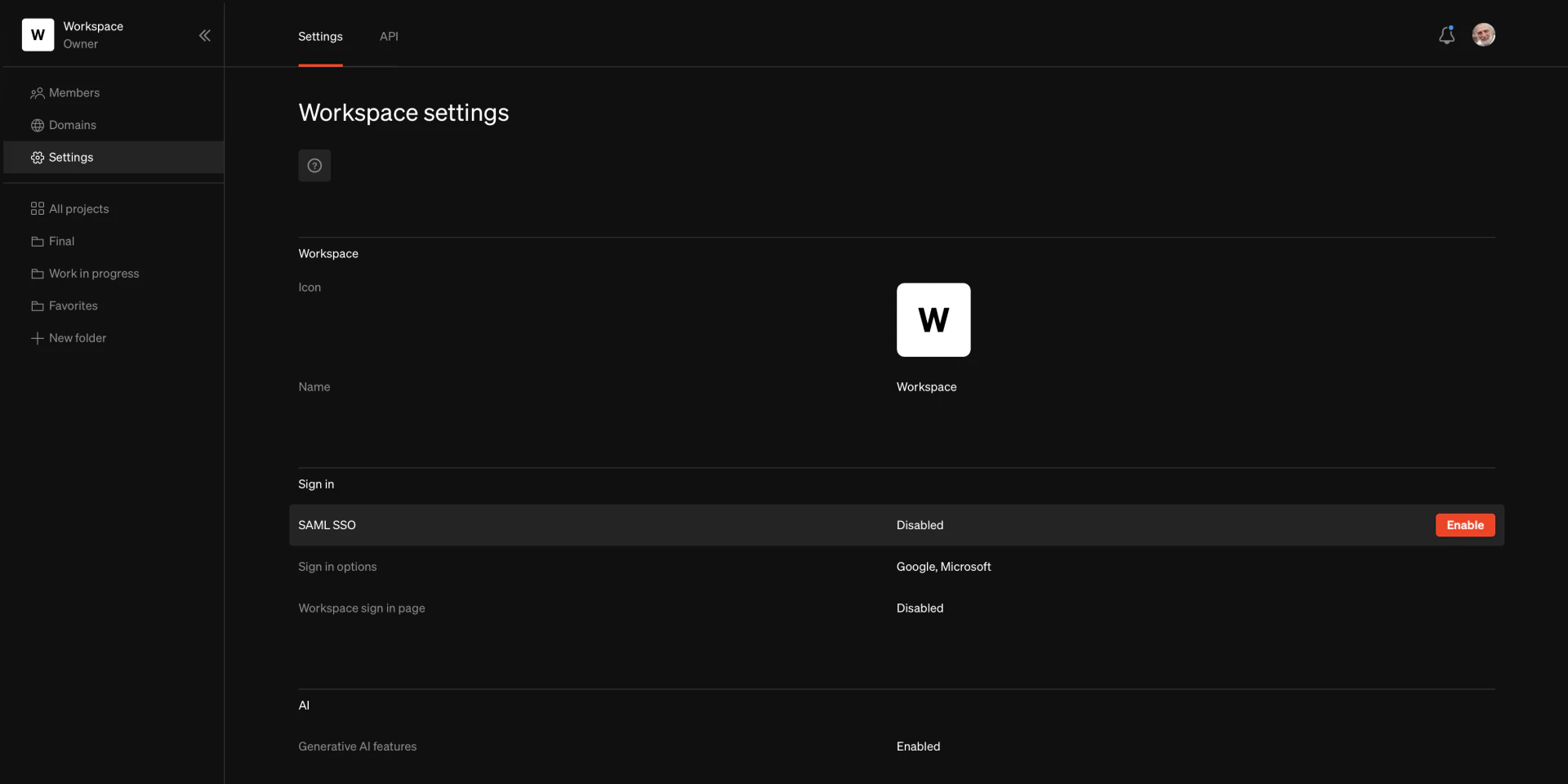
Navigate to Settings
Settings
Enable when hovering on SAML SSO.Enter values
Submit
SubmitEnabling SAML SSO
Sign into Standards
Navigate to Settings
Check Sign in options
Workspace sign in page
EnableSign in page URL
Testing the integration
Enable workspace sign in page
Visit workspace URL
Sign in
Next steps
Disable other sign in options
In the workspace dashboard Settings page, disable sign in options except for SAML. This won’t prevent people from signing into the Standards app using other providers on the general sign in page, but it will prevent your published projects from being viewed using other sign in methods (depending on your project security settings).Remove password authentication
To improve security, each workspace member should remove the password sign-in option from their account. This can be done on the Account page after successfully signing on using the SAML integration. To access this page, click on the avatar in the top right corner of the Dashboard. Hover on Sign in methods and selectRemove password
Publish with SSO sign in required to view
When publishing a project, use the Sign-in required security option. This will require users to sign in using your chosen sign-in options, providing maximum security for your published projects.Frequently asked questions
Which SAML connection type do you support, IDP initiated or SP initiated?
Which SAML connection type do you support, IDP initiated or SP initiated?
How do you recommend setting up the integration using Okta SSO?
How do you recommend setting up the integration using Okta SSO?
- An invisible app for the SAML connection itself
- A bookmark app linking to your workspace sign in page, for editors and admins that need access to the Standards workspace
- A bookmark app directing to the published project URLs, visible to everyone at the company.
What NAMEID format should be used?
What NAMEID format should be used?
Are there other SAML attributes that should be passed?
Are there other SAML attributes that should be passed?
Should the SAML Response or Assertion be signed?
Should the SAML Response or Assertion be signed?
Can user roles be passed with the Assertion?
Can user roles be passed with the Assertion?
What is the SSO URL?
What is the SSO URL?
What is the Recipient URI and the Destination URI?
What is the Recipient URI and the Destination URI?
What is the SP Entity ID?
What is the SP Entity ID?
Is there a Default RelayState?
Is there a Default RelayState?
Does Standards support Single Logout Out (SLO)?
Does Standards support Single Logout Out (SLO)?
Can we set up multiple SAML SSO integrations in our workspace?
Can we set up multiple SAML SSO integrations in our workspace?
Do you support SCIM?
Do you support SCIM?