

Overview
Collaborate in real time, set navigation for your project, add content and design to pages, create and manage re-usable Components, browse and upload Files, and share with a wider audience. If you’re new to Standards, it may take some time to orient yourself when you first open the project editor. This guide will help you learn where to find different information within the editor so that you’re up to speed and ready to dive in.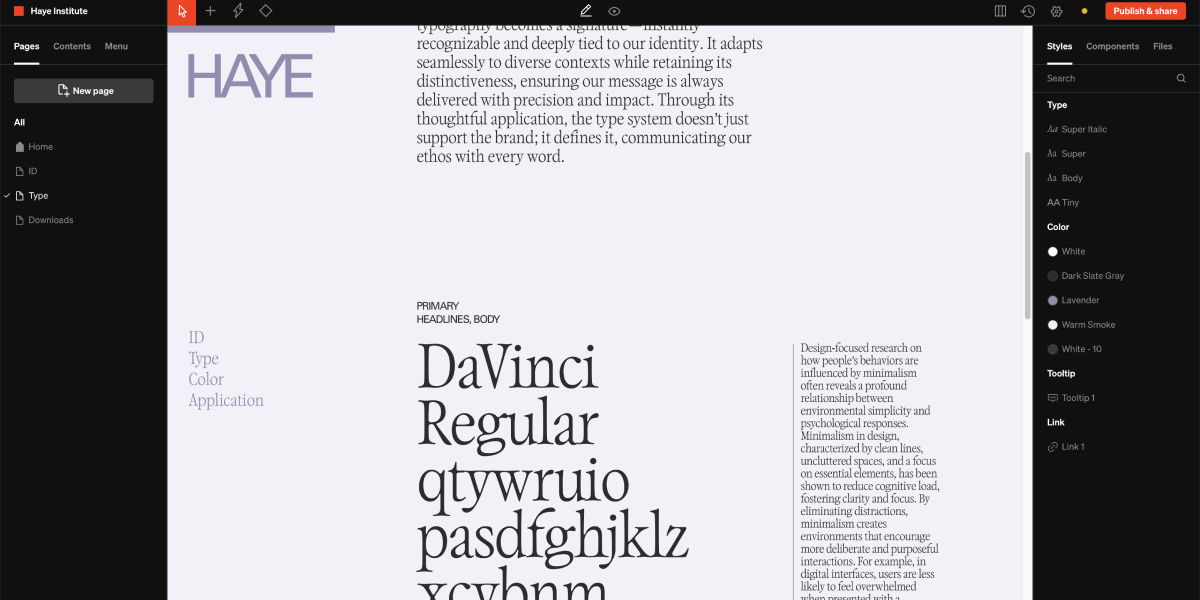
Left sidebar
Manage the high-level structure of your project.- Pages - Individual web pages with their own content and URL
- Content - Every content layer on the selected page
- Menu- Global menu content layers, flexible and defined by the user
Top toolbar
Add content, manage visibility preferences, track changes, and publish your project.- Add- For adding content to the page body
- Mode- Change between design, comment, and content modes
- Breakpoint - Add and change between desktop, tablet, and mobile modes
- Preview - Toggle a preview mode to preview work similar to if it were published and you were a viewer
- Language - Select and add languages
- Settings (gear icon) - Show project settings sidebar
- Status - Review the publishing status of the project
- Publish & share (button) - Show publish and share window to set the web address, access restrictions, share details, and share link appearance like favicon and share image.
Right sidebar
- Styles - Review, edit, and add type, color, tooltip, and link styles
- Components - Review and edit existing components
- Files - Browse, add, replace, and remove project files
- Settings - Contextual to what is selected
Page body
Add content, preview your design, edit text and set interactivity.- Content - Add text, media, and more to this area to be displayed on the live site
- In-body toolbar - Contextual tools to what is selected, enabling options for behaviors like click to download or text styling like underline or color fill.
- In-body move controls - Contextual handles to what is selected, move, reorder, and resize content by click + moving these controls around on the grid.
Pages
Pages in Standards are essentially the same as pages on any website, and should feel familiar to anyone who has basic experience designing digital experiences. Each page has a unique URL, and contains a grid layout for content made to scroll vertically inside a web browser.Home page
This is the first page a viewer sees when they visit the project on its published domain. Each project must have at least one page, which naturally doubles as the home page. Multi-page projects must specify which page is the Home page. The home page is indicated by a house icon, and can be changed by selecting the three dot icon while hovering on a page in the left bar and selecting Set as home from the list of options.Layout and grid
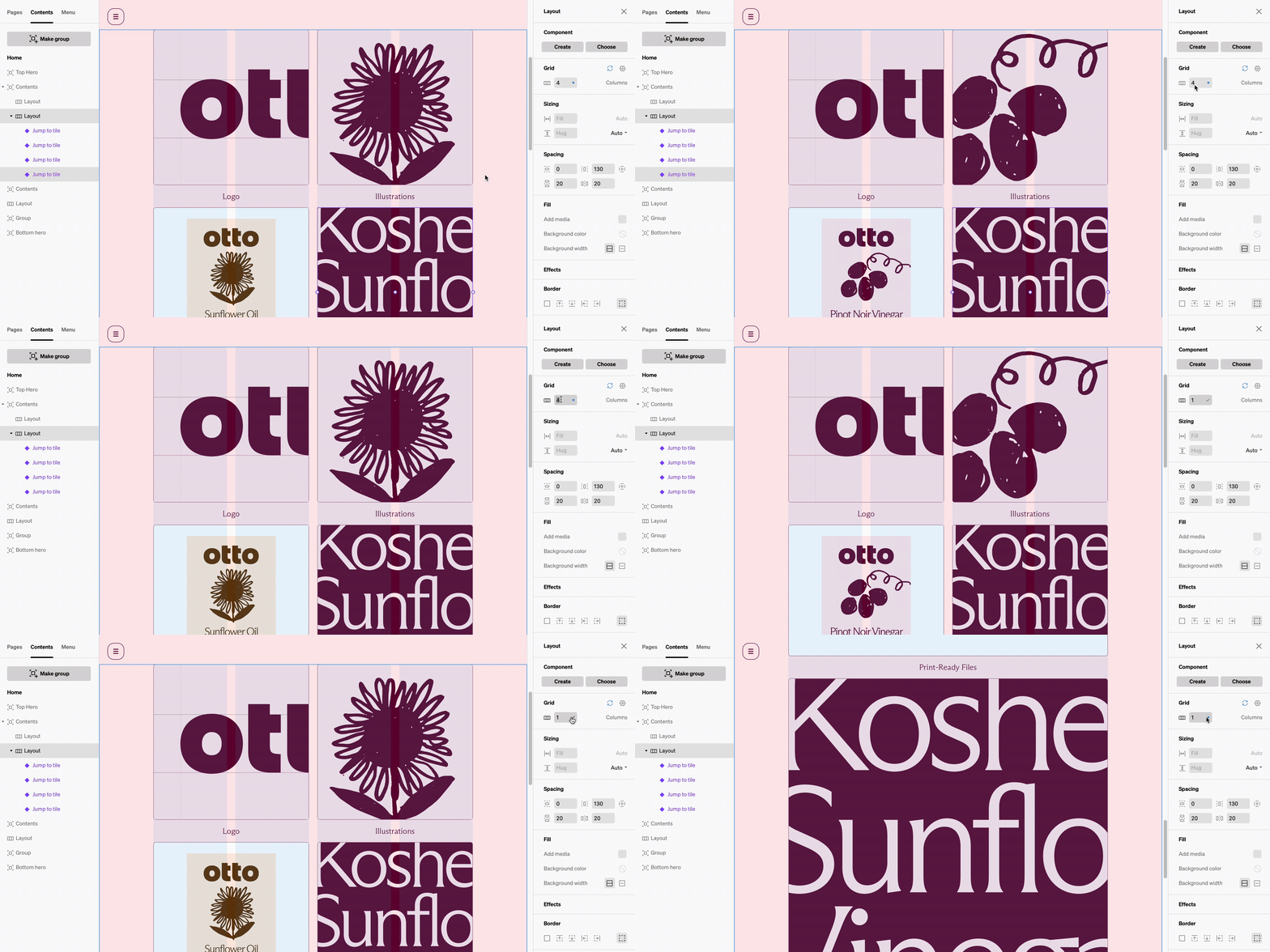
Page Settings
Each page has its own settings panel, which can be accessed by selecting the gear icon while hovering on a page in the left bar. Here you can customize the page URL, as well as the default background and text color. Learn more about PagesContent
Anytime content is added to a project, it will appear under Contents as a layer. Control what content appears on your page from here. Below is a list of all content types available in Standards.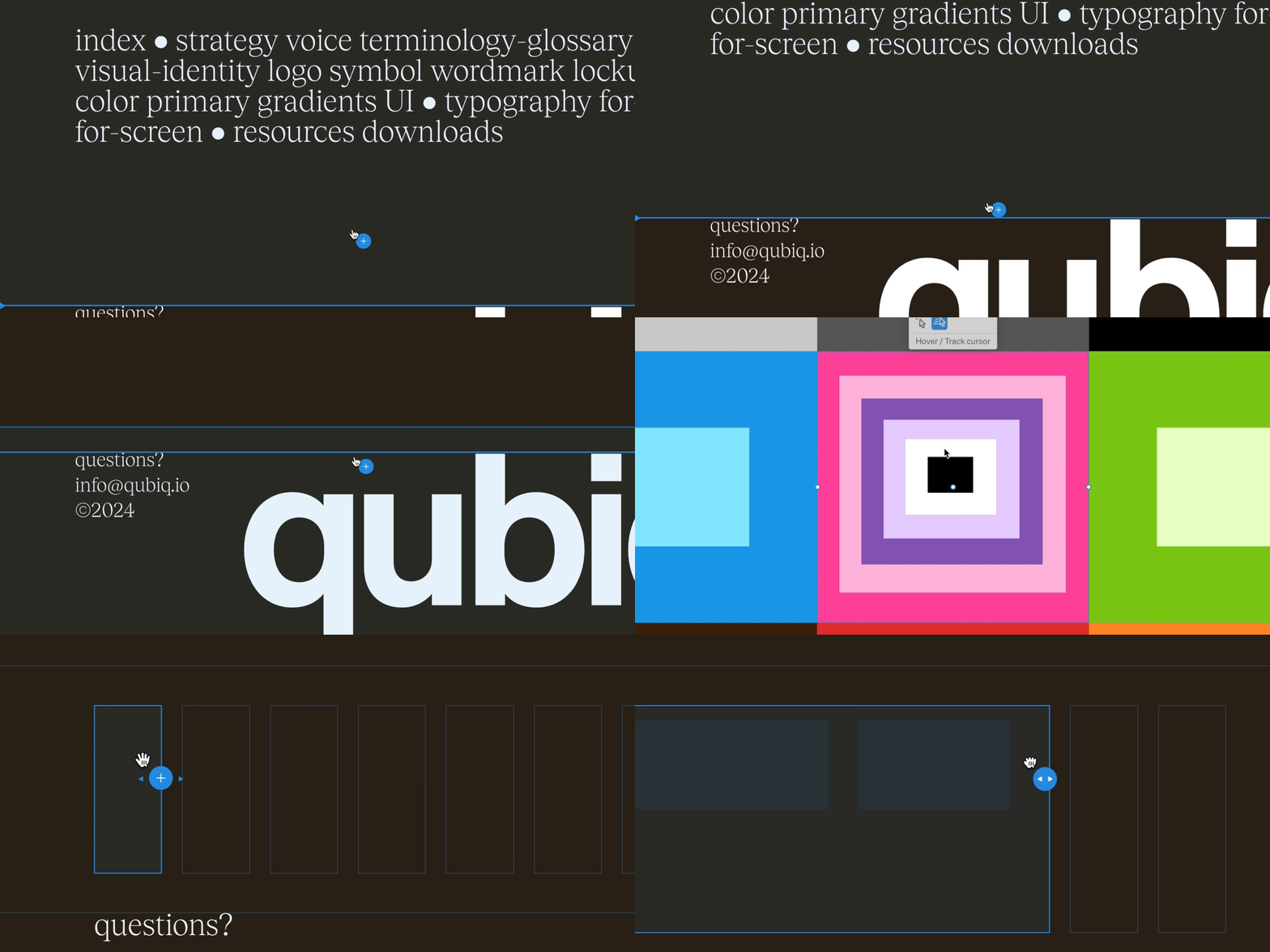
Adding content
1
Select add dropdown
At the top left of the Toolbar, there is one add icon, which opens to show all available content options.
2
Choose content type
Depending on the option chosen, there will either be a popup to choose options, or the body of the page will highlight with available points to add the chosen content to
3
Click + drag
Many types of content are added directly to the page by clicking then dragging on the grid. This enables the placement and size you would like.
4
Style
Once added, select the content to show settings in the right bar that can be edited to reflect your desired design intent.
Basic content
Media
Media
Hotkey: M
Displays image and video files: PNG, JPG, GIF, SVG
Displays image and video files: PNG, JPG, GIF, SVG
Text
Text
Hotkey: T
Displays live text
Displays live text
Dropdown
Dropdown
Hotkey: D
An interactive element that shows and hides nested content
An interactive element that shows and hides nested content
Audio
Audio
Plays audio files: MP3
Video
Video
Video file player with controls.
Sequence
Sequence
Contains slides in sequence navigated with controls, commonly used for slide shows and carousels.
Toggle
Toggle
Contains two slides that switch between one another.
Layout content
Spacer
Spacer
Hotkey: S
An inert layer with a height property.
An inert layer with a height property.
Sublayout
Sublayout
A structural layer essentially the same as a Layout but can be added inside a column.
Brand content
Don't
Don't
Automatically displays common incorrect usage such as stretching a logo, with a violator overlaid.
Media scale
Media scale
A scaling sequence of media, commonly used for showing the largest and smallest extent of a logo.
Color swatch
Color swatch
Displays a color, the color’s specs, and enables the copy HEX behavior.
Color proportion
Color proportion
A sequence of colors commonly used to show the balance of color usage throughout the brand.
Albers' proportion
Albers' proportion
A stack of overlapping colors, commonly used to show pairings.
Type specimen
Type specimen
Displays letters, numbers, characters, and extras of a chosen font.
Type characters
Type characters
Displays individual characters from a chosen font.
Type tester
Type tester
An input field enabling viwers to test a set type style.
Embed content
Vimeo
Vimeo
Displays embedded Vimeo video player.
YouTube
YouTube
Displays embedded YouTube video player.
Figma
Figma
Displays embedded Figma file page or prototype.
Soundcloud
Soundcloud
Diplays embedded Soundcloud audio player.
Spotify
Spotify
Displays embedded Spotify audio player.
iframe
iframe
Displays anything that can be embedded with iframe HTML, a common use is to display Lottie animations.
Automations
Modular templates of typical sections within brand guideline documents. Learn more about Automations.Components
Saved designs which can be used repeatedly throughout a project. They can be updated at any time from a single main version, and any changes will sync across all instances. Learn more about Components.Menu

Styles
The right sidebar in the project Editor contains a tab labeled Styles. This tab contains categories for Type, Color, Tooltip, and Link. These four (4) categories comprise all Styles used in Standards. Similar to other design programs, Styles are not considered content, but rather a collection of pre-defined settings that affect the appearance of content. Styles are applied to content elements throughout a page for visual consistency, and may be updated in one place from the tab in the right sidebar.Managing styles
To add a new style, select the+ icon next to the header for each category. Name and edit the settings for your newly added style, and select Done to finish adding. To edit, duplicate, rename or delete a style, select the three vertical dots while hovering over the side in the right sidebar.
Project settings (gear icon)
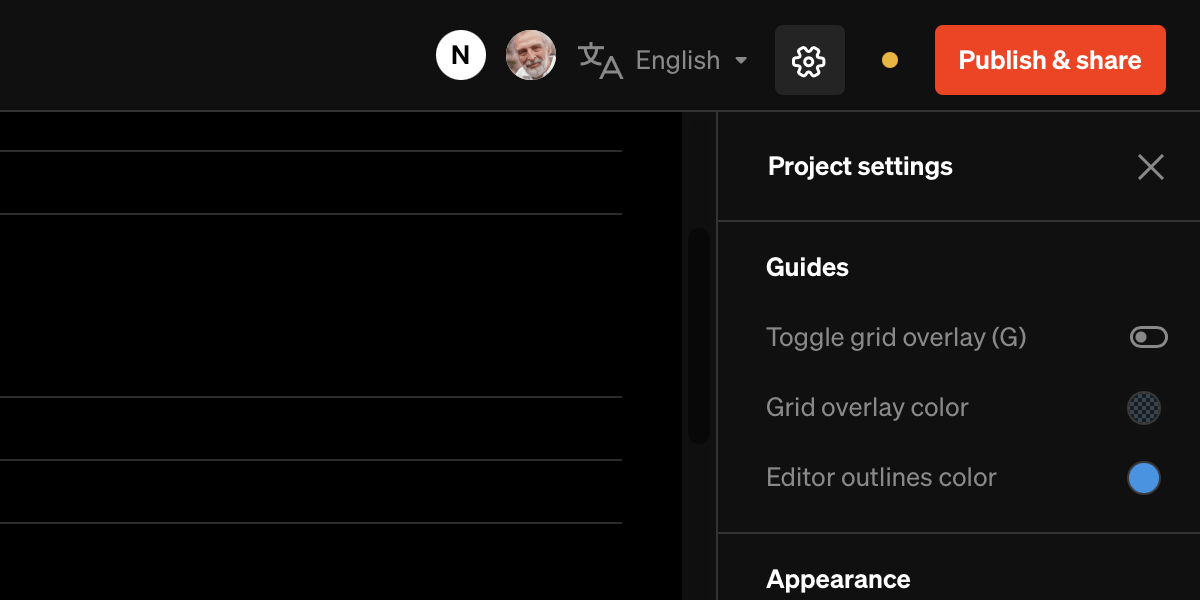
Guides
Modify the appearance of the overlay grid and selection outlines. Toggle guides on and off with hotkey GAppearance
- Text vertical trim: toggle text bounding boxes trim area between line height and actual letterform.
- Text anti aliasing: toggle live text anti aliasing between an aliased version (appears thicker) and anti-aliased version (appears crisper)
Defaults
- Page background color: All pages default to this color
- Text color: All text defaults to this color
- Button background color: All new buttons default to this color
- Button text color: All new button text is set to this color