Basics
At its simplest, adding is the action of choosing what you want to add then selecting where you want to add it. Keep in mind, all content from carousels to text can be added following the same basic method.How to add

1
Select + dropdown menu
Within the design editor, select the
+dropdown from the top bar2
Choose content to add
Choose basic elements like Text or Media, or choose from brand elements like Color swatch or Don’t.
3
Select area to add to
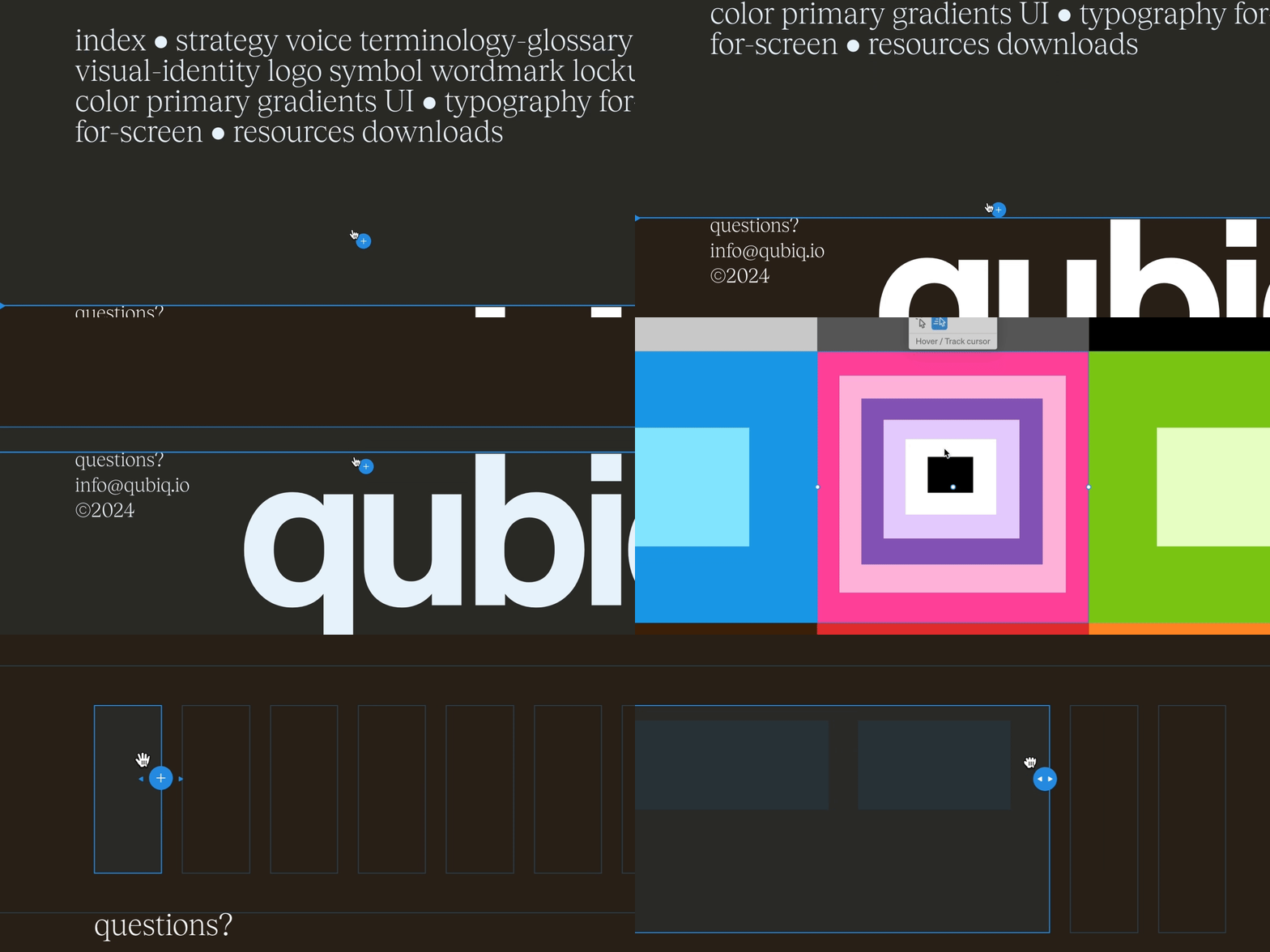
Select a point in the project body by selecting between layouts, click + dragging within, or selecting a point inside a column.
Tip: Hold command during step 3 above to enable directly adding into an existing column.
Previews in the add menu
Items in the+ menu show a live preview rendered with your project’s own styles, rather than a generic illustration, so you can see roughly what you’re about to add before you add it. Hovering an item also shows a short description of what it does at the bottom of the window.
The same live previews appear elsewhere you pick a page or an element, such as choosing which pages a menu appears on or which pages to protect when publishing.
Adding Automations
Automations are a powerful tool that helps quickly automate adding commonly-used content within brand guidelines.1
Select add dropdown menu
Within the design editor, select the
+dropdown from the top bar2
Choose Automation add tool
Alternately use the hotkey H to quickly enable the Automation add tool
3
Select area to add to
Select a point in the project body by selecting between layouts
4
Choose Automation
Choose the Automation from the pop-up window
5
Follow steps, if applicable
Many Automations have multiple steps to choose preferences
Adding Components
Components are a single-saved design which can be used repeatedly throughout a project. They can be updated at any time from a single location, and any changes will sync across all instances1
Select add dropdown menu
Within the design editor, select the
+dropdown from the top bar2
Choose Component add tool
Alternatively use the hotkey C to qiickly enable the Component add tool
3
Select area to add to
Select a point in the project body by selecting between layouts, click + dragging within, or selecting a point inside a column.
4
Choose Component
Choose the component to add from the list of components that can be added to the chosen area you’re adding into.
Keep in mind: Where you select will affect what can be added. For instance selecting within a column will show basic components you’ve created like buttons
Add mode
While adding, you are in a multi-step add mode. Below outlines various common states you will encounter in add mode.Add to existing layout
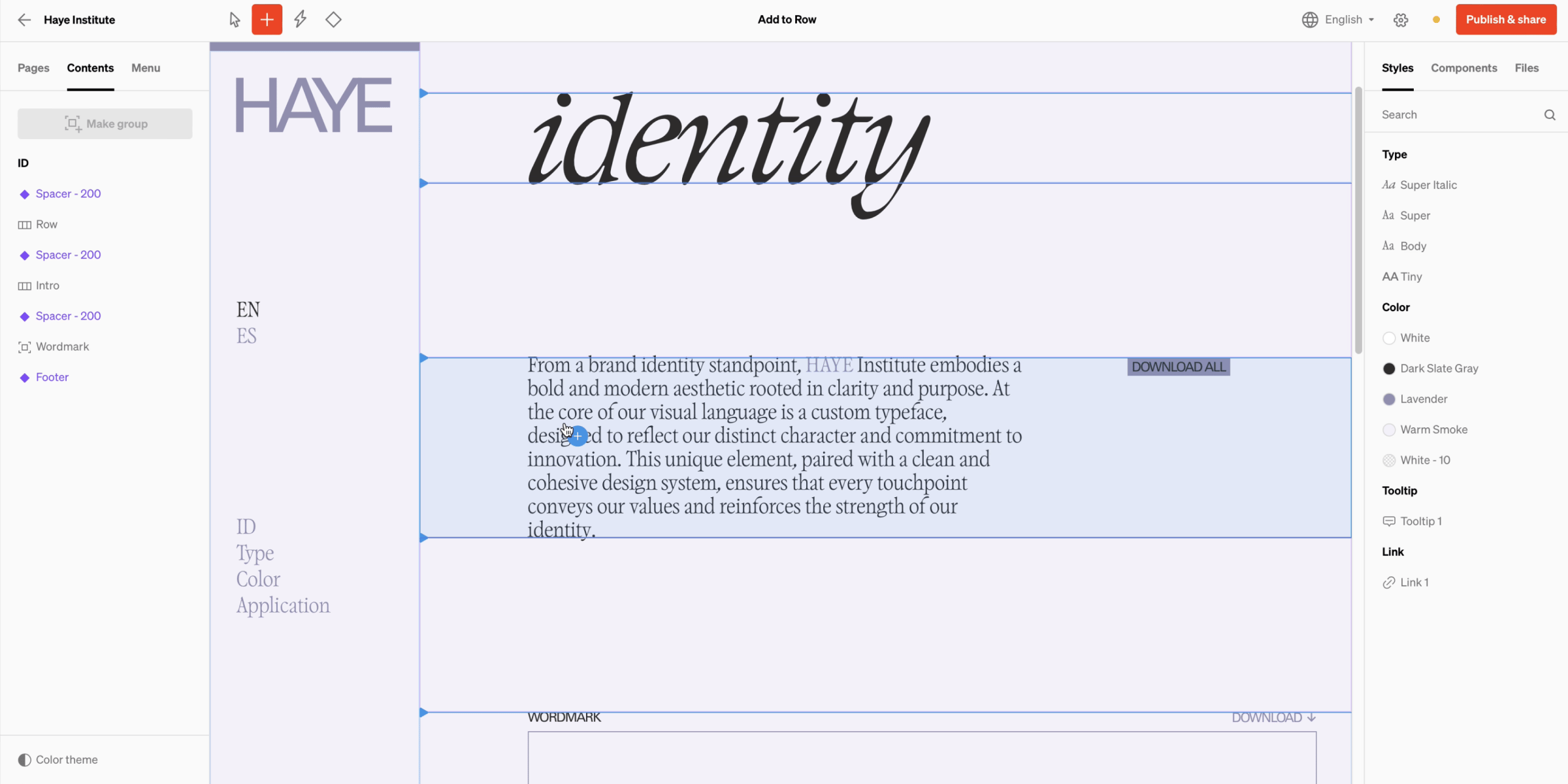
1
Hover in-body to choose where to add
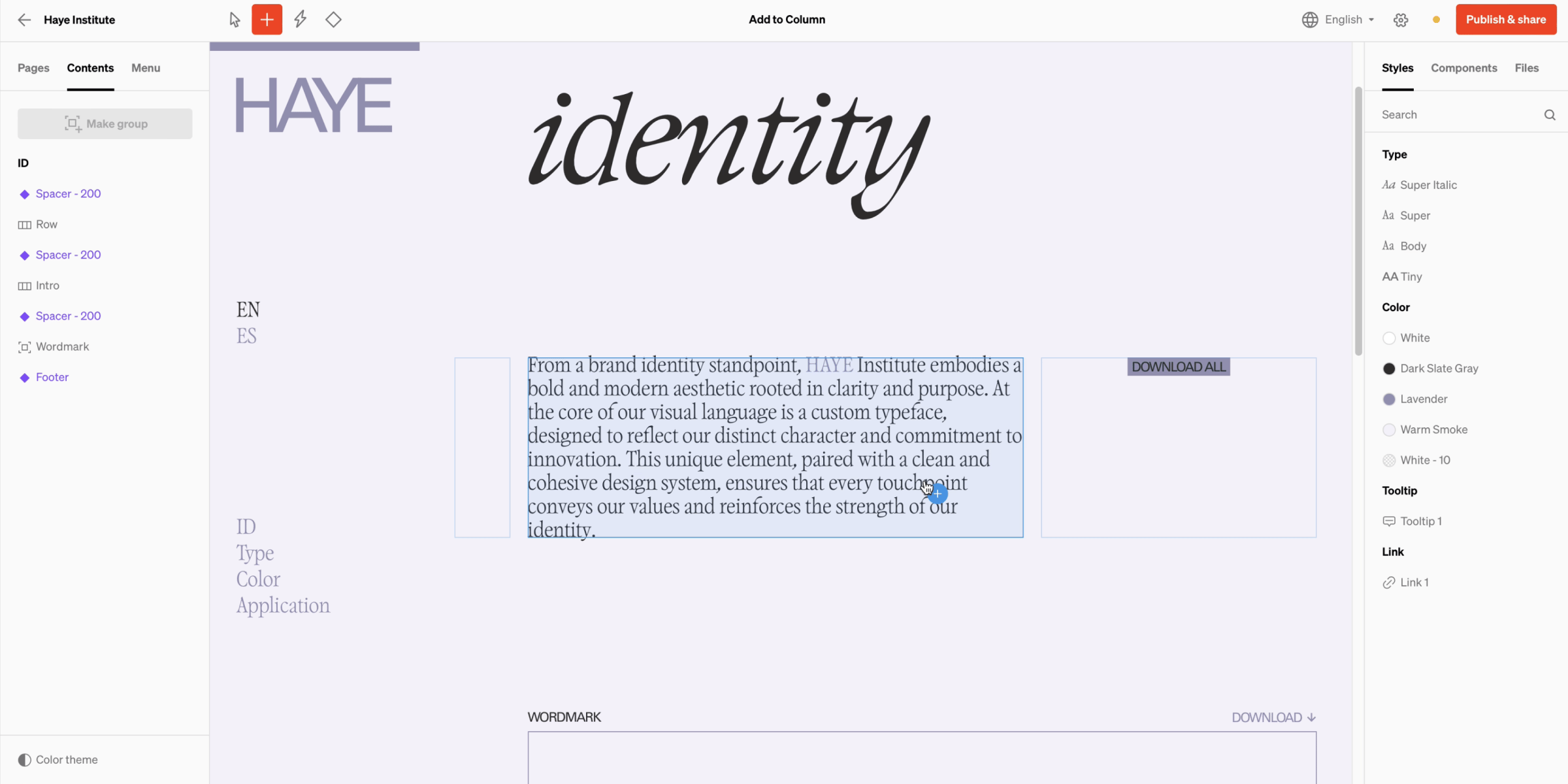
2
Choose column
Create a new layout
1
Hover between groups / layouts
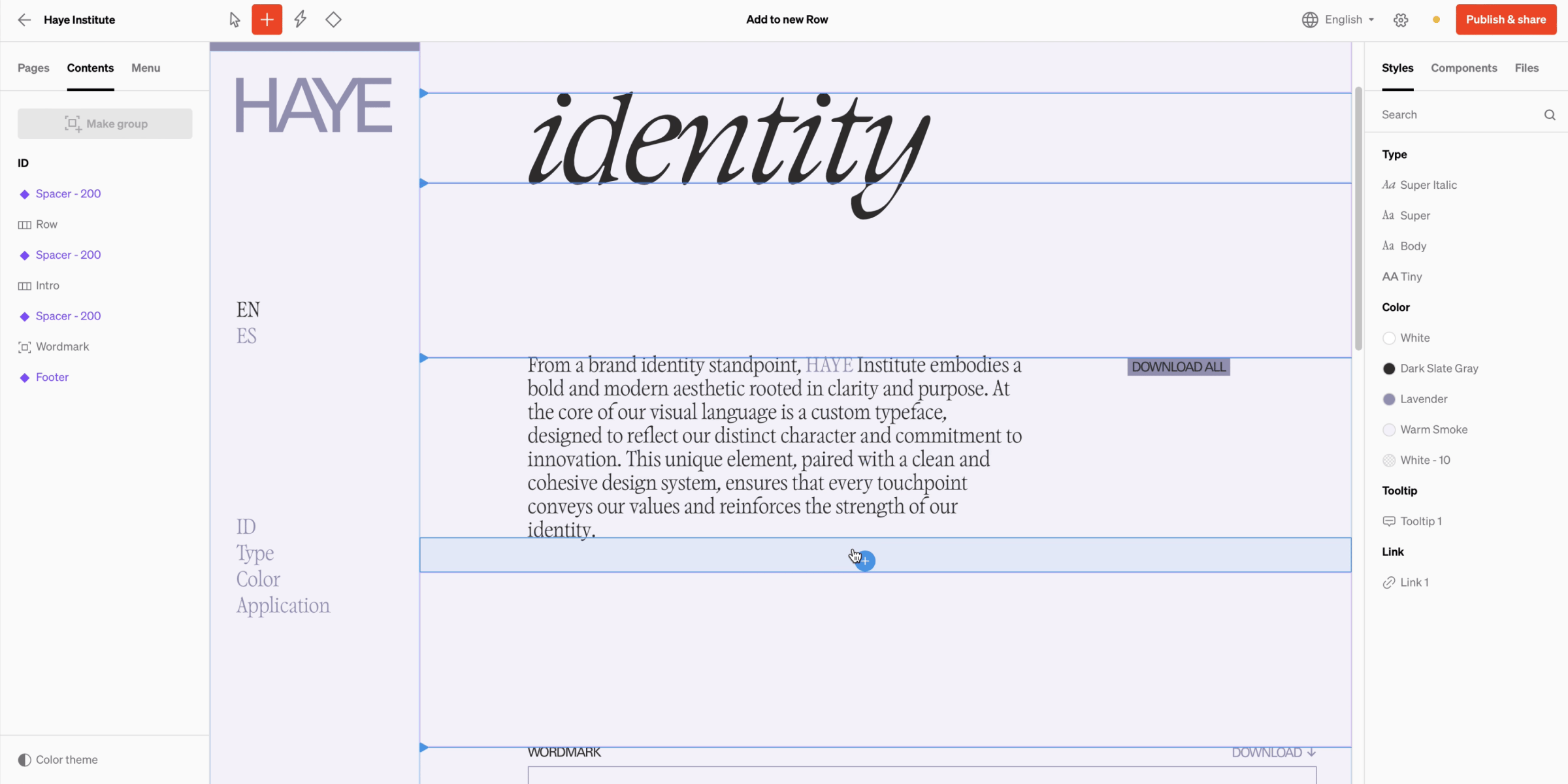
2
Click + drag to define size and placement
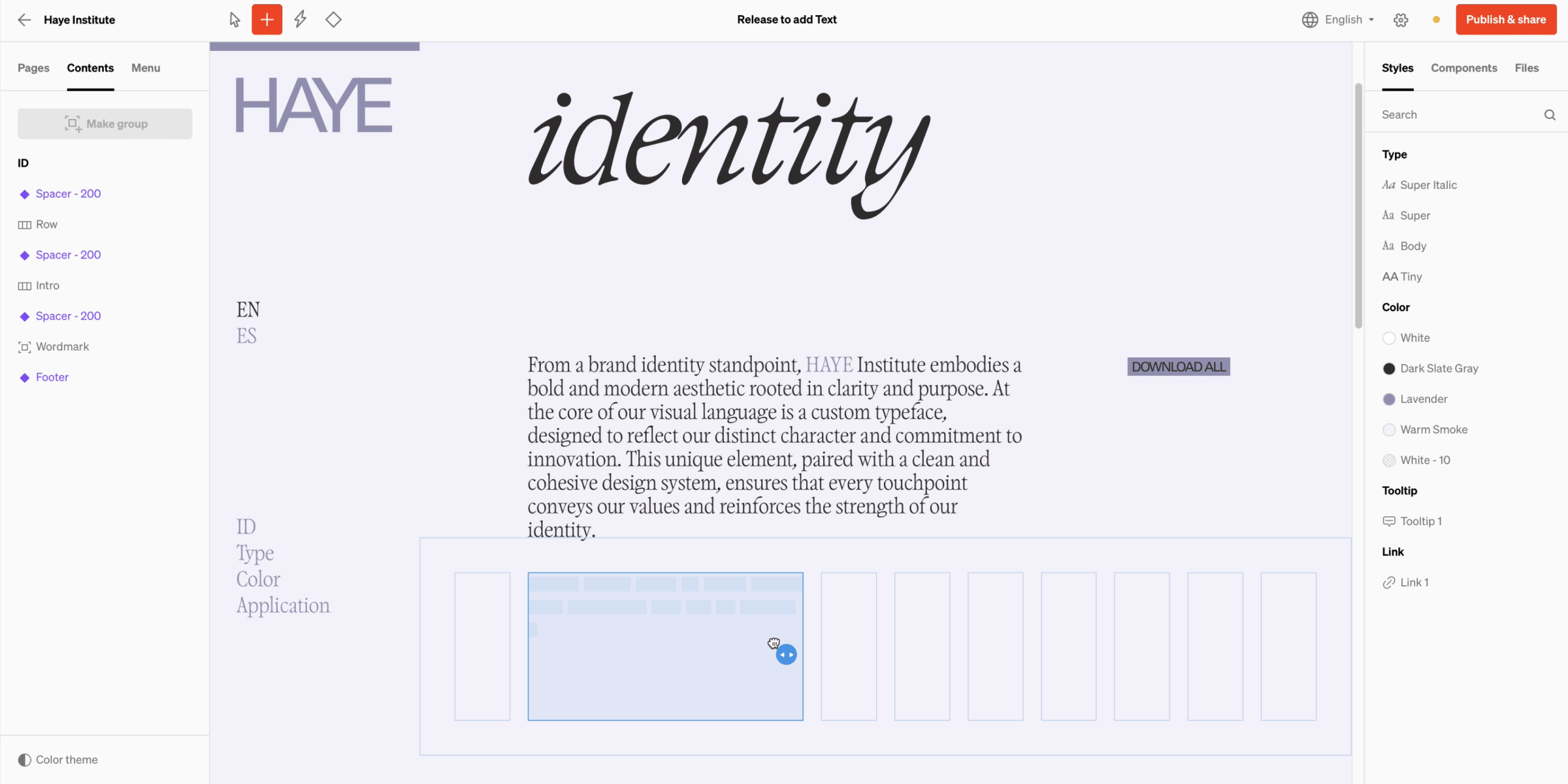
Locked areas
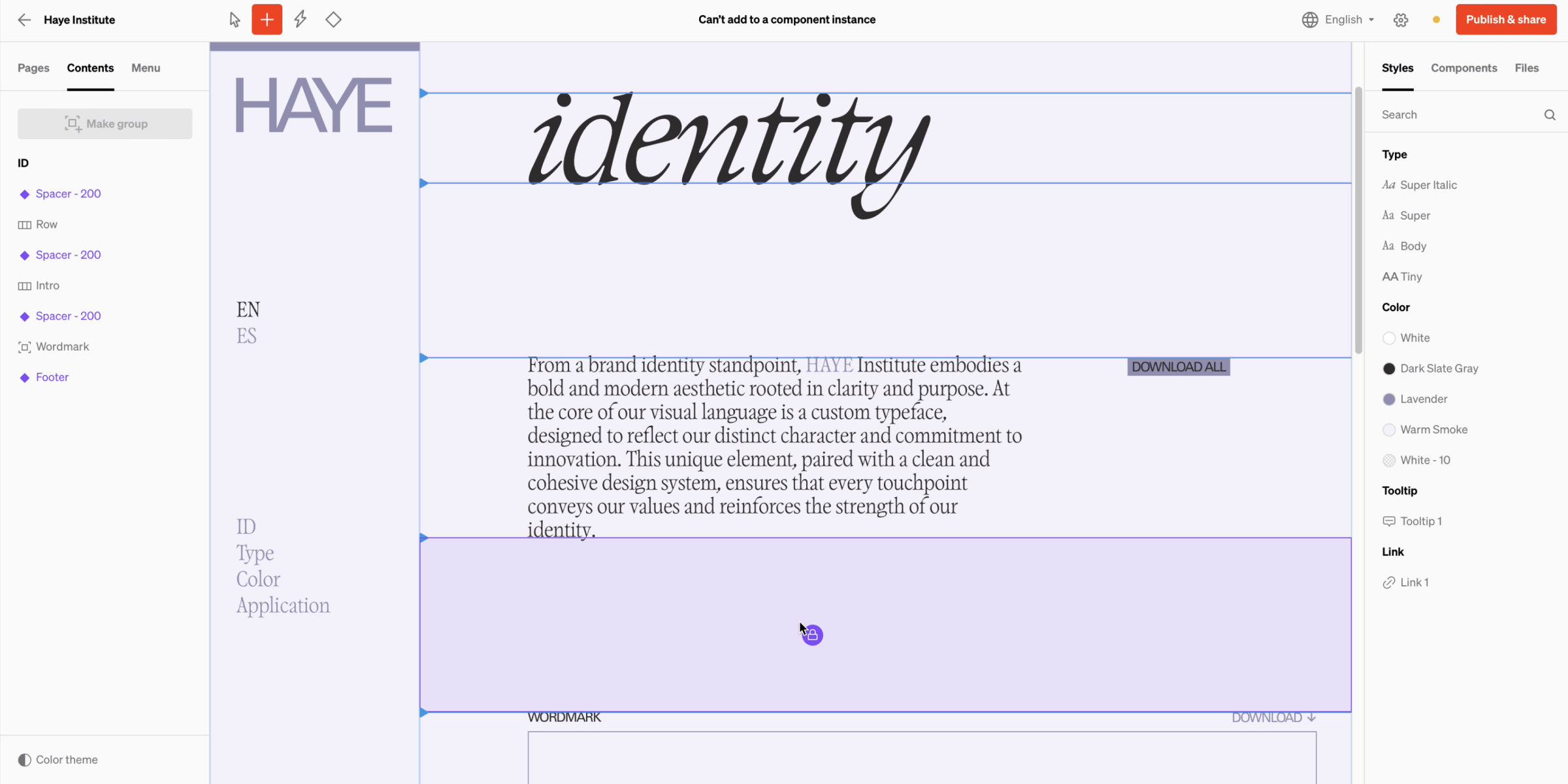
While adding, all component instances will be locked from adding into. To add into components, you must edit the main component itself.