


Media basics
Media is an element that can be added anywhere in your project and simply consists of a bounding box that can be sized, styled, and filled with content. Media elements may display static images, animated media, and vector files.Adding media
1
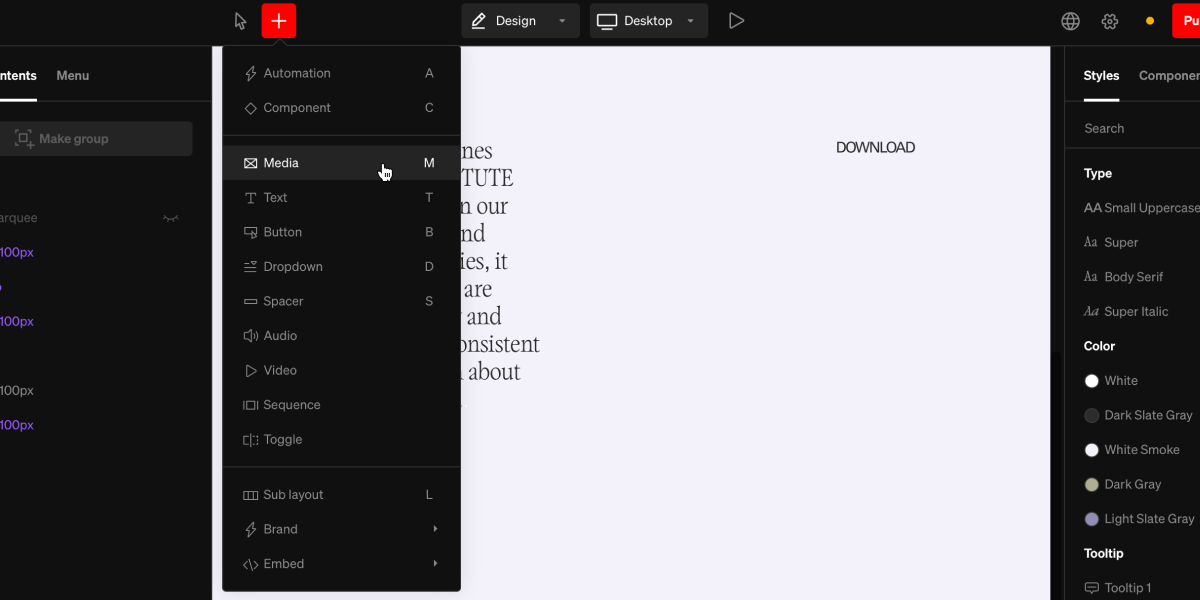
Select the media add tool
From within the editor, select Media from the
+menu in the top bar, or use the hotkey M2
Select area to add to
Select a point in the project body by selecting between layouts, click + dragging within, or selecting a point inside a column.
3
Choose file
Once added, select or upload the file you want to fill the media element with
Tip: Hold command to add media directly into a column with 1 click.
General use
Media is a flexible element with a range of uses. Here are common general uses:
Static images
Choose an uploaded file such as .JPEG, .PNG, .webP or .TIFF to display a static image. Standards optimizes images for various screen sizes. Therefor, we recommend uploading your highest resolution images. Tip for gradients: It’s suggested to use high quality .JPEG files for gradients for better color, compression, and file size. Sometimes .PNG gradients will appear overly compressed.
Vectors
Choose an uploaded .SVG file to display vectorized media. When preparing vectors for Standards, ensure the art-board is cropped to the artwork itself, with no additional space around within the exported file.
Videos
Choose an uploaded file such as .MP4, .WebM, or .GIF to display an animation or video. As with images, Standards optimizes videos for various screen sizes. Therefor, we recommend uploading your highest quality videos below 100mb per file.Video media
Media is often greatly enhanced by incorporating motion or video, not only improving clarity and usability but also simply by adding moments of excitement to your project. Media that references video files gain unique settings to control behavior.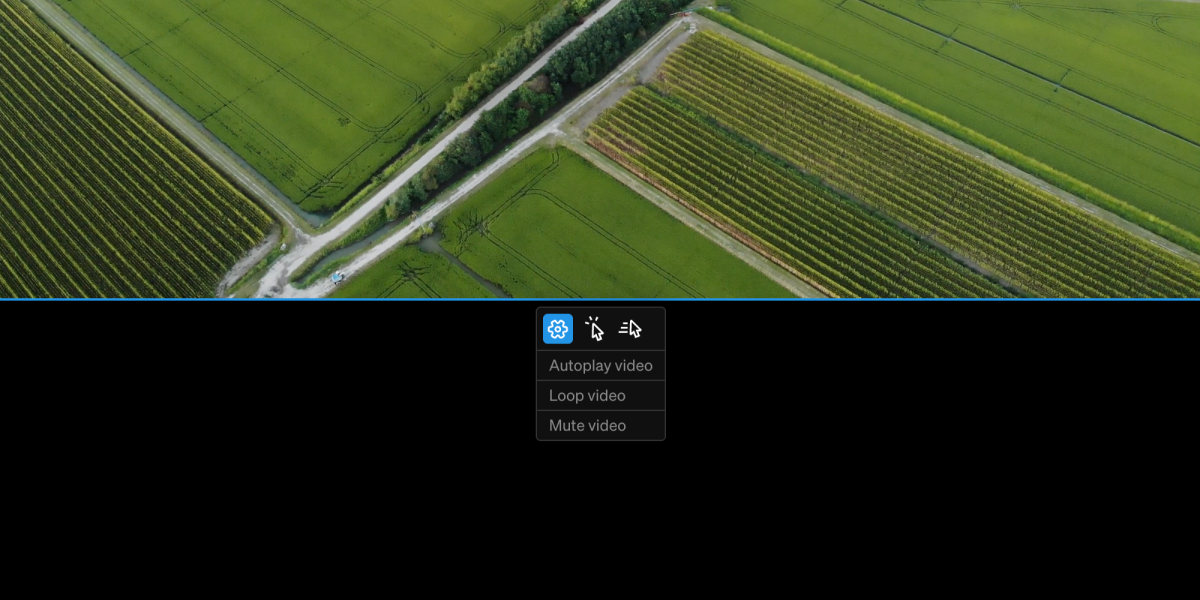
Settings
- Autoplay Play the video once it loads without a trigger
- Loop Play from the beginning once it reaches the end
- Mute Mute any audio embedded in the video
Hover
- Play Video Play and pause video media
- Play Audio Play and pause audio in video media