

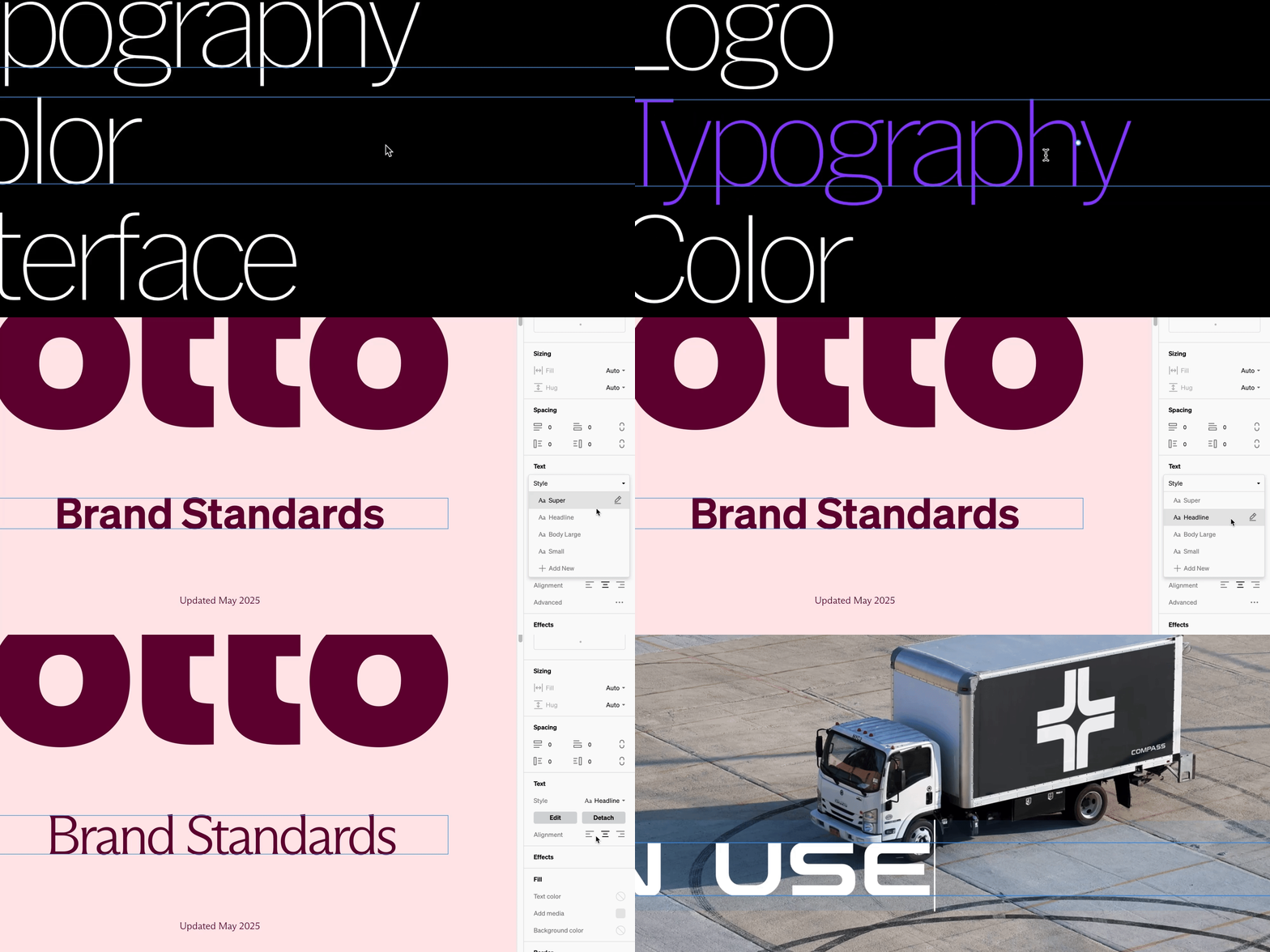
Text basics
Text is an element that can be added to your project layout and consists of two components: the text container, and the text content.Add text

1
Select the add Text tool
From within the editor, select the
+ dropdown from the top bar, then select the Text tool, or simply press T on your keyboard2
Choose where to add
Select a point in the project body by selecting between layouts, click + dragging within, or selecting a point inside a column. Tip: Press and hold the command key then click to add directly into a column.
3
Enter text
Enter text content by typing in the container.
4
Modify text settings
With the new text layer selected, modify the visual formatting and style from the right sidebar options.
Text settings
- Sizing: Controls the width and height of the text container.
- Spacing: Adjusts the padding within the text container.
- Text: Defines the style of the text content, such as the font family and weight, text size, leading, etc. Upload fonts, create or assign text styles, and control text alignment and case in this section.
- Fill: Controls the color of the text content, as well as the background of the text container. Select Add media to display an image in the container beneath the text, or simply apply a background color to the text container. Lastly, you can edit the corner radius of the text container.
- Stroke: Gives the option of adding a border to any sides of the text container.
- Accessibility: Provides the ability to assign an HTML content tag to the entire text element layer.
Text color
Text color is managed in a cascading hierarchy:- All default text color is set in the within the Default text color setting.
- Set an entire page’s text color from Text color fill setting in the , which overrides the default text color for the chosen page.
Text decoration
Double-click the text to highlight it and begin editing the text content. From this state, a contextual toolbar appears allowing you to add a link, or apply styling to individual passages within the text content. The style options include text color, bold, italics, strikethrough and underline.Note: Standards can only apply bold or italics if the corresponding font weight or style has been uploaded and assigned properly. For instance, if there is no italic font style uploaded to the project with the same family as the upright style, then the setting to italicize will have no effect.
Advanced text features
Advanced text features enable additional options including paragraph spacing, automatic sizing based on scale, and some fonts come with advanced features such as variable functionality, OpenType, stylistic sets, alternates, superscript etc.1
Select the block of text or text style
From the contents list, in body, or styles list, select the text you want to access the advanced features of
2
Select Advanced
From the Text settings group, select Advanced to open the advanced text features
Paragraph
- Spacing: Paragraph spacing adds extra vertical space after a hard return, measured in line heights. At a value of 1, a hard return produces the same spacing as two soft returns.
- Responsive text: Responsive text automatically scales type to fit a viewer’s browser window. The scaling is progressive — larger headline text scales more dramatically, while small paragraph text remains fixed.
OpenType
If a font supports advanced opentype features they can be toggled. Each is based on the availablity within a given font. Hover each to preview the alternative.- Numerals
- Superscript
- Stylistic sets
- Letterforms
- Ligatures
- Case
- Advanced typsetting