

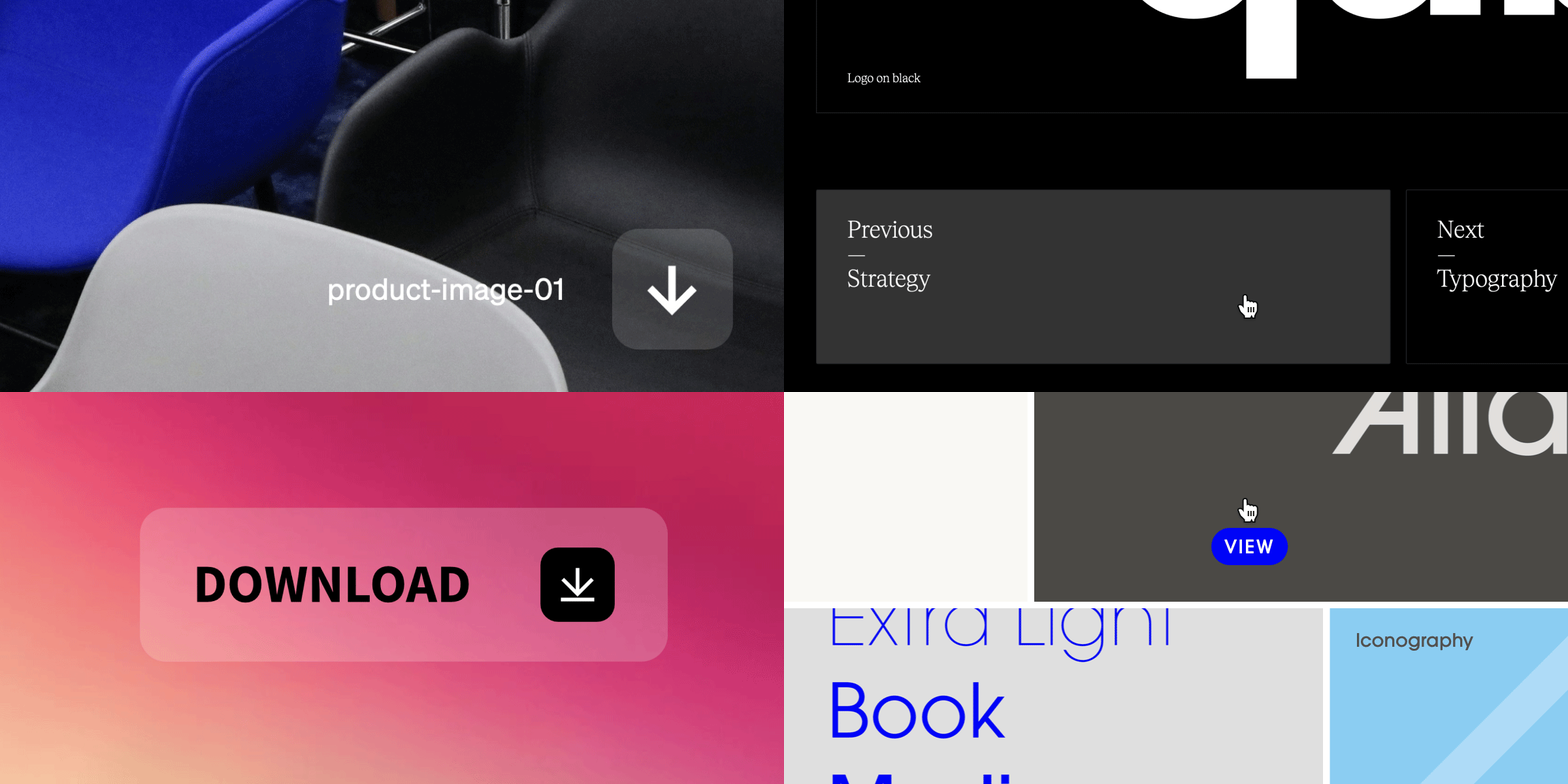
Button basics
Buttons are an element that can be added to your project layout and menu, and consists of three parts: the button container, the text content, and the icon content. Buttons may have Text, Icon, or both shown or hidden.Button variations

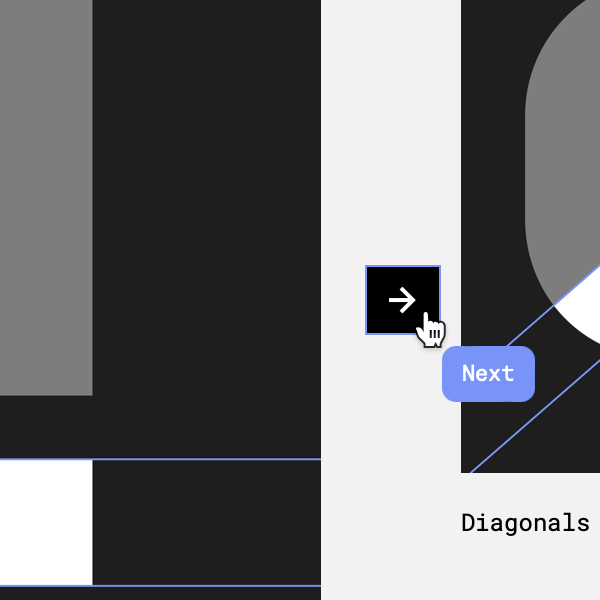

Button with text & icon content turned on.
Button with just icon content turned on.
Button with just text content turned on.
Adding buttons
1
Select button add tool
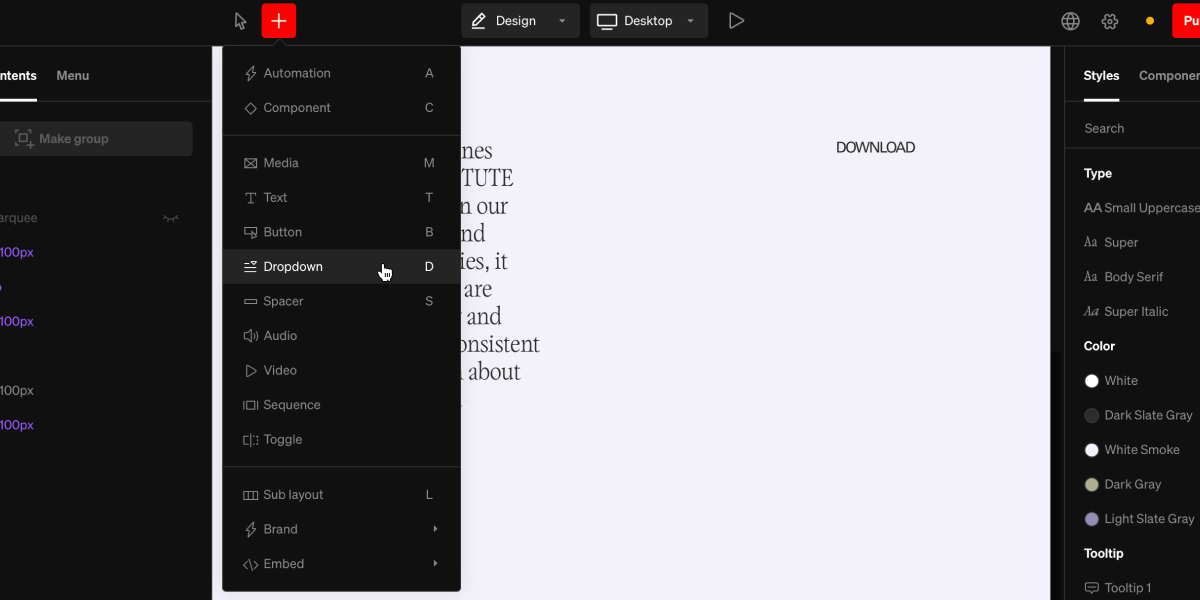
+ menu in the top bar, or use the hotkey B2
Select area to add to
Select a point in the project body by selecting between layouts, click + dragging within, or selecting a point inside a column.
3
Add click behavior
Select the click behavior button from the contextual toolbar and choose the desired behavior, like download file or link to page.
General use
Buttons have a wide range of use. Here are common general uses:Linking
Setting On click → Link to is a common use for making buttons into navigating elements in body and in menus.Menu items
Building menus with buttons is a great way to create navigation items. Doing this allows for a wide range of styling, beyond regular text, such as hover and active states.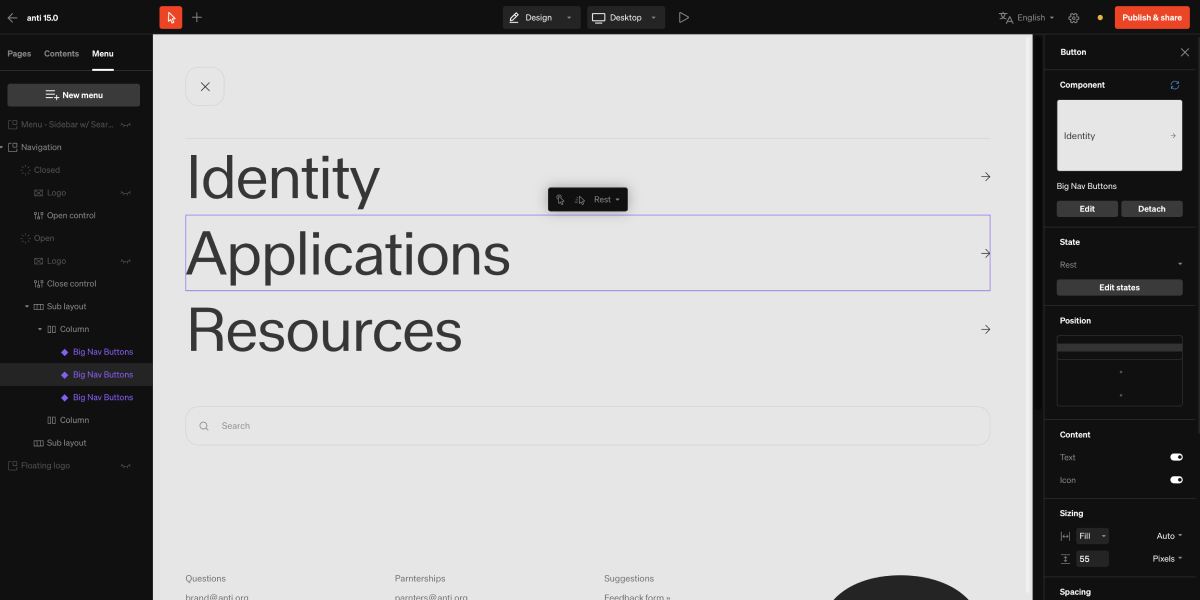
Advanced
Buttons can be used in creative ways to enhance a site’s navigation with larger visual impact.Table of contents
A grid of buttons can be used to create a tiled grid linking to different sections of a site.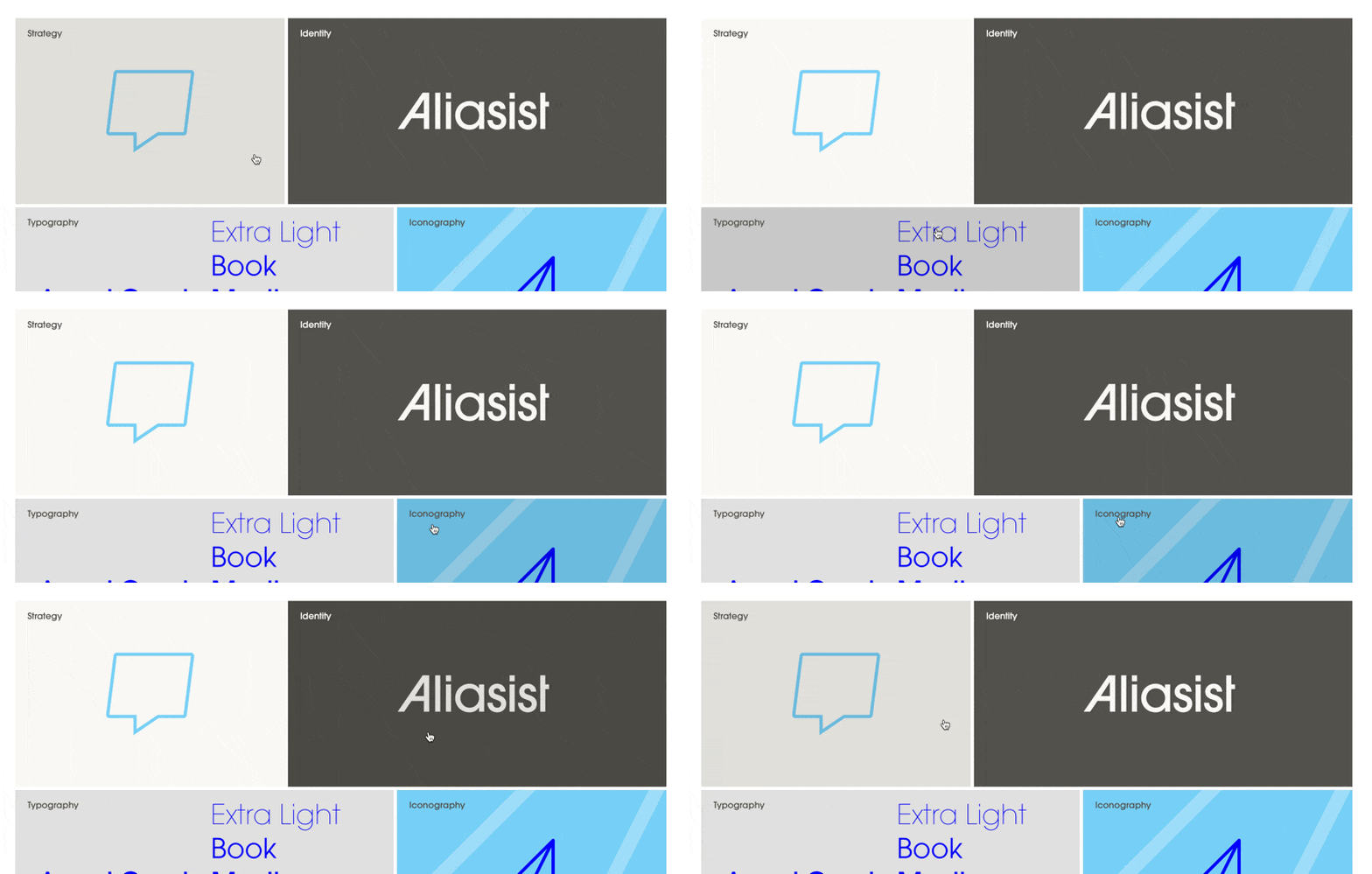
Pagination
Two side by side half width buttons can be used at the bottom of pages to link between pages
Button settings
While selecting a Button element, the right sidebar will display the available settings for styling the container as well as the text and icon within. Each state can have these settings altered independently from another, or synced together.Button states
All buttons have various states that can be styled. This allows for visual hierarchy between default and active or rest and hover.Default
Button is off/unselected- Rest: cursor elsewhere
- Hover: cursor over the button
Active
Button is on/selected- Rest: cursor elsewhere
- Hover: cursor over the button