

Basics
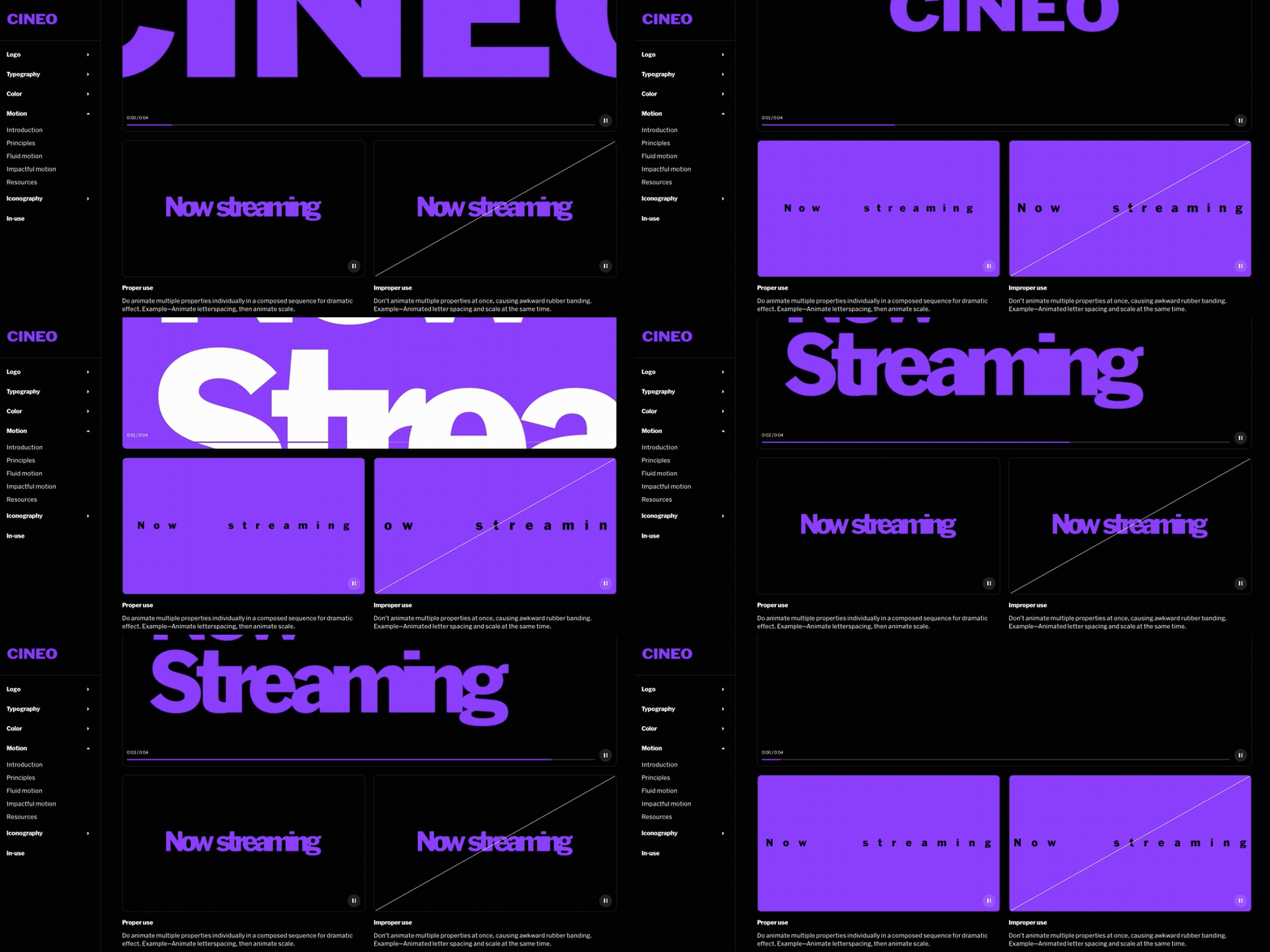
Video elements play .mp4 and .webm files, and include built-in controls with a play button, timestamp, and playhead, as well as playback settings like loop video available in the in-body tool widget.Adding videos
1
Select the video add tool
From within the editor, select Video from the
+menu in the top bar2
Select area to add to
Select a point in the project body by selecting between layouts, click + dragging within, or selecting a point inside a column
3
Choose video file
Select or upload a video file the player will use for playback
Elements inside video
Controls- Play button: Shows play & pause state, can be used to play & pause on click
- Time: Displays in text the total video length, and progress
- Playhead: Displays in a bar the total video length, and progress
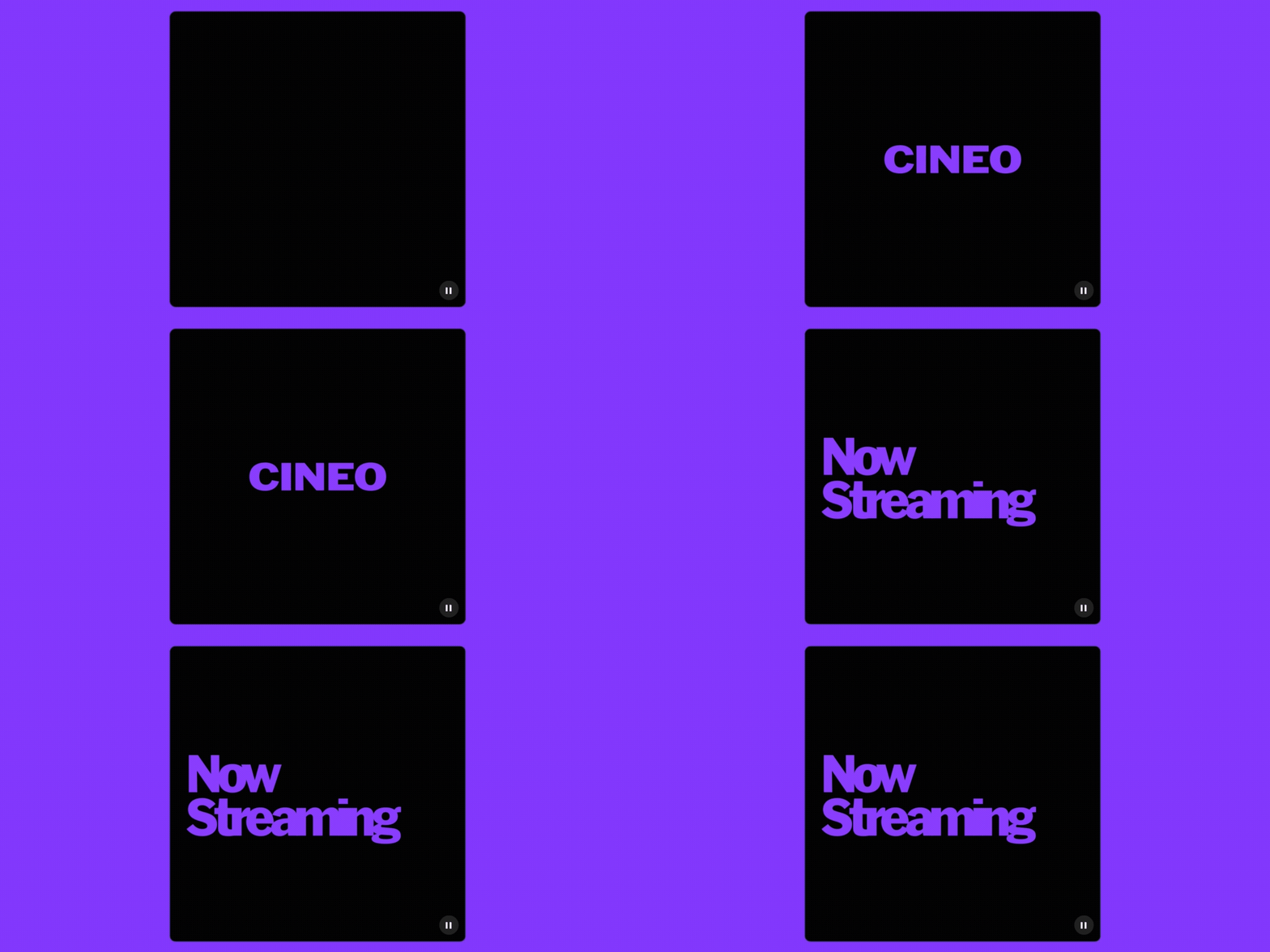
Examples

Playback settings
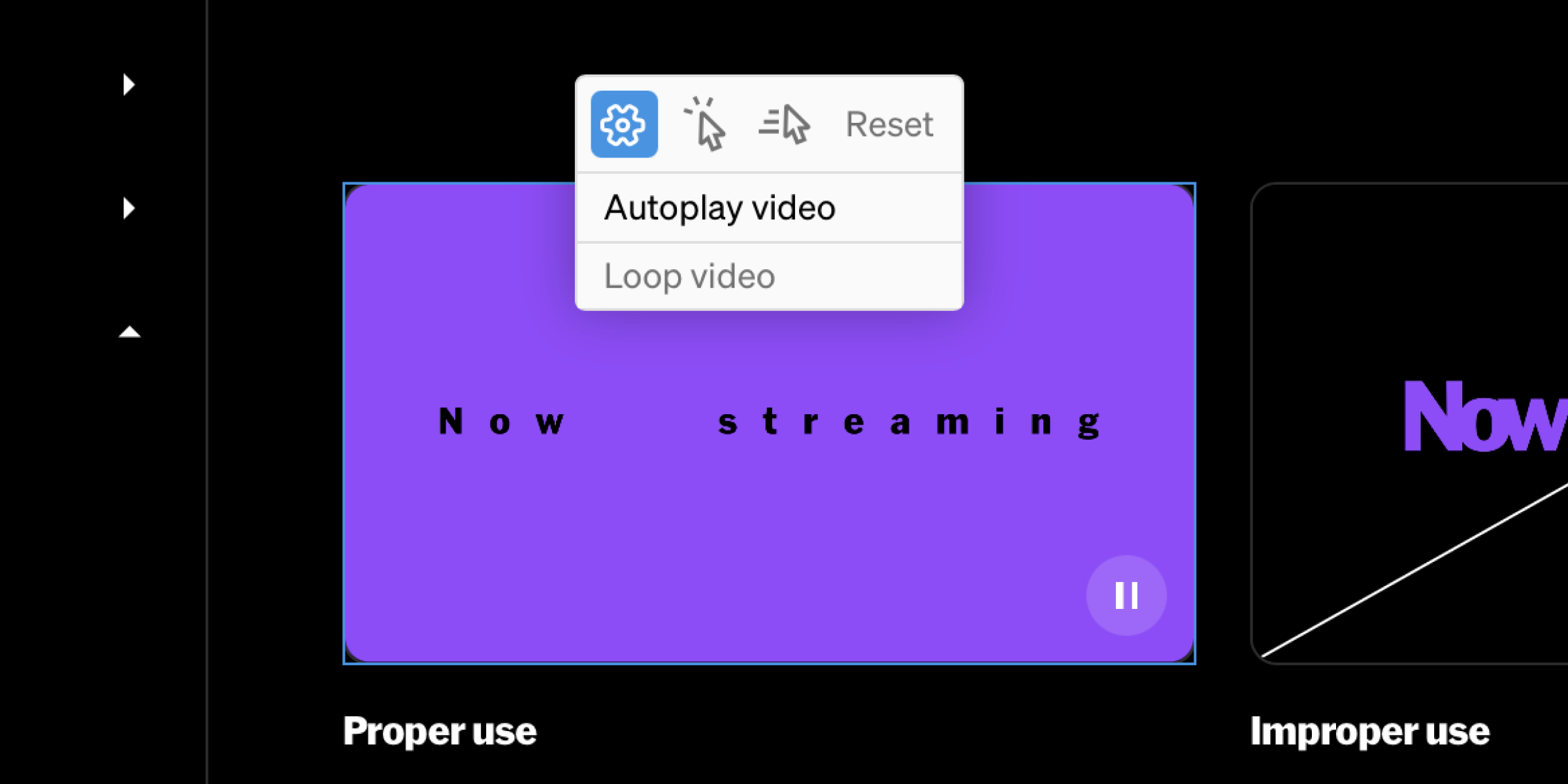
Change playback settings
1
Select video
Within the body of the editor or from the contents list in the left sidebar, select the video element
2
Choose settings
Select the gear icon, then choose preferences like autoplay and loop video
3
Note: Click / hover playback
To control playback with click and hover, select the play button from within controls, then choose the click and hover behaviors from the contextual toolbar