


Basics
- Toggles always consist of two slides. Slides are are the containers, similar to columns, that content such as media or video are added to.
- Toggles always include controls. Controls are the buttons that control switching between the slides. These can be styled like buttons, and made into components for ease of applying a consistent settings.
- Slides can contain multiple elements, such as video, media, text, etc.
Add a toggle
1
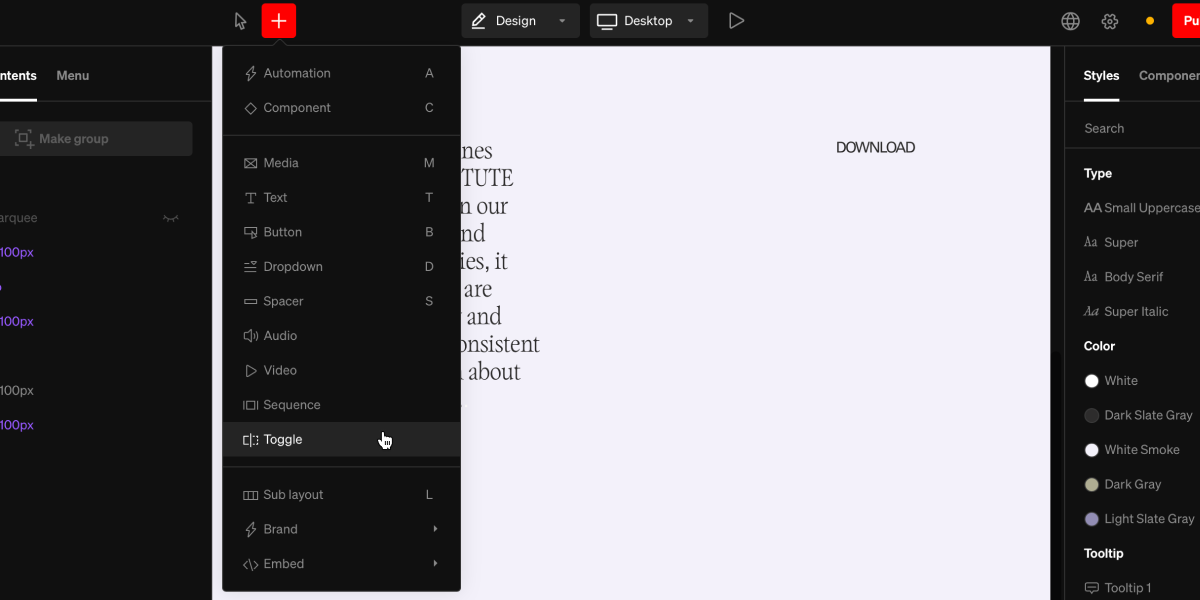
Select the toggle add tool
From within the editor, select Toggle from the
+menu in the top bar2
Select area to add to
Select a point in the project body by selecting between layouts, click + dragging within, or selecting a point inside a column
3
Add content
Select the placeholder media within each slide, then choose add media from the fill settings group in the right sidebar, then select a file.
4
Optional: Add more content to slides
Slides are containers similar to columns, that content such as media or video are added to. Add into slides by selecting any element from the
+ menu, and clicking inside the slide.Examples
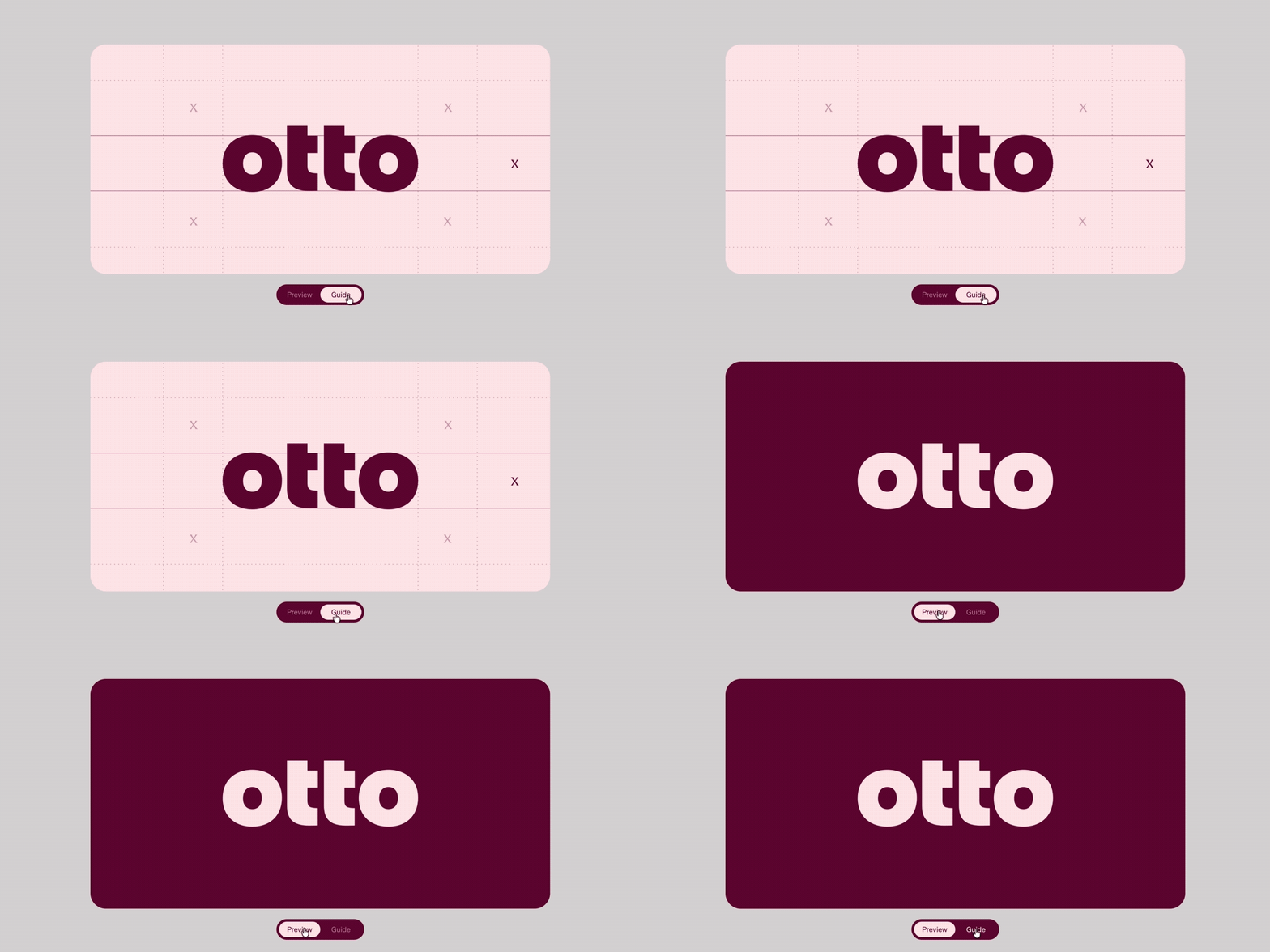
Toggles are great for showing variations of something such as stylistic alternates, or to expose a second level of guidance, like a clear space diagram.
Transition
Inherent to Toggles are the transition between the two slides. Transition motion, behavior, and duration can be controlled.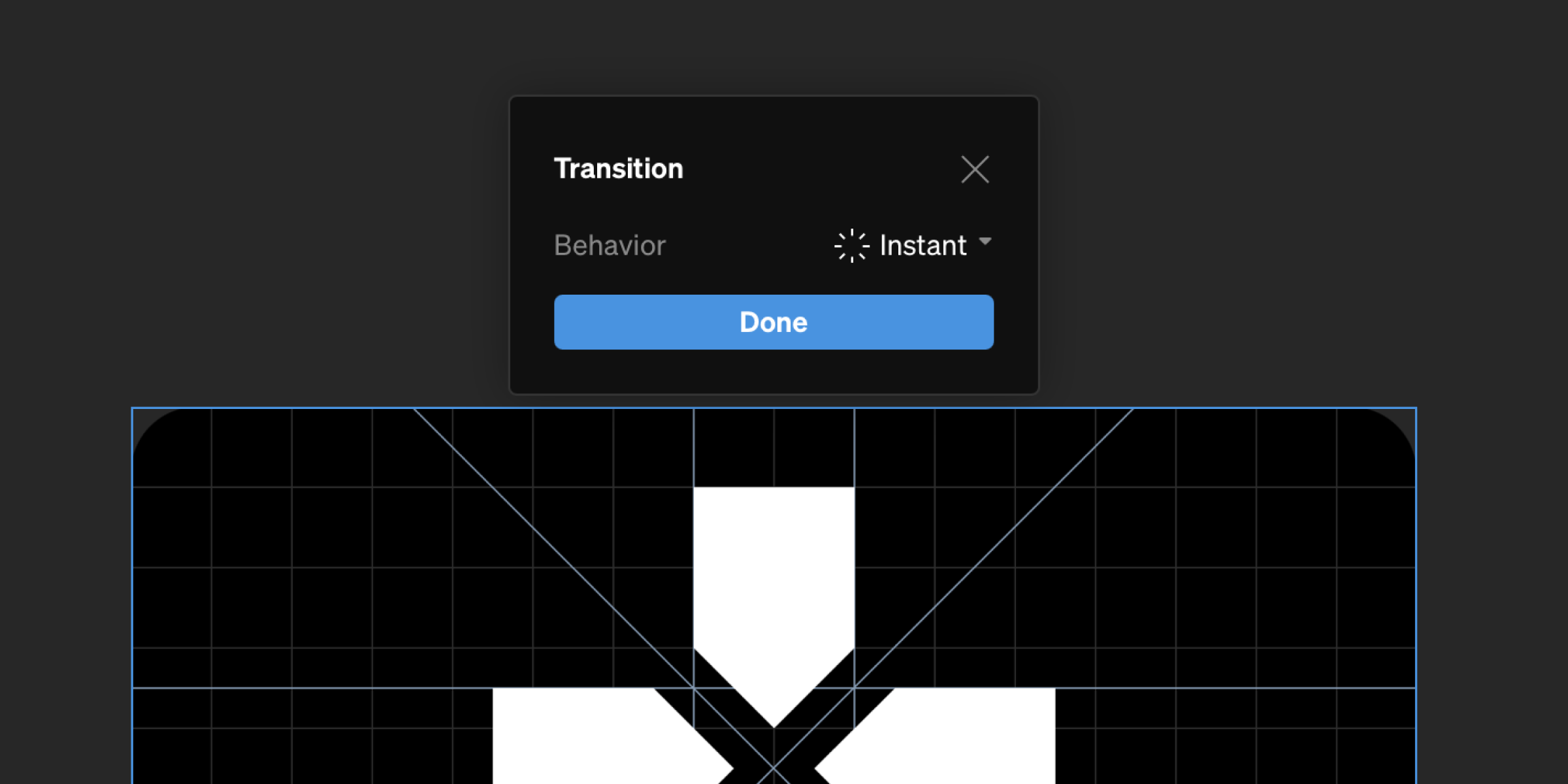
Change transition
1
Select toggle
From in body or the left sidebar, select the toggle element
2
Select transition button
From the contextual toolbar, select the transition button to show the transition settings
3
Choose transition settings
Modify the transition settings to your preference
Control states
A toggle’s controls have element states you can style individually:- Rest: the control’s default look
- Hover: while a viewer hovers it
- Active: while the slide it controls is the one showing
- Active / Hover: both at once
Tip: Make one control a component once it’s styled, so both controls, and controls on other toggles, stay consistent.