


Overview
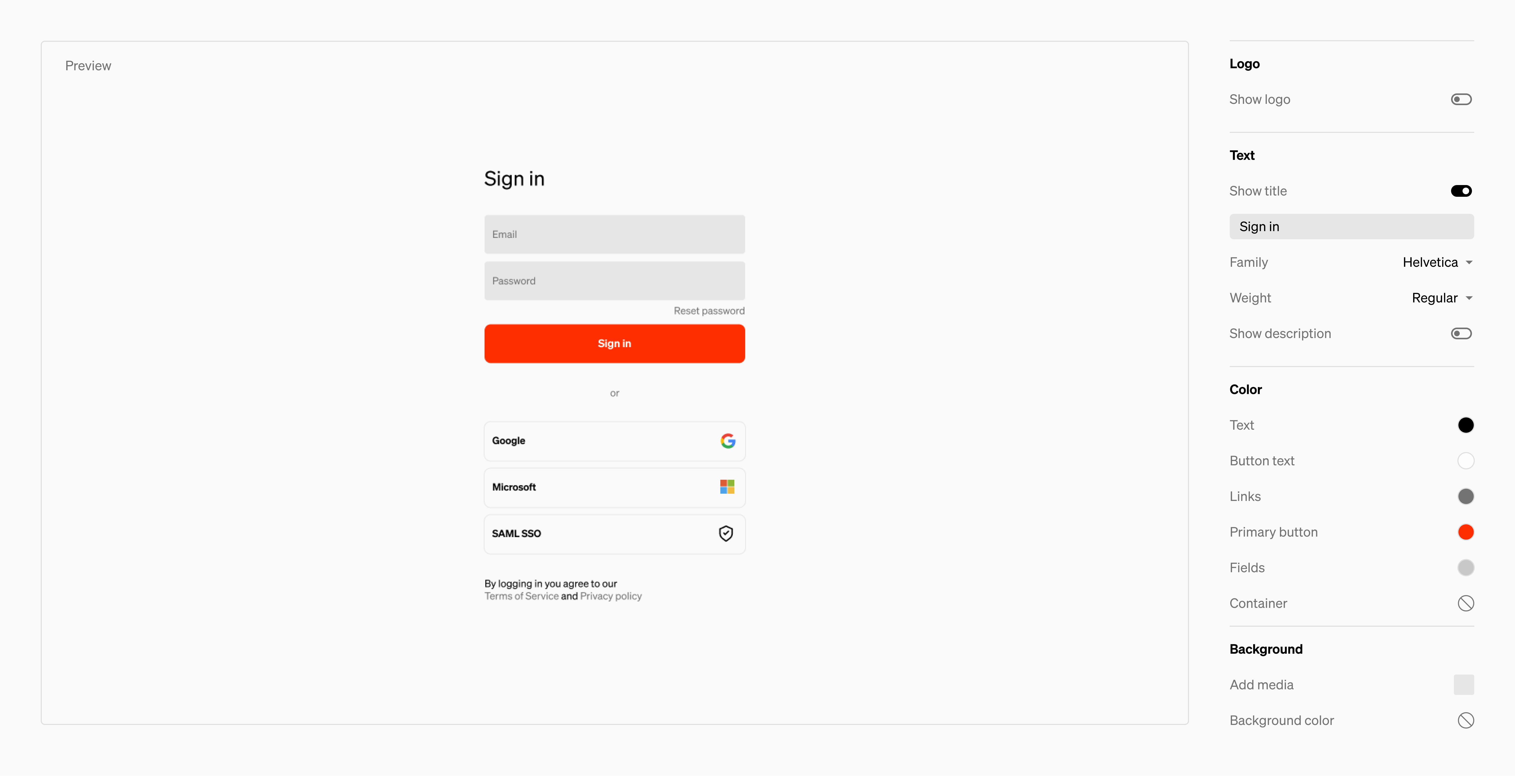
The sign-in page is what visitors to published sites see when there are access restrictions, such as plain password or sign-in required. Customizations can be made to make each of your project’s sign-in pages branded and unique.Logo
A logo can be shown at the top of the input area.Text
Title and descriptive text can be shown. Both the copy and font is customizable.Color
The button, text, links, and more can be customized.Background
The page background can be filled with either a solid color or mediaTips
- It’s useful to include access request information in the description, such as “Contact <email address> to request access”
- If your organization uses a preferred sign in method, but have other options for outside vendors it can be helpful to include instructions for this in the description, such as “If you are an employee, please use the Okta sign in method. Vendors please enter your email address to recieve a magic link”
Customize

- From the workspace dashboard, select a project
- From the project management settings, select
Sign-in page - Modify the look and feel as well as content through the right bar settings bar

Keep in mind
- Each project can have its own customizations
- Setting the access options such as magic link, plain password, and sign-in are controlled through the Publish & share interface under Security & access
- The project must be published after changes to the sign-in page design have been made to show up on the live site