

Overview
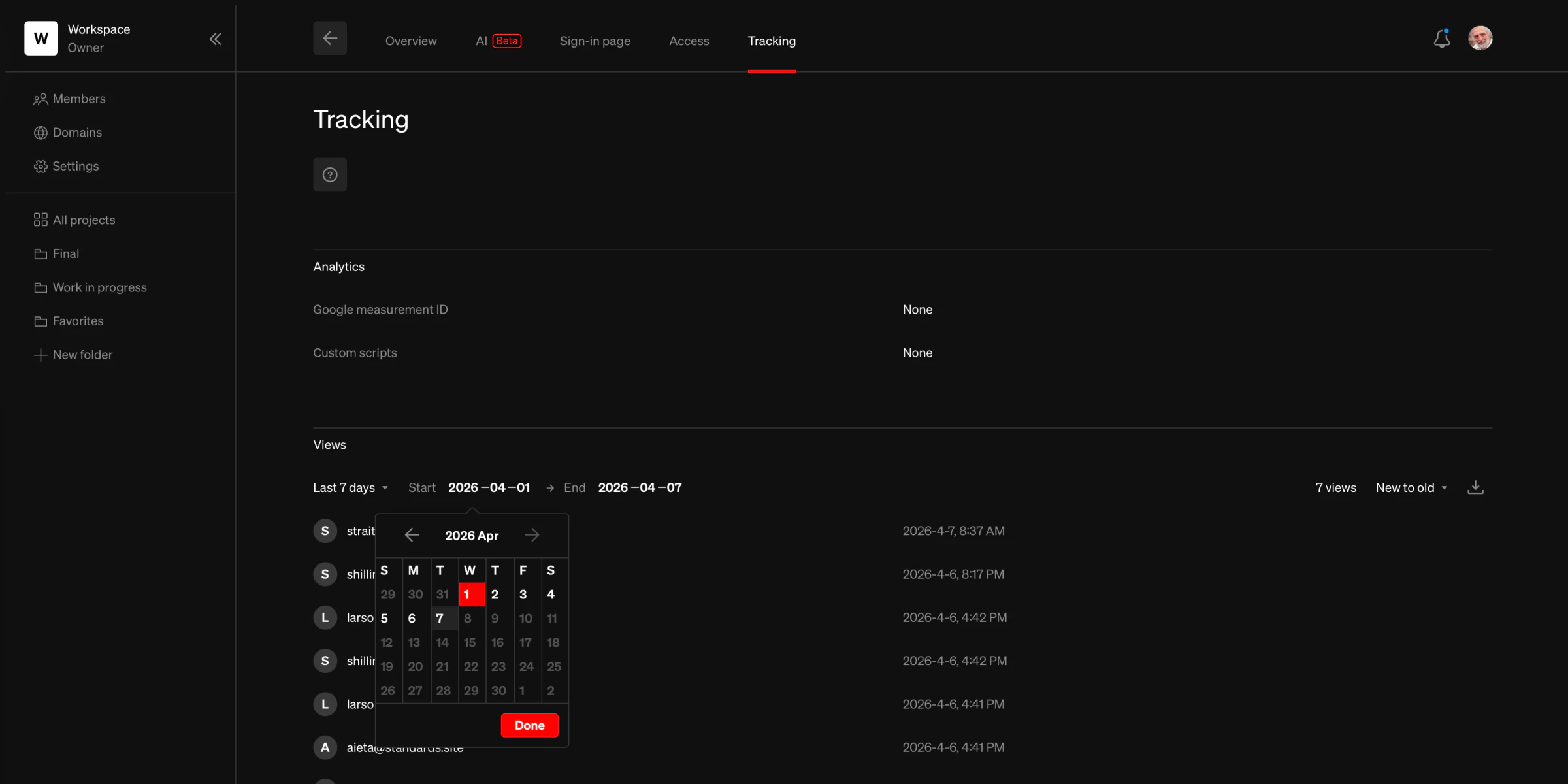
The Tracking tab in the project detail view combines analytics configuration and view history into a single page. It is available to workspace admins. To access it:- Select a project from your workspace dashboard
- Select the Tracking tab
Analytics
Pro & Enterprise The analytics section contains settings for tracking web traffic to your published projects.Google measurement ID
Add a Google Analytics measurement ID to track web traffic.- From the Tracking tab, find the Google measurement ID row under the Analytics heading
- Select the row to enter your measurement ID (format:
G-XXXXXXXXXX)
Tip: For assistance setting up and obtaining a GA measurement ID, follow Google’s support guide
Custom scripts Enterprise
Other analytics tools can be integrated using custom scripts. Select the Custom scripts row to add header and footer scripts. Learn more about Custom Scripts.Views
Enterprise Projects published with Logged public access and Sign-in required security types automatically track views. The views section lists everyone who has accessed the project along with the date and time.Filtering and sorting
- Date range: Filter views by preset ranges (Today, Last 7 days, This month, Last month, Year to date) or set a custom start and end date
- Sort order: Sort views from new to old or old to new
Export
Select the export button to download view logs as a file. The export dialog allows you to choose a time zone (local or UTC) and date range before exporting.Keep in mind
- View history is retained even if the project security type has been changed.
- Only projects with Logged public access and Sign-in required security types track views.