

Adding scripts
1
Select project
From the dashboard, select a project.
2
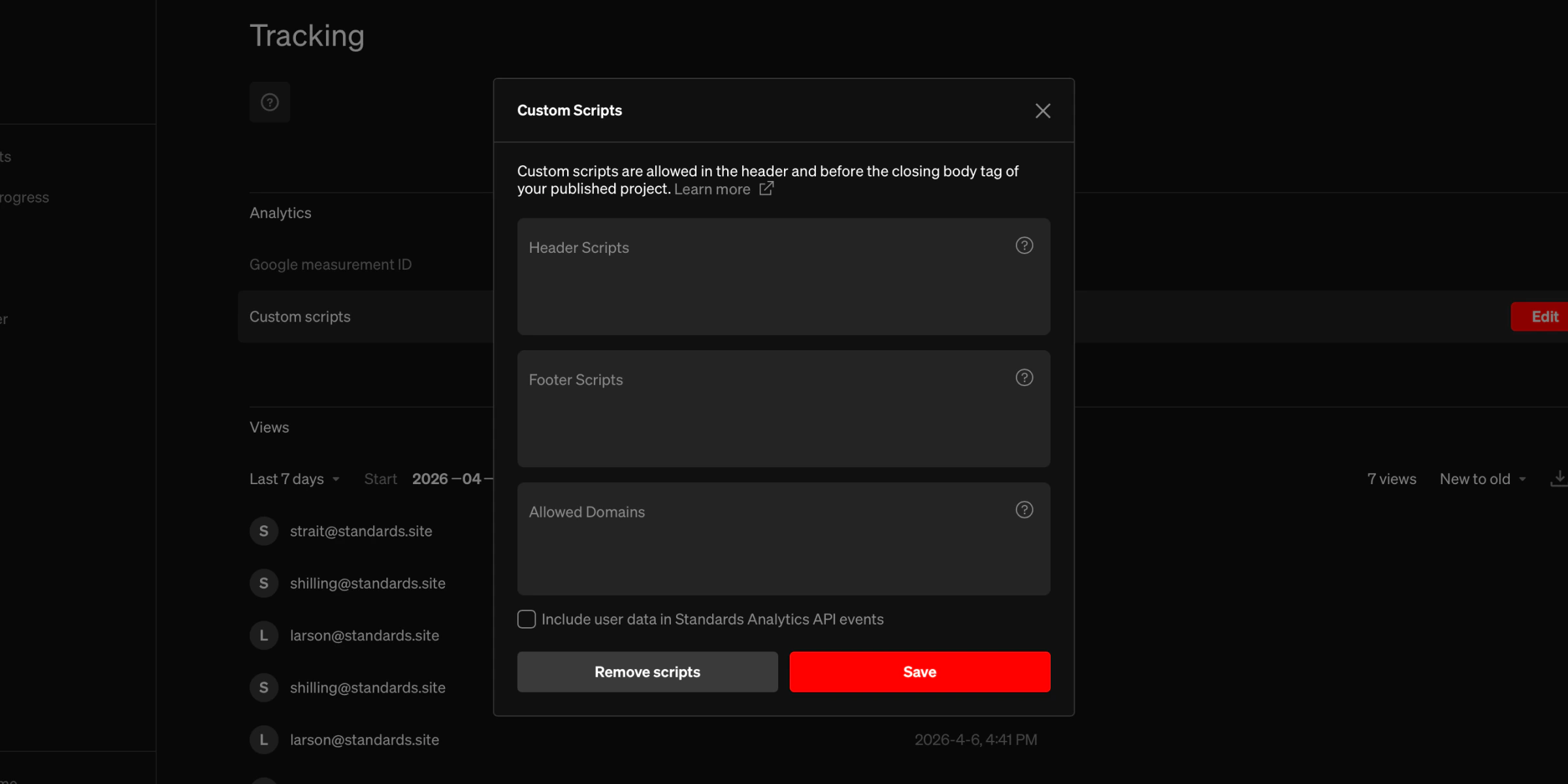
Select Edit beside custom scripts setting
On the Tracking tab, select the
Edit button on the right side of the custom scripts item.3
Input scripts
Paste scripts into the fields in the custom scripts window. See below for more information.
Header scripts
Scripts injected into the<head> of your published project. Use this for tools that need to load early, such as analytics snippets or tag managers. Must be one or more valid <script></script> blocks. For example:
Footer scripts
Scripts injected before the closing</body> tag. Use this for tools that don’t need to load until after the page content, such as chatbots or feedback widgets. Must be one or more valid <script></script> blocks.
Allowed domains
If your scripts need to load resources or make network requests to external domains, add those domains here. This updates the project’s Content Security Policy (CSP) to allow connections to and scripts from those domains. Enter one domain per line. Supports wildcards for subdomains:Include user identity
When enabled, the Standards Analytics API will include the visitor’s email, user ID, and IP address in event data. This only applies to projects that require login (SSO, invite-only, or domain-restricted access). See the Standards Analytics API for more details.Security
- Only valid
<script>blocks are accepted, arbitrary HTML is not allowed - External domains must be explicitly allowed via the Allowed Domains field
- The Content Security Policy restricts where scripts can load from and what network requests they can make
- Admin-only access: only workspace admins can configure custom scripts
Removing scripts
SelectRemove scripts in the Custom Scripts window to clear all header scripts, footer scripts, and allowed domains at once.