


Page basics
Every Standards project has at least one page, and often many more. Each page is essentially a web page, with its own URL. Some page rules:- There can only be one home page, it is the root web address
- Each subsequent page has its own subdirectory URL
- Page visibility can be turned off to hide on the live site
- Settings can be applied at the page level to set defaults for that page, such as the background color
Adding a page
1
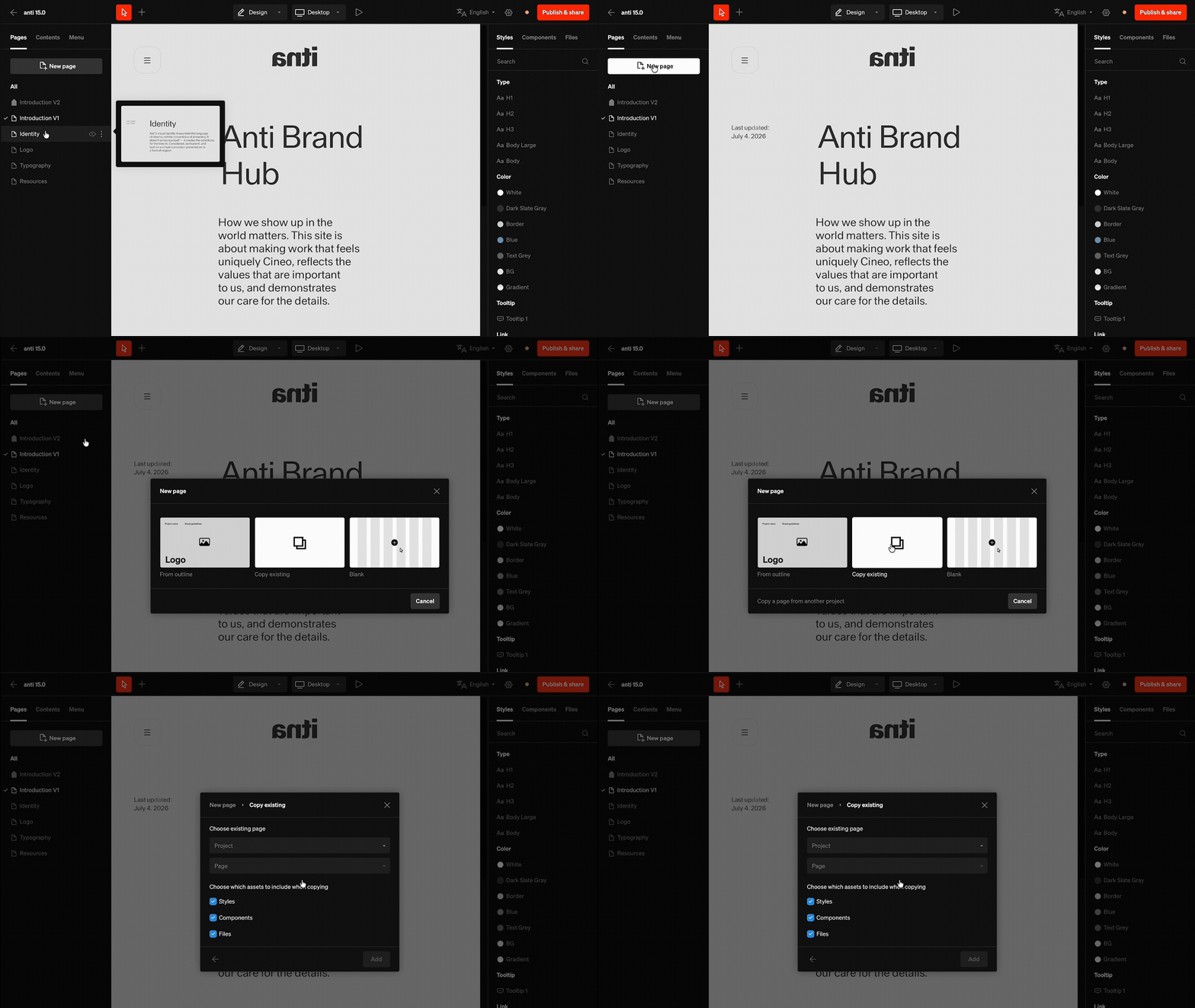
Select the 'New page' button
At the top of the pages tab in the left sidebar, select the
New page button to open the New page window. From there, choose how to start the page, which can give a head start or simply be blank2
Option: From outline
Start from an outline of a common brand guideline page to get a head start. All sections of the page will be pre-filled with placeholder content, similar to starting a new project from an outline.
3
Option: Copy existing
Copy an existing page from any project as an exact duplicate. Optionally choose to include and retain styles, files, and components. Learn more about Copying & moving.
4
Option: Blank
Start with a completely blank page.
Duplicating a page
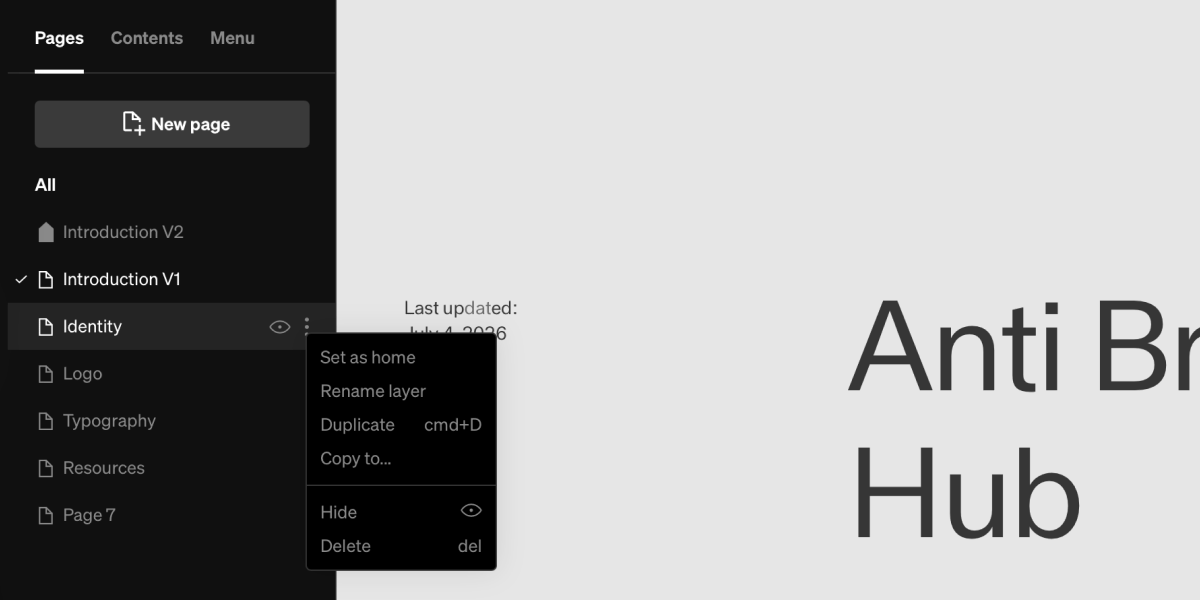
Duplicate .
Home
The home page, demarcated by the house icon, is the front page that will show on the base URL. Any page can be set as the home page, but there can only be one home page.Set home page
1
Method 1: Open contextual flyout
In the pages list in the left sidebar, right click or select the 3 dot icon on the page layer to open the contextual flyout with various actions. Select
Set as home 2
Method 2: Drag layer to top
In the pages list in the left sidebar, click + drag the page payer to the top position to set as home.
Page visibility
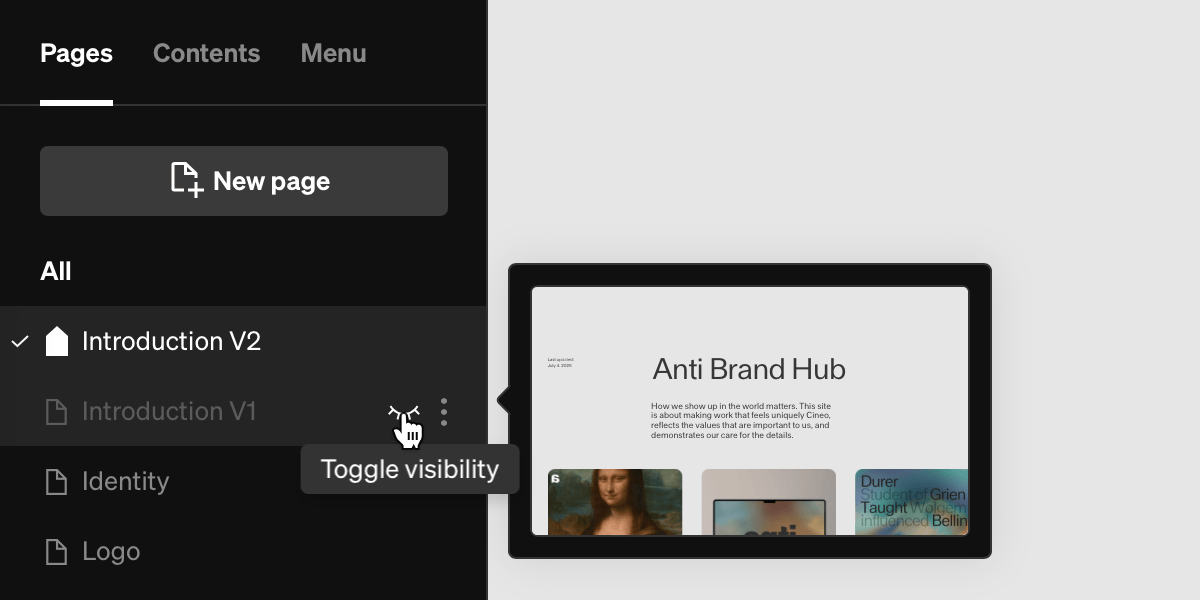
Page visibility can be toggled on and off. Pages with visibility toggled off will not be published and links that direct to the page will be disabled. This is especially helpful when editing a workin-in-progress page that should not be shown on the live site.Toggle page visibility
1
Click eye icon
In the pages list, select the eye icon on the page layer to toggle page visibility.
Copying to other another project
Entire pages can be copied into other projects. This is helpful for migrating content to a new version, or kickstarting the design of a new guideline based on a page that’s been already designed.Copy to
1
Open contextual flyout
In the pages list, right click or select the settings icon, then select
Copy to .2
Choose destination
Choose the destination and placement, then confirm by selecting
Copy. The page will now show in that destination.Reordering
Pages can be reordered, which helps with automated linking like pagination with the next or previous page link behavior. Reorder pages by click + dragging the page layer up and down in the pages list. Reordering a page into the top position will automatically set it as home.Page settings
When a page layer is selected the right sidebar will display page specific settings.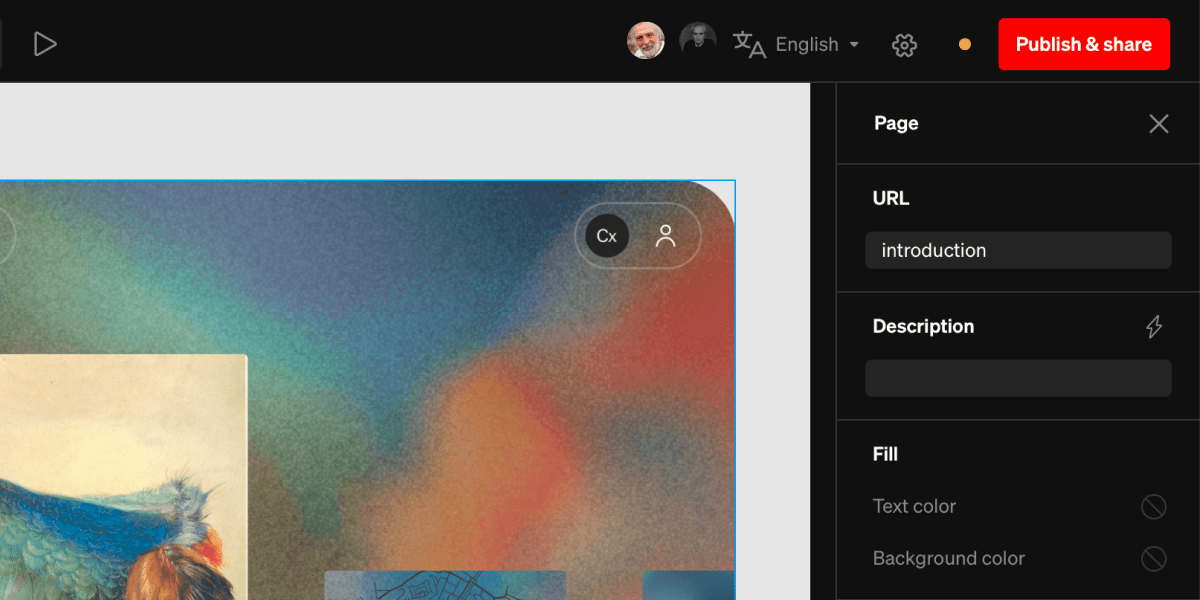
URL
Set the URL of the page, which is what will show in the browser address bar when published. Each page’s URL must be unique, and it’s best practice to use titling of the page, such as ‘logo’ rather than ‘page-01’. This can also be set in the web address subsection of the publish & share window.Description
Add a description to the page, which can be used by search indexers and AI tools to obtain a summary of the page contents. You can write this manually, or select the Generate description button (bolt icon) beside the field to have AI draft a meta description from the page’s content. Review and edit the result as needed. See AI-generated descriptions for details and availability.Fill
These fill settings will be the defaults for all text and the background, prioritized over the project defaults. A good use case for this is if you have a unique contrasting page, where the background and text color differs from the project defaults, you can quickly updateMoved: Hiding a menu on a page is now set on the menu rather than on the page, so each menu in a project chooses its own pages. See Showing a menu on select pages.