


Click
Click is a grouping of settings that trigger a behavior from a mouse click and are contextual to the element it’s enabled on. Click can be enabled on various elements such as media and button.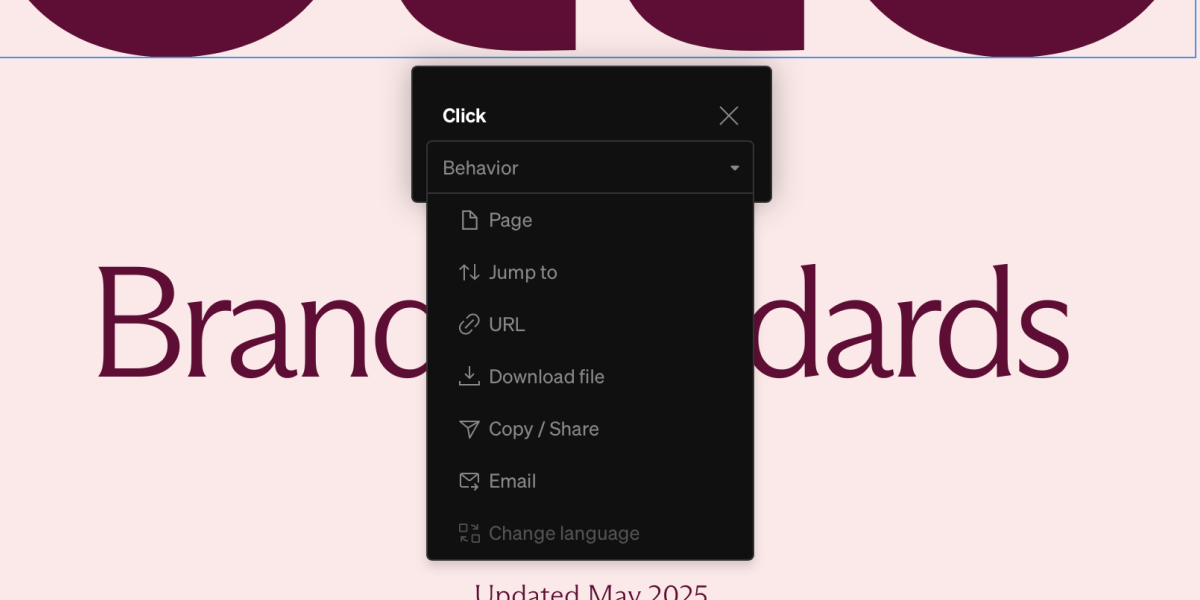
Common uses
- Hyperlinking Text for navigation and external links
- Downloading files from Media and Buttons
- Copying hex codes from color Swatches
- View full list of behaviors below
Applying click behaviors
1
Select element to recieve click behavior
Choose the element from the left sidebar contents list or from in body. Note: Not all layers can recieve click behaviors.
2
Open click behavior menu
After selecting an element, a small contextual toolbar will appear. Select the click button (cursor clicking icon) to open the menu.
3
Set behavior
Select the desired behavior from the listed options then fill the additional information suitable for each behavior
Tip: Make sure the desired element is selected. It is easy to select groups, rows, columns which do not have Click options.
Click behaviors
Link to page
Link to page
Link to other pages. Specific sections of pages can be set. Next or previous page can be set to automatically navigate.
Jump to
Jump to
Auto-scoll to the top or bottom of a page.
Link to URL
Link to URL
Link to external sites with an option to open in a new tab
Download file
Download file
Select an uploaded file that can be downloaded by the viewer
Email
Automatically copy an email and open the viewer’s email app.
Copy HEX
Copy HEX
Automatically copy the HEX color code into your clipboard. This is only available on Color Swatch and Albers’ Proportion.
Open & close
Open & close
Open and close a Menu or Dropdown. The Opens & closes dropdown sets the target: when the element sits inside a menu or dropdown it defaults to This menu / This dropdown, and you can otherwise choose any other openable menu in the project by name. This means any element, not just a menu’s own controls, can toggle a menu open or closed.
Forward, Backward
Forward, Backward
Progress a Sequence forward and backward.
Change language
Change language
Change to the chosen language.
Hover
Hover is a grouping of settings that trigger a behavior from a mouse hovering over and are contextual to the element it’s enabled on. Hover can be enabled on various elements such as media and button.
Common uses
- Showing Tooltips
- Swapping between two Media files
- Playing video Media
Applying hover behaviors
1
Choose the element from the left sidebar contents list or from in body. Note: Not all layers can recieve hover behaviors.
Choose the element from the left sidebar contents list or from in body. Note: Not all layers can recieve hover behaviors.
1
After selecting an element, a small contextual toolbar will appear. Select the hover button (cursor hovering icon) to open the menu.
After selecting an element, a small contextual toolbar will appear. Select the hover button (cursor hovering icon) to open the menu.
1
Select the desired behavior from the listed options then fill the additional information suitable for each behavior
Select the desired behavior from the listed options then fill the additional information suitable for each behavior
Tip: Make sure the desired element is selected. It is easy to select groups, layouts, columns which do not have On click options
Hover behaviors
Show Tooltip
Show Tooltip
Display a Tooltip over the hovered element. Tip: manage tooltip appearance from the styles tab of the right sidebar.
Swap Media
Swap Media
Change back and forth between two Media files
Play Video
Play Video
Play and pause video Media
Play Audio
Play Audio
Play and pause audio in video Media
Track Cursor
Track Cursor
Colors follow cursor inside of Albers’ Proportion