


Basics
Nearly all content is wrapped in a layout. Most commonly, layouts are created automatically as elements like media and text are added. They are the structure around columns, inherently span the width of the window, control the grid, have spacing, and margins.Fundamentals
- Layouts are created when adding other elements.
- Layouts encapsulate columns.
- Layout settings such as grid count can change between breakpoints.
- Layouts will wrap if the contents within exceed the grid count.
Note: Rows have been replaced with Layouts. If you are familiar with rows in pre 12.0 releases, they are the same but with added functionality.
Grid
The grid of a layout is what controls the number of columns within. When the number of columns within a layout exceeds the grid count, it will wrap to the next line. This is foundational to mobile optimization, allowing columns to be side-by-side on desktop but then stack vertically on mobile.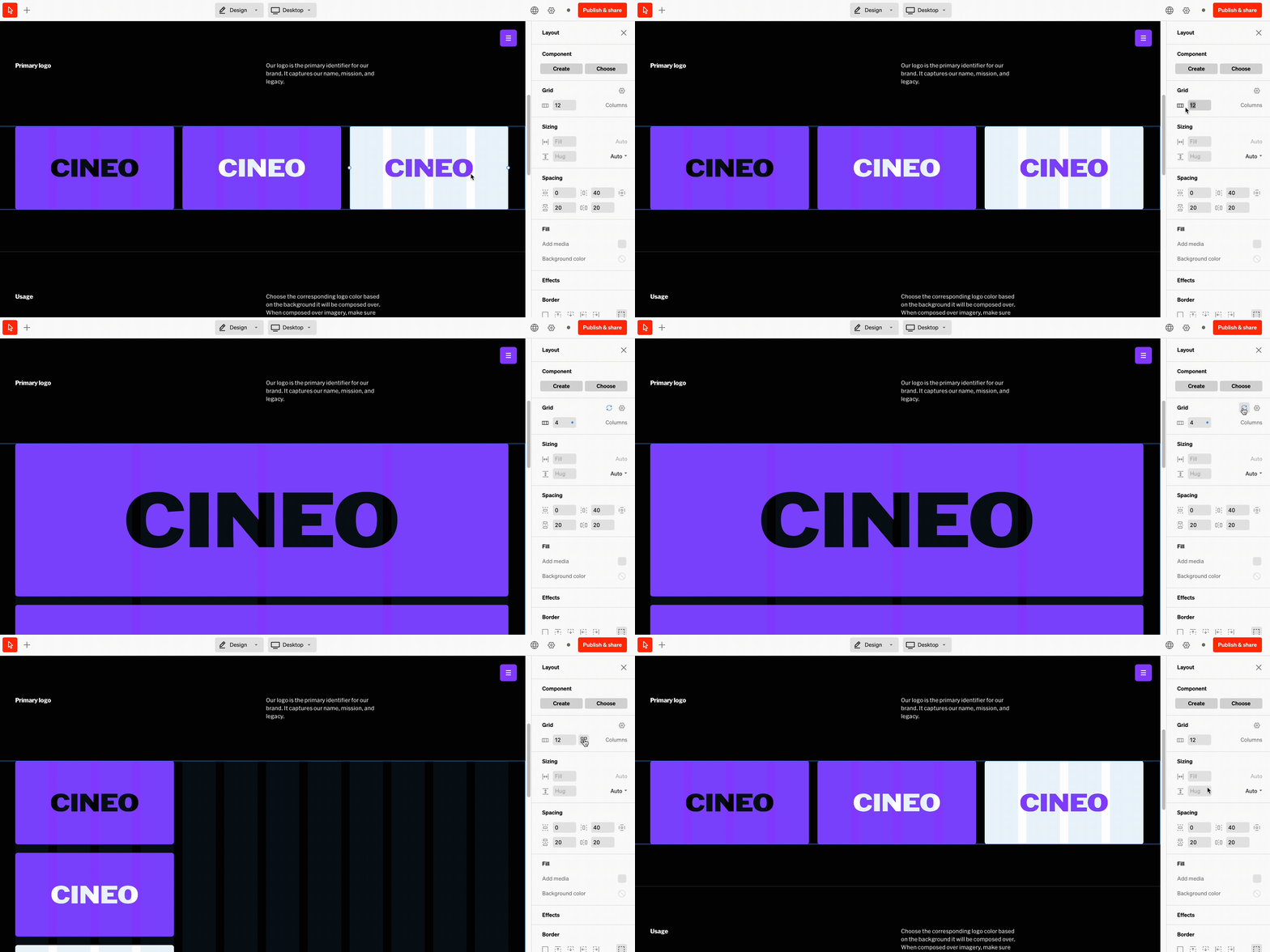
Pack columns
When changing the grid count, columns will stay wrapped. They can be repositioned in body, but selecting the ‘Pack columns’ button beside the grid input quickly repositions them.Tip
For tile based designs like a grid of images, it’s suggested to use a grid with less columns so the content wraps fluidly. Set up this way, you can add, remove, and reposition columns quickly.Default grid settings
While every layout’s grid count can be set individually, they are also controlled by a default grid setting. This default is what new layout grids will be set to. If this is overridden on a specific layout, it can be reset to the grid default.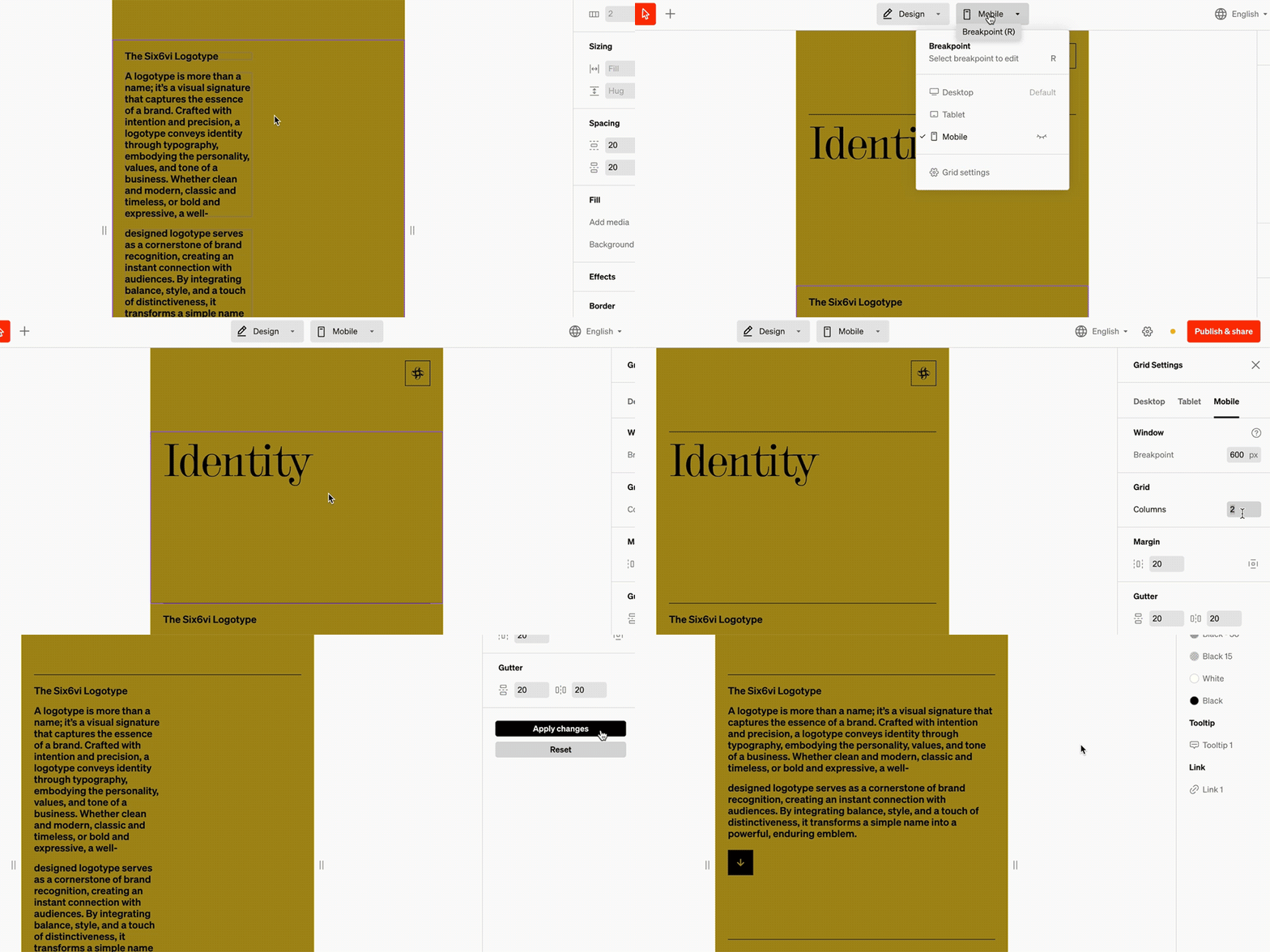
How to change default grid settings
1
Select the breakpoint dropdown
Within the editor select the breakpoint dropdown from the top bar in the center
2
Open grid settings
From the bottom of the breakpoint dropdown, select Grid settings
3
Modify settings
In the right sidebar are settings that will affect an entire breakpoint. Make modifications and save by selecting Apply changes.
Overrides
All layout’s grids can be modified to override the default grid. This is helpful when fine-tuning. Overridden layout grids can be reset by selecting the rotating arrow icon in the grid settings group.- Settings in tablet and mobile breakpoints that differ from desktop will show an indicator
- Selecting the rotating arrow icon on a settings group will reset it to match desktop
- Visibility of layers can differ between breakpoints
Columns
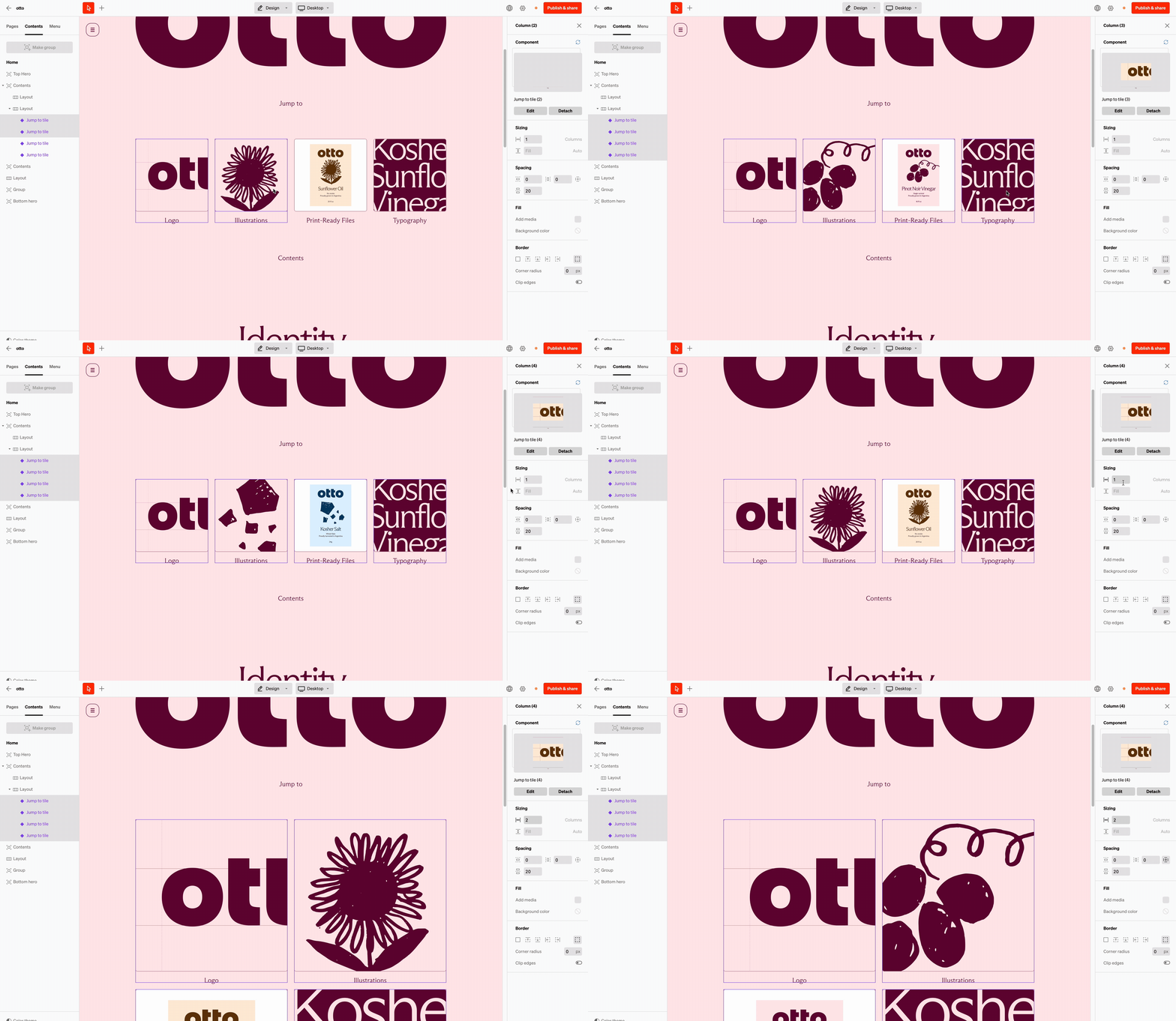
Columns are the child containing layer within layouts which encapsulate the content elements such as media or text.- Contents within columns vertically stack
- If the number of columns exceeds the grid count in the layout they’re in, they will wrap below.
- Columns can be styled with fills, spacing, corner radius, and more. Corner radius can be set as one value for all four corners, or split into individual corners with the individual corners toggle in the Stroke settings group (available on any element with a corner radius).
Wrapping
Columns are the containing layer within layouts that will wrap below onto a new line when the size or number of columns exceeds the grid of the layout they’re in. This is most evident when viewing on a desktop the layout can display columns on a single line, and on mobile they will wrap, stacking vertically.
Reordering + Repositioning
Columns can be reordered and repositioned in two ways:- By select + dragging the middle dot that shows over the column when hovering in-body
- By select + dragging the column layer from the contents tab in the left sidebar
Sublayouts
Almost identical to other layouts, sublayouts are designed to be added into columns, dropdowns and menus, as a powerful structural element. Control the columns within the sublayout to expand the ways content can be structured.Common uses

Menu items
To achieve horizontal menus, add sublayouts into the menu. With a sublayout added a customizable grid count can be set, and elements like buttons and media can be added into them.
Cards
Turn columns into dynamic card designs with side-by-side elements by adding sublayouts into columns.
Bento box
Build a modular visual grid, often used on home pages for navigation.FAQ
Why change the name of 'rows'
Why change the name of 'rows'
Because ‘rows’ are now more than just a horizontal structure, they needed a more flexible name. This felt especially necessary for mobile since a ‘row’ is often a tall stack of content
Why are sublayouts necessary?
Why are sublayouts necessary?
Sublayouts allow for content in a column to be laid out horizontally. This is common when you want 2 text boxes side-by-side in a column, or an icon beside text.