

This feature is currently in preview. To request early access before the full release, contact [email protected]
Create an API key
1
Open workspace settings
Sign in to your Standards workspace, navigate to the workspace settings page, and select the 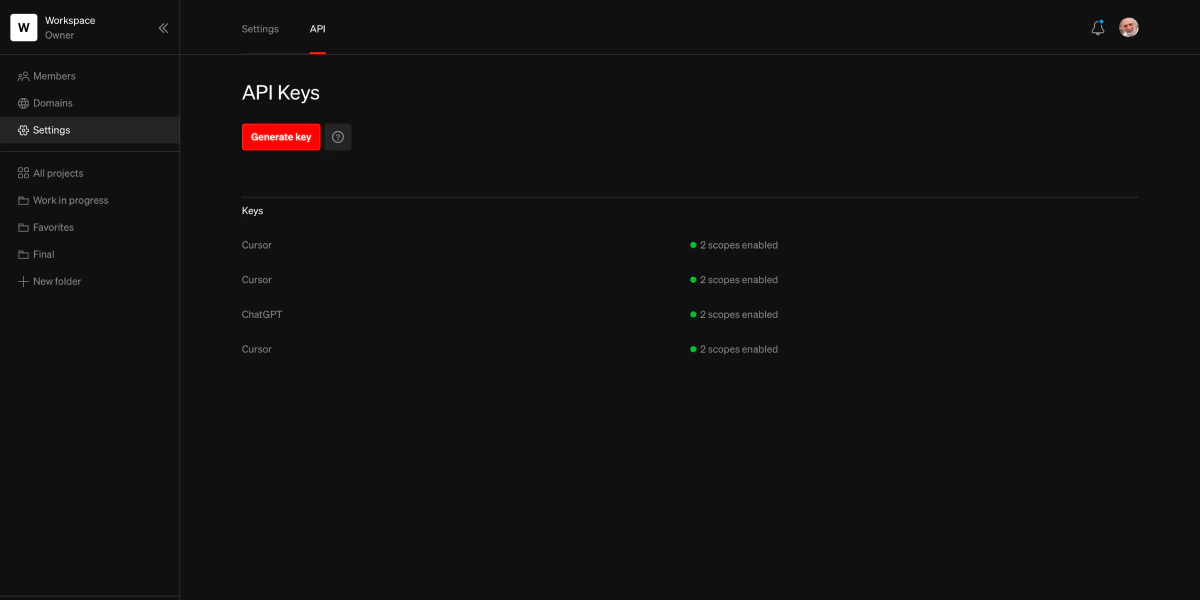
API tab.2
Generate an API key
Click the 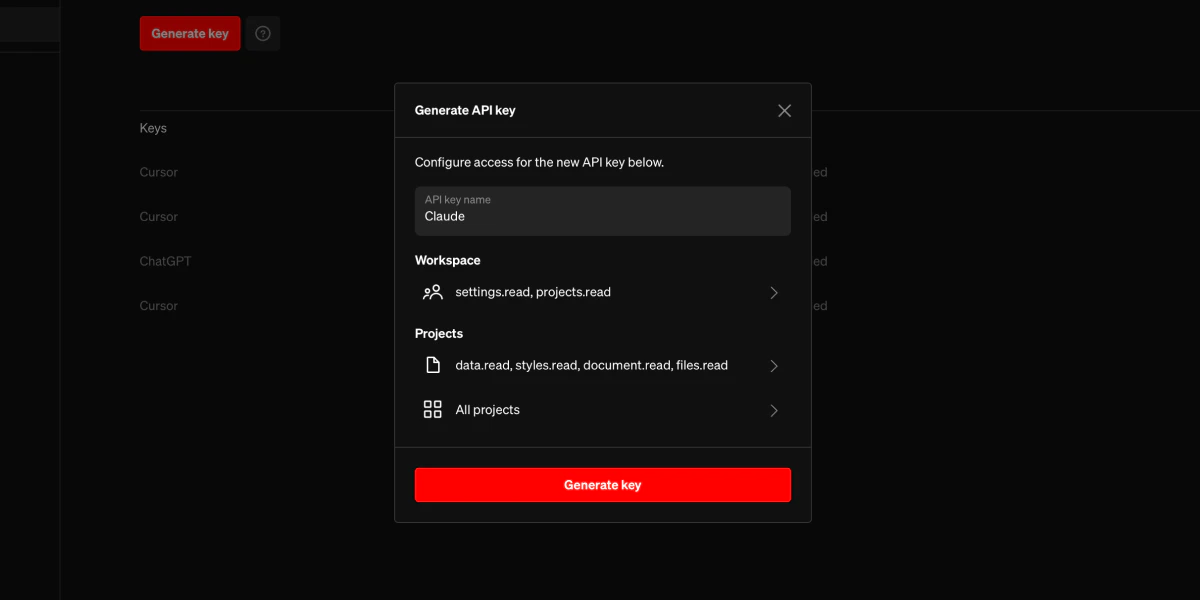
Generate key button to configure and create a new API key. In the dialog, enter a name, select the capabilities for the key, and select the projects it will be able to access (if any project capabilities are enabled).3
Store the key information securely
After clicking 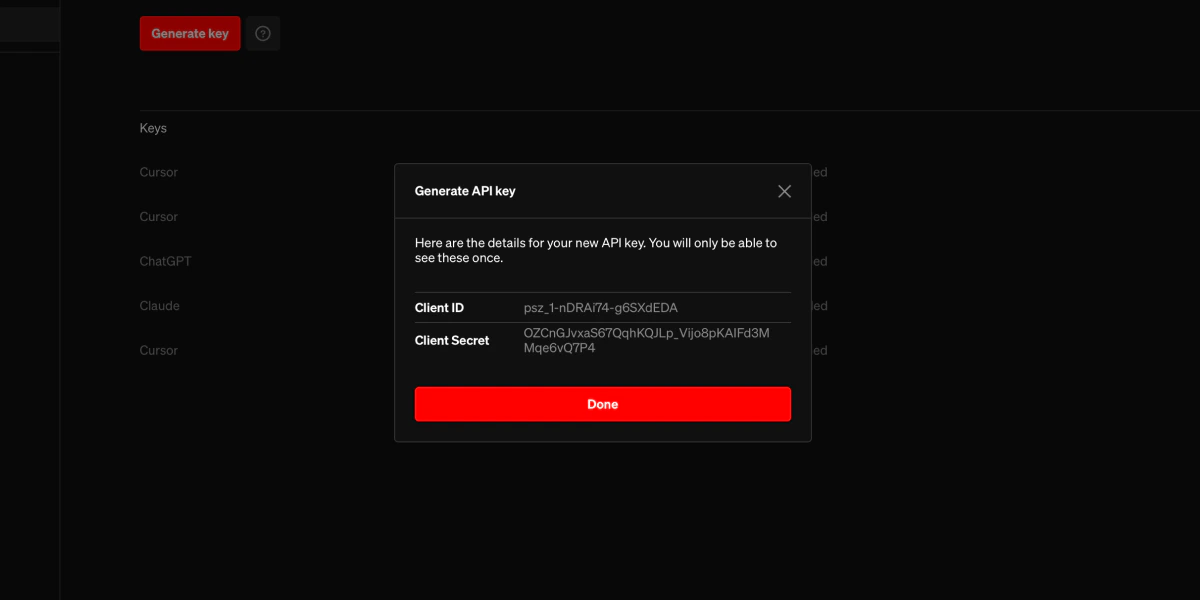
Generate key, you will be shown a dialog with the Client ID and Client Secret. These will only be shown once, and cannot be retrieved once the dialog is closed to ensure they remain secure. Store these in a secure location following best practices for your company. Azure Key Vault, AWS Secrets Manager, or Google Cloud Secret Manager are commonly used for this purpose.4
Use the key to make API requests
The client id and secret can now be used to retrieve authorization tokens for making API requests.
Configuration
API key name
The name is only used as a label for the key when viewing it in the dashboard. It may be useful to select a name that describes how it will be used and share the name with the entry for the client secret in your secure storage.Workspace scopes
If a scope is enabled, requests using this API key made to endpoints requiring the scope will be authorized. The scopes required for each endpoint can be found in the reference. Workspace scopes control access to workspace information.settings.readAllows workspace information to be retrieved.projects.readAllows projects in the workspace to be listed with basic information.
Project scopes
Project scopes control access to project information and content from published sites.data.readAllows project information to be retrieved.styles.readAllows styles to be listed along with basic information.files.readAllows files to be listed along with basic information.document.readAllows pages to be listed and page content to be retrieved.