


Getting started
Collaborative editing is ideal for projects that need input from different people, ensuring everyone can contribute effectively and stay updated.Set up your workspace
Navigate to a workspace with invited members you wish to edit with and create a new project or transfer an existing project into the intended workspace. Learn more about Workspaces.
Invite team members
Make sure any collaborators you wish to edit with are listed as Members within your workspace. Learn more about Workspace Members.
Start editing
At this point, all editors in the workspace can open the same project and begin editing together. Team members can start making changes, uploading files, and adding styles in real-time.Comments
Leave comments for other teammates in your workspace directly in your project editor. Comments are only viewable by members of the workspace where the commented project is within. Learn more about Comments.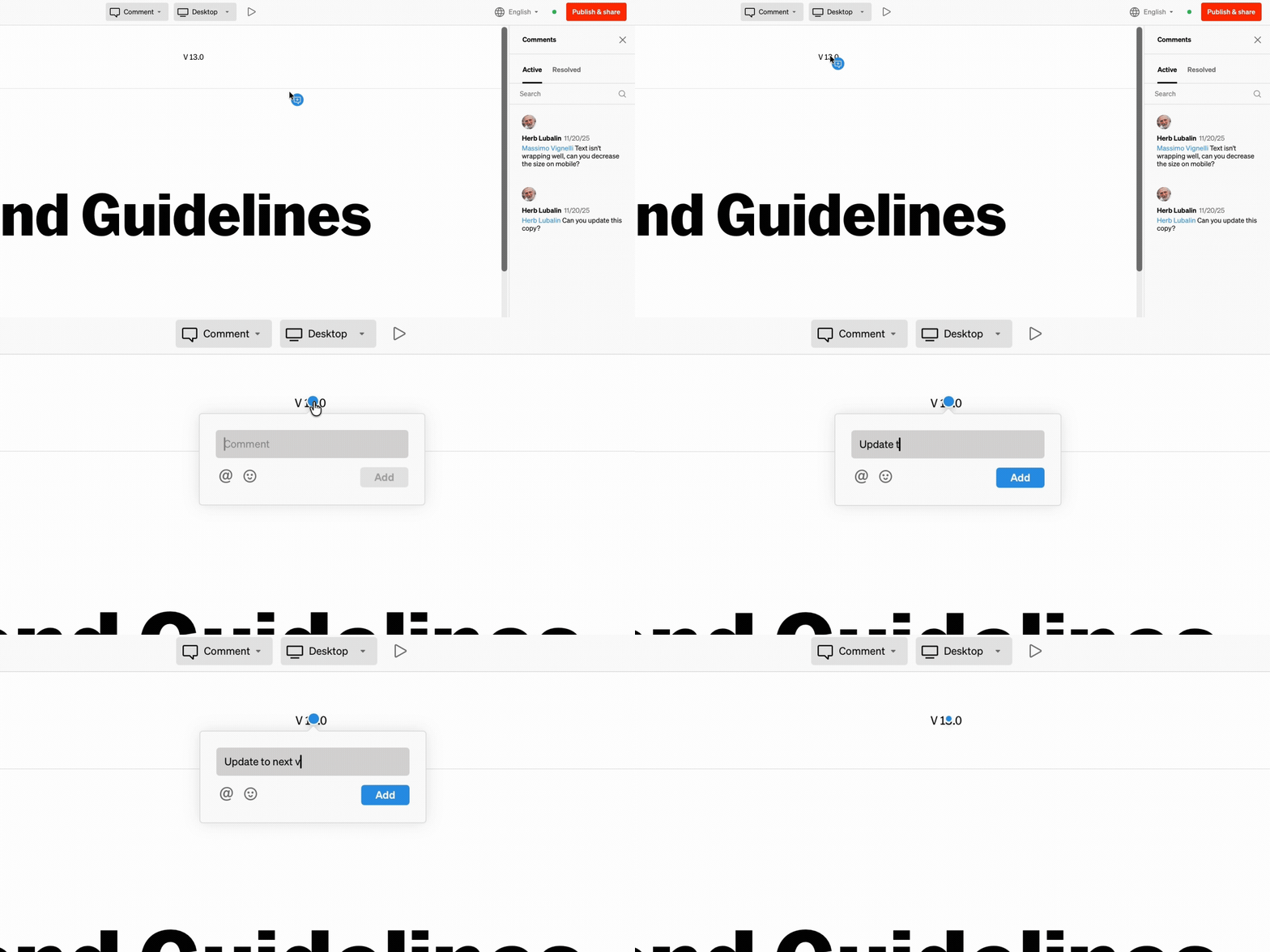
Troubleshooting
I can’t see any other editors in my project
I can’t see any other editors in my project
Double check that you and any other editors are working on the same project, in the same workspace. Sometimes projects can share the same name but are seperate.
Can multiple people use the same log in credentials at the same time?
Can multiple people use the same log in credentials at the same time?
It is not advised to share credentials and edit at the same time. Editing in the same session at the same time from the same credentials can result in the loss of work during this session.
I'm not able to add more members
I'm not able to add more members
- You may be at your seat count usage cap. Check this by selecting ‘Plan & billing’ from the top right account dropdown. You can add more seats by updating your plan and billing options.
- You may not have permission to invite more members
- You may be on a legacy Plus plan which is restricted to a single member