


Basics
Sequences are an element that can be added to your project layout and consist of three parts: the sequence container, the slide containers, and the controls container. They have a range of uses from animating a sequence of logos, to showing an image slideshow.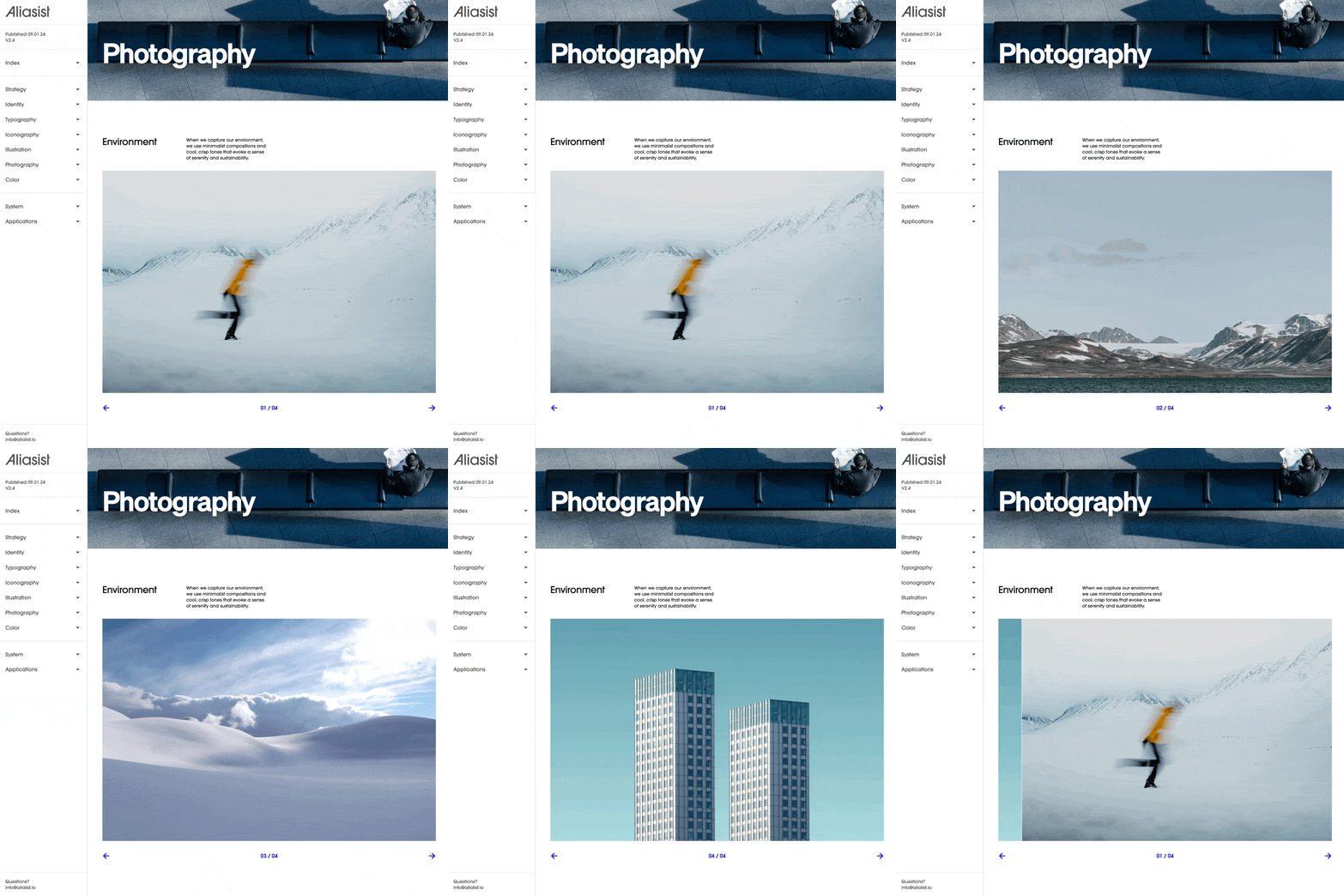

This example is using a sequence for a single image slideshow. Add a similar sequence using a Slideshow Automation.
This examples is using a sequence to animate the brand’s logo. Add a similar sequence using a Marquee Automation.
Add a sequence

1
Select the sequence add tool
From within the editor, select Sequence from the
+ menu in the top bar.2
Select area to add to
Select a point in the project body by selecting between layouts, click + dragging within, or selecting a point inside a column.
3
Add content inside sequence slides
Select the media item prepopulated inside slides, select add media from the fill settings group, and choose a file.
4
Optional: Add more content to slides
Follow the normal add steps with other content types like media and text to add them inside slides.
Content
With the sequence element selected, content settings are available in the right sidebar.- Add slide: This will add another slide. Tip: you can duplicate existing slides.
- Quantity: This field can be edited to add or remove many slides in one action
- Single slide mode: When a Sequence is in single slide mode, only one slide will show at a given time. This is great for slideshow-style sequences with large wide images.
- Clip content: When a Sequence has clip content turned on, all slides outside of the container will not show. When turned off, the previous and next slide(s) may be in view.
Slide settings
Slides are very similar to columns, but are contained within sequences. Add elements into slides, such as Media and Text. While selecting a Slide element inside of a sequence, the right sidebar will display the available settings for styling the slide container.Controls settings
Controls are included in sequences to allow for navigating and indicating the slides in a sequence, and consist of two buttons and an indicator. While selecting the controls inside of a sequence, the right sidebar will display the available settings for styling the controls container.- Position controls inside: Turning on position controls inside will allow the controls to overlay the slides within a sequence.
Indicator settings
Indicators are included in controls to allow for an indication of the number of slides, and which is actively in view. While selecting the indicator inside of controls, the right sidebar will display the settings for styling the indicators and their container. Indicators have a range of states that can be styled individually, or synced together.Adding content to sequences
Content inside of sequences is added to the slides within. Add common content into slides, such as Media and Text, or more complex content such as Automations and Components.Adding to slides
1
Select add tool
From within the editor, select elements like Media M, Text T, and Button B from the
+ menu. Automations A and Components C can also be chosen to add into slides.2
Choose slide
Hover over a slide in a sequence, and select the add point overlay.
3
Optional: Reorder added content
Slide content can be reorder by click + dragging from the Contents layers in the left sidebar
Sequence and transition settings

Sequence settings
- Swipe control: Touch and click + dragging progresses the sequence.
- Keyboard control: Left and right keyboard keys progress the sequence.
- Loop: Progressing past the last slide will go to the first slide.
- Autoplay: Progresses the sequence on a timer. The pause between is set with a delay field.
Transition settings
- Behavior: Controls the transition effect when slides progress.
- Instant behavior: No transition effect.
- Slide behavior: Animates left / right.
- Fade behavior: Dissolves from 0 to 100% opacity.
- Motion: Controls how the animation ramps through the transition.
- Duration: Controls how long the animation takes.