

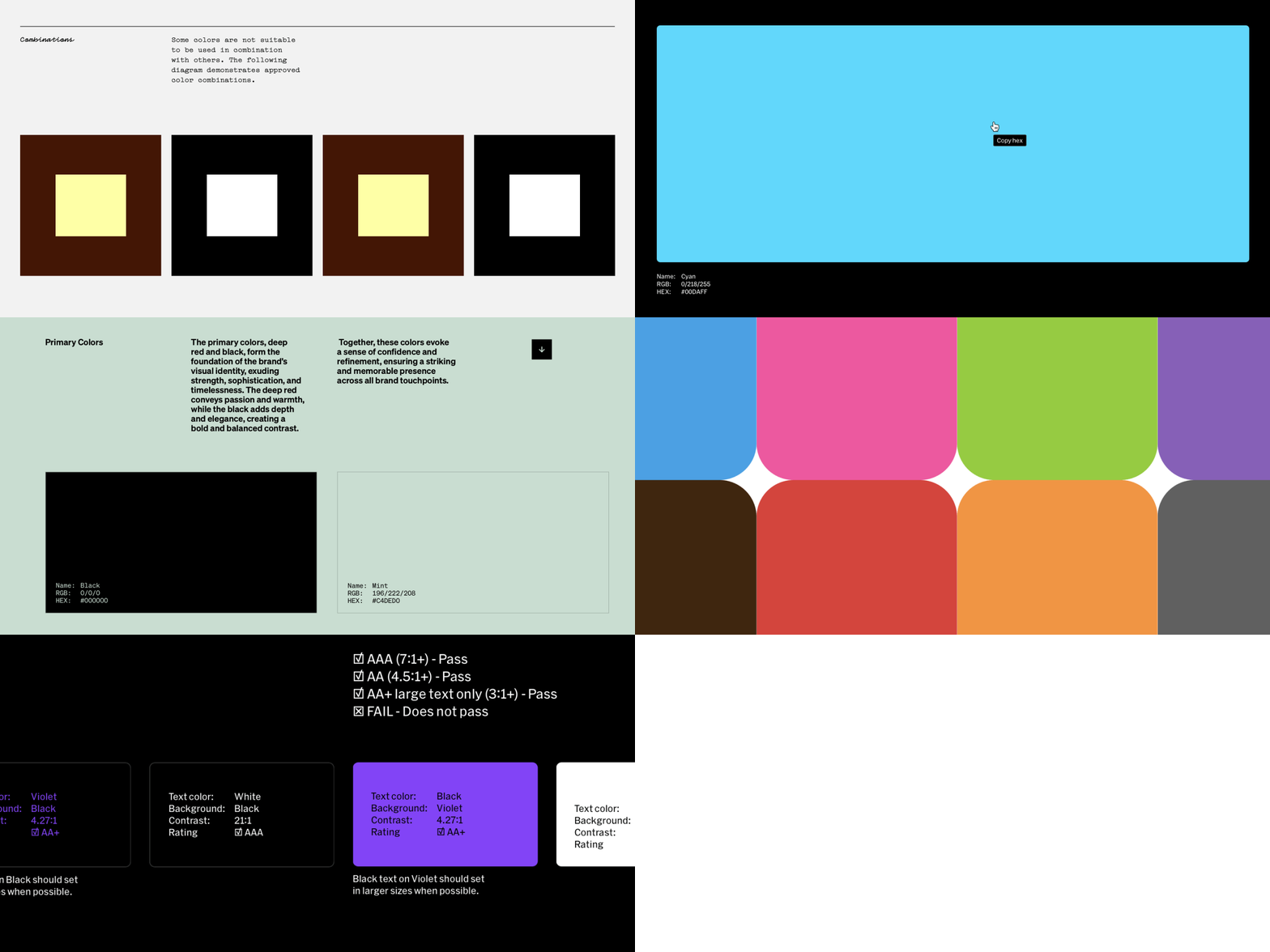
Color styles
Color styles are consistent colors that can be used throughout your project and updated all at once from a single interface. Quickly access color styles from the Fill properties in the right sidebar settings. Add as many colors to your Styles as your brand needs. Manually enter color specifications (RGB, CMYK, PMS, RAL) in the property panel for exact matches.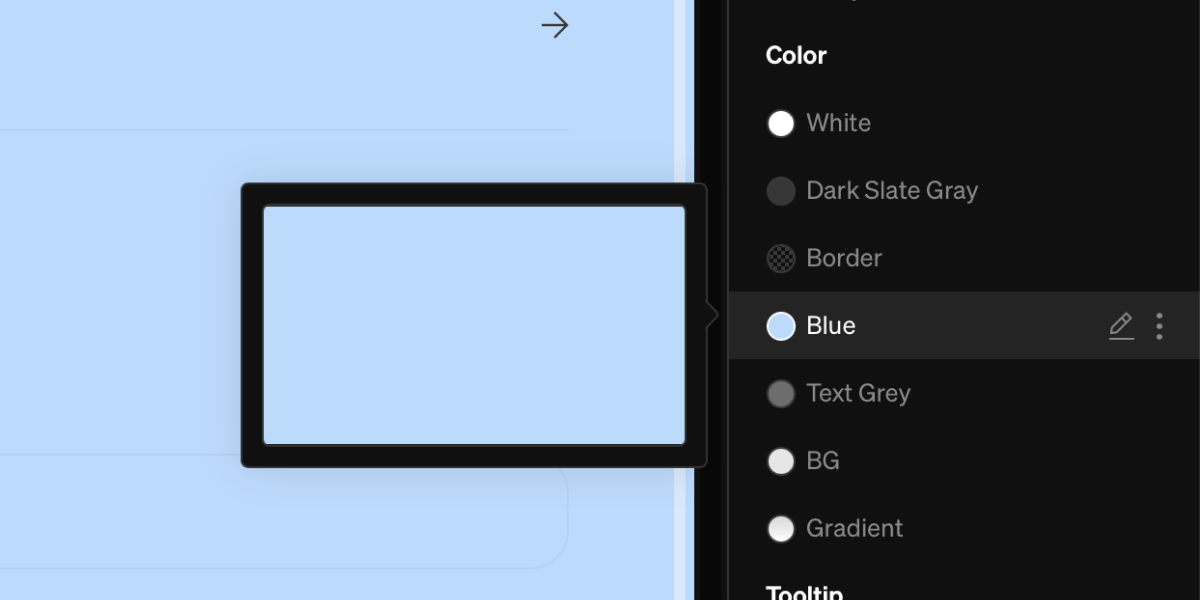
Add a new color style
- In the Styles section of the right side bar, select the
+next to Color to add a new color - Alternatively, styles can be added from the custom color picker when filling an element with a custom color.
Edit a color style
1
Select edit beside color style
Within the design editor, select the edit icon (pencil) beside the color listed in the Styles tab of the right sidebar
2
Make changes
Edit the name, color values, etc. These changes will be reflected automatically wherever the color style is used. This includes color swatches and specs.
Keep in mind
- To ensure accuracy, PMS values must be manually entered into color styles.
- Double check automatically converted CMYK values. Sometimes they can deviate from what is shown on-screen and should be tested if used for printing.
- Deleting a color style will affect all instances where it was used, and they will be replaced with the hex value.
Color Automations
Styles allow Automations to output the chosen colors in various pre-designed modules, retaining consistency. They include:- Palette
- Proportion
- Albers’ proportion
- Combinations
- Contrast
Add a color Automation
1
Select the Automation add tool
Within the editor, select the
+ dropdown menu, then select the Automation A item from the list.2
Select area to add to
Select a point in the project body by selecting between layoutsSelect area to add to
3
Choose Automation
Choose the Automation from the pop-up window
4
Follow steps, if applicable
Many Automations have multiple steps to choose preferences
Edit placeholder
This applies to Color Contrast and Color Don’ts Automations.1
Select placeholder media
After placing the Automation in the project, double-click the placeholder background.
2
Add media
Select on Add media within the Fill section of the right sidebar settings.
3
Select or upload file
Choose a file from the file list or upload a new one
What is an Albers’ proportion? Josef Albers was an iconic artist who pioneered major shifts in geometric abstraction, constructivism and more. An Albers’ proportion is a tool of nested squares that is based on his work “Homage to the Square” that shows scaling of color in various proportions.
Color swatches
Visually display colors in your brand’s palettes utlizing color swatches. Show their specs and add special behaviors like click to copy HEX, enabling teammates to quickly access the colors they need.
Methods for adding color swatches
- During project setup, add your color styles which will power the color section of the outline and automatically get added after setup is complete
- Add the Palette color Automation
- Add a color swatch brand element directly to a column from the
+dropdown menu
Color specs
All color swatches have color specs that can be shown or hidden. These specs can display the color specifications set on the color style.- Toggle these on and off within Content settings group of the color spec.
- Enable custom specs by toggling the Custom option under the content settings, then input values by selecting the spec fields in body.
Gradients
A color can be a gradient rather than a single value. Gradients can be saved as color styles so they’re reused and updated like any other style, or applied directly as a background fill.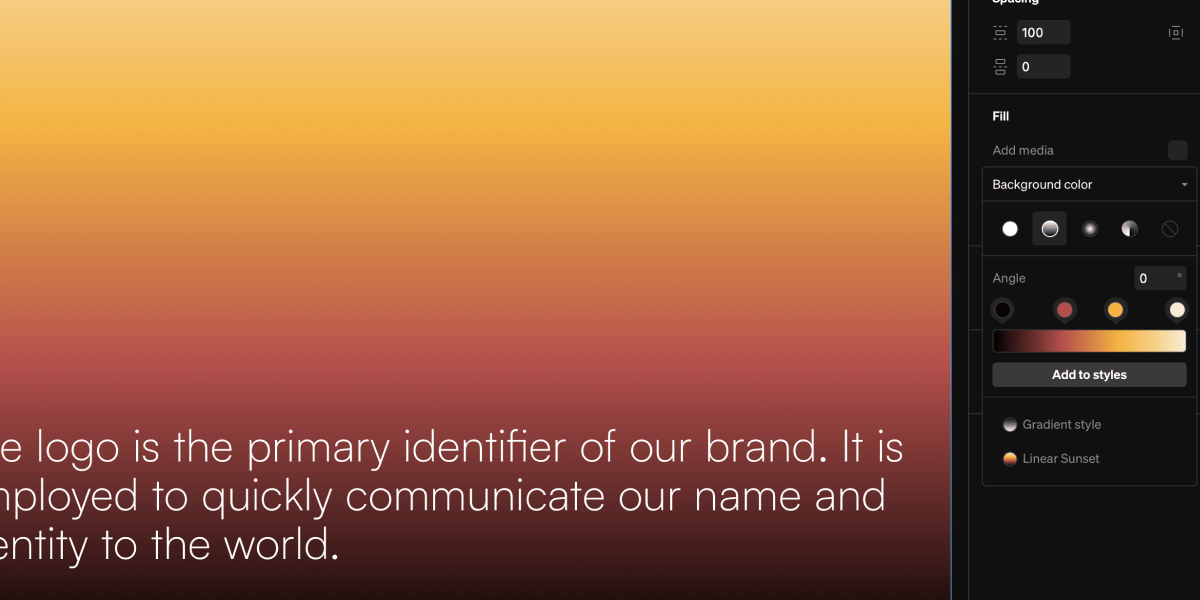
Create a gradient
1
Open a color picker
Open the color picker on a color style, or on the background fill of an element.
2
Choose a gradient type
At the top of the picker, choose Linear, Radial, or Conic in place of Solid. The gradient starts seeded from the color that was there, so you don’t lose your starting point.
3
Edit the stops
Select a stop on the gradient bar to set its Color and Position, select the
+ to add a stop, and drag stops along the bar to place them. Linear and Conic gradients also take an Angle.Where gradients apply
Gradients are available anywhere a background fill is set, and on color styles themselves. They’re deliberately not offered for values that need a single flat color, such as text and icon color, strokes, guides, and effect colors.Keep in mind
- A gradient has no single HEX, RGB, CMYK, or PMS value, so a color spec on a gradient swatch shows only the Name spec.
- Switching a gradient back to Solid keeps the first stop’s color as the solid value.
Change default page background and text color
Set a project level background and text color that all pages and new text will be. These can be overriden by applying fill to elements on pages. Learn more about project settings.1
Select project settings
In the project editor, select the gear icon in the top-right corner to view project level settings.
2
Change defaults
In Project settings, select the background and text color items from the Appearance settings group.
Change text color of some words in a text block
Text color can be changed in-line and either a saved Color style, or selecting a color from the Color picker.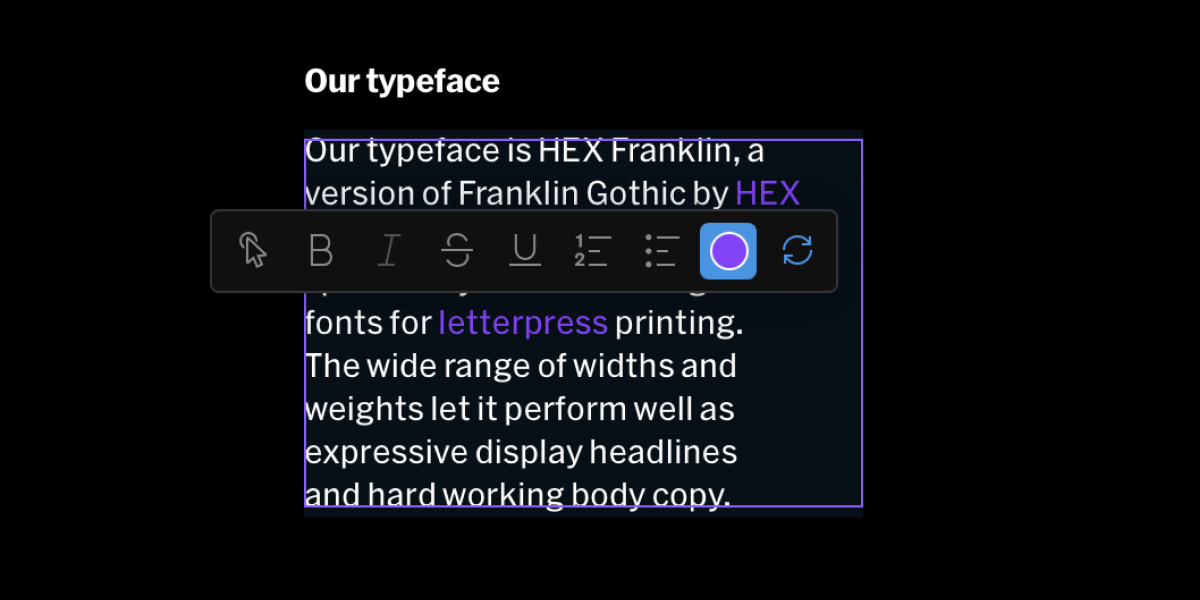
1
Select text
Double click or click + drag to highlight text in body
2
Open color chooser
Select the color icon from the contextual toolbar to open the color picker and list of color styles
3
Choose color
FAQ
Why is the name of my color incorrect?
Why is the name of my color incorrect?
Color names are automatically created based generally on the HEX value. Sometimes this can be off if it’s a unique color. It’s best practice to rename colors in this instance by editing the color style.
Why is my CMYK value incorrect?
Why is my CMYK value incorrect?
Automatic color values for CMYK are generated based on the HEX value, which can deviate from the expected color mix. It’s best practice to override the automatic specs if they are incorrect. Test prints are the best way to dial in the perfect CMYK values for a color.
How to I add custom color specs?
How to I add custom color specs?
While editing a color style, select the Auto toggle under the specs settings group. This will unlock the fields allowing them to be overridden.
Do I have to use color specs?
Do I have to use color specs?
No color specs are required, just a HEX value for the color itself.