


Basics
All Standards projects start with the default language English. Additional languages can be added (up to 20), translated, and published. Once published, these additional languages can be switched between by the viewer of the site. They also can automatically be chosen by the viewer’s browser if they are in a region matching the added language.Fundamentals
- All visual assets, styles, and site design match between languages
- Text content can (and should) differ between languages
- Text content can be reset back to the default language and content
- Files used in fills like inside Media elements can differ per language
Default language
The default language is both what displays in the design mode of the editor, and is the base language for automatic translations of other languages.Adding

1
Select language dropdown
Within the design or content editor, select the language dropdown from the top bar.
2
Add new language
From the dropdown select
New language3
Choose language
From the add language interface, select the language you would like to add
4
Optional: Autotranslate
Lastly, choose if you want to automatically translate the new language.
Tip: Autotranslations can be overriden or completely reset.
Editing
Once your site has multiple languages, each language’s text can be edited independently from one another. Keep in mind all visual assets, styles, and site design match between languages
Select language to edit
Select a language from the globe icon dropdown in the top bar to enter the Content editing mode of that language.Editing
- Within the Content editing mode of the editor, select text by left-clicking on the text container, then clicking the text within
- Use the left and right icons to cycle to the previous and next block of text
- Use the translate icon to translate only the selected text block
- Translated text can be reset back to match the default language
Hotkeys
Edit text quicker and mouse-free by utilizing keyboard hotkeys.- Left arrow: Previous
- Right arrow: Next
- Return: Focus
- Esc: Unfocus
Workflow
- Select some text with your mouse
- Press return on your keyboard
- Type edits or new text
- Press esc on your keyboard
- Press right arrow on your keyboard
- Repeat
Automatic translations
Translate your site to a new language quickly using automatic translations. All text can be edited after the automatic translation completes, for fine-tuning.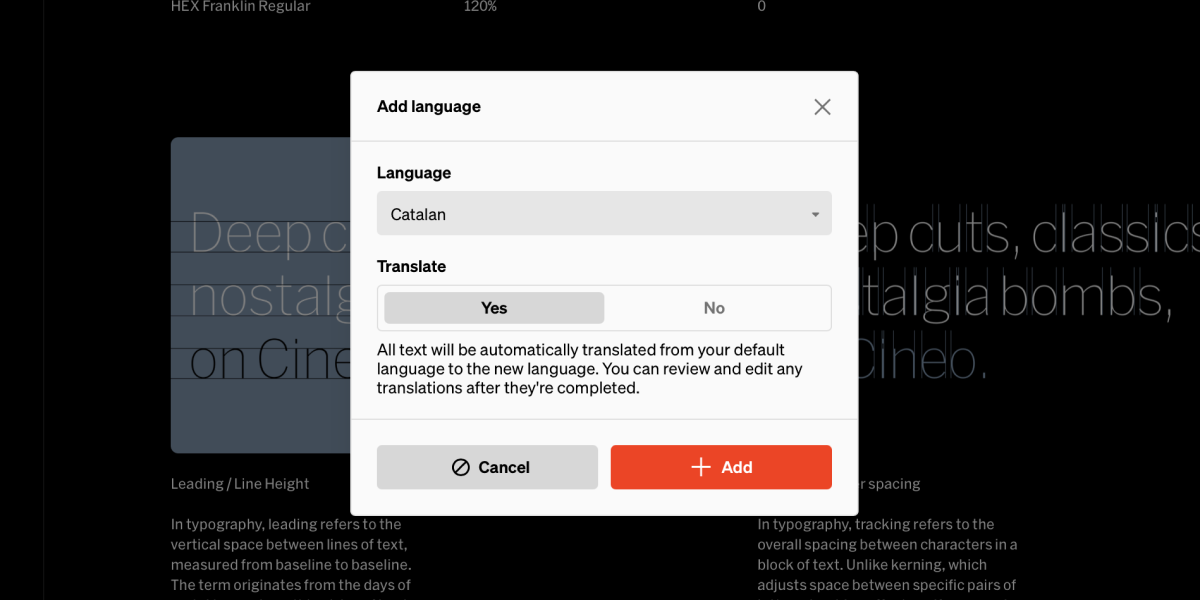
Translate all copy when adding language
In the process of adding a language, choose Yes to automatically the new language as it’s added.
Translate all copy after languages have been added
Entire languages can be translated at any time. Within the Content editor, select theTranslate button. Keep in mind this will automatically translate the chosen languages based on the default language, and all copy edits previously made will be lost.

Selective
Within the Content editor, single blocks of text can be selectively translated by pressing the translate icon button that appears near text when it’s selectedChange language
Once another language has been added and translated, you will want to create a way for viewers to toggle between them. The primary way of letting viewers change languages, is to set the behavior On click » Change language on some buttons.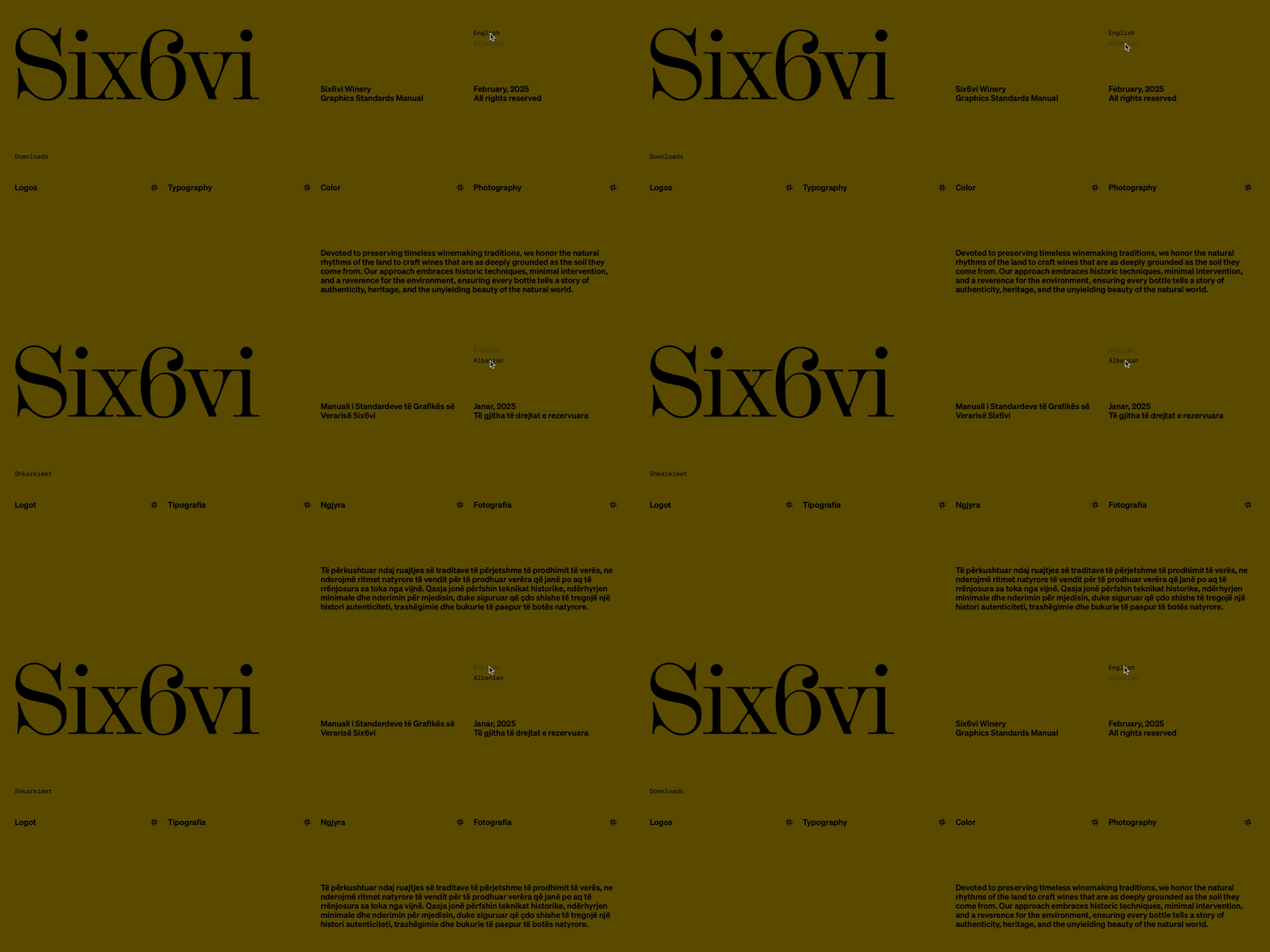
Add change language buttons
1
Add a button
Within the design editor, select the add button tool B then select in body where to add it
2
Add click behavior
Select the button, then select the click button (cursor clicking icon) from the contextual toolbar
3
Choose change language behavior
Within the click behavior settings, selec the change language behavior. Then select the language the button will change the guidelines to.
4
Optional: Repeat for more languages
Follow the same steps to add more buttons for additional languages
Tip: If there are many languages to switch between you could add the buttons inside of a dropdown D
Alternate media
Standards’ localization goes beyond the text on screen, enabling alternate media to be chosen per language. This is especially helpful when media has ‘baked in’ text to show example designs, so every language has its own version.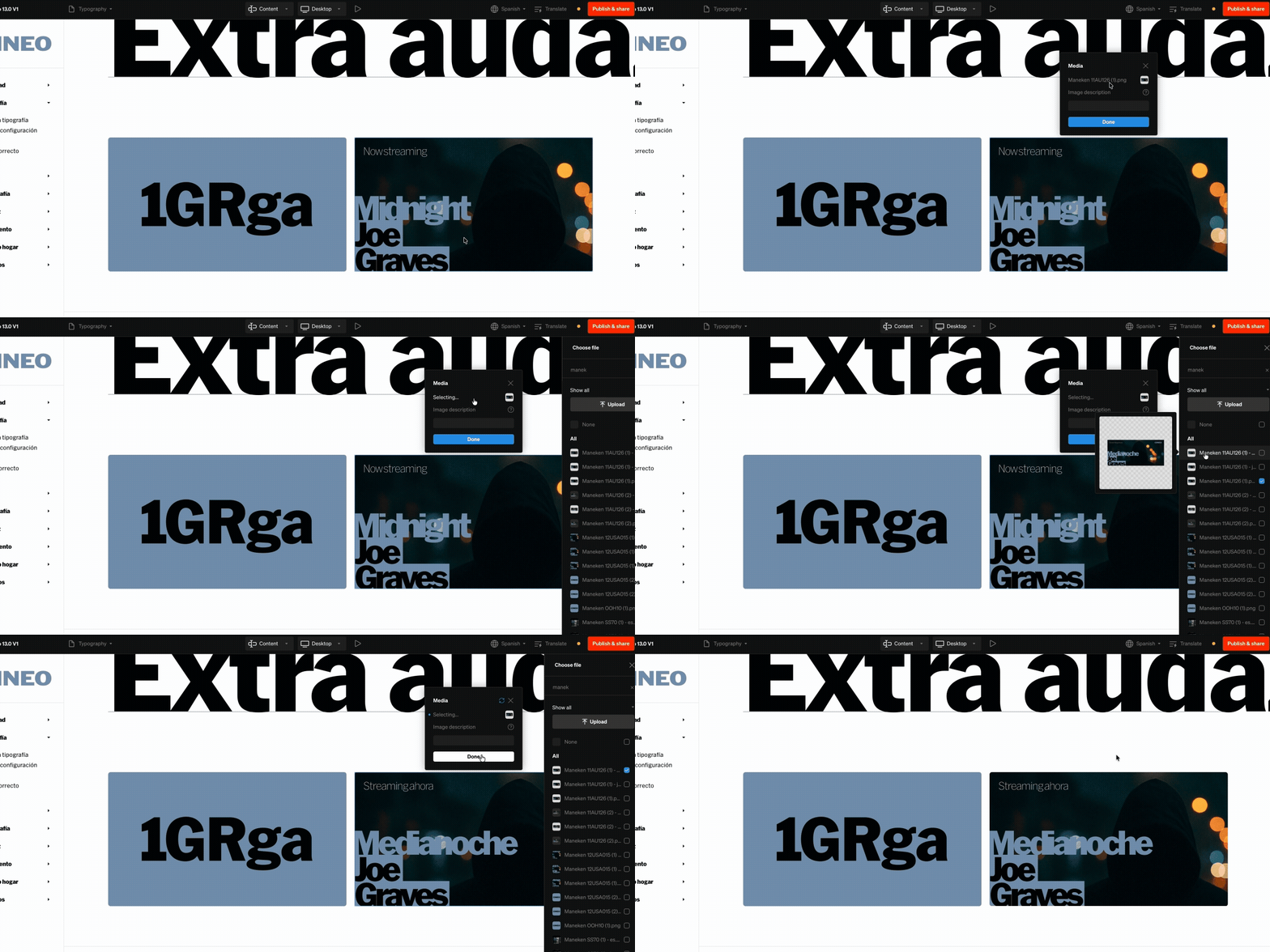
1
Select language
From within the project editor, select the preferred language to edit content from the top bar. The editor will change to content mode where copy and media can be changed
2
Select media
Select media to show the file and description.
3
Choose different file
Select the file, then choose another from the right sidebar, then select
doneTip: On media fills, you can change both the file used per language and breakpoint. For instance, a media element can have a mobile optimized version chosen, and a language optimized version of it can be chosen as well.
Language settings
Every Standards site has language settings where the default language and text direction is set. All additional languages will also show here where the text direction can be set, and where they’re removed.Access language settings:
1
Select language dropdown
From within the project editor, select the language dropdown (globe icon) from the top bar
2
Select language settings
From the localization dropdown, select Language settings at the bottom
3
Modify settings
Manage the language settings in the right sidebar that appears. Choosing the text direction is a common setting update.
FAQ
How do I upgrade to enable localization?
How do I upgrade to enable localization?
Please fill our customer requirements form and we’ll follow up
How many languages can I have in a single guidelines?
How many languages can I have in a single guidelines?
Up to 20
Do I need to duplicate my site for each language?
Do I need to duplicate my site for each language?
No, there is essentially a single default site that additional languages use. Only text content needs to be updated for each language, all edited from the same editor.
What technology do you use for the automatic translations?
What technology do you use for the automatic translations?
Standards uses Google’s cloud translation API
Do translations work on proper nouns, idioms, and other trickier words?
Do translations work on proper nouns, idioms, and other trickier words?
Automatic translations will attempt to translate to the fullest degree, but proper nouns and idioms may not be translated. It is important to proof each language for accuracy after it has been added.