

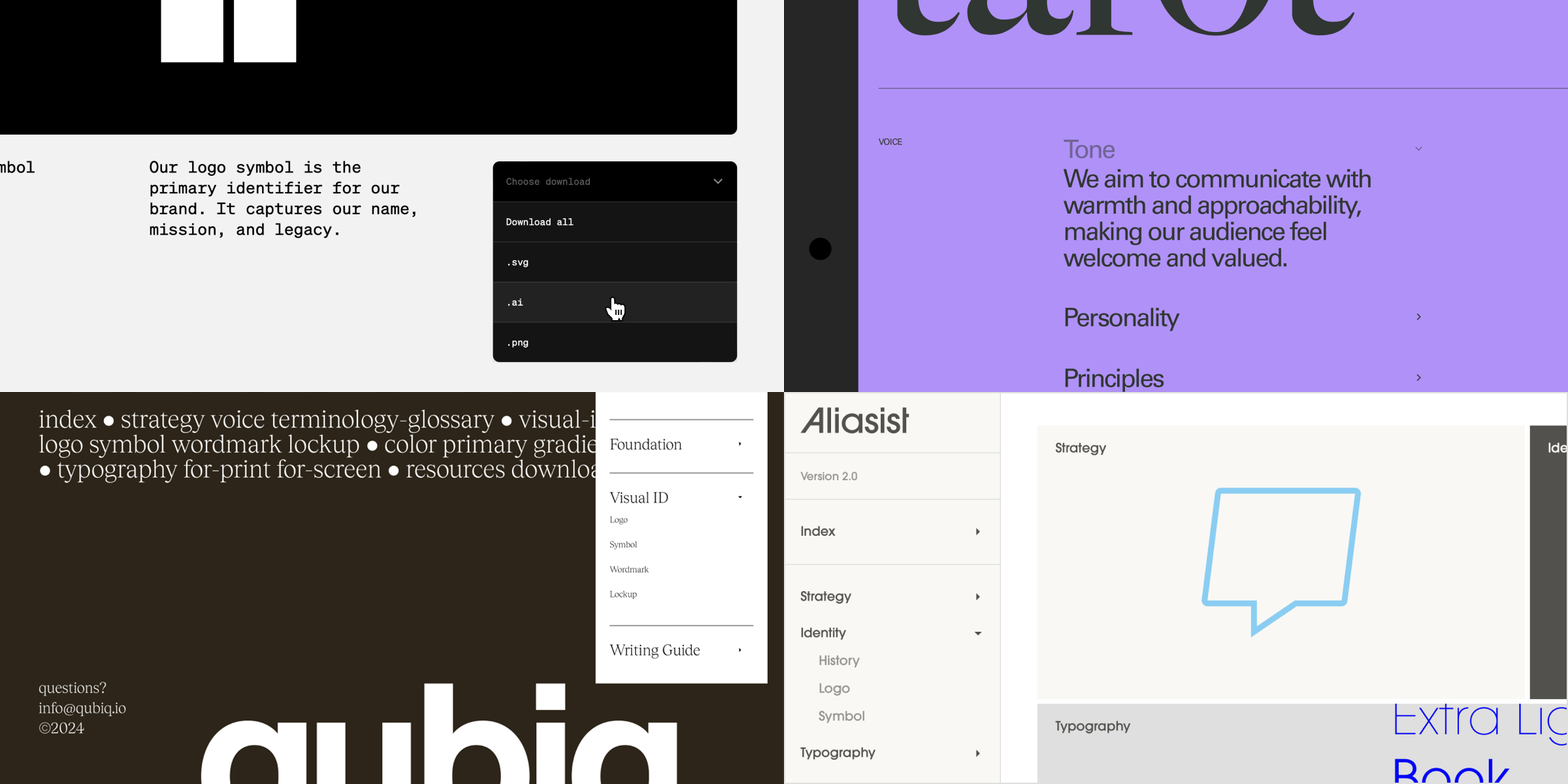
Dropdown basics
Dropdowns are an element that can be added to your project layout and menu, and consists of four + parts: the dropdown container, the controls container, text content in controls, and the icon content in controls. Additional elements can be added into Dropdowns, such at Text and Media.Adding dropdowns
1
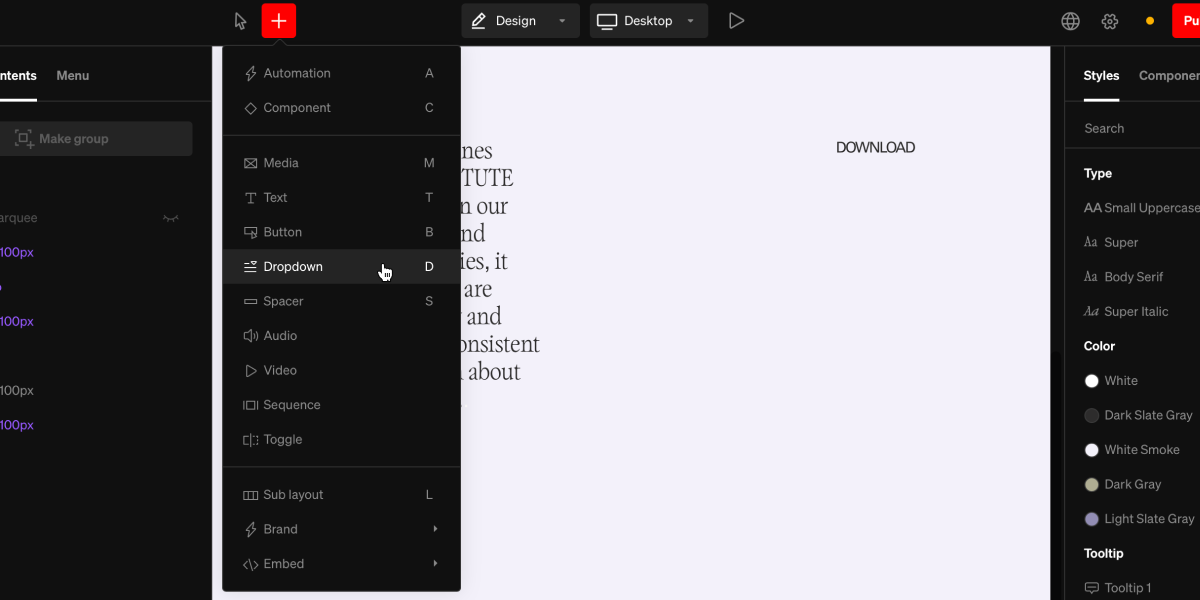
Select the dropdown add tool
From within the editor, select Dropdown from the
+ menu in the top bar, or use the hotkey D2
Add dropdown
Select a point in the project body by selecting between layouts, click + dragging within, or selecting a point inside a column.
3
Add items within
To nest content inside a dropdown, select the dropdown first, then use the
+ menu to add content the same way you would anywhere else.Dropdown states
Dropdowns have a range of states that can be styled individually, or synced together. Both closed and open have rest and hover states.- Closed: All content other than controls are hidden.
- Open: All content is exposed.
Settings within dropdown states
Each state can have fill and stroke settings altered independently from another, or synced together.Controls
Controls are an essential part of dropdowns with their own settings. Controls share many similarities with buttons, but are special because they trigger open & close behaviors on the dropdown.Controls settings
While selecting the controls part of a dropdown, the right sidebar will display the available settings for styling them.Controls states
Controls have a range of states that can be styled individually, or synced together. Both open and closed have rest and hover states.- Closed: When the dropdown is closed.
- Open: When the dropdown is open.
Dropdown behavior settings
Dropdowns can be used for a wide range of applications, and much of their core behavior is controlled within the settings accessed from the in-body toolbar.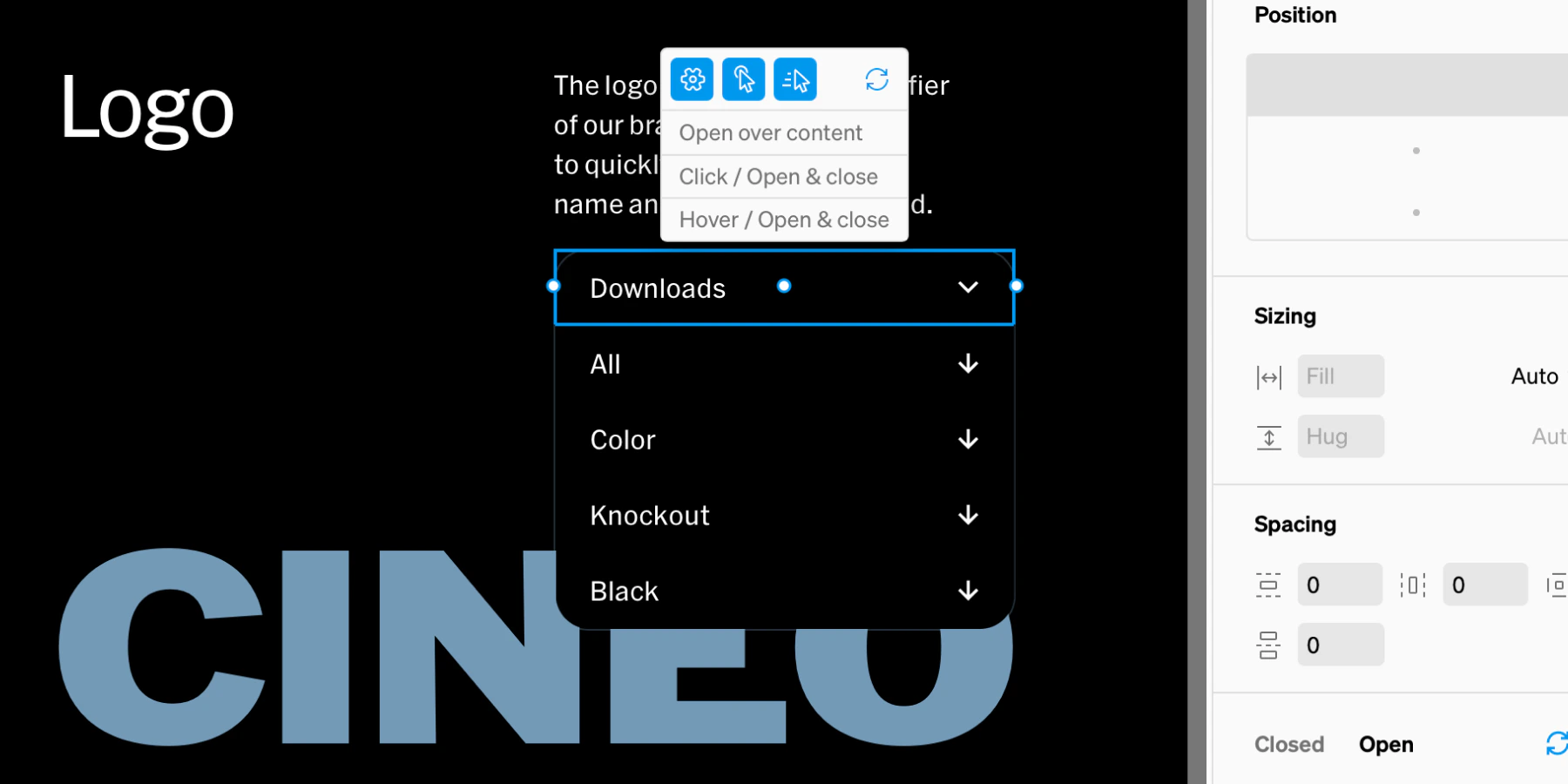
Open on pages
When on, the dropdown will stay open on certain pages. This is great for navigations where the page and page sections are linked. Once enabled, choose how the pages are decided:- Auto (Open on linked pages): the dropdown stays open if an item within it links to the page the viewer is currently viewing
- Custom (Open on specific pages): the dropdown stays open on the pages you pick, whether or not anything inside it links to them
Active on pages
Similar to open on pages, enabling active on pages will show the active state of the dropdown on certain pages. It offers the same choice:- Auto (Active on linked pages): active when an item within links to the current page
- Custom (Active on specific pages): active on the pages you pick
Always open
The state of the dropdown will stay in open.Open over content
When opened, the dropdown will show over content below it. This is ideal when using dropdowns in-body. When turned off, dropdowns will push content down when open, often preferred in navigation menus.Examples
Dropdowns have a wide range of use. Here are common uses: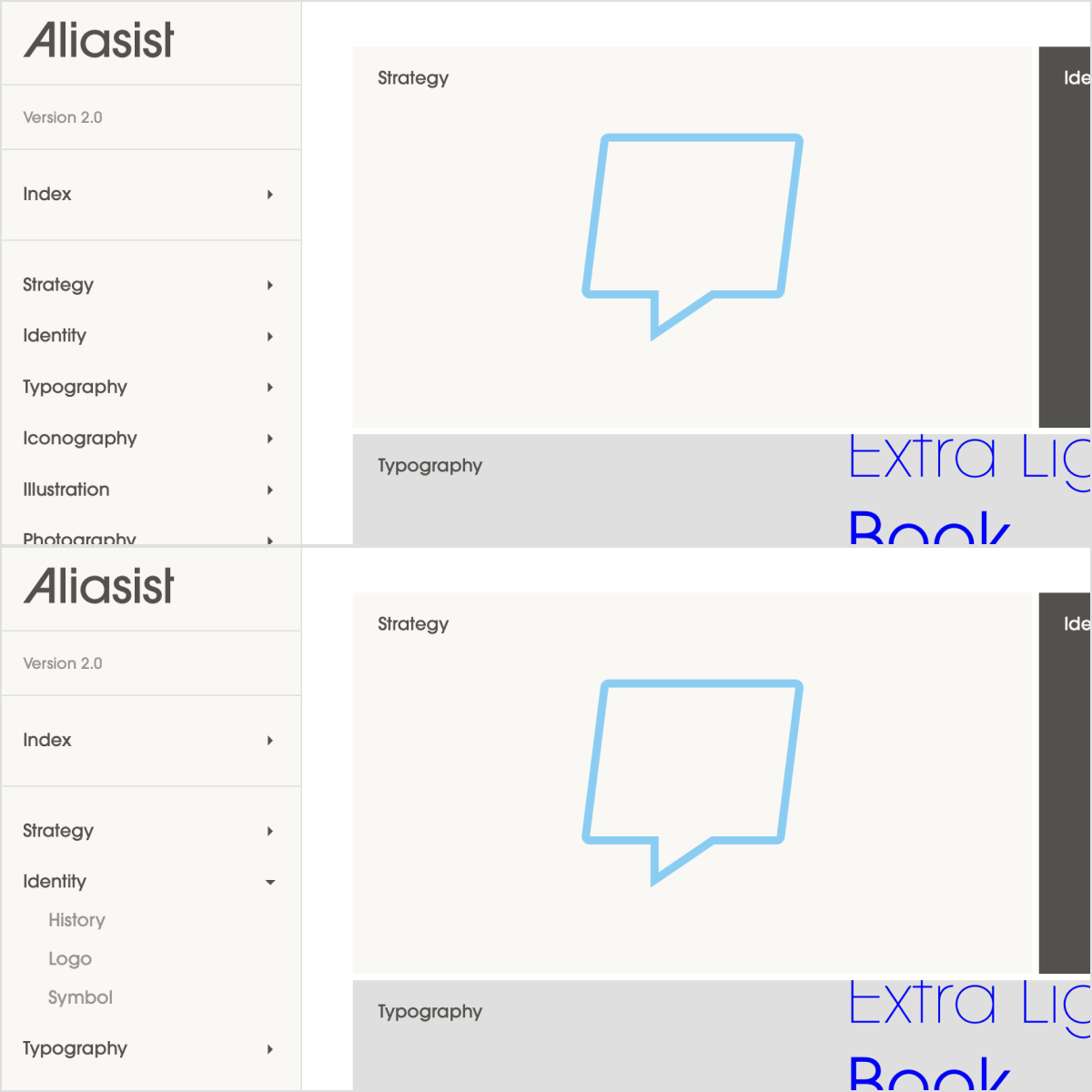
Menu groups
Building menus with dropdowns is a great way to create grouping related items together. For example, a dropdown could contain links to the sections of a page, or links to multiple pages in a section.