

Copying within a project
From within the Standards editor, most content and designs you create can be copied to another page within the project.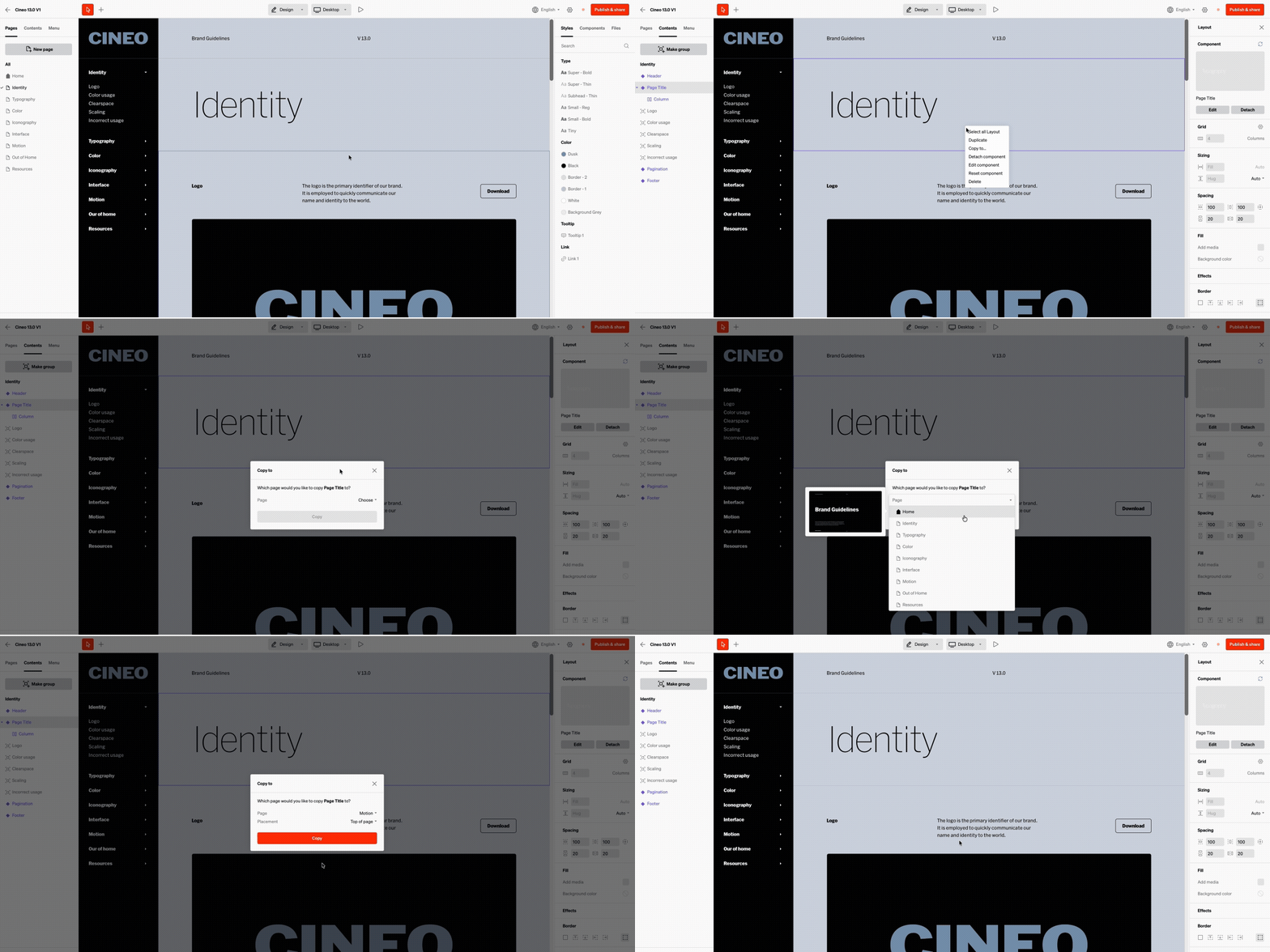
1
Select copy to
- Right click / select the 3 dot icon on the content layer from Contents tab in the left sidebar
- Right click within the body of the project on the content you would like to copy.
2
Choose destination
- Choose the page it will copy to
- Optional: Choose the placement on the page
- Select
Done
Note: Only group and layout layer types can be copied to other pages like this.
Copying between projects
From within the Standards editor, most content and designs you create can be copied to another page within the project.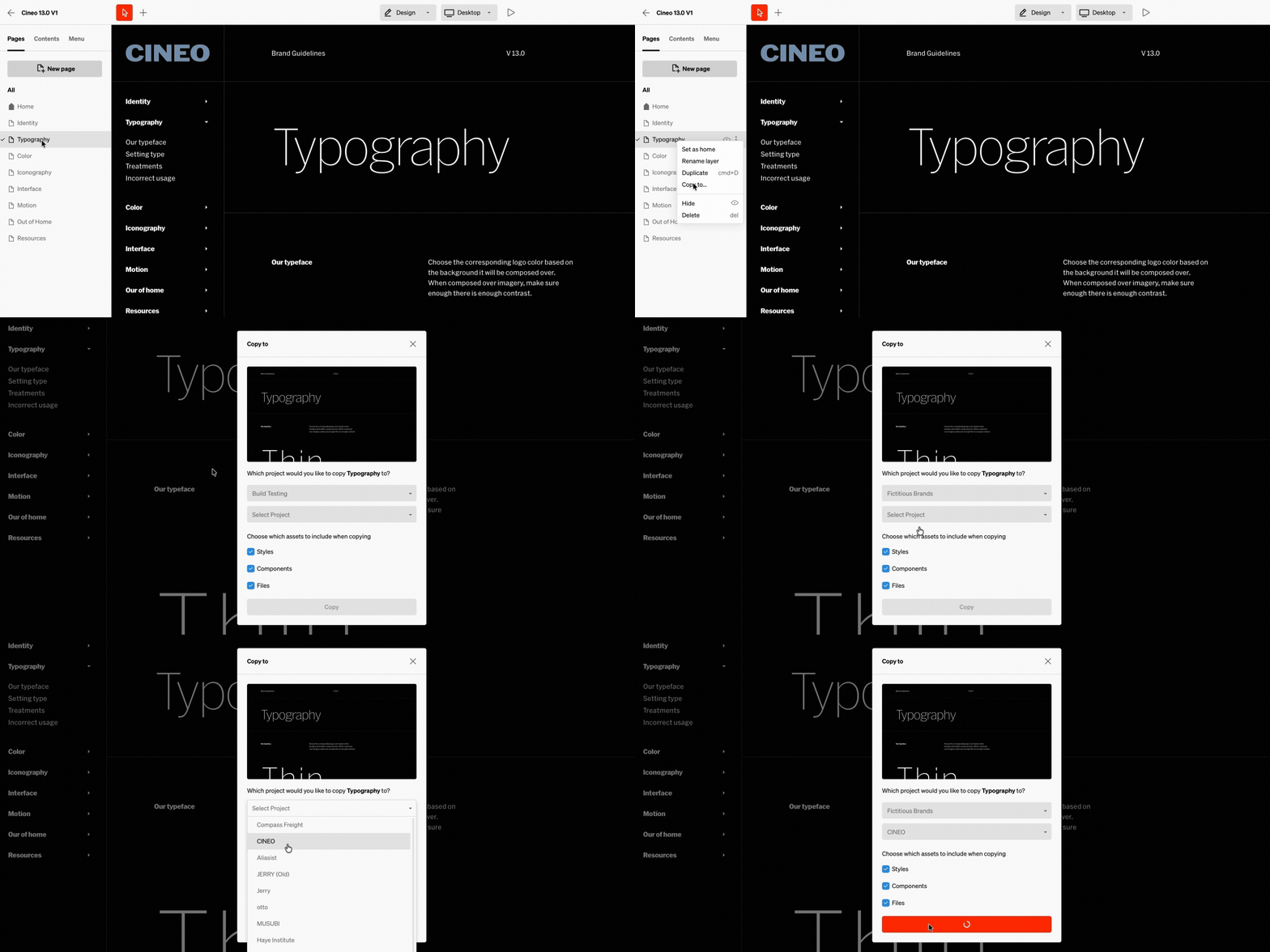
1
Select copy to
Right click / select the 3 dot icon on page layer from the Pages tab in the left sidebar
2
Choose destination
- Choose the workspace and project to copy to
- Select the assets to include
- Select
Copy
3
Note: This may take some time
Depending on the complexity, it may take a few minutes to copy to the other project
4
Open destination project
Return to the dashboard then navigate to the editor of the destination project to find the content that was copied to it.