


Basics
Menus are elements that can be added to your project, and exist outside the document grid and max width. Menus can hold most content, and can be linked up to pages, downloads, external URLs, and more.- Menus are not constrained to mirror the pages of the project
- All menus follow the same base settings
- Menus can be styled different for each breakpoint
- Menus are well suited for Buttons and Dropdowns as navigation, but can contain almost any element
- Only one menu is allowed
Elements inside menus
- Controls: Visible when a menu has an open & closed state, the controls are a button that control triggering the opening and closing of the menu.
- Logo: A special media layer with absolute positioning, the logo inside menus can be shown in either open and or closed states, and be filled with different files.
Adding a menu
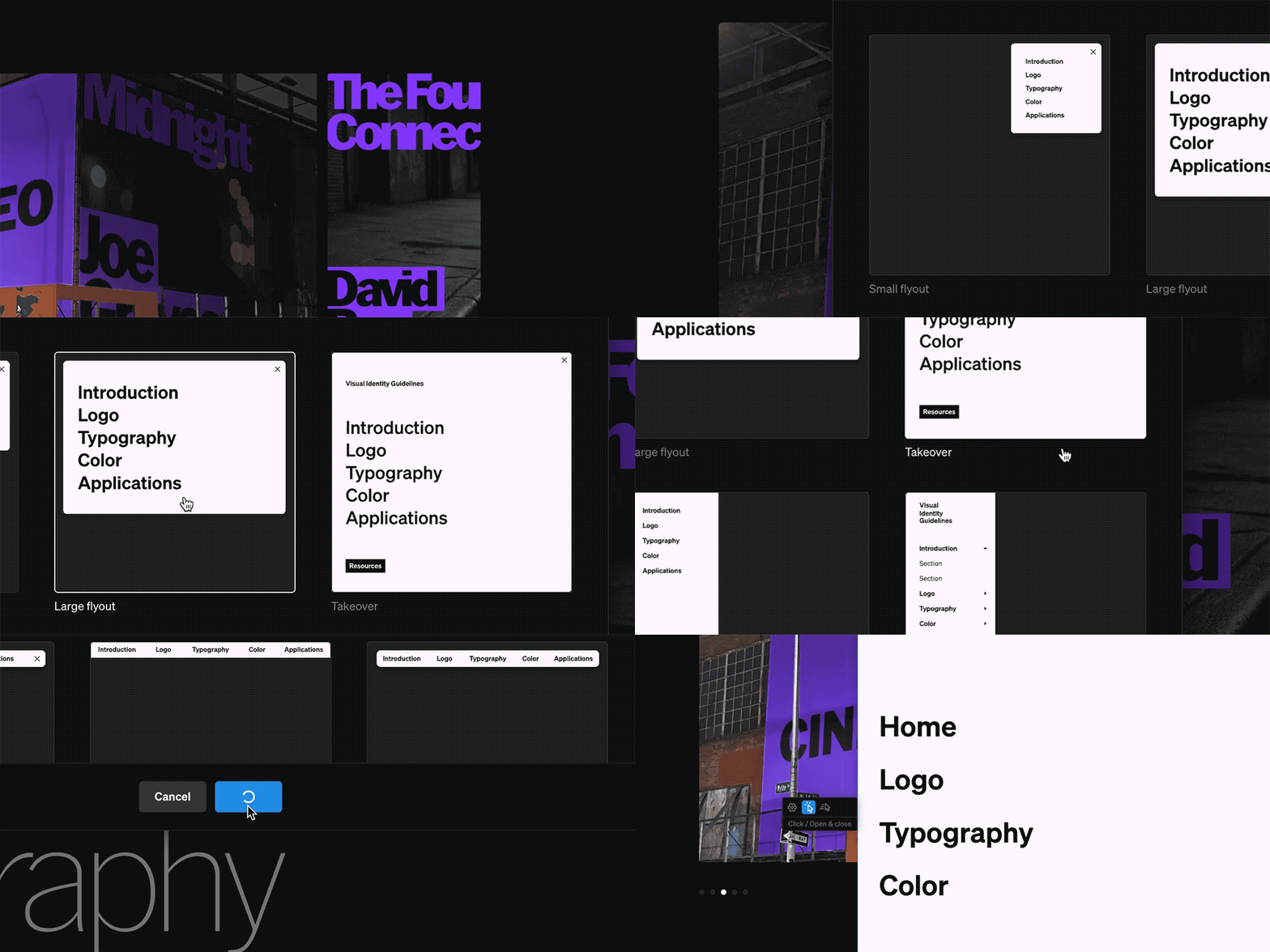
1
Select menu tab
Within the editor, select the Menu tab from the left sidebar
2
Add new menu
Select the New menu button. If an existing menu exists, it must be deleted prior to adding a new one
3
Choose new menu type
Choose a menu type as a starting place for your new menu. Note: All menus shown are the same element, just with different setting applied.
Keep in mind: If your project already has a menu, you can delete it to add a new one. Be aware if you delete an existing menu you will need to restyle and link buttons in the new one.
Menu options
When adding a new menu, there are various styling options to start from. Keep in mind that all menus can be achieved by simply changing the settings of the menu at any point once it’s added. For instance, a flyout menu can be changed to a sidebar by editing the sizing and ‘always open’ settings.Native elements
Within every menu are two native elements:- Logo
- Controls
Logo
This element is intended for the brand’s logo. Both the open and closed state of the menu can have this element, and they can differ from one another.Controls
This content element is used to control opening and closing the menu. Both the open and closed state can have this element, and they can differ from one another.Adding content to menus
Almost all elements in Standards may be added to a menu. Anything you can add to a column can be added to a menu. Keep in mind: The contents of menus is flexbile and can be configured to best fit your guideline and each breakpoint.
1
Choose add tool
From within the editor, select elements like media M, text T, and button B from the + menu. Some components C may also be chosen to add into menus.
2
Select menu
Hover over the open menu, and select the add point overlay.
3
Reorder and style
Menu content can be reordered by click + dragging from the menu layers in the left sidebar. Each item can be styled by selecting them and modifying their settings in the right sidebar as normal.
4
Set links
Link buttons to pages, URL’s, and more by selecting them, choose click from the contextual toolbar, then adding a click behavior.
Keep in mind: Layouts, groups, and by extension automations or any components of layouts and groups cannot be added inside a menu.
Interactions
Each menu must have some interaction set. Additionally, certain settings may be unique depending on the chosen menu style and interaction type, so it’s worth being intentional about this setting. The available interactions for a Menu are listed below.
Always open
The menu remains open and adjacent or over the page contents, and does not have a Closed state. This is fundamental to side or top bar menus.