Quick links
Standards FAQ
🔑 Sign in
🆕 Create account
💬 Chat on Slack
📩 [email protected]
🖥 Website standards.site
🐦 Twitter @standards_site
📷 Instagram @standards.site
Updates
Release 12.0
Design & Editing
Editor overview
Adding
Responsive Optimizations
Layouts
Grid
Preparing logo assets
Click & Hover behaviors
Text
Media
Button
Dropdown
Sequence
Navigation Menu
Links
Color
Components
Automations
Tooltips
Effects
Copying & moving
Files & downloads
Collaborative editing
Comments
Project backups
Accessibility
Localization
Workspace & Project Management
Dashboard overview
Publish & share
Workspaces
Workspace members
Viewers
Project access page
Project folders
Project settings
Agency client workflow
Project transfers
Connect a custom domain
SAML SSO integration
Analytics & view history
Your account
Sign in
Plan & Billing
Updating account
Approvals
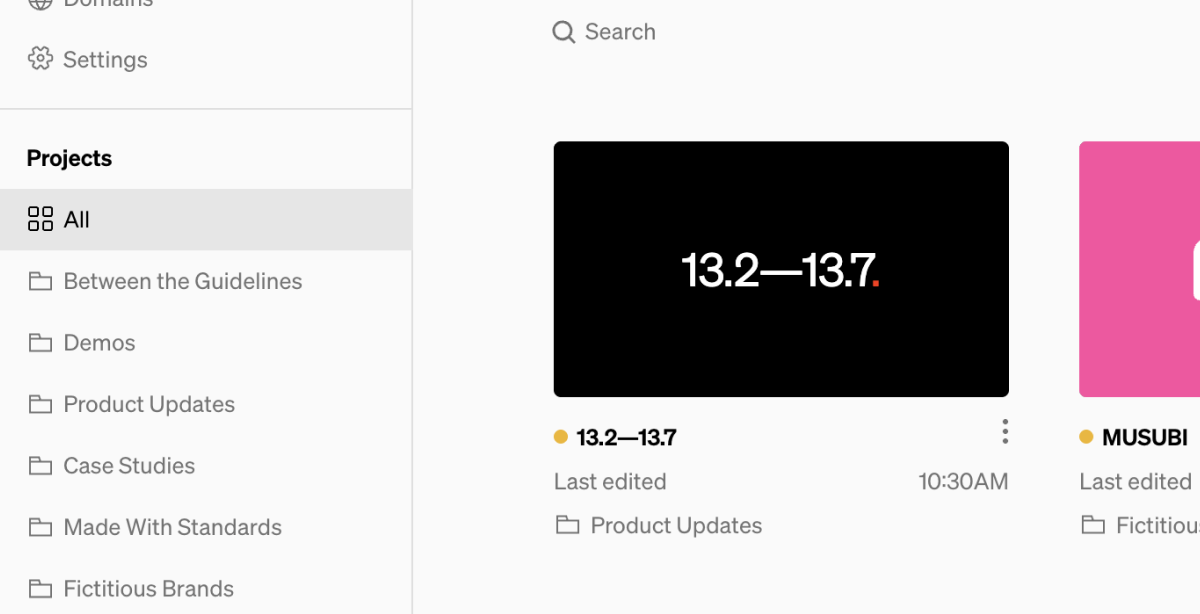
Folders are used to organize projects in the Dashboard by grouping them into separate pages navigable from the sidebar. All folders are accessible by any Member of the Workspace and cannot be made private.
In this guide:
Adding folders
From the Dashboard, select + New folder in the bottom of the left sidebar to create a new folder.
Make sure to give your folder a unique name to avoid confusion. To rename a folder, either click the name above the project tiles, or right click the name in the sidebar and select Rename from the list of options.
Moving projects between folders
Projects can be added to and moved between folders in two ways
- Drag & drop projects into a desired folder in the sidebar.
- Right click a project tile, and select
Move from the list of options.
<aside>
⚠️ Those using Standards before release 11.11 (when Folders were introduced) may have used multiple workspaces to group projects. For those customers, we recommend transferring projects to a consolidated set of workspaces, and grouping them into folders instead. For more information, see ‣ and Workspaces.
</aside>
Related guides
Workspaces