

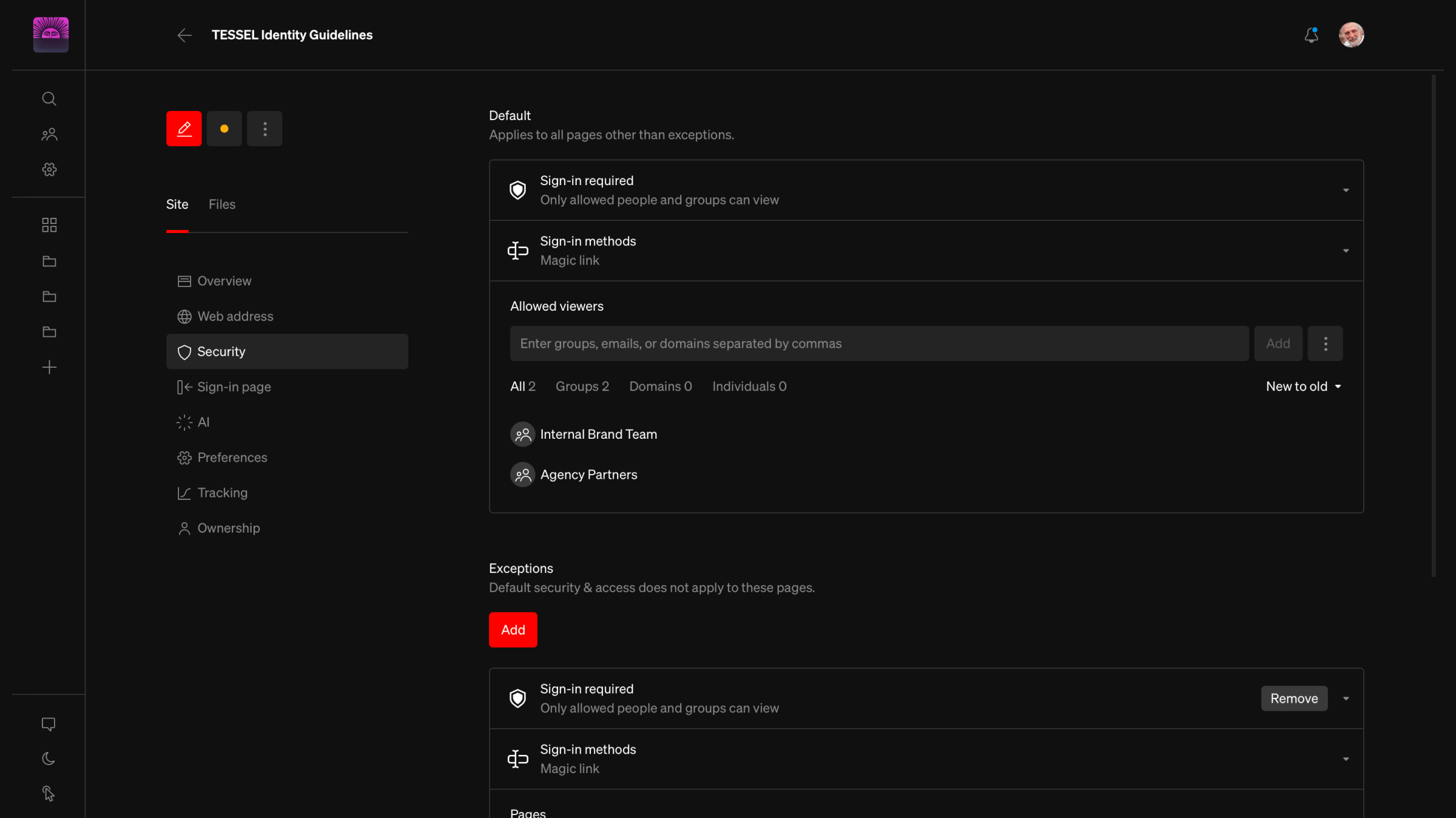
Open the Security page
1
Select guideline
From the dashboard, select the guideline you want to manage
2
Open Security
Select Security from the left column
Save in the bar at the bottom of the page.
Once saved, security changes apply to a published guideline right away. You don’t need to publish again. Guidelines published with an earlier version of Standards are re-published the first time you save. Learn more in Web address.
Default
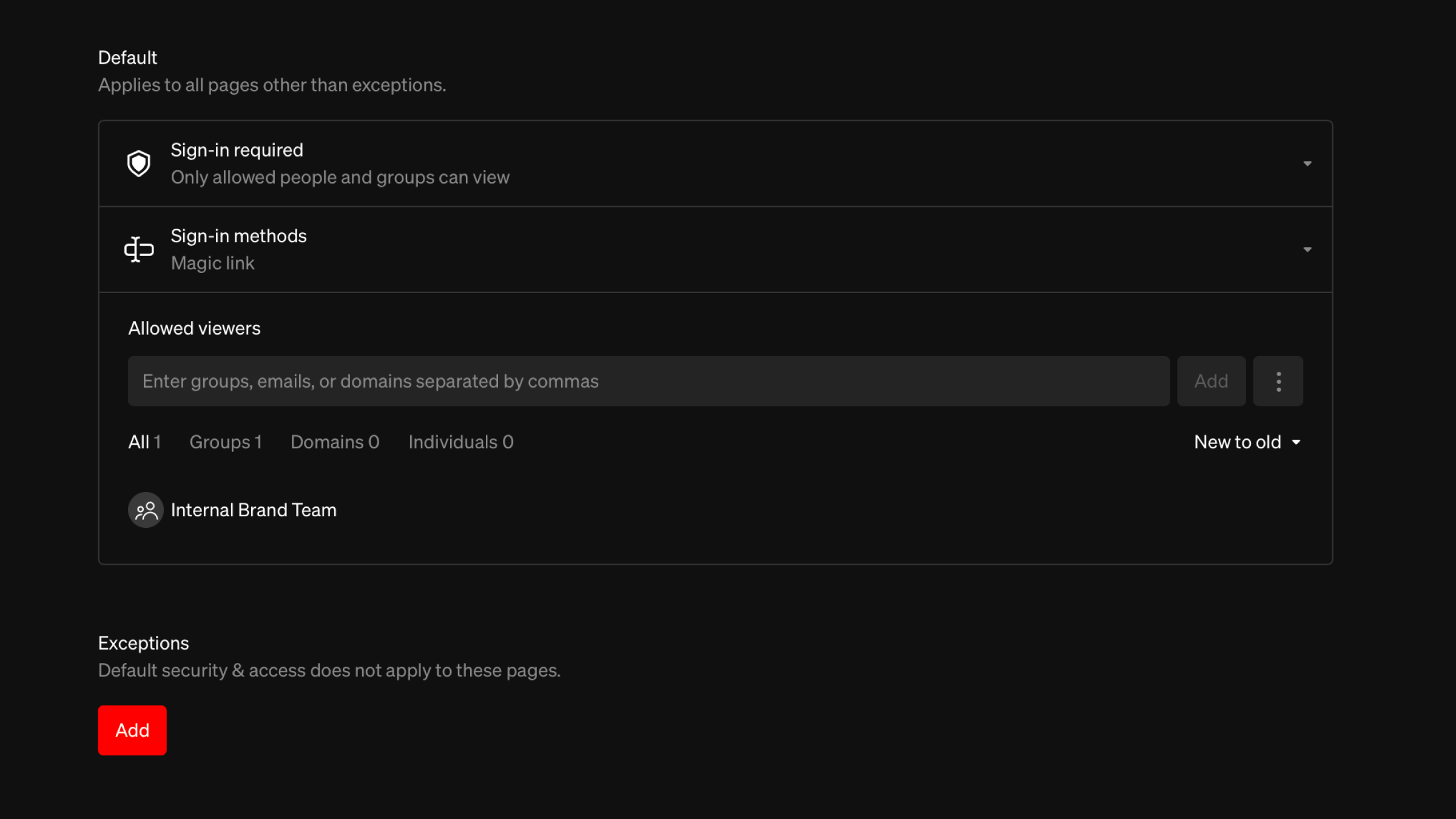
Exceptions
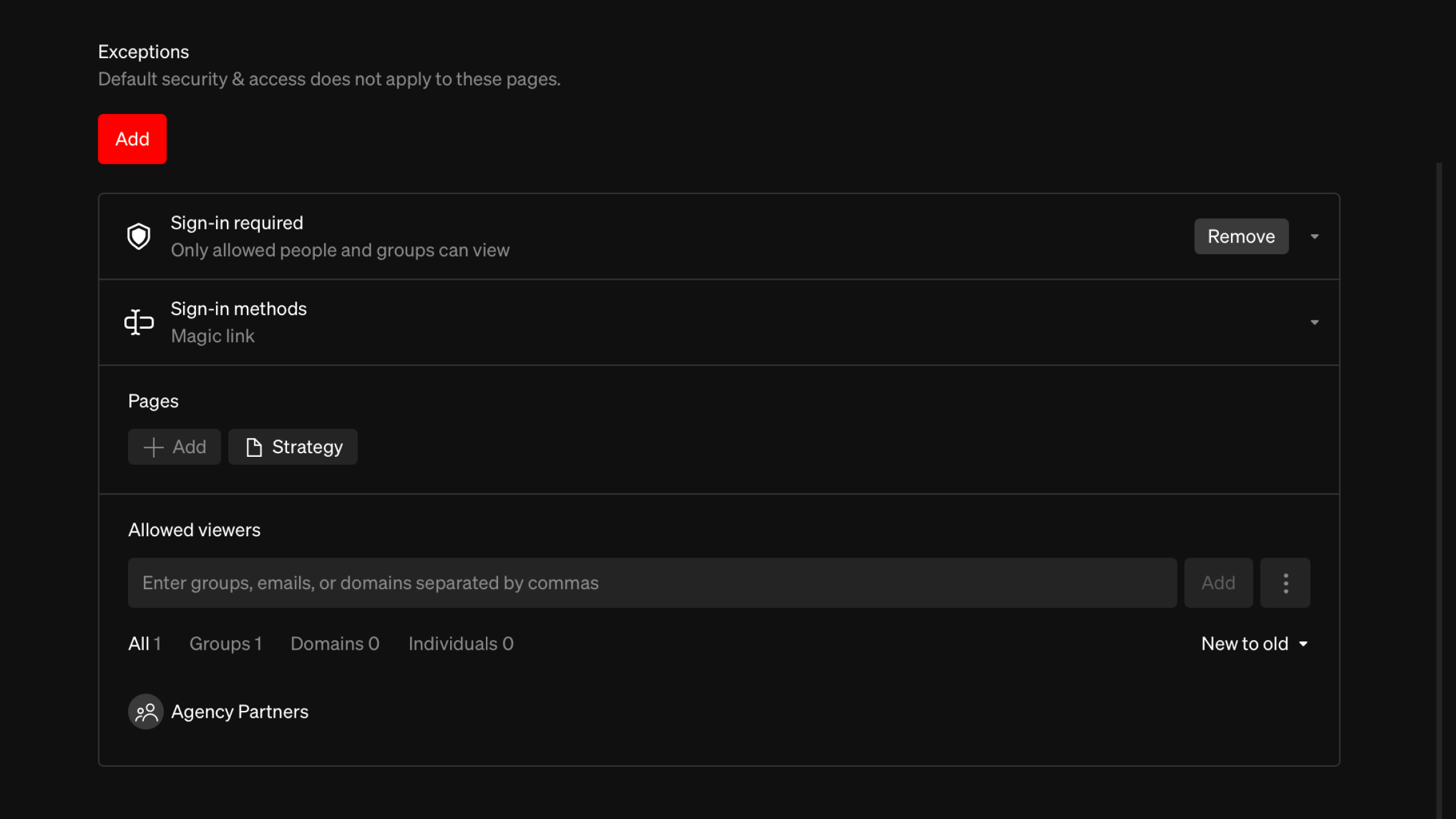
1
Add an exception
Under Exceptions, select
Add2
Choose its security
Select the security option for the exception, and fill in any settings it needs
3
Add pages
Under Pages, select
Add, choose the pages the exception applies to, then select Add4
Save
Select
Save in the bar at the bottom of the pageKeep in mind
- Every exception needs at least one page.
- A page can only belong to one exception. Pages already in another exception can’t be chosen.
- Select
Removeon an exception to delete it. Its pages go back to the default. - Hidden pages aren’t published, so they can’t be added to exceptions.
- Exceptions can’t use Secure embed, since an embedded guideline is always embedded as a whole.
- Exceptions are available on every plan. Each exception can use any security option your plan includes.
Security options
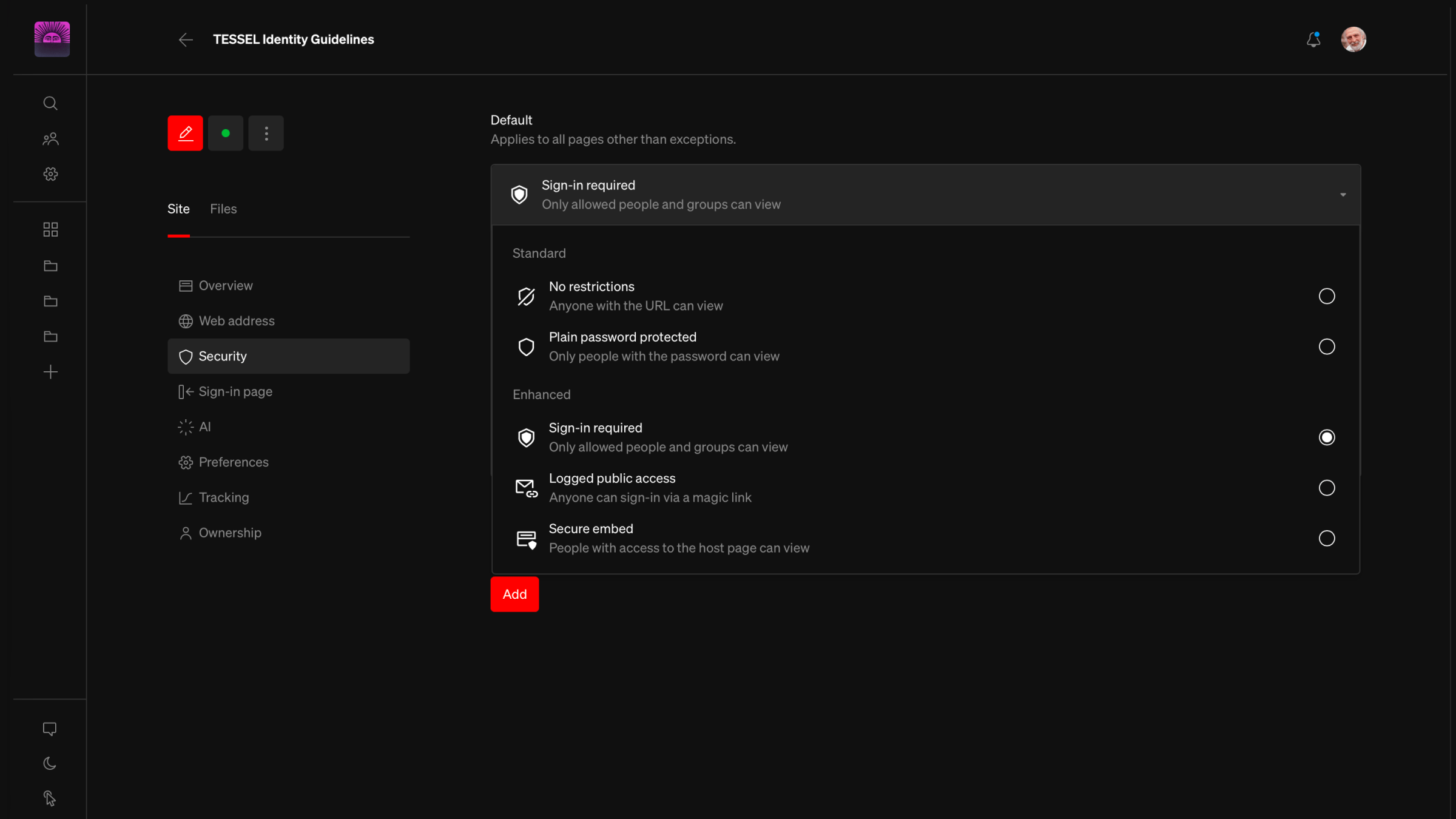
Standard
No restrictions- Anyone with the URL can view. This is ideal for guidelines that can be shared with anyone.
- Only people with the password can view.
- Set a password of at least 5 characters. The password is shown in plain text, so it’s easy to copy and share.
- Limit incorrect attempts is on by default. After several incorrect passwords, the viewer is locked out for a while before they can try again.
- Requires a paid plan.
Enhanced
Enterprise Sign-in required- The most secure and configurable security option. Only allowed people and groups can view.
- Choose the sign-in methods viewers can use, and who is allowed to view. See Sign-in methods and Allowed viewers below.
- Anyone can view after entering their email address and selecting the verification link that is automatically sent to them.
- Views are logged and accessible from the guideline’s Tracking page. Learn more about Tracking.
- Secured from public and direct access. Only people with access to the host page can view.
- The guideline must be embedded on a host page served from an allowed domain. See Secure embed below.
Sign-in methods
Enterprise Pages with Sign-in required security choose how viewers sign in. Each exception with sign-in required has its own sign-in methods.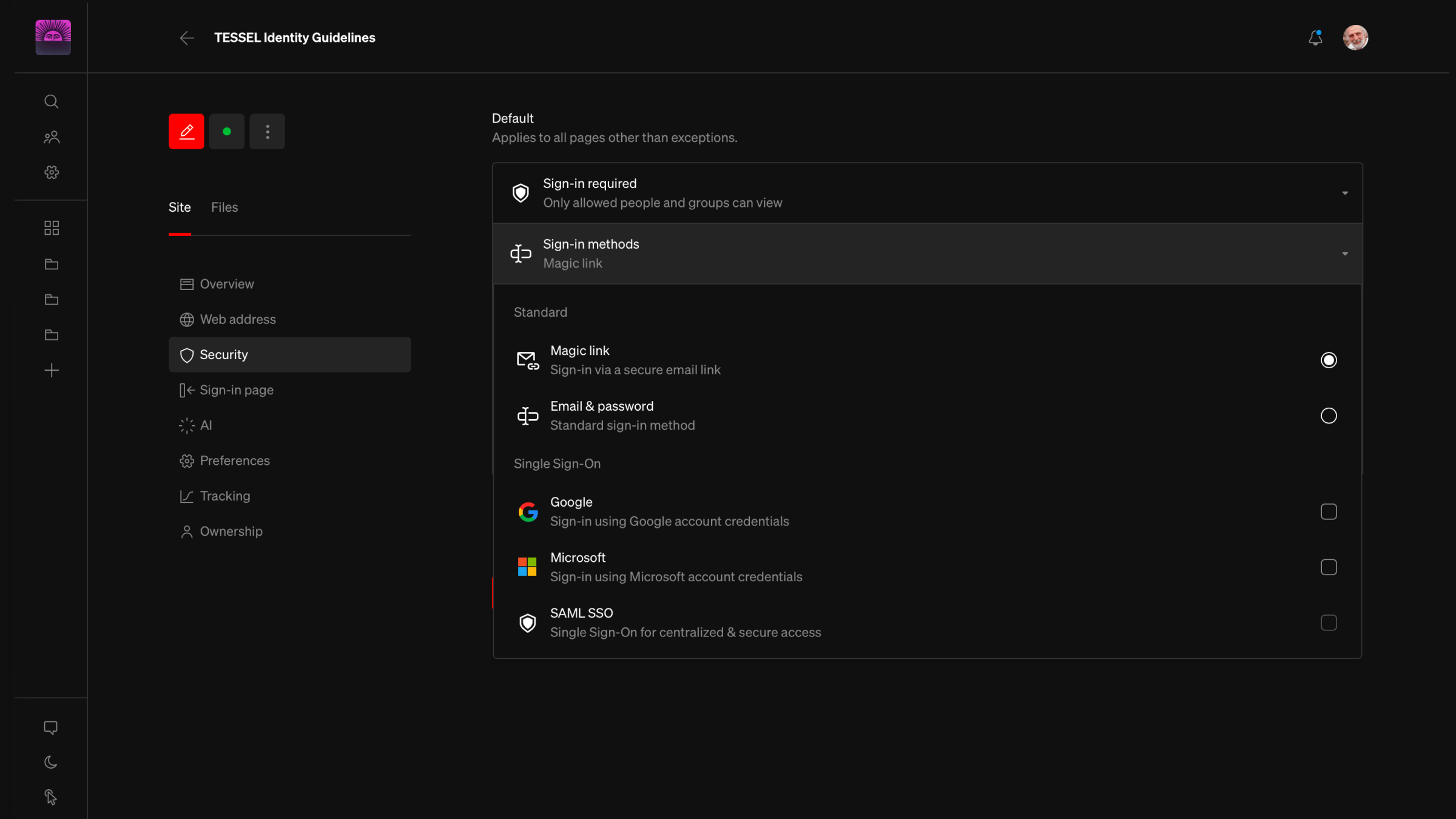
Standard (choose one)
- Magic link: Viewers enter their email address to receive a secure link that signs them in.
- Email & password: Viewers sign in with their Standards account email and password.
Single Sign-On (choose any)
- Google: Viewers sign in using their Google account credentials.
- Microsoft: Viewers sign in using their Microsoft account credentials.
- SAML SSO: Viewers sign in using your organization’s single sign-on service. Set up SAML SSO in your workspace settings first. Learn more about SAML SSO.
Allowed viewers
Enterprise Pages with Sign-in required security list who can view them. Add groups, individual email addresses, and email domains. Viewers must sign in with an email address that is on the list, belongs to an allowed domain, or belongs to an allowed group. Learn more about Allowed viewers.Secure embed
Enterprise Embed your guideline inside an existing website, team portal, or DAM. When the default security is Secure embed, the Security page shows the embed settings in place of exceptions.Embed code
SelectSave to generate the embed code, then select Copy and paste it into the host page. The host website must be served over HTTPS and send the Referer header.
Allowed domains
Enter each domain that is allowed to embed the guideline, then selectAdd. The embed only loads on pages served from these domains.
FAQ
Where are the Restricted pages settings?
Where are the Restricted pages settings?
Restricted pages are now Exceptions. Instead of moving pages between a restricted and a public list, set a default for the guideline and add an exception for the pages that should be different. Each exception can have its own security, password, sign-in methods, and allowed viewers.
Can different pages have different passwords?
Can different pages have different passwords?
Yes. Add an exception for each set of pages, give each one Plain password protected security, and set a different password on each.
Does search show restricted pages?
Does search show restricted pages?
Content a viewer can’t access is left out of their search results. Learn more about Search.