> ## Documentation Index
> Fetch the complete documentation index at: https://help.standards.site/llms.txt
> Use this file to discover all available pages before exploring further.
# Video
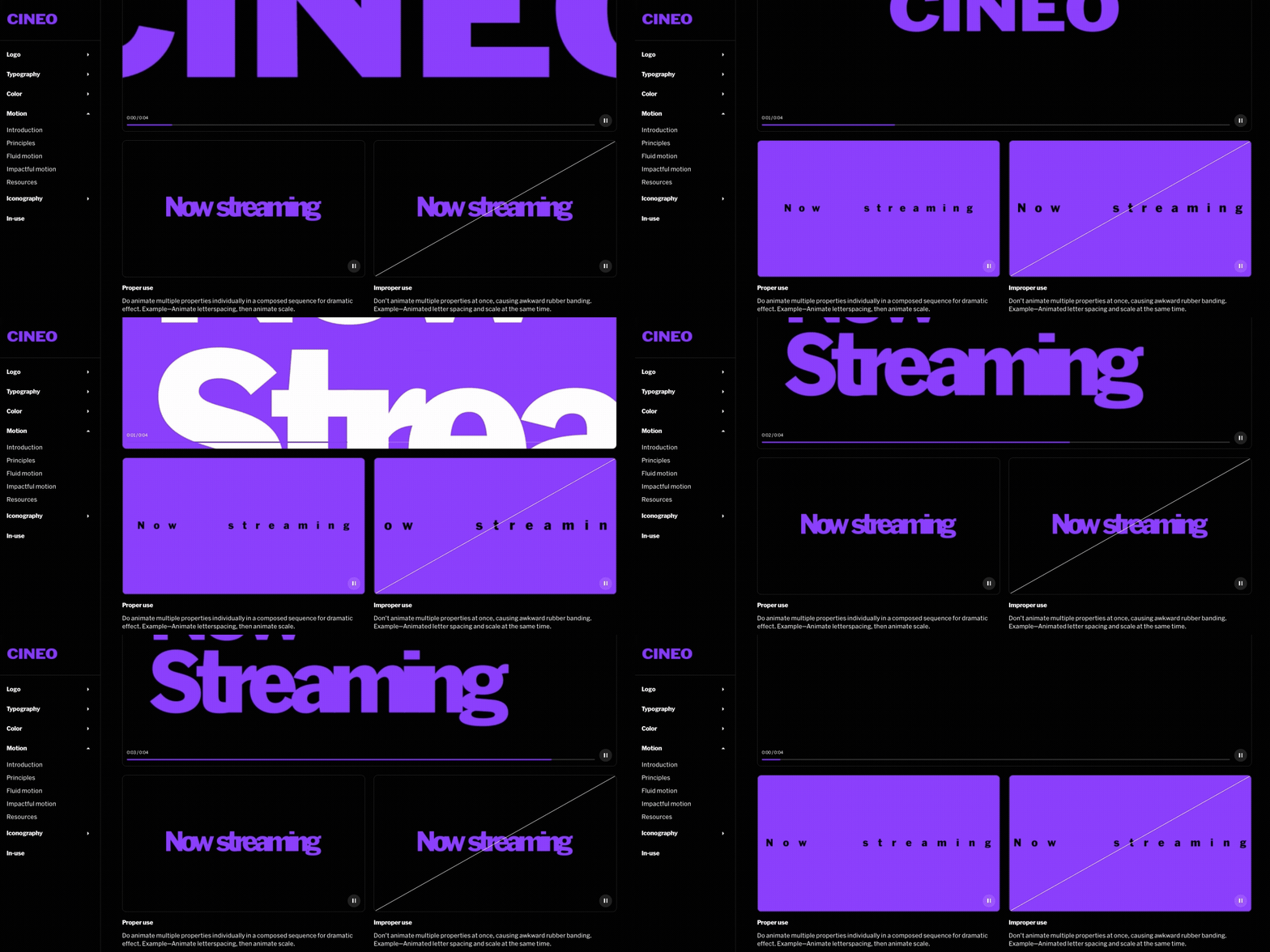
Videos are elements that play video files and incorporate playback controls, playhead, and time
 ***
## Basics
Video elements play .mp4 and .webm files, and include built-in controls with a play button, timestamp, and playhead, as well as playback settings like loop video available in the in-body tool widget.
### Adding videos
From within the editor, select **Video** from the `+`menu in the top bar
Select a point in the project body by selecting between layouts, click + dragging within, or selecting a point inside a column
Select or upload a video file the player will use for playback
### Elements inside video
**Controls**
* **Play button:** Shows play & pause state, can be used to play & pause on click
* **Time:** Displays in text the total video length, and progress
* **Playhead:** Displays in a bar the total video length, and progress
***
## Examples
***
## Basics
Video elements play .mp4 and .webm files, and include built-in controls with a play button, timestamp, and playhead, as well as playback settings like loop video available in the in-body tool widget.
### Adding videos
From within the editor, select **Video** from the `+`menu in the top bar
Select a point in the project body by selecting between layouts, click + dragging within, or selecting a point inside a column
Select or upload a video file the player will use for playback
### Elements inside video
**Controls**
* **Play button:** Shows play & pause state, can be used to play & pause on click
* **Time:** Displays in text the total video length, and progress
* **Playhead:** Displays in a bar the total video length, and progress
***
## Examples
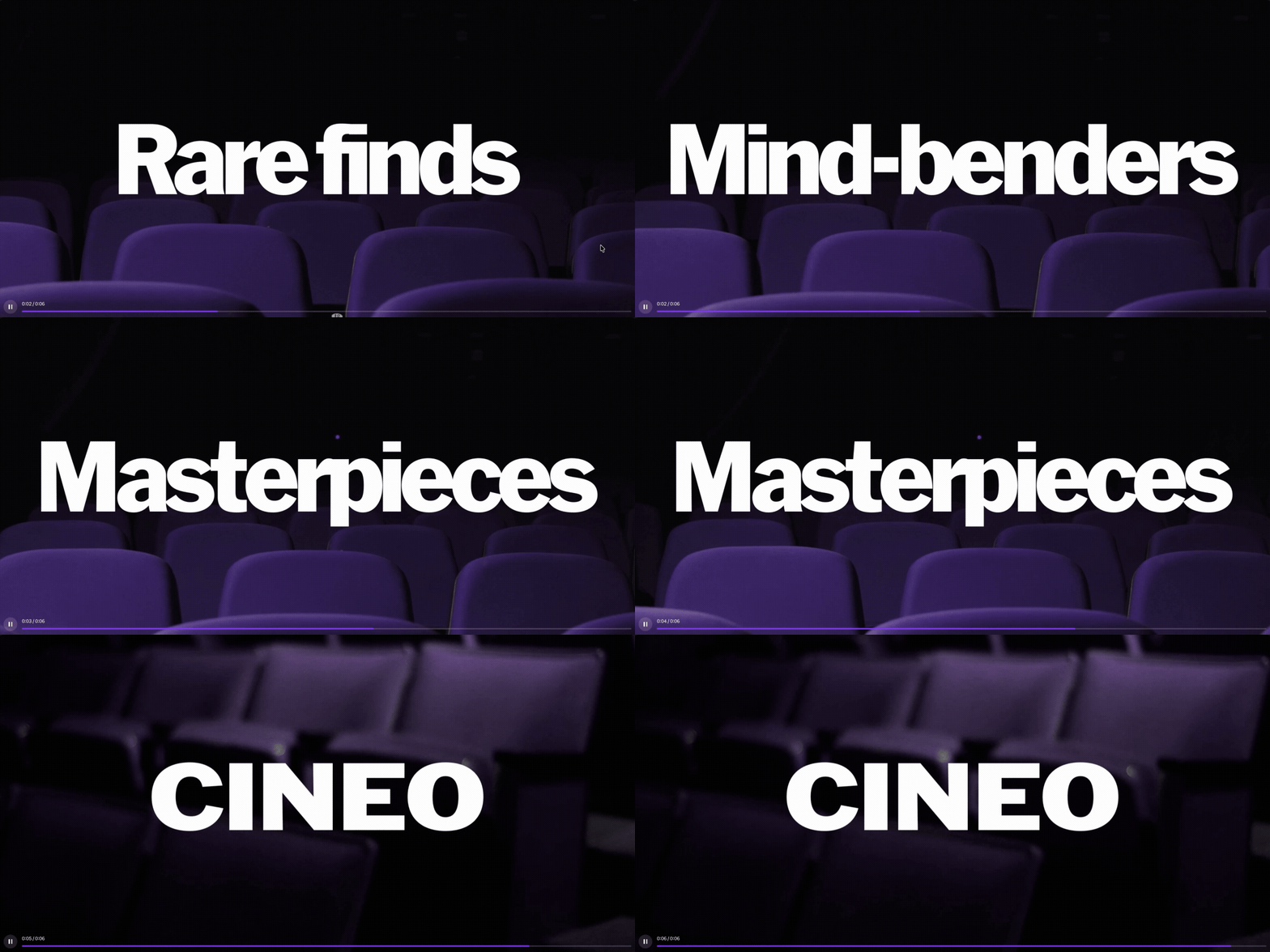 Full controls in use, great for longer form video.
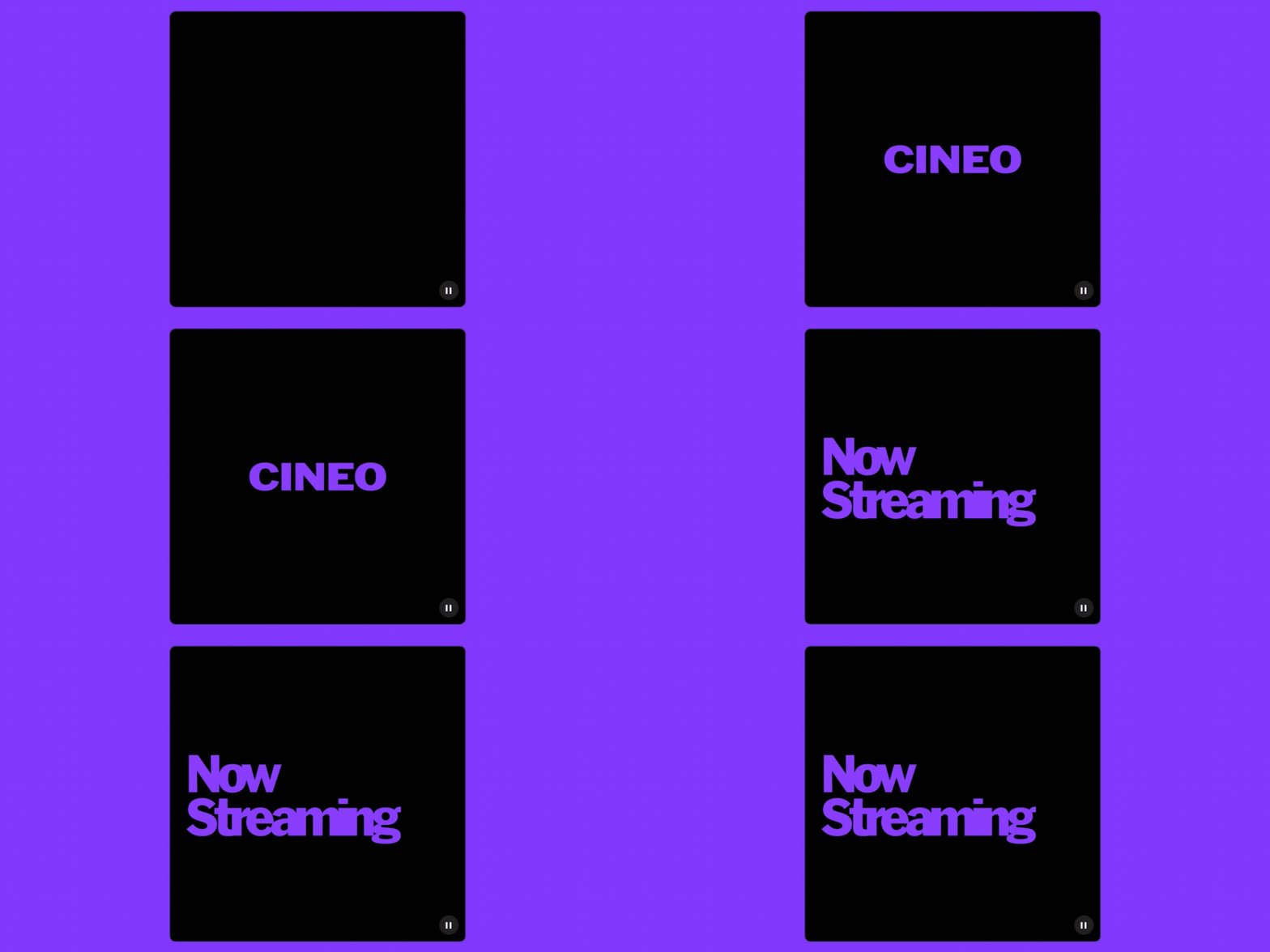 Simplified controls, just showing play & pause button, set to autoplay. Great for short looping videos.
***
## Playback settings
Simplified controls, just showing play & pause button, set to autoplay. Great for short looping videos.
***
## Playback settings
 ### Change playback settings
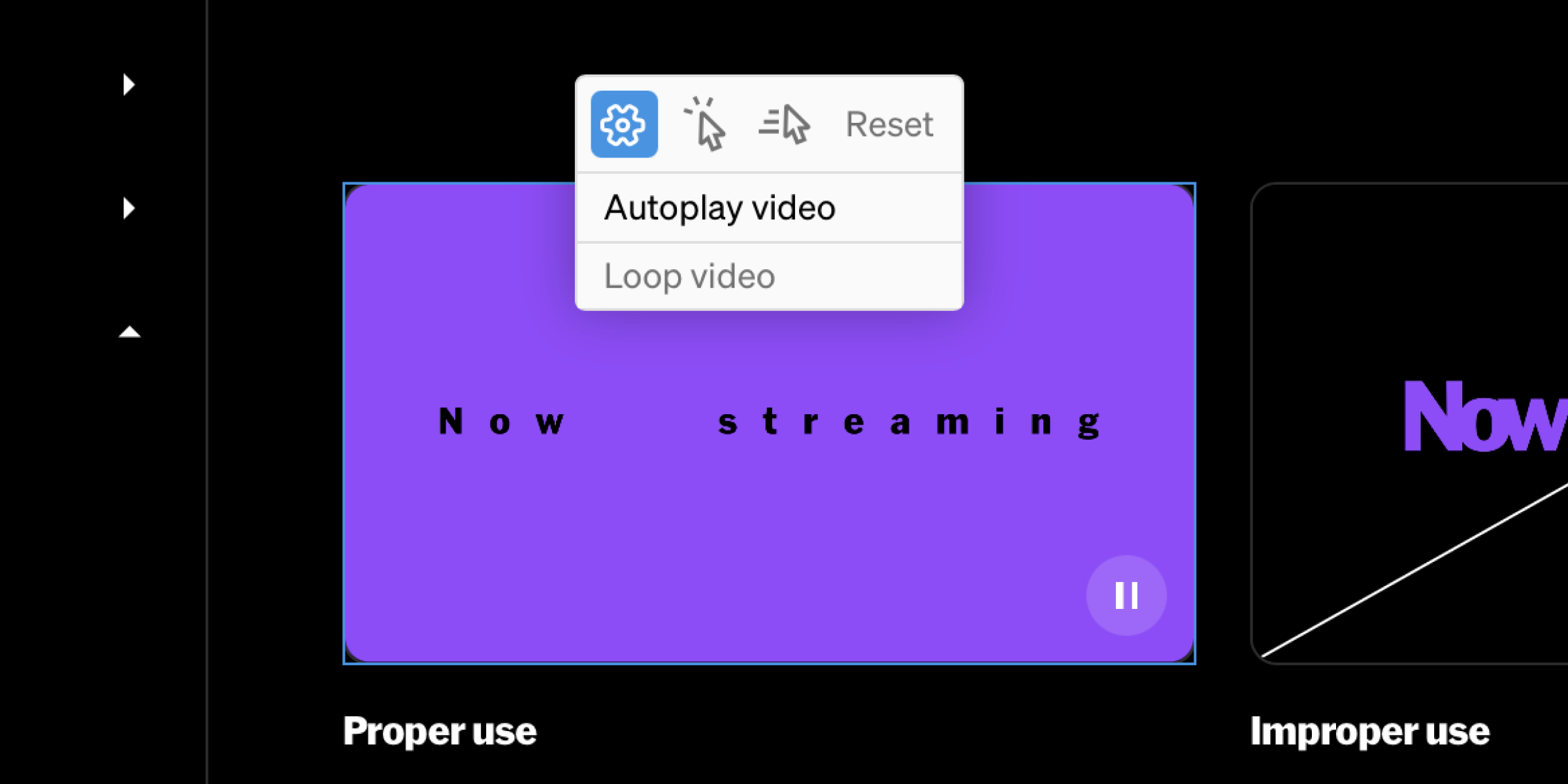
Within the body of the editor or from the contents list in the left sidebar, select the video element
Select the gear icon, then choose preferences like autoplay and loop video
To control playback with click and hover, select the play button from within controls, then choose the click and hover behaviors from the contextual toolbar
### Change playback settings
Within the body of the editor or from the contents list in the left sidebar, select the video element
Select the gear icon, then choose preferences like autoplay and loop video
To control playback with click and hover, select the play button from within controls, then choose the click and hover behaviors from the contextual toolbar