> ## Documentation Index
> Fetch the complete documentation index at: https://help.standards.site/llms.txt
> Use this file to discover all available pages before exploring further.
# Account
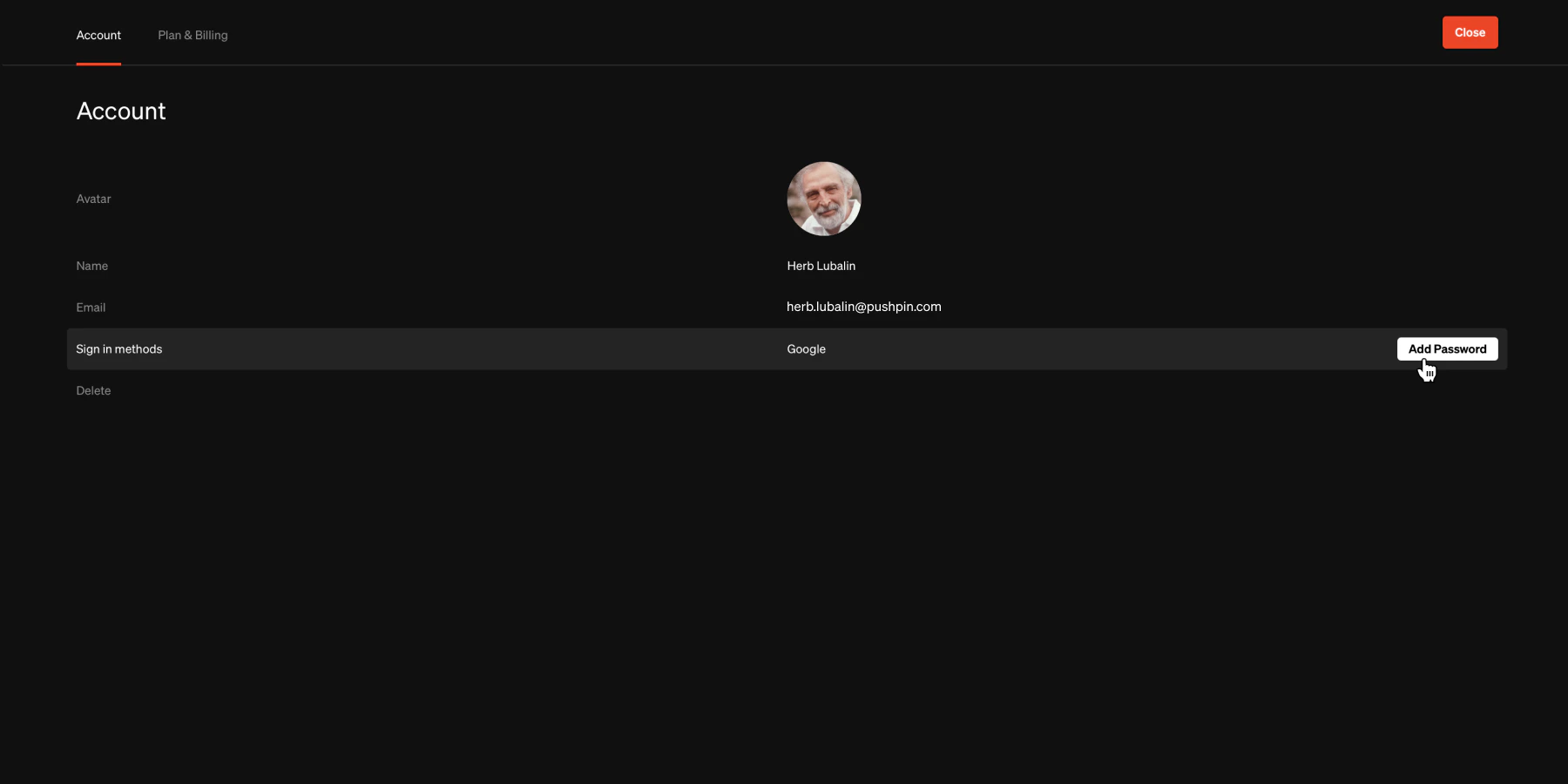
Ensure that important information, such as billing statements and notifications are delivered to the correct location.
 ***
## Update name
Hover over the top-right avatar and select **Account**
Hover over **Name** and select `Edit`
In the prompt, enter the name you would like then select `Save`
***
## Update avatar
Hover over the top-right avatar and select **Account**
* Hover over the \*\*Avatar **image area** \*\*and select it, then choose a file from your system's fike browser
* To remove an existing avatar to reset it to default, select `Reset`
***
## Update email address
To change your email address, send an email to [support@standards.site](mailto:support@standards.site) with your request. Make sure to send the email from your account email address.
***
## Update password
Hover over the top-right avatar and select **Account**
Hover over **Sign-in methods** and select `Change password`
In the prompt, enter current password and new password, then select `Change password`
Tip: To change from SSO such as Google to email and password, enter a password by selecting 'Add password' on the **Sign in methods** list time.
***
## Delete account
Caution: This will permanently delete all projects, files, workspaces you own, and data. This cannot be undone.
Hover over the top-right avatar and select **Account**
Hover over **Delete** and select `Delete account`
In the prompt, enter the requirements to confirm your decision, then press `Delete account`
***
## Troubleshooting
Google & Microsoft Single Sign-On (SSO) are a feature that allows users to log in to multiple applications using their Google or Miscrosoft credentials. It eliminates the need for users to create separate usernames and passwords for each application they use, making the login process more convenient and secure. You can enable this feature by signing on with a Google or Miscrosoft account or you can disable by removing the password.
Hover over the top-right avatar and select **Sign out**
***
## Update name
Hover over the top-right avatar and select **Account**
Hover over **Name** and select `Edit`
In the prompt, enter the name you would like then select `Save`
***
## Update avatar
Hover over the top-right avatar and select **Account**
* Hover over the \*\*Avatar **image area** \*\*and select it, then choose a file from your system's fike browser
* To remove an existing avatar to reset it to default, select `Reset`
***
## Update email address
To change your email address, send an email to [support@standards.site](mailto:support@standards.site) with your request. Make sure to send the email from your account email address.
***
## Update password
Hover over the top-right avatar and select **Account**
Hover over **Sign-in methods** and select `Change password`
In the prompt, enter current password and new password, then select `Change password`
Tip: To change from SSO such as Google to email and password, enter a password by selecting 'Add password' on the **Sign in methods** list time.
***
## Delete account
Caution: This will permanently delete all projects, files, workspaces you own, and data. This cannot be undone.
Hover over the top-right avatar and select **Account**
Hover over **Delete** and select `Delete account`
In the prompt, enter the requirements to confirm your decision, then press `Delete account`
***
## Troubleshooting
Google & Microsoft Single Sign-On (SSO) are a feature that allows users to log in to multiple applications using their Google or Miscrosoft credentials. It eliminates the need for users to create separate usernames and passwords for each application they use, making the login process more convenient and secure. You can enable this feature by signing on with a Google or Miscrosoft account or you can disable by removing the password.
Hover over the top-right avatar and select **Sign out**