> ## Documentation Index
> Fetch the complete documentation index at: https://help.standards.site/llms.txt
> Use this file to discover all available pages before exploring further.
# Tracking
Configure analytics and monitor who is viewing your projects.
 ***
## Overview
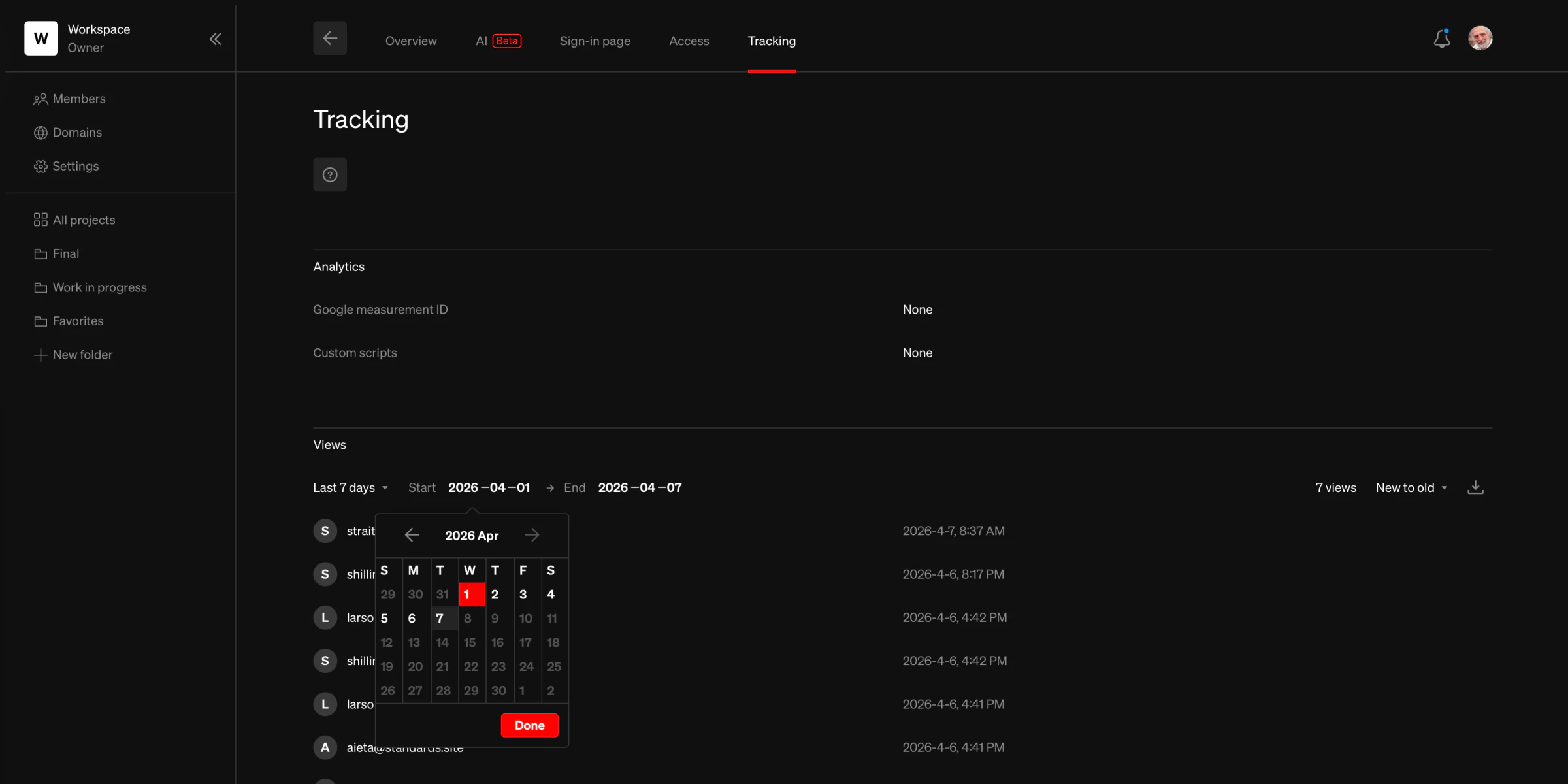
The **Tracking** tab in the project detail view combines analytics configuration and view history into a single page. It is available to workspace admins.
To access it:
* Select a project from your workspace dashboard
* Select the **Tracking** tab
***
## Analytics
Pro & Enterprise
The analytics section contains settings for tracking web traffic to your published projects.
### Google measurement ID
Add a Google Analytics measurement ID to track web traffic.
* From the **Tracking** tab, find the **Google measurement ID** row under the **Analytics** heading
* Select the row to enter your measurement ID (format: `G-XXXXXXXXXX`)
**Tip:** For assistance setting up and obtaining a GA measurement ID, follow [Google’s support guide](https://support.google.com/analytics/answer/9304153?hl=en)
### Custom scripts Enterprise
Other analytics tools can be integrated using custom scripts. Select the **Custom scripts** row to add header and footer scripts. Learn more about [Custom Scripts](/custom-scripts).
***
## Views
Enterprise
Projects published with **Logged public access** and **Sign-in required** security types automatically track views. The views section lists everyone who has accessed the project along with the date and time.
### Filtering and sorting
* **Date range:** Filter views by preset ranges (Today, Last 7 days, This month, Last month, Year to date) or set a custom start and end date
* **Sort order:** Sort views from new to old or old to new
### Export
Select the export button to download view logs as a file. The export dialog allows you to choose a time zone (local or UTC) and date range before exporting.
### Keep in mind
* View history is retained even if the project security type has been changed.
* Only projects with **Logged public access** and **Sign-in required** security types track views.
***
## Overview
The **Tracking** tab in the project detail view combines analytics configuration and view history into a single page. It is available to workspace admins.
To access it:
* Select a project from your workspace dashboard
* Select the **Tracking** tab
***
## Analytics
Pro & Enterprise
The analytics section contains settings for tracking web traffic to your published projects.
### Google measurement ID
Add a Google Analytics measurement ID to track web traffic.
* From the **Tracking** tab, find the **Google measurement ID** row under the **Analytics** heading
* Select the row to enter your measurement ID (format: `G-XXXXXXXXXX`)
**Tip:** For assistance setting up and obtaining a GA measurement ID, follow [Google’s support guide](https://support.google.com/analytics/answer/9304153?hl=en)
### Custom scripts Enterprise
Other analytics tools can be integrated using custom scripts. Select the **Custom scripts** row to add header and footer scripts. Learn more about [Custom Scripts](/custom-scripts).
***
## Views
Enterprise
Projects published with **Logged public access** and **Sign-in required** security types automatically track views. The views section lists everyone who has accessed the project along with the date and time.
### Filtering and sorting
* **Date range:** Filter views by preset ranges (Today, Last 7 days, This month, Last month, Year to date) or set a custom start and end date
* **Sort order:** Sort views from new to old or old to new
### Export
Select the export button to download view logs as a file. The export dialog allows you to choose a time zone (local or UTC) and date range before exporting.
### Keep in mind
* View history is retained even if the project security type has been changed.
* Only projects with **Logged public access** and **Sign-in required** security types track views.