> ## Documentation Index
> Fetch the complete documentation index at: https://help.standards.site/llms.txt
> Use this file to discover all available pages before exploring further.
# Tooltips
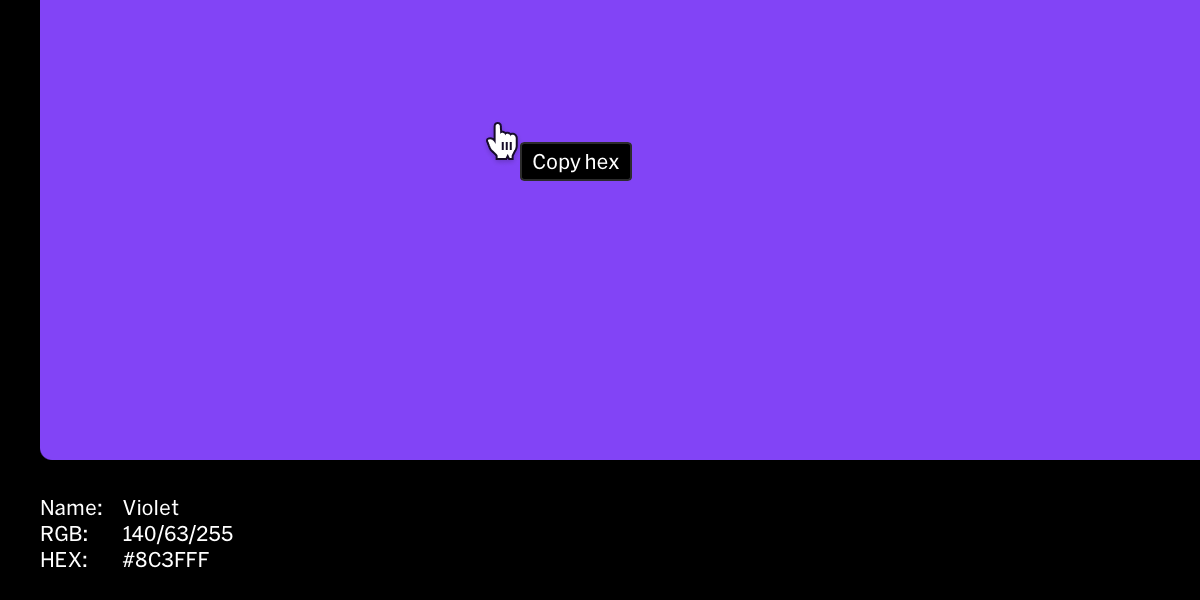
Tooltips are visual labels shown when hovering over certain elements. They are customizable and can be used to show contextual info like the name of a file or color style.
 ***
## Basics
* Tooltips are activated through the on **hover** behavior contextual toolbar
* Tooltip appearance is managed through the **Styles** tab in the right sidebar
* Tooltip behaviors are contextual to what they are applied to, for example a color swatch tooltip when enabled will automatically say 'Copy HEX' and 'HEX copied'.
***
## Adding a tooltip to an element
Within the editor from the contents list in the left sidebar or from in-body, select the desired element to apply the tooltip to.
From the contextual toolbar, select the hover button (hovering cursor icon) to open the hover behavior menu.
Input text to override the default or leave it as is, and select the tooltip style it will use, then select `done`.
***
## Tooltip styles
### Edit tooltip style
Tooltips use the style system where their appearance can be edited in one place and automatically update wherever the style is used.
Within the design editor, select the tooltip style from the **Styles** tab in the right sidebar
Update settings like color, type, spacing to change the look of the tooltip
### Add tooltip style
Tooltip styles can be added two ways:
1. Select the `+` button beside the **Tooltip** title in the styles list.
2. Select **Add new** from the style selection dropdown within the hover contextual toolbar
### Manage tooltip styles
Actions such as edit, duplicate, rename, and delete are accessed by right clicking the tooltip style or selecting the settings icon (3 dots).
***
## Basics
* Tooltips are activated through the on **hover** behavior contextual toolbar
* Tooltip appearance is managed through the **Styles** tab in the right sidebar
* Tooltip behaviors are contextual to what they are applied to, for example a color swatch tooltip when enabled will automatically say 'Copy HEX' and 'HEX copied'.
***
## Adding a tooltip to an element
Within the editor from the contents list in the left sidebar or from in-body, select the desired element to apply the tooltip to.
From the contextual toolbar, select the hover button (hovering cursor icon) to open the hover behavior menu.
Input text to override the default or leave it as is, and select the tooltip style it will use, then select `done`.
***
## Tooltip styles
### Edit tooltip style
Tooltips use the style system where their appearance can be edited in one place and automatically update wherever the style is used.
Within the design editor, select the tooltip style from the **Styles** tab in the right sidebar
Update settings like color, type, spacing to change the look of the tooltip
### Add tooltip style
Tooltip styles can be added two ways:
1. Select the `+` button beside the **Tooltip** title in the styles list.
2. Select **Add new** from the style selection dropdown within the hover contextual toolbar
### Manage tooltip styles
Actions such as edit, duplicate, rename, and delete are accessed by right clicking the tooltip style or selecting the settings icon (3 dots).