> ## Documentation Index
> Fetch the complete documentation index at: https://help.standards.site/llms.txt
> Use this file to discover all available pages before exploring further.
# Toggle
Toggles are interactive content elements comprised of two slides that toggle back and forth between one another.
 ***
## Basics
* Toggles always consist of two slides. Slides are are the containers, similar to columns, that content such as media or video are added to.
* Toggles always include controls. Controls are the buttons that control switching between the slides. These can be styled like buttons, and made into components for ease of applying a consistent settings.
* Slides can contain multiple elements, such as video, media, text, etc.
### Add a toggle
***
## Basics
* Toggles always consist of two slides. Slides are are the containers, similar to columns, that content such as media or video are added to.
* Toggles always include controls. Controls are the buttons that control switching between the slides. These can be styled like buttons, and made into components for ease of applying a consistent settings.
* Slides can contain multiple elements, such as video, media, text, etc.
### Add a toggle
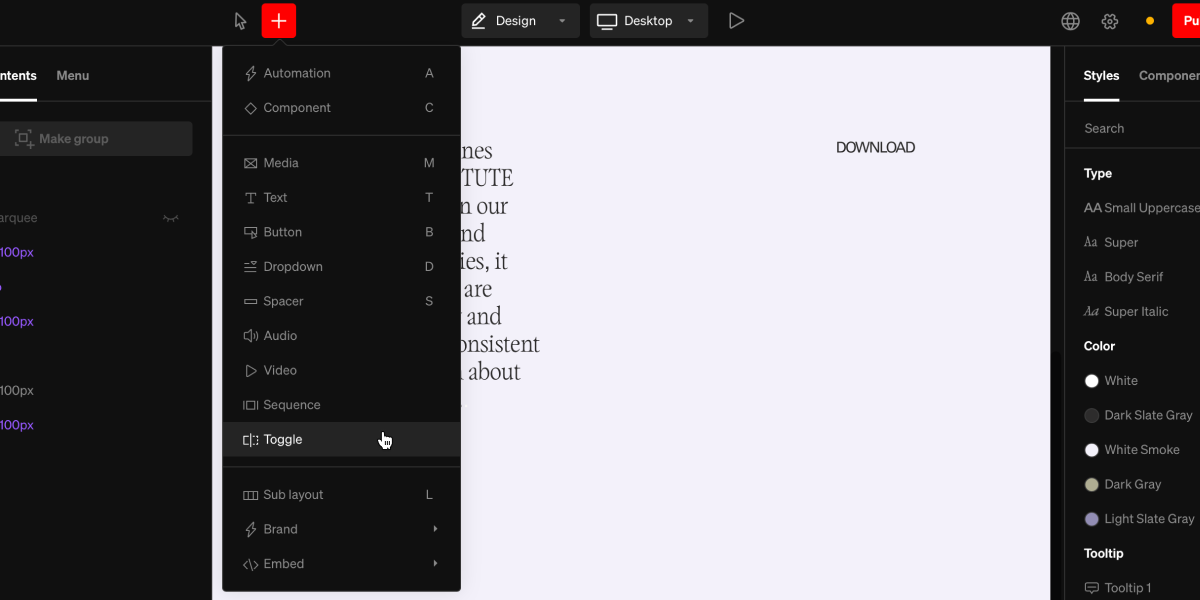 From within the editor, select **Toggle** from the `+`menu in the top bar
Select a point in the project body by selecting between layouts, click + dragging within, or selecting a point inside a column
Select the placeholder media within each slide, then choose add media from the fill settings group in the right sidebar, then select a file.
Slides are containers similar to columns, that content such as media or video are added to. Add into slides by selecting any element from the `+` menu, and clicking inside the slide.
***
## Examples
Toggles are great for showing variations of something such as stylistic alternates, or to expose a second level of guidance, like a clear space diagram.
From within the editor, select **Toggle** from the `+`menu in the top bar
Select a point in the project body by selecting between layouts, click + dragging within, or selecting a point inside a column
Select the placeholder media within each slide, then choose add media from the fill settings group in the right sidebar, then select a file.
Slides are containers similar to columns, that content such as media or video are added to. Add into slides by selecting any element from the `+` menu, and clicking inside the slide.
***
## Examples
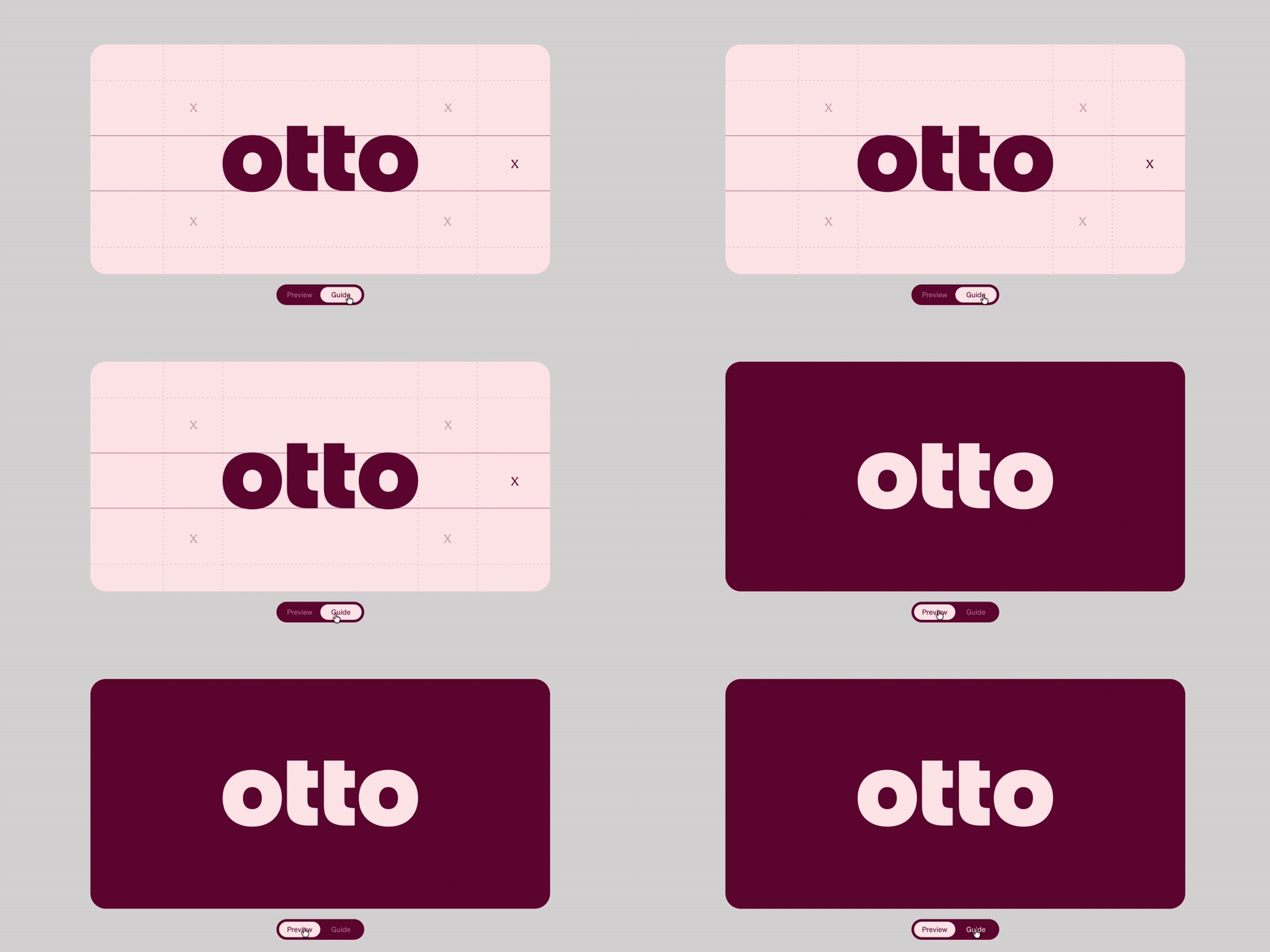
Toggles are great for showing variations of something such as stylistic alternates, or to expose a second level of guidance, like a clear space diagram.

 ***
## Transition
Inherent to **Toggles** are the transition between the two slides. Transition motion, behavior, and duration can be controlled.
***
## Transition
Inherent to **Toggles** are the transition between the two slides. Transition motion, behavior, and duration can be controlled.
 ### Change transition
From in body or the left sidebar, select the toggle element
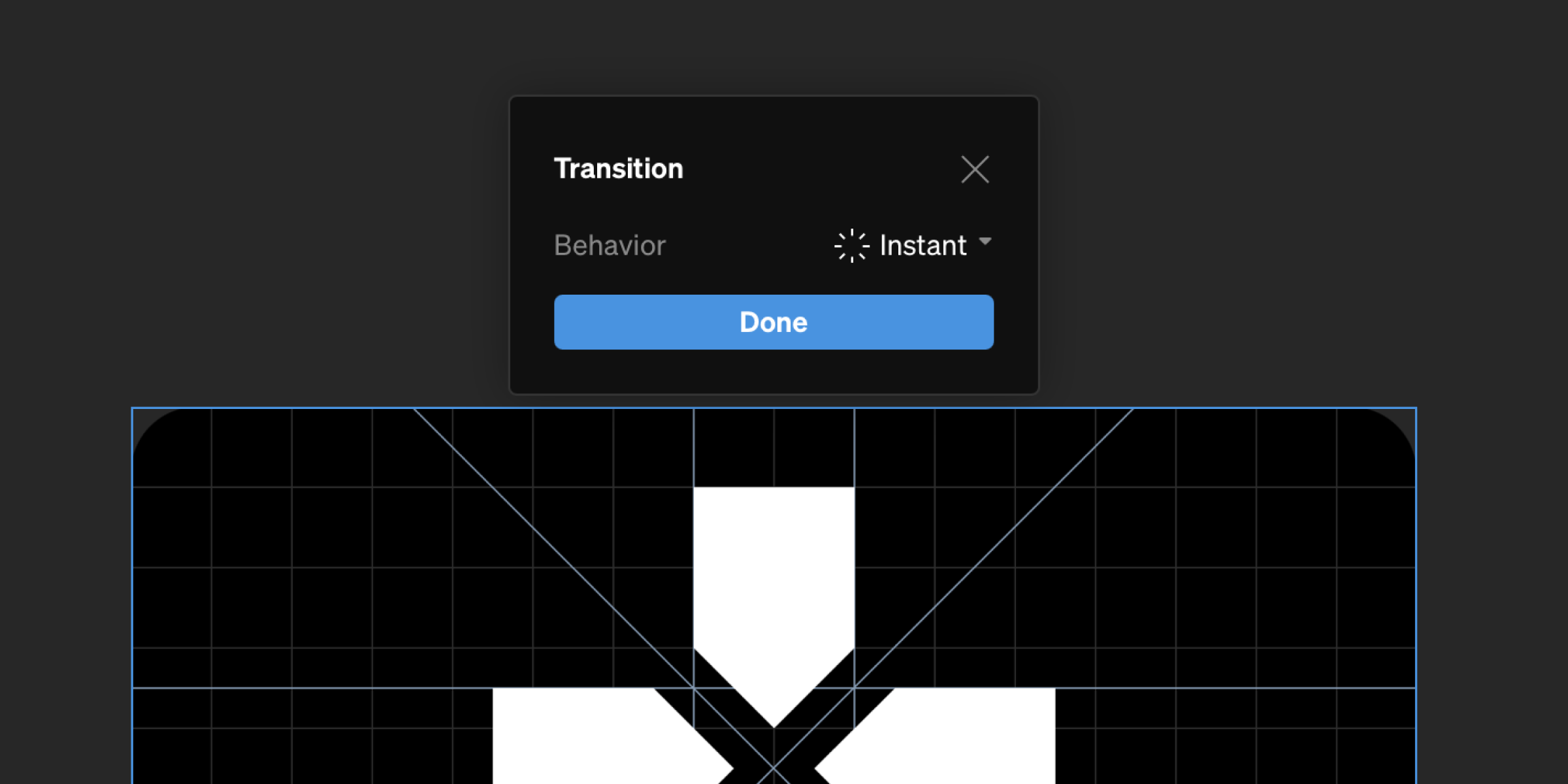
From the contextual toolbar, select the transition button to show the transition settings
Modify the transition settings to your preference
### Change transition
From in body or the left sidebar, select the toggle element
From the contextual toolbar, select the transition button to show the transition settings
Modify the transition settings to your preference