> ## Documentation Index
> Fetch the complete documentation index at: https://help.standards.site/llms.txt
> Use this file to discover all available pages before exploring further.
# Sign In
Sign in to Standards to access your workspaces, projects, and account settings. Note: For increased security, we suggest signing in using one of the Single Sign On (SSO) options.
***
## Sign into your account
 Go to [app.standards.site/login](http://app.standards.site/login)
Enter your credentials or select Google, Microsoft, or SAML SSO—whichever you set the account up with.
Bookmark [**app.standards.site**](http://app.standards.site), this is the URL you will always use to log into your workspace.
***
## Reset your password
Go to [app.standards.site/reset-password](https://app.standards.site/reset-password)
Select `Reset Password`
Enter the account email address. if there is an account registered under that email address, Standards will send a password reset email.
Open the password reset email and select `Reset your password`.
Enter a new password and confirm, then select `Submit` to update password.
### Troubleshooting
Sometimes access emails get lost in spam folders or blocked by firewalls. If you’ve requested access to use Standards, make sure to check your spam folder. If you still haven’t found your activation email, please contact us at [support@standards.site](mailto:support@standards.site).
***
## Single Sign On - Google & Microsoft
If your account uses one of the Single Sign On (SSO) options such as Microsoft or Google, your access is managed through those platforms. Your SSO credentials will match the email and password you use to sign into those services. Simply select the Google or Microsoft option from the sign in page and use your usual credentials.
***
## Single Sign On - SAML
Enterprise
If your organization uses SAML SSO, you will need to log in using your oranization's workspace log in page. This is a unique URL used only by your organization to sign in.
Go to [app.standards.site/login](http://app.standards.site/login)
Enter your credentials or select Google, Microsoft, or SAML SSO—whichever you set the account up with.
Bookmark [**app.standards.site**](http://app.standards.site), this is the URL you will always use to log into your workspace.
***
## Reset your password
Go to [app.standards.site/reset-password](https://app.standards.site/reset-password)
Select `Reset Password`
Enter the account email address. if there is an account registered under that email address, Standards will send a password reset email.
Open the password reset email and select `Reset your password`.
Enter a new password and confirm, then select `Submit` to update password.
### Troubleshooting
Sometimes access emails get lost in spam folders or blocked by firewalls. If you’ve requested access to use Standards, make sure to check your spam folder. If you still haven’t found your activation email, please contact us at [support@standards.site](mailto:support@standards.site).
***
## Single Sign On - Google & Microsoft
If your account uses one of the Single Sign On (SSO) options such as Microsoft or Google, your access is managed through those platforms. Your SSO credentials will match the email and password you use to sign into those services. Simply select the Google or Microsoft option from the sign in page and use your usual credentials.
***
## Single Sign On - SAML
Enterprise
If your organization uses SAML SSO, you will need to log in using your oranization's workspace log in page. This is a unique URL used only by your organization to sign in.
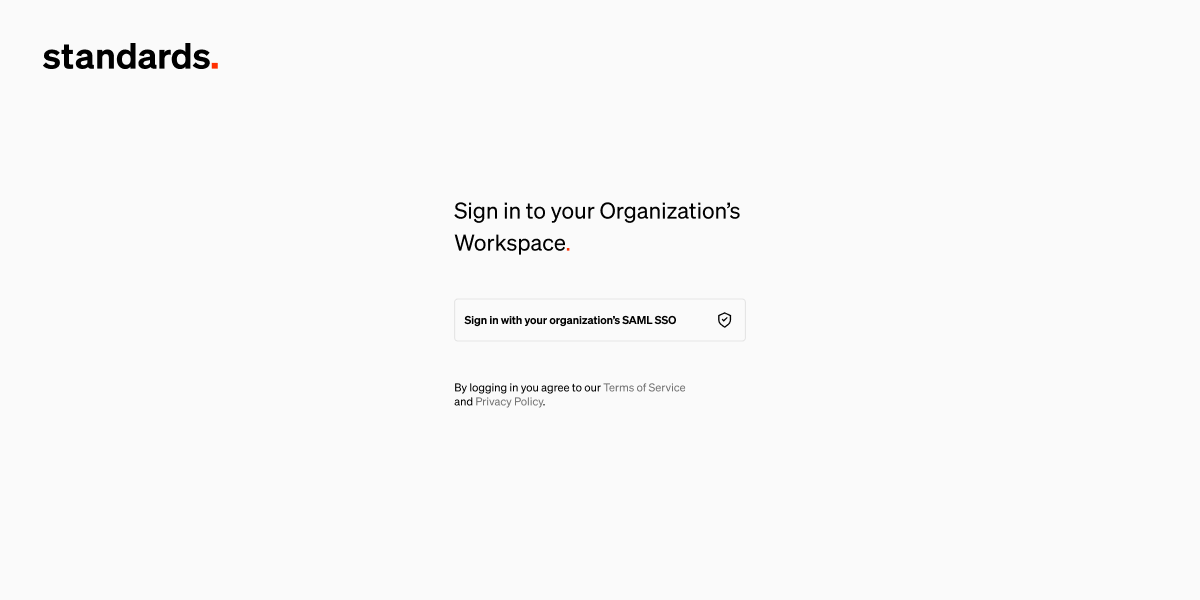 This sign in page is specific to your organization. The workspace owner would have shared it with you. If you don't know this URL, ask the Standards workspace owner.
Use your SAML SSO credentials to sign in. These will likely be the same you use accross your organization.
### Need assistance?
Contact [support@standards.site](mailto:support@standards.site) for help finding your workspace login URL, or if you would like to upgrade to enable SAML SSO.
***
## Troubleshooting
Sometimes access emails get lost in spam folders or blocked by firewalls. If you’ve requested access to use Standards, make sure to check your spam folder. If you still haven’t found your activation email, please contact us at [support@standards.site](mailto:support@standards.site).
If you are the workspace owner, you can see this on the **Settings** page of your workspace. Log into Standards and select **settings** from the left sidebar, then look for the **workspace sign in page** list item. Copy the link and share it with your team.
This sign in page is specific to your organization. The workspace owner would have shared it with you. If you don't know this URL, ask the Standards workspace owner.
Use your SAML SSO credentials to sign in. These will likely be the same you use accross your organization.
### Need assistance?
Contact [support@standards.site](mailto:support@standards.site) for help finding your workspace login URL, or if you would like to upgrade to enable SAML SSO.
***
## Troubleshooting
Sometimes access emails get lost in spam folders or blocked by firewalls. If you’ve requested access to use Standards, make sure to check your spam folder. If you still haven’t found your activation email, please contact us at [support@standards.site](mailto:support@standards.site).
If you are the workspace owner, you can see this on the **Settings** page of your workspace. Log into Standards and select **settings** from the left sidebar, then look for the **workspace sign in page** list item. Copy the link and share it with your team.