> ## Documentation Index
> Fetch the complete documentation index at: https://help.standards.site/llms.txt
> Use this file to discover all available pages before exploring further.
# SAML SSO Integration
Enterprise
Standards supports SAML SSO integrations, enabling people within your organization to seamlessly view restricted projects using their existing credentials. It also allows for workspace members to sign-in using SAML SSO.
 ***
## Getting started
### SAML SSO use cases
* Enabling SAML SSO allows projects that are published to require your Identity Provider (IdP) credentials to view.
* SAML SSO can be enabled so that members of the workspace are required to sign-in using your Identity Provider (IdP) credentials to access the workspace.
### Things to keep in mind
* For security reasons, every email address domain used in the SAML integration (i.e. [**you@yourcompany.com**](mailto:you@yourcompany.com)) must be authorized by a Standards team member. By default, we authorize the domain associated with the account holder. Let us know if there are other domains you need authorized.
* SAML integrations and settings are configured on a specific workspace. If you would like to use SAML for multiple workspaces, they will need to be configured separately.
### What is needed
* A Standards account with an **Enterprise** plan
* Admin or owner permissions in the workspace where SAML is to be configured
* An external identity provider that supports SAML integrations
***
## Identity provider setup
First, you need to set up the SAML integration with your Identity Provider (IdP). The exact setup process will depend on your provider, so consult their documentation.
During that setup, you'll need two values:
* **ACS URL:** This URL is the endpoint in our application where the identity provider will send its responses. The value is [**https://app.standards.site/\_\_/auth/handler**](https://app.standards.site/__/auth/handler**)
* **SP Entity ID:** A unique identifier for our service, which will be recognized by the Identity Provider. The value is **standards-site-beta**
We support the following SAML attributes:
* `email` → mapped to the user's email address (required)
* `displayName` → mapped to the user's full name (optional)
* `photoURL` → optional, if a user profile image is available (optional)
After setting up SAML with your IdP you should have access to the following information which will needed to complete the integration.
* **Entity ID:** The unique identifier provided by your Identity Provider. This helps establish trust between the service and the IdP.
* **SSO URL:** The Single Sign-On Service URL from your Identity Provider. This is where the authentication requests will be sent.
* **Certificate:** The certificate you received from your Identity Provider. This ensures encrypted and secure communication between the service and the IdP.
***
## Standards setup
Visit [app.standards.site/login](https://app.standards.site/login)
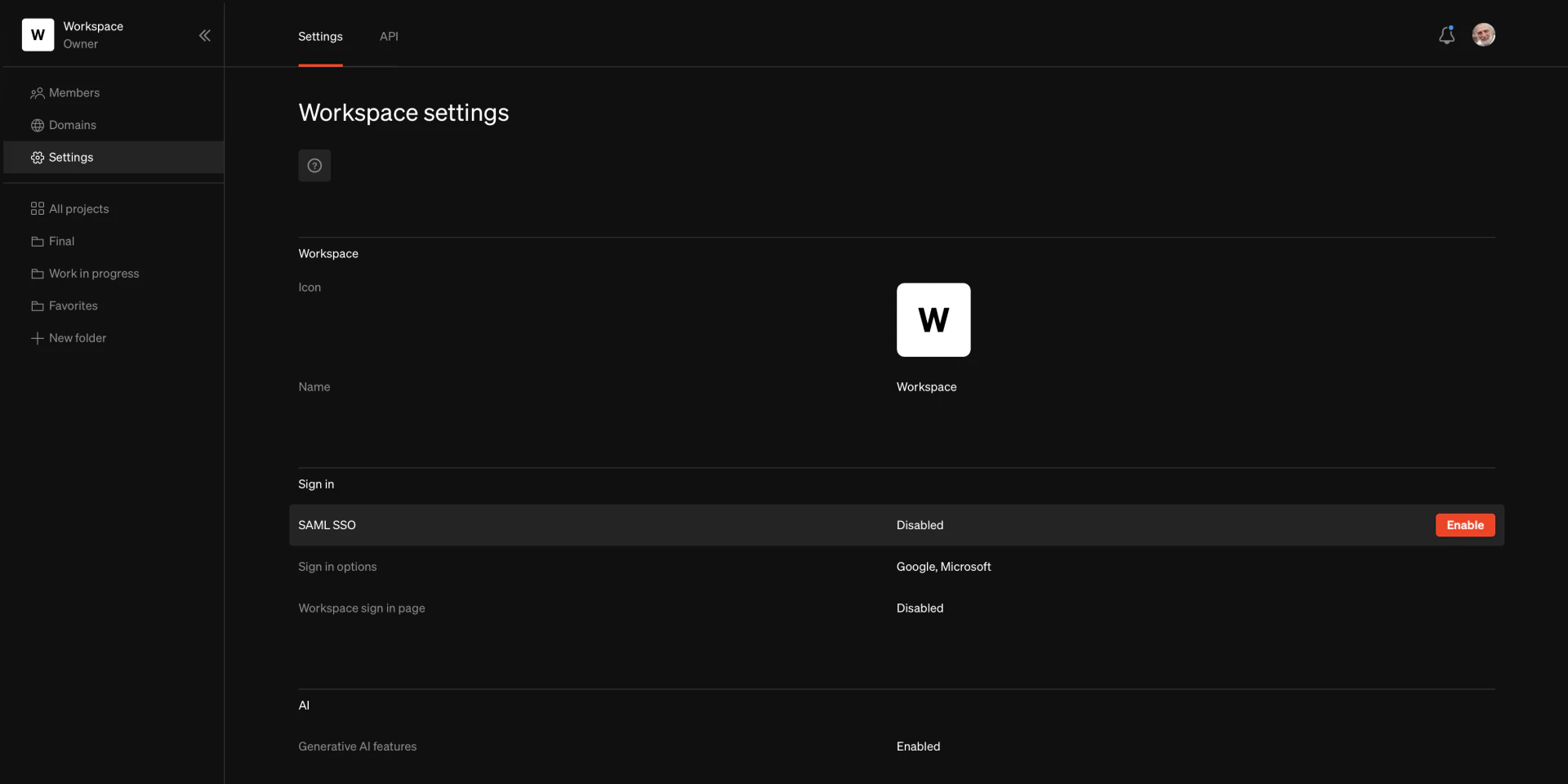
From the workspace dashboard, select the **Settings** tab in the **Manage** section of the sidebar
Select `Enable` when hovering on **SAML SSO.**
Enter the values from the Identity provider setup step into their corresponding fields. For the **Name** field, enter a human-friendly name for the integration. It will be presented in the app as ‘Sign in with **Name**’.
After you have entered all the information, select `Submit`
***
## Enabling SAML SSO
Visit [app.standards.site/login](https://app.standards.site/login)
From the workspace dashboard, select the **Settings** tab in the**Manage** section of the sidebar
Choose which sign in options are available on published projects. Make sure to enable **SAML** within the edit window.
Enable members of your workspace to sign-in using SAML SSO by select `Enable`
This is the unique URL for your organization's sign in page, share this with teammates that will be signing into the Standards dashboard.
Note: this page is for workspace memebers such as designers, copy writers, and teammates working on the design, content, and account management in Standards.
***
## Testing the integration
You can disable this after testing, if desired. See the above step on enabling.
Open the URL in a different tab or browser. Note that testing the SSO login will sign you out of your current credentials, if you choose to sign in with a different account.
Sign in with the SAML option **with an email address that is a member of the workspace**. If it’s set up correctly you will be signed in and redirected to the workspace dashboard.
Get a message that you don't have access? Double check you are a member of the workspace.
***
## Next steps
### Disable other sign in options
In the workspace dashboard **Settings** page, disable sign in options except for SAML. This won’t prevent people from signing into the Standards app using other providers on the [**general sign in page**](https://app.standards.site/login), but it will prevent your published projects from being viewed using other sign in methods (depending on your project security settings).
### Remove password authentication
To improve security, each workspace member should remove the password sign-in option from their account. This can be done on the **Account** page after successfully signing on using the SAML integration. To access this page, click on the avatar in the top right corner of the Dashboard. Hover on **Sign in methods** and select `Remove password`
### Publish with SSO sign in required to view
When publishing a project, use the **Sign-in required** security option. This will require users to sign in using your chosen sign-in options, providing maximum security for your published projects.
***
## Frequently asked questions
We support SP initiated SAML authentication.
As we do not support IDP initiated sign ins, we recommend creating a several apps in Okta:
1. An invisible app for the SAML connection itself
2. A bookmark app linking to your workspace sign in page, for editors and admins that need access to the Standards workspace
3. A bookmark app directing to the published project URLs, visible to everyone at the company.
We require that you use the following NAMEID format:
```javascript theme={null}
urn:oasis:names:tc:SAML:1.1:nameid-format:emailAddress
```
None are required. You may optionally send the following (unspecified) attributes: **displayName** and **photoURL**.
Either the SAML Response or Assertion should be signed (or both), using the RSA-SHA256 algorithm. Typically, customers sign the Response.
Not at this time.
[https://app.standards.site/\_\_/auth/handler](https://app.standards.site/__/auth/handler)
Same as the SSO Url: [https://app.standards.site/\_\_/auth/handler](https://app.standards.site/__/auth/handler)
standards-site-beta
No. Redirects will be handled on our end.
Not at this time.
Not at this time.
Not at this time, but it is on our roadmap.
***
## Getting started
### SAML SSO use cases
* Enabling SAML SSO allows projects that are published to require your Identity Provider (IdP) credentials to view.
* SAML SSO can be enabled so that members of the workspace are required to sign-in using your Identity Provider (IdP) credentials to access the workspace.
### Things to keep in mind
* For security reasons, every email address domain used in the SAML integration (i.e. [**you@yourcompany.com**](mailto:you@yourcompany.com)) must be authorized by a Standards team member. By default, we authorize the domain associated with the account holder. Let us know if there are other domains you need authorized.
* SAML integrations and settings are configured on a specific workspace. If you would like to use SAML for multiple workspaces, they will need to be configured separately.
### What is needed
* A Standards account with an **Enterprise** plan
* Admin or owner permissions in the workspace where SAML is to be configured
* An external identity provider that supports SAML integrations
***
## Identity provider setup
First, you need to set up the SAML integration with your Identity Provider (IdP). The exact setup process will depend on your provider, so consult their documentation.
During that setup, you'll need two values:
* **ACS URL:** This URL is the endpoint in our application where the identity provider will send its responses. The value is [**https://app.standards.site/\_\_/auth/handler**](https://app.standards.site/__/auth/handler**)
* **SP Entity ID:** A unique identifier for our service, which will be recognized by the Identity Provider. The value is **standards-site-beta**
We support the following SAML attributes:
* `email` → mapped to the user's email address (required)
* `displayName` → mapped to the user's full name (optional)
* `photoURL` → optional, if a user profile image is available (optional)
After setting up SAML with your IdP you should have access to the following information which will needed to complete the integration.
* **Entity ID:** The unique identifier provided by your Identity Provider. This helps establish trust between the service and the IdP.
* **SSO URL:** The Single Sign-On Service URL from your Identity Provider. This is where the authentication requests will be sent.
* **Certificate:** The certificate you received from your Identity Provider. This ensures encrypted and secure communication between the service and the IdP.
***
## Standards setup
Visit [app.standards.site/login](https://app.standards.site/login)
From the workspace dashboard, select the **Settings** tab in the **Manage** section of the sidebar
Select `Enable` when hovering on **SAML SSO.**
Enter the values from the Identity provider setup step into their corresponding fields. For the **Name** field, enter a human-friendly name for the integration. It will be presented in the app as ‘Sign in with **Name**’.
After you have entered all the information, select `Submit`
***
## Enabling SAML SSO
Visit [app.standards.site/login](https://app.standards.site/login)
From the workspace dashboard, select the **Settings** tab in the**Manage** section of the sidebar
Choose which sign in options are available on published projects. Make sure to enable **SAML** within the edit window.
Enable members of your workspace to sign-in using SAML SSO by select `Enable`
This is the unique URL for your organization's sign in page, share this with teammates that will be signing into the Standards dashboard.
Note: this page is for workspace memebers such as designers, copy writers, and teammates working on the design, content, and account management in Standards.
***
## Testing the integration
You can disable this after testing, if desired. See the above step on enabling.
Open the URL in a different tab or browser. Note that testing the SSO login will sign you out of your current credentials, if you choose to sign in with a different account.
Sign in with the SAML option **with an email address that is a member of the workspace**. If it’s set up correctly you will be signed in and redirected to the workspace dashboard.
Get a message that you don't have access? Double check you are a member of the workspace.
***
## Next steps
### Disable other sign in options
In the workspace dashboard **Settings** page, disable sign in options except for SAML. This won’t prevent people from signing into the Standards app using other providers on the [**general sign in page**](https://app.standards.site/login), but it will prevent your published projects from being viewed using other sign in methods (depending on your project security settings).
### Remove password authentication
To improve security, each workspace member should remove the password sign-in option from their account. This can be done on the **Account** page after successfully signing on using the SAML integration. To access this page, click on the avatar in the top right corner of the Dashboard. Hover on **Sign in methods** and select `Remove password`
### Publish with SSO sign in required to view
When publishing a project, use the **Sign-in required** security option. This will require users to sign in using your chosen sign-in options, providing maximum security for your published projects.
***
## Frequently asked questions
We support SP initiated SAML authentication.
As we do not support IDP initiated sign ins, we recommend creating a several apps in Okta:
1. An invisible app for the SAML connection itself
2. A bookmark app linking to your workspace sign in page, for editors and admins that need access to the Standards workspace
3. A bookmark app directing to the published project URLs, visible to everyone at the company.
We require that you use the following NAMEID format:
```javascript theme={null}
urn:oasis:names:tc:SAML:1.1:nameid-format:emailAddress
```
None are required. You may optionally send the following (unspecified) attributes: **displayName** and **photoURL**.
Either the SAML Response or Assertion should be signed (or both), using the RSA-SHA256 algorithm. Typically, customers sign the Response.
Not at this time.
[https://app.standards.site/\_\_/auth/handler](https://app.standards.site/__/auth/handler)
Same as the SSO Url: [https://app.standards.site/\_\_/auth/handler](https://app.standards.site/__/auth/handler)
standards-site-beta
No. Redirects will be handled on our end.
Not at this time.
Not at this time.
Not at this time, but it is on our roadmap.