> ## Documentation Index
> Fetch the complete documentation index at: https://help.standards.site/llms.txt
> Use this file to discover all available pages before exploring further.
# Project Settings
Control how your projects are accessed, organized, and designed.
 ***
## Overview
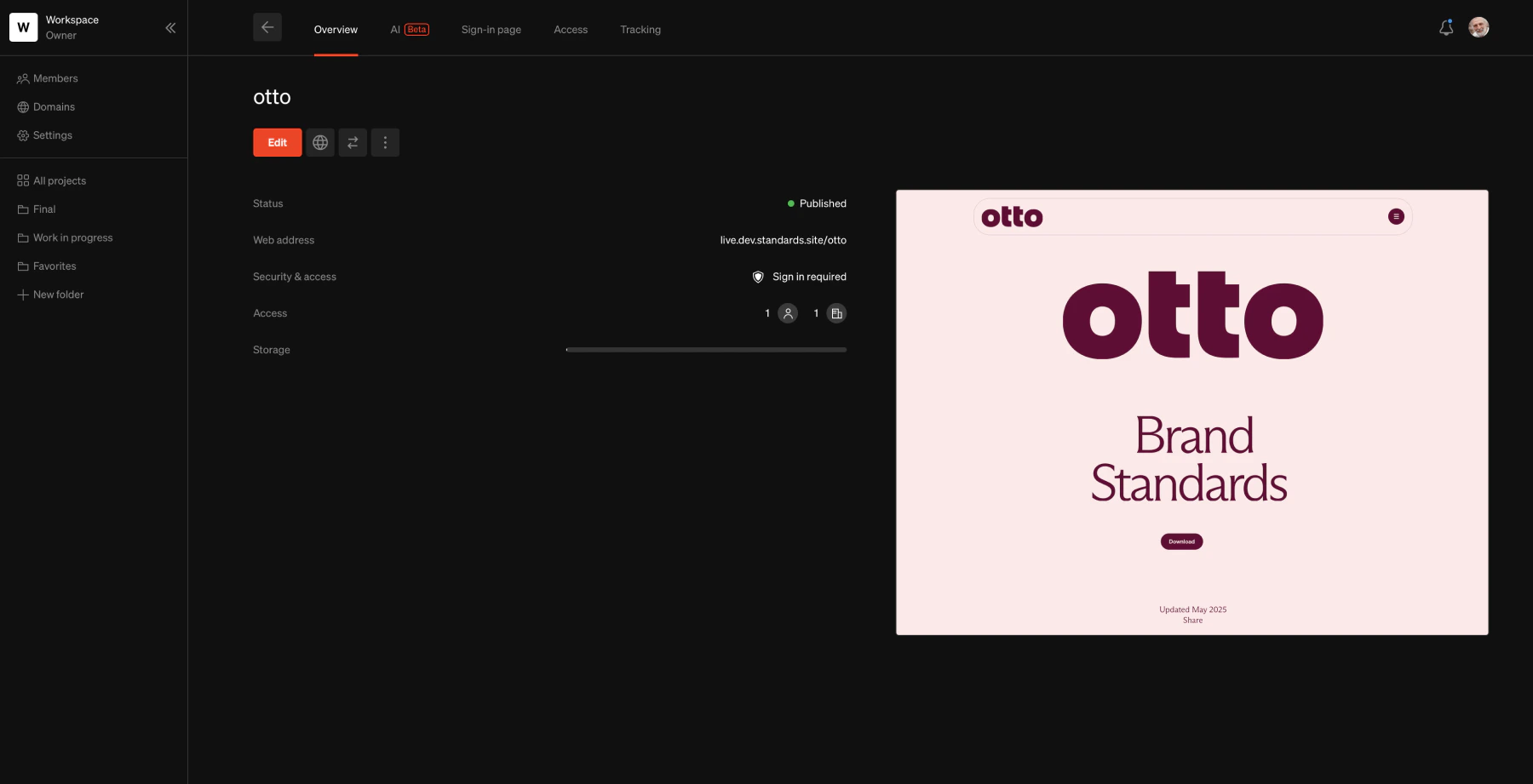
Every project has a detail view managed outside of the project editor. Access it by selecting a project from the Dashboard. The overview is the default tab and shows key information about the project at a glance.
The project detail view is organized into tabs:
* **Overview** — Project name, status, web address, security, storage, and quick actions
* **AI** — AI integration settings including standards.md and MCP
* **Sign-in page** — Customize the look and feel of the project sign-in page
* **Access** — Manage who can access the project Enterprise
* **Tracking** — Analytics and view history Pro & Enterprise
***
## Overview tab
### Name
Project name used for your organization. Select the name to edit it.
### Actions
* `Edit` Enter the project editor
* `View` Opens the live project in a new browser tab
* `Transfer` Show transfer window enabling project transfers to your other workspaces or to other people
Additional actions are available from the context menu:
* `Publish & Share` Open the publish and share window
* `Set thumbnail` Customize the project thumbnail
* `Duplicate` Duplicate the project to the same or different workspace
* `Delete` Permanently delete the project
### Thumbnail
The project thumbnail is used to visually identify a project within the dashboard. This thumbnail is not publicly visible and only appears within the Dashboard area of Standards. By default, the project thumbnail displays the project **Name**, but can be customized with an image and background color. To change a project thumbnail, select `Set thumbnail` from the context menu.
### Status
The project status shows the published state of a project, and is updated automatically by publishing or editing a project. Select the status row to open the **Publish & share** window. The different states a project may have are shown below:
* **Draft - Not live on the web:** Only viewable in editor by members of the workspace.
* **Published - Live on the web, up to date:** Viewable on the web at the set web address. All edits are up to date and matching the live project.
* **Published - Live on the web, changes were made:** Viewable on the web but some edits were made that are not reflected on the live project. Selecting `Publish changes` in the Publish & share window will push the changes live.
### Web address
When published, displays the live project URL. Select to open the **Publish & share** window.
### Security & access
When published, displays the current security type. Select to open the **Publish & share** window.
### Access
When the project uses the **Sign-in required** security type, the access row shows the number of allowed individuals and domains. Select to navigate to the **Access** tab.
### Storage
Total project storage available and a live total of the amount used.
### Comments
When the project has comments, the comment count is displayed. Select to open the project editor in comments mode.
***
## Additional tabs
### AI
Enable AI tools direct access to your brand guidelines project utilizing .md, MCP, and the Standards API.
### Sign-in page Pro & Enterprise
Projects published with security settings that restrict public access gain a customizable sign-in page that visitors see when they first visit the project. Learn more about the [Sign-in Page](/viewer-access-page).
### Access Enterprise
Projects published with the **Sign-in required** option or MCP servers configured with **Sign-in required** gain additional settings to manage who can access the project. Learn more about [Access](/access).
### Tracking Pro & Enterprise
Analytics configuration and view history for the project. Includes Google Analytics, custom scripts, and a browsable log of project views. Learn more about [Tracking](/tracking).
***
## Frequently asked questions
Project backups are accessed within the project editor from the settings icon (gear). Preview past backups and revert if necessary.
Standards projects can have analytics tools integrated through either a Google measurement ID if you use GA, or other tools using custom scripts. Both are configured from the **Tracking** tab.
***
## Overview
Every project has a detail view managed outside of the project editor. Access it by selecting a project from the Dashboard. The overview is the default tab and shows key information about the project at a glance.
The project detail view is organized into tabs:
* **Overview** — Project name, status, web address, security, storage, and quick actions
* **AI** — AI integration settings including standards.md and MCP
* **Sign-in page** — Customize the look and feel of the project sign-in page
* **Access** — Manage who can access the project Enterprise
* **Tracking** — Analytics and view history Pro & Enterprise
***
## Overview tab
### Name
Project name used for your organization. Select the name to edit it.
### Actions
* `Edit` Enter the project editor
* `View` Opens the live project in a new browser tab
* `Transfer` Show transfer window enabling project transfers to your other workspaces or to other people
Additional actions are available from the context menu:
* `Publish & Share` Open the publish and share window
* `Set thumbnail` Customize the project thumbnail
* `Duplicate` Duplicate the project to the same or different workspace
* `Delete` Permanently delete the project
### Thumbnail
The project thumbnail is used to visually identify a project within the dashboard. This thumbnail is not publicly visible and only appears within the Dashboard area of Standards. By default, the project thumbnail displays the project **Name**, but can be customized with an image and background color. To change a project thumbnail, select `Set thumbnail` from the context menu.
### Status
The project status shows the published state of a project, and is updated automatically by publishing or editing a project. Select the status row to open the **Publish & share** window. The different states a project may have are shown below:
* **Draft - Not live on the web:** Only viewable in editor by members of the workspace.
* **Published - Live on the web, up to date:** Viewable on the web at the set web address. All edits are up to date and matching the live project.
* **Published - Live on the web, changes were made:** Viewable on the web but some edits were made that are not reflected on the live project. Selecting `Publish changes` in the Publish & share window will push the changes live.
### Web address
When published, displays the live project URL. Select to open the **Publish & share** window.
### Security & access
When published, displays the current security type. Select to open the **Publish & share** window.
### Access
When the project uses the **Sign-in required** security type, the access row shows the number of allowed individuals and domains. Select to navigate to the **Access** tab.
### Storage
Total project storage available and a live total of the amount used.
### Comments
When the project has comments, the comment count is displayed. Select to open the project editor in comments mode.
***
## Additional tabs
### AI
Enable AI tools direct access to your brand guidelines project utilizing .md, MCP, and the Standards API.
### Sign-in page Pro & Enterprise
Projects published with security settings that restrict public access gain a customizable sign-in page that visitors see when they first visit the project. Learn more about the [Sign-in Page](/viewer-access-page).
### Access Enterprise
Projects published with the **Sign-in required** option or MCP servers configured with **Sign-in required** gain additional settings to manage who can access the project. Learn more about [Access](/access).
### Tracking Pro & Enterprise
Analytics configuration and view history for the project. Includes Google Analytics, custom scripts, and a browsable log of project views. Learn more about [Tracking](/tracking).
***
## Frequently asked questions
Project backups are accessed within the project editor from the settings icon (gear). Preview past backups and revert if necessary.
Standards projects can have analytics tools integrated through either a Google measurement ID if you use GA, or other tools using custom scripts. Both are configured from the **Tracking** tab.