> ## Documentation Index
> Fetch the complete documentation index at: https://help.standards.site/llms.txt
> Use this file to discover all available pages before exploring further.
# Project Folders
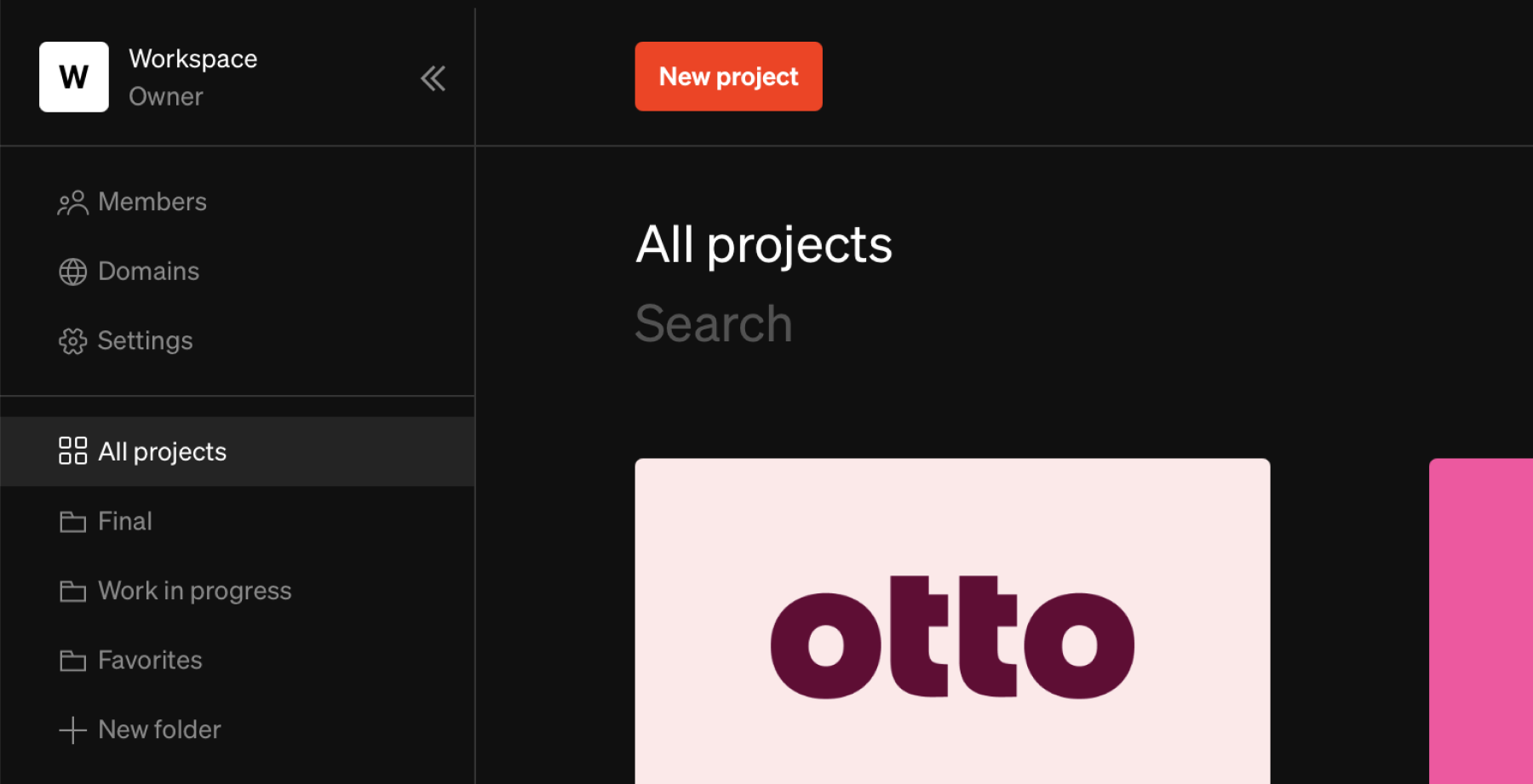
Folders are used to organize projects in the Dashboard by grouping them into separate pages navigable from the sidebar.
 ***
## Adding folders
From the dashboard, select `+ New folder` in the bottom of the left sidebar to create a new folder.
Make sure to give your folder a unique name to avoid confusion. To rename a folder, either click the name above the project tiles, or right click the name in the sidebar and select `Rename` from the list of options.
***
## Moving projects between folders
Projects can be added to and moved between folders in two ways:
1. Drag & drop projects into a desired folder in the sidebar.
2. Right click a project tile, and select `Move` from the list of options.
***
## Deleting folders
Deleting a folder will delete only the folder itself and not any project grouped within the folder. As a result projects grouped within a folder will need to be moved outside the folder before it can be deleted.
From the left sidebar folders list, right click or select the settings icon on the desired folder. Select `Delete`
Choose a folder to move the projects into then select `Delete folder`
***
## Adding folders
From the dashboard, select `+ New folder` in the bottom of the left sidebar to create a new folder.
Make sure to give your folder a unique name to avoid confusion. To rename a folder, either click the name above the project tiles, or right click the name in the sidebar and select `Rename` from the list of options.
***
## Moving projects between folders
Projects can be added to and moved between folders in two ways:
1. Drag & drop projects into a desired folder in the sidebar.
2. Right click a project tile, and select `Move` from the list of options.
***
## Deleting folders
Deleting a folder will delete only the folder itself and not any project grouped within the folder. As a result projects grouped within a folder will need to be moved outside the folder before it can be deleted.
From the left sidebar folders list, right click or select the settings icon on the desired folder. Select `Delete`
Choose a folder to move the projects into then select `Delete folder`