> ## Documentation Index
> Fetch the complete documentation index at: https://help.standards.site/llms.txt
> Use this file to discover all available pages before exploring further.
# Project Export
Enterprise
Standards has the ability to **Export** a project so that you can host it on your own infrastructure. This can be useful to get around technical restraints that could prevent viewers a accessing the Standards-hosted project.
At this time, exports are turned off by default. If you require access to exports, please send an email to [support@standards.site](mailto:support@standards.site).
## Creating an export
Project exports can be generated from the project dashboard or from within the editor.
 From the project details in dashboard, or within the project editor, select the `Publish & Share` button
* Select the `Export` tab from the top of the pop-up window
* If this is the first time exporting, you will see a ‘Not exported’ status
* Select the `Create export` button
From the project details in dashboard, or within the project editor, select the `Publish & Share` button
* Select the `Export` tab from the top of the pop-up window
* If this is the first time exporting, you will see a ‘Not exported’ status
* Select the `Create export` button
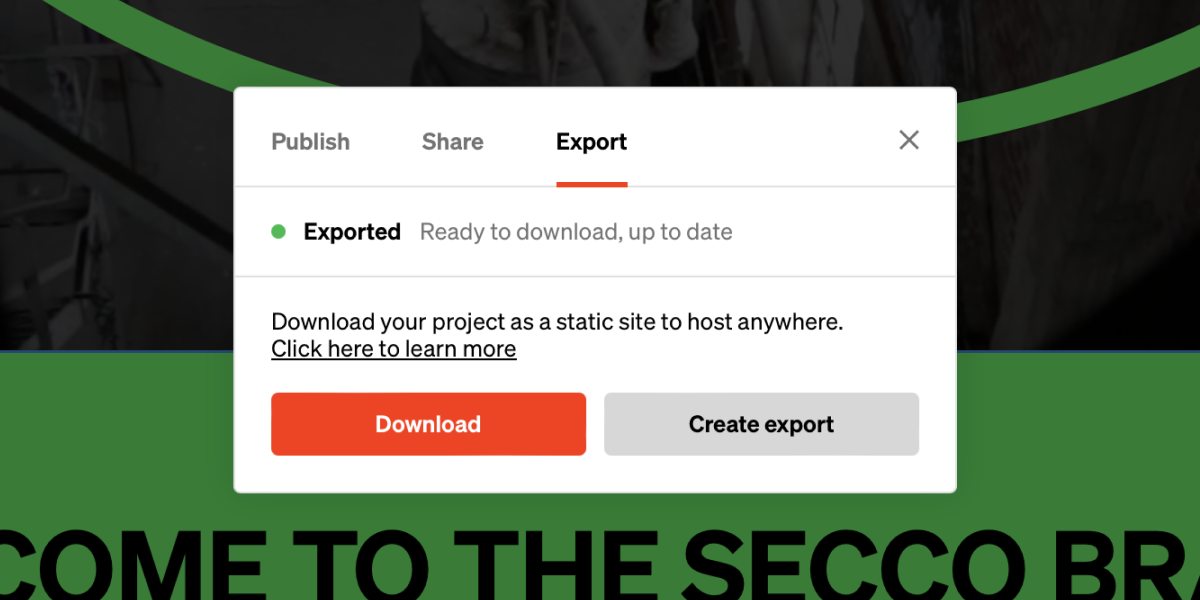 * The project will process the export, the time this takes depends on the size of the project
* Once complete, select the `Download` button
***
## Troubleshooting
### There is no Export tab in the Publish & Share pop-up
At this time, exports are turned off by default. If you require access to exports, please send an email to your Standards account manager, or [support@standards.site](mailto:support@standards.site) requesting access. Only users with the admin or owner workspace role can view and create exports.
### The export process failed
If the export fails, it could be that your project is too large (there is a 9 minute cap on export processing time) or another unknown error. Reach out to [support@standards.site](mailto:support@standards.site) or your account representative if you encounter a recurring error with site exports, and we’ll dig deeper.
***
## Hosting an export
Once you download your export, unzip the files and upload to your web server. The site should work out of the box with any basic web server. Your exported project is a ‘single page’ React application. There are some configuration options to note:
### Hash-based routing
As a single page application, Any subpages and links will use a javascript router to navigate. By default it will use the HTML5 URL mode. If you are having issues with subpage linking or hosting in a subdirectory, we recommend turning on hash mode. To do so, open up the **index.html** file, find the meta tag with the name **hash-router**, and change the value to “**on”**.
```javascript theme={null}
```
### Hosting in a subdirectory
If it’s necessary for you to host your site in a subdirectory instead of a base domain (e.g. yourdomain.com/myproject), you’ll need to modify the **base** meta tag with the directory structure. You can also turn on hash-based routing and skip this step.
```javascript theme={null}
```
### Redirecting subpages
As a single page application web page, visiting a sub page directly (e.g. navigating your browser to yourproject.com/subpage) will not work without some redirects. This won’t be an issue with hash-based routing. You can also configure your server to redirect any subpage to index.html. Your export includes some common server configurations to assist. Namely - .htaccess (Apache), web.config (IIS), and \_redirects (Netlify). A simple configuration is to redirect any subpage or directory that does not exist to index.html.
***
## Limitations
### Making updates
The exported files cannot be edited directly, and exports are ‘frozen’ at the time they were exported. If you need to update an exported project to the latest version you’ll have to generate a new export, download it, and update the files on your web server.
### Requires Enterprise subscription
In order to create or continue to use an export you’ll need an active Enterprise subscription.
### Size limits
Exports are currently limited to projects that are 9GB and smaller in total size.
* The project will process the export, the time this takes depends on the size of the project
* Once complete, select the `Download` button
***
## Troubleshooting
### There is no Export tab in the Publish & Share pop-up
At this time, exports are turned off by default. If you require access to exports, please send an email to your Standards account manager, or [support@standards.site](mailto:support@standards.site) requesting access. Only users with the admin or owner workspace role can view and create exports.
### The export process failed
If the export fails, it could be that your project is too large (there is a 9 minute cap on export processing time) or another unknown error. Reach out to [support@standards.site](mailto:support@standards.site) or your account representative if you encounter a recurring error with site exports, and we’ll dig deeper.
***
## Hosting an export
Once you download your export, unzip the files and upload to your web server. The site should work out of the box with any basic web server. Your exported project is a ‘single page’ React application. There are some configuration options to note:
### Hash-based routing
As a single page application, Any subpages and links will use a javascript router to navigate. By default it will use the HTML5 URL mode. If you are having issues with subpage linking or hosting in a subdirectory, we recommend turning on hash mode. To do so, open up the **index.html** file, find the meta tag with the name **hash-router**, and change the value to “**on”**.
```javascript theme={null}
```
### Hosting in a subdirectory
If it’s necessary for you to host your site in a subdirectory instead of a base domain (e.g. yourdomain.com/myproject), you’ll need to modify the **base** meta tag with the directory structure. You can also turn on hash-based routing and skip this step.
```javascript theme={null}
```
### Redirecting subpages
As a single page application web page, visiting a sub page directly (e.g. navigating your browser to yourproject.com/subpage) will not work without some redirects. This won’t be an issue with hash-based routing. You can also configure your server to redirect any subpage to index.html. Your export includes some common server configurations to assist. Namely - .htaccess (Apache), web.config (IIS), and \_redirects (Netlify). A simple configuration is to redirect any subpage or directory that does not exist to index.html.
***
## Limitations
### Making updates
The exported files cannot be edited directly, and exports are ‘frozen’ at the time they were exported. If you need to update an exported project to the latest version you’ll have to generate a new export, download it, and update the files on your web server.
### Requires Enterprise subscription
In order to create or continue to use an export you’ll need an active Enterprise subscription.
### Size limits
Exports are currently limited to projects that are 9GB and smaller in total size.