> ## Documentation Index
> Fetch the complete documentation index at: https://help.standards.site/llms.txt
> Use this file to discover all available pages before exploring further.
# Plan & Billing
Update and manage billing information, view and download invoices/receipts, or sign up for a plan from the dashboard.
 ***
## Manage plan & billing
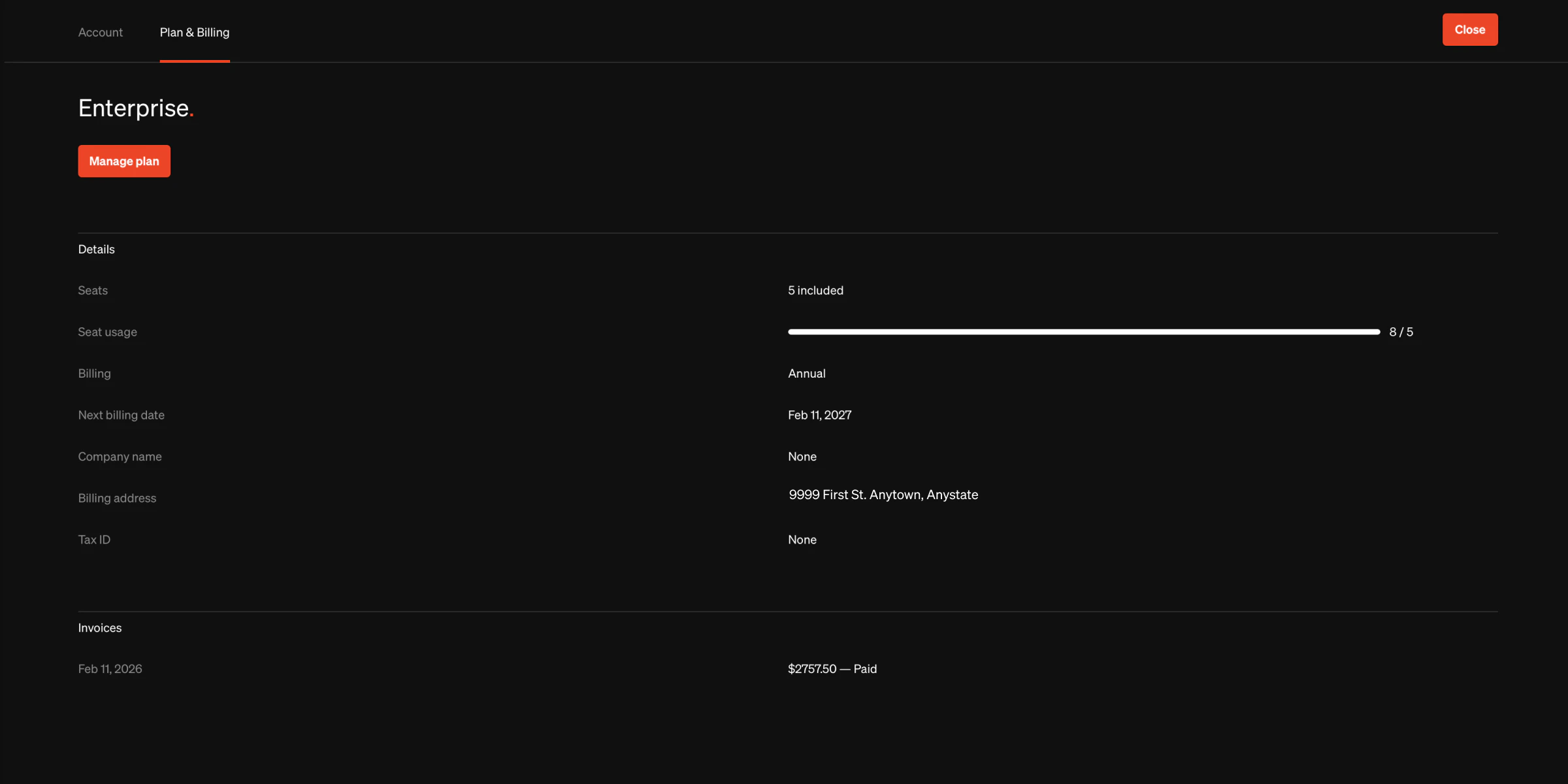
Workspace owners can find plan and billing information as well as previous invoice history in the **Plan & Billing** tab of their account settings page. Select the avatar at the top right of the dashboard to view your account details.
### Start a paid plan
* Select the plan you would like to sign up for
* Follow the upgrade steps and enter your billing information
### Change plan
* Select the **Manage plan** button
* Select **Change** from the manage plan overlay
* Choose the plan you would like to change to
* Confirm changes
### Change billing frequency
* Select the **Manage plan** button
* Select the billing frequency from the manage plan overlay
* Confirm changes
### Change payment information
* Select the **Manage payment** button
* Enter the new card information
* Confirm changes
### View past invoice
* From the **Invoices** list at the bottom of the page, select the **View invoice** button on the invoice you would like to view
* You will be directed to our billing service Stripe where invoices can be downloaded
### View past invoice
* From the **Invoices** list at the bottom of the page, select the **View invoice** button on the invoice you would like to view
* You will be directed to our billing service Stripe where invoices can be downloaded
### Cancel plan
* Select the **Manage plan** button
* Select the **Cancel plan** button from the bottom of the manage plan overlay
* Confirm changes
### Details on account after plan cancellation
* Projects are unpublished exactly 10 days after the account doesn't have an active paid subscription
* Accounts with no paid plan will retain the projects as drafts
* Inactive unpaid accounts will retain data for 6 months
***
## Manage failed payments
* If a payment for a Standards plan fails, Standards will attempt the payment again the next business day.
* If a payment fails 3 times, Standards will temporarily restrict the account. After 10 days, published projects will be reverted to drafts.
* Once a payment finalizes, Standards will restore access to the account.
For more assistance with account updates or billing, please contact [support@standards.site](mailto:support@standards.site).
***
## Manage plan & billing
Workspace owners can find plan and billing information as well as previous invoice history in the **Plan & Billing** tab of their account settings page. Select the avatar at the top right of the dashboard to view your account details.
### Start a paid plan
* Select the plan you would like to sign up for
* Follow the upgrade steps and enter your billing information
### Change plan
* Select the **Manage plan** button
* Select **Change** from the manage plan overlay
* Choose the plan you would like to change to
* Confirm changes
### Change billing frequency
* Select the **Manage plan** button
* Select the billing frequency from the manage plan overlay
* Confirm changes
### Change payment information
* Select the **Manage payment** button
* Enter the new card information
* Confirm changes
### View past invoice
* From the **Invoices** list at the bottom of the page, select the **View invoice** button on the invoice you would like to view
* You will be directed to our billing service Stripe where invoices can be downloaded
### View past invoice
* From the **Invoices** list at the bottom of the page, select the **View invoice** button on the invoice you would like to view
* You will be directed to our billing service Stripe where invoices can be downloaded
### Cancel plan
* Select the **Manage plan** button
* Select the **Cancel plan** button from the bottom of the manage plan overlay
* Confirm changes
### Details on account after plan cancellation
* Projects are unpublished exactly 10 days after the account doesn't have an active paid subscription
* Accounts with no paid plan will retain the projects as drafts
* Inactive unpaid accounts will retain data for 6 months
***
## Manage failed payments
* If a payment for a Standards plan fails, Standards will attempt the payment again the next business day.
* If a payment fails 3 times, Standards will temporarily restrict the account. After 10 days, published projects will be reverted to drafts.
* Once a payment finalizes, Standards will restore access to the account.
For more assistance with account updates or billing, please contact [support@standards.site](mailto:support@standards.site).