> ## Documentation Index
> Fetch the complete documentation index at: https://help.standards.site/llms.txt
> Use this file to discover all available pages before exploring further.
# Media
Media is a dynamic element type that is used to display a variety of visual content on Standards.
 ***
## Media basics
**Media** is an element that can be added anywhere in your project and simply consists of a bounding box that can be sized, styled, and filled with content. Media elements may display static images, animated media, and vector files.
### Adding media
***
## Media basics
**Media** is an element that can be added anywhere in your project and simply consists of a bounding box that can be sized, styled, and filled with content. Media elements may display static images, animated media, and vector files.
### Adding media
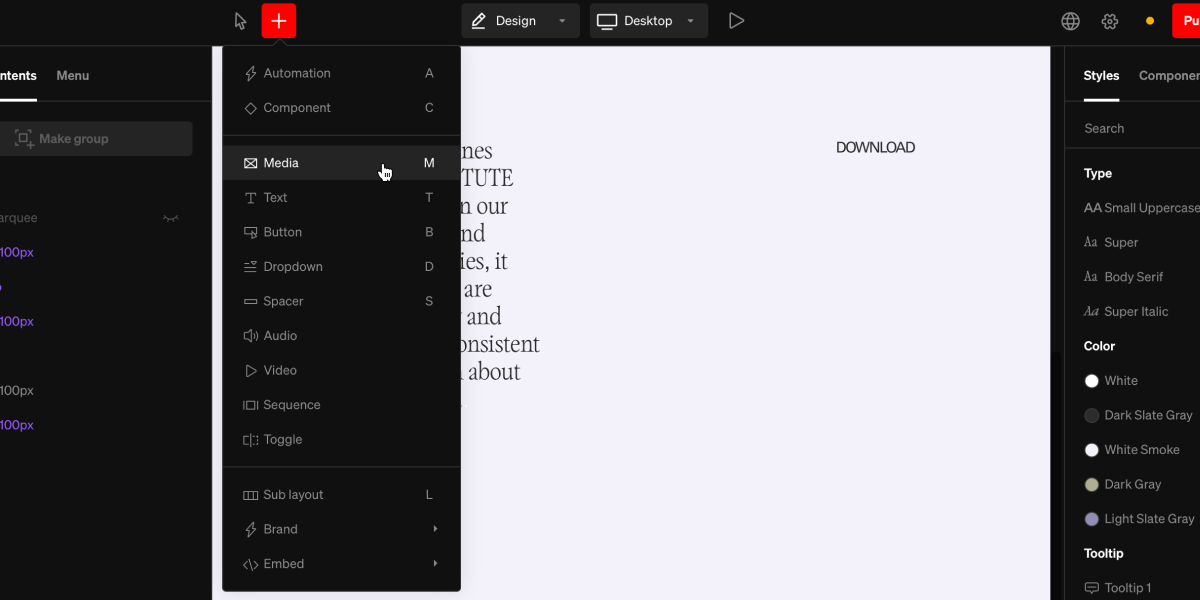 From within the editor, select **Media** from the `+`menu in the top bar, or use the hotkey **M**
Select a point in the project body by selecting between layouts, click + dragging within, or selecting a point inside a column.
Once added, select or upload the file you want to fill the media element with
**Tip:** Hold command to add media directly into a column with 1 click.
***
## General use
**Media** is a flexible element with a range of uses. Here are common general uses:
From within the editor, select **Media** from the `+`menu in the top bar, or use the hotkey **M**
Select a point in the project body by selecting between layouts, click + dragging within, or selecting a point inside a column.
Once added, select or upload the file you want to fill the media element with
**Tip:** Hold command to add media directly into a column with 1 click.
***
## General use
**Media** is a flexible element with a range of uses. Here are common general uses:
 ### Static images
Choose an uploaded file such as .JPEG, .PNG, .webP or .TIFF to display a static image. Standards optimizes images for various screen sizes. Therefor, we recommend uploading your highest resolution images. **Tip for gradients**: It’s suggested to use high quality .JPEG files for gradients for better color, compression, and file size. Sometimes .PNG gradients will appear overly compressed.
### Static images
Choose an uploaded file such as .JPEG, .PNG, .webP or .TIFF to display a static image. Standards optimizes images for various screen sizes. Therefor, we recommend uploading your highest resolution images. **Tip for gradients**: It’s suggested to use high quality .JPEG files for gradients for better color, compression, and file size. Sometimes .PNG gradients will appear overly compressed.
 ### Vectors
Choose an uploaded .SVG file to display vectorized media. When preparing vectors for Standards, ensure the art-board is cropped to the artwork itself, with no additional space around within the exported file.
### Vectors
Choose an uploaded .SVG file to display vectorized media. When preparing vectors for Standards, ensure the art-board is cropped to the artwork itself, with no additional space around within the exported file.
 ### Videos
Choose an uploaded file such as .MP4, .WebM, or .GIF to display an animation or video. As with images, Standards optimizes videos for various screen sizes. Therefor, we recommend uploading your highest quality videos below 100mb per file.
***
## Video media
**Media** is often greatly enhanced by incorporating motion or video, not only improving clarity and usability but also simply by adding moments of excitement to your project. **Media** that references video files gain unique settings to control behavior.
### Videos
Choose an uploaded file such as .MP4, .WebM, or .GIF to display an animation or video. As with images, Standards optimizes videos for various screen sizes. Therefor, we recommend uploading your highest quality videos below 100mb per file.
***
## Video media
**Media** is often greatly enhanced by incorporating motion or video, not only improving clarity and usability but also simply by adding moments of excitement to your project. **Media** that references video files gain unique settings to control behavior.
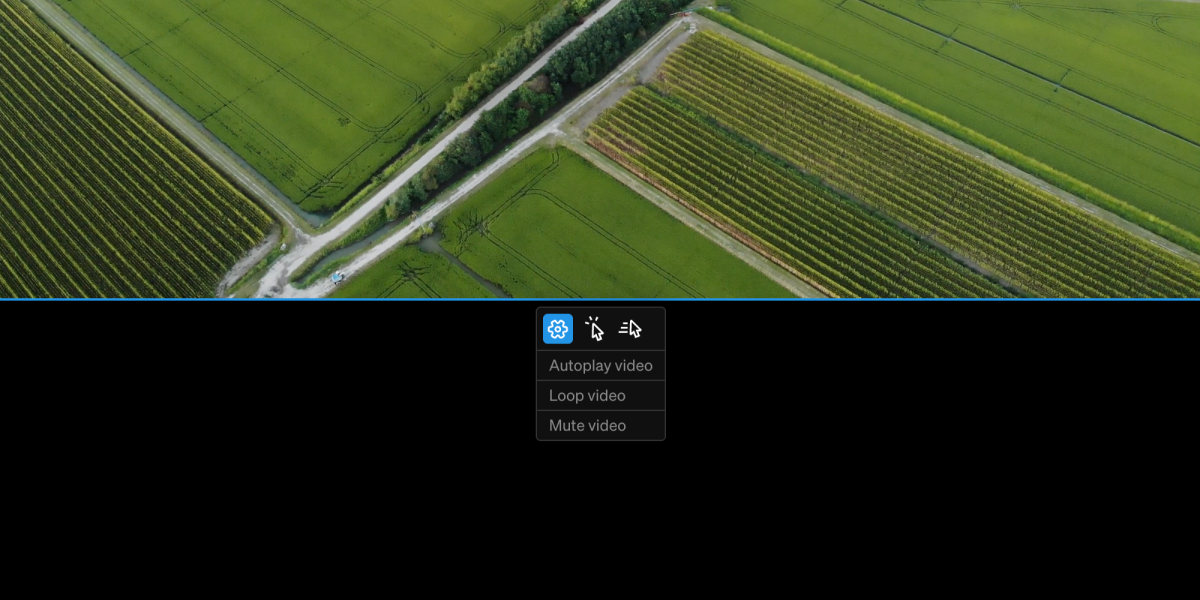 ### Settings
* **Autoplay** Play the video once it loads without a trigger
* **Loop** Play from the beginning once it reaches the end
* **Mute** Mute any audio embedded in the video
### Hover
* **Play Video** Play and pause video media
* **Play Audio** Play and pause audio in video media
### Thumbnails
Media filled with video files automatically use the first frame as their static thumbnail. This can be overridden with a custom thumbnail for each breakpoint, accessed inside the in-body settings.
***
## Accessibility
When using Media throughout your project, it is important to keep accessibility in mind. Standards allows you to include meta descriptions for both **Media** elements, and the **Files** themselves. Learn more about [Accessibility](/accessibility).
### Settings
* **Autoplay** Play the video once it loads without a trigger
* **Loop** Play from the beginning once it reaches the end
* **Mute** Mute any audio embedded in the video
### Hover
* **Play Video** Play and pause video media
* **Play Audio** Play and pause audio in video media
### Thumbnails
Media filled with video files automatically use the first frame as their static thumbnail. This can be overridden with a custom thumbnail for each breakpoint, accessed inside the in-body settings.
***
## Accessibility
When using Media throughout your project, it is important to keep accessibility in mind. Standards allows you to include meta descriptions for both **Media** elements, and the **Files** themselves. Learn more about [Accessibility](/accessibility).