> ## Documentation Index
> Fetch the complete documentation index at: https://help.standards.site/llms.txt
> Use this file to discover all available pages before exploring further.
# Copying & Moving Content
Copy designs and content within your guideline, between pages, and into other guidelines.
***
## Copying within a project
From within the Standards editor, most content and designs you create can be copied to another page within the project.
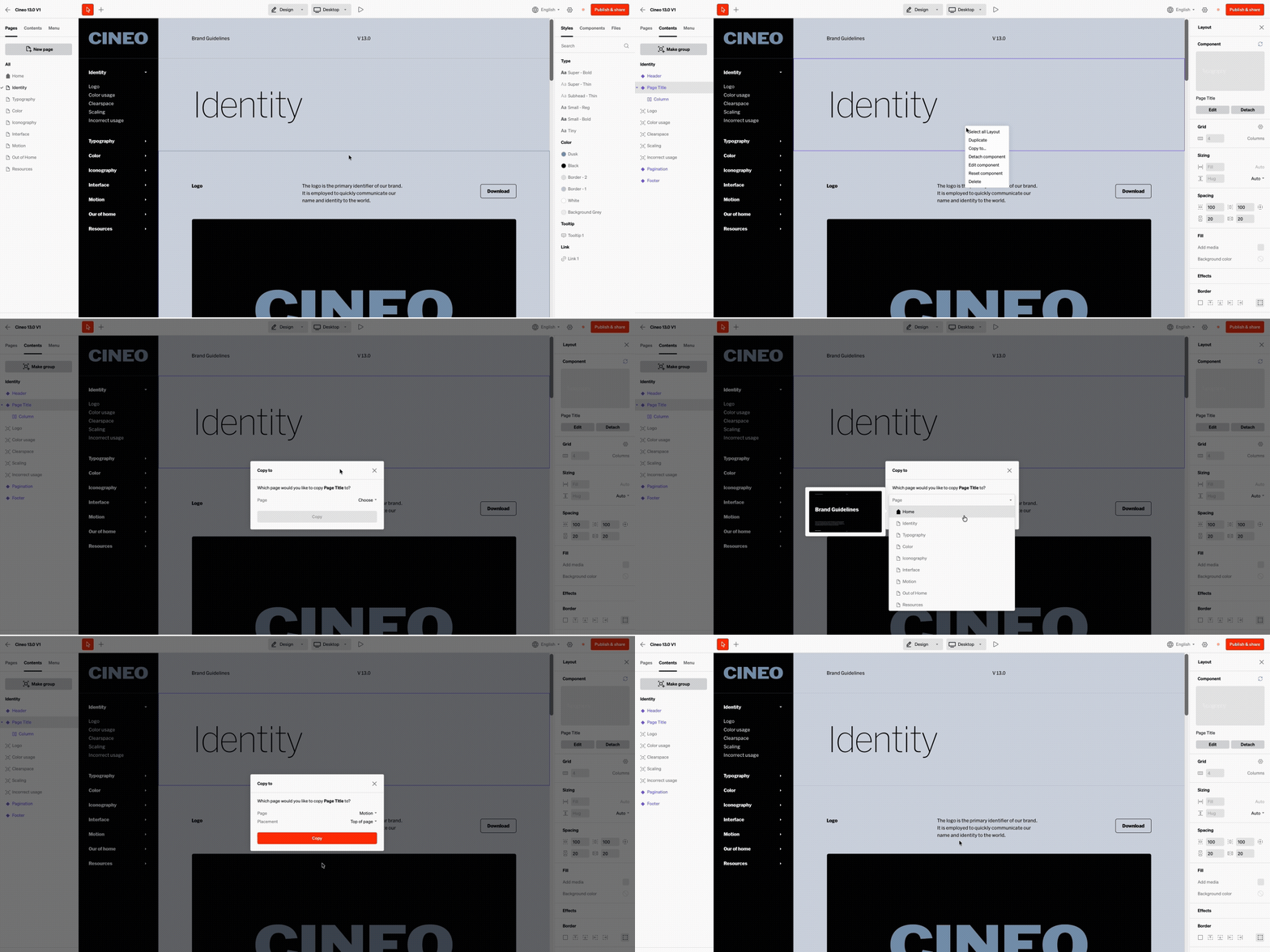 * Right click / select the 3 dot icon on the content layer from **Contents** tab in the left sidebar
or
* Right click within the body of the project on the content you would like to copy.
* Choose the page it will copy to
* Optional: Choose the placement on the page
* Select `Done`
**Note:** Only group and layout layer types can be copied to other pages like this.
***
## Copying between projects
From within the Standards editor, most content and designs you create can be copied to another page within the project.
* Right click / select the 3 dot icon on the content layer from **Contents** tab in the left sidebar
or
* Right click within the body of the project on the content you would like to copy.
* Choose the page it will copy to
* Optional: Choose the placement on the page
* Select `Done`
**Note:** Only group and layout layer types can be copied to other pages like this.
***
## Copying between projects
From within the Standards editor, most content and designs you create can be copied to another page within the project.
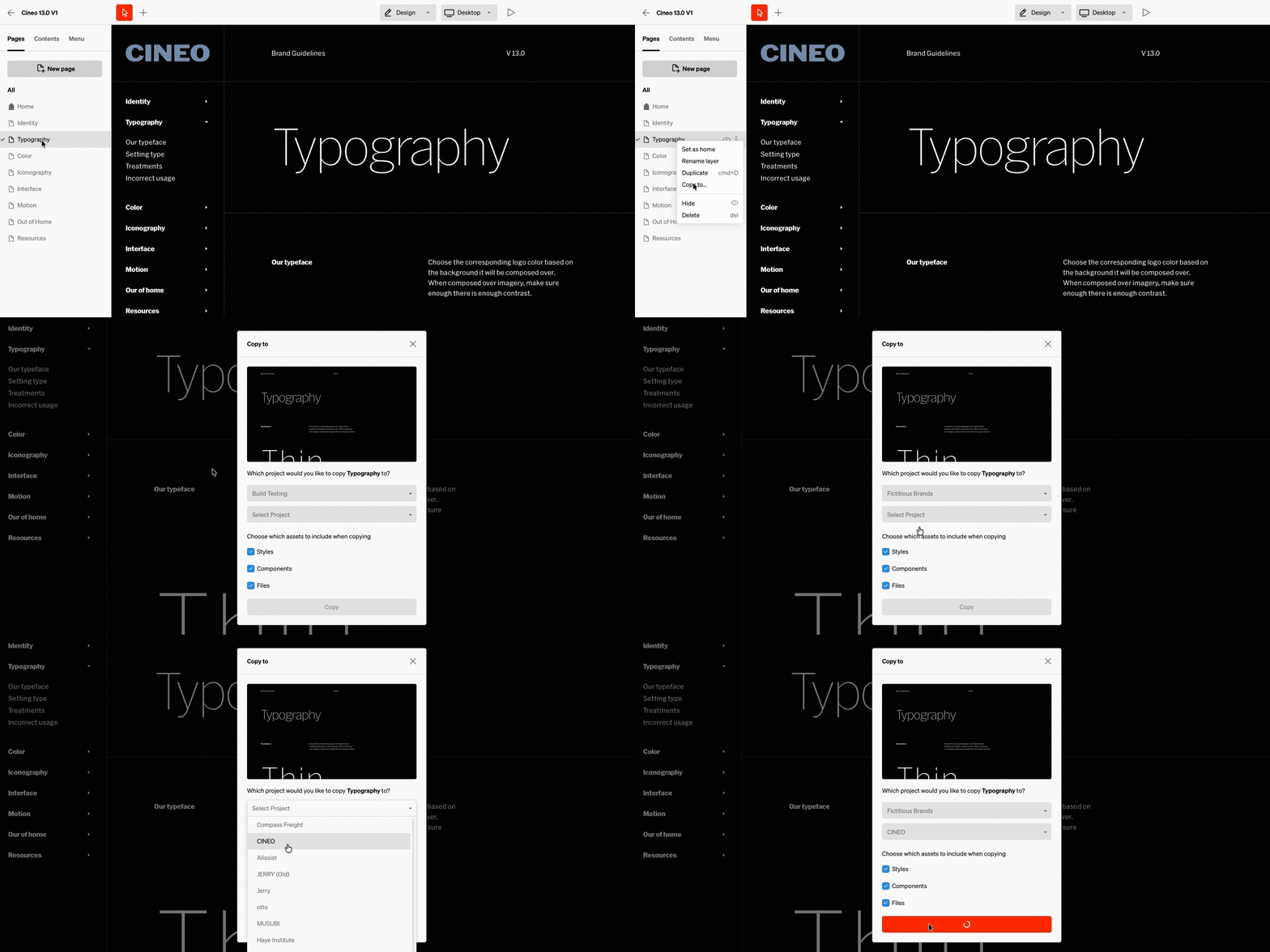 Right click / select the 3 dot icon on page layer from the **Pages** tab in the left sidebar
* Choose the workspace and project to copy to
* Select the assets to include
* Select `Copy`
Depending on the complexity, it may take a few minutes to copy to the other project
Return to the dashboard then navigate to the editor of the destination project to find the content that was copied to it.
Right click / select the 3 dot icon on page layer from the **Pages** tab in the left sidebar
* Choose the workspace and project to copy to
* Select the assets to include
* Select `Copy`
Depending on the complexity, it may take a few minutes to copy to the other project
Return to the dashboard then navigate to the editor of the destination project to find the content that was copied to it.