> ## Documentation Index
> Fetch the complete documentation index at: https://help.standards.site/llms.txt
> Use this file to discover all available pages before exploring further.
# Comments
Comments enable deeper collaboration in your projects. Leave feedback for teammates, or notes for yourself.
 ***
## Overview
Comments can be added to all projects from within the **comment** mode of the editor. All workspace members can leave and review comments. Comments can be replied to and when no longer needed, they can be resolved.
* All workspace members can leave comments
* Workspace members can be mentioned using @ in the comment
* Comments can be resolved
***
## Adding comments
***
## Overview
Comments can be added to all projects from within the **comment** mode of the editor. All workspace members can leave and review comments. Comments can be replied to and when no longer needed, they can be resolved.
* All workspace members can leave comments
* Workspace members can be mentioned using @ in the comment
* Comments can be resolved
***
## Adding comments
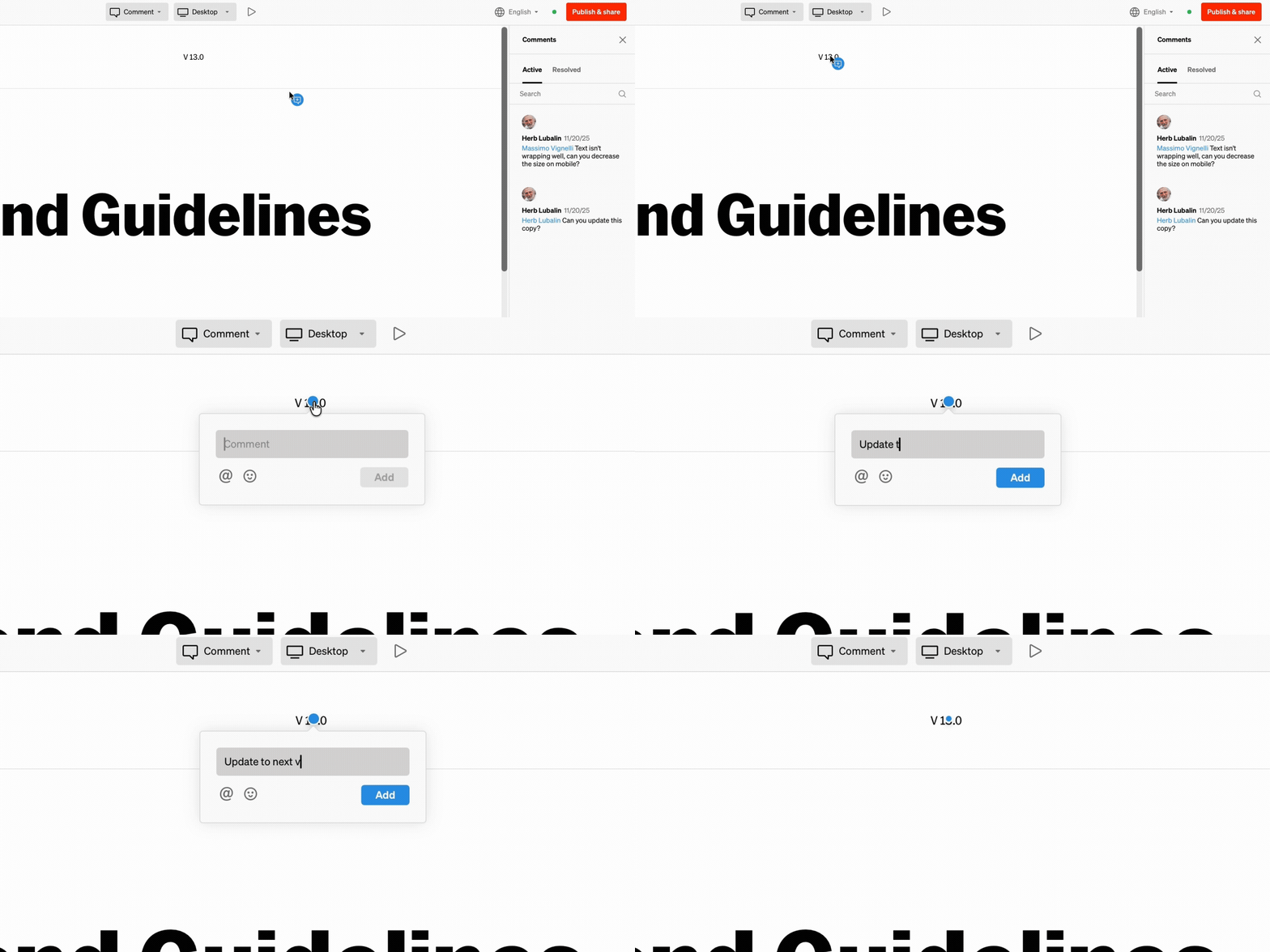
 Within the project editor, select the **comment** mode from the top bar dropdown or by pressing 2
Select anywhere to place a comment
Type out your comment and use @ to mention teammates, and add emoji to express what words can’t
***
## Reviewing comments
Comments are reviewed in two ways:
1. From within the dashboard alert inbox
2. From within the comment mode of the the project
### Alert inbox
Within the project editor, select the **comment** mode from the top bar dropdown or by pressing 2
Select anywhere to place a comment
Type out your comment and use @ to mention teammates, and add emoji to express what words can’t
***
## Reviewing comments
Comments are reviewed in two ways:
1. From within the dashboard alert inbox
2. From within the comment mode of the the project
### Alert inbox
 From within the Standards dashboard, select the **bell icon** from the right side of the top bar. By default all comments are listed by most recent. You may also filter comments by workspace.
 Select any comment to view it within the comment mode of the project it was added in
### Comment mode
Hotkey 2
Select any comment to view it within the comment mode of the project it was added in
### Comment mode
Hotkey 2
 * Within the project editor, select the **comment** mode from the top bar dropdown
* In the right sidebar, all comments are listed in order by time
* Select any comment from within the body or the right sidebar
***
## Resolving comments
Resolving comments will remove them from within the **active** comment list in comment mode, and from your alert inbox. This makes tracking outstanding versus old comments simple.
* Within the project editor, select the **comment** mode from the top bar dropdown
* In the right sidebar, all comments are listed in order by time
* Select any comment from within the body or the right sidebar
***
## Resolving comments
Resolving comments will remove them from within the **active** comment list in comment mode, and from your alert inbox. This makes tracking outstanding versus old comments simple.
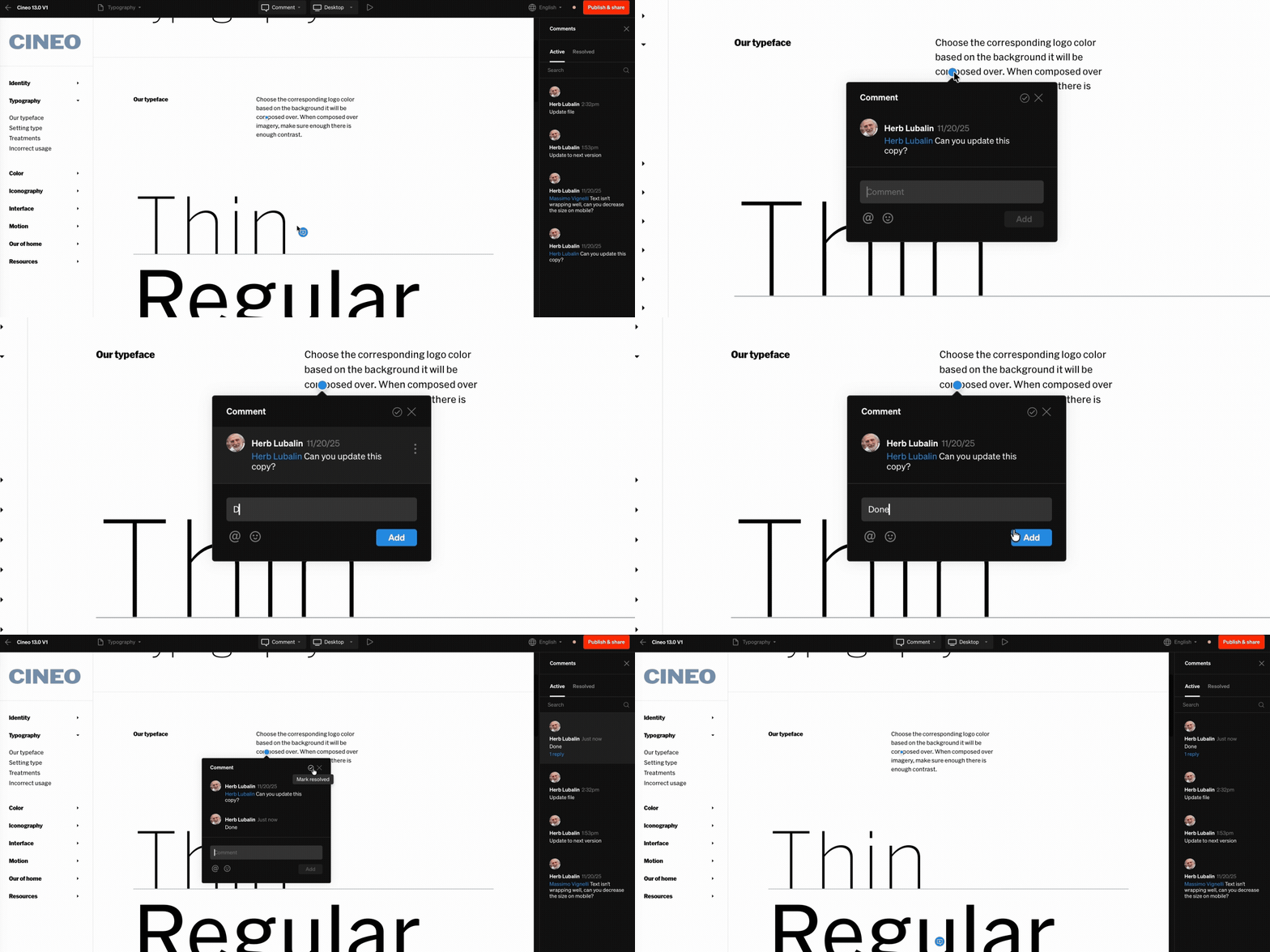 * Within the editor’s comment mode, comments can be resolved from the comment itself, and from the comment item in the right sidebar
* Select the check icon to resolve the comment
* Resolved comments can be reviewed from the right sidebar **Resolved** tab
* Resolved comments can be reverted back to **Active** by reselecting the check icon on the comment
***
## Editing & deleting comments
You may find yourself needing to edit or delete comments you have made. This is helpful if you want to reword your comment or if it was added by accident.
* Within the editor’s comment mode, select the comment you would like to edit or delete
* When hover on the open comment, select the 3 dot icon to the right
* Select edit or delete from the contextual menu
***
## Commenter role
All workspace members can leave, review, and resolve comments. Some team members need only leave comments, which is ideal for the **Commenter** role. **Commenters** have access only to the comment mode of the project editor. This is great for teammates that only need to leave feedback. Learn more about [Workspace Members](/workspace-members).
* Within the editor’s comment mode, comments can be resolved from the comment itself, and from the comment item in the right sidebar
* Select the check icon to resolve the comment
* Resolved comments can be reviewed from the right sidebar **Resolved** tab
* Resolved comments can be reverted back to **Active** by reselecting the check icon on the comment
***
## Editing & deleting comments
You may find yourself needing to edit or delete comments you have made. This is helpful if you want to reword your comment or if it was added by accident.
* Within the editor’s comment mode, select the comment you would like to edit or delete
* When hover on the open comment, select the 3 dot icon to the right
* Select edit or delete from the contextual menu
***
## Commenter role
All workspace members can leave, review, and resolve comments. Some team members need only leave comments, which is ideal for the **Commenter** role. **Commenters** have access only to the comment mode of the project editor. This is great for teammates that only need to leave feedback. Learn more about [Workspace Members](/workspace-members).