> ## Documentation Index
> Fetch the complete documentation index at: https://help.standards.site/llms.txt
> Use this file to discover all available pages before exploring further.
# Introduction
Enterprise
The Standards API provides programmatic access to your project information and brand guidelines for service integrations and AI agents.
This feature is currently in preview. To request early access before the full release, contact [support@standards.site](mailto:support@standards.site)
The API is protected with OAuth 2.0 to ensure your data is only available to individuals or services that have been granted access. To get started, you will need an API key, which can be created from your workspace dashboard.
## Create an API key
Sign in to your Standards workspace, navigate to the workspace settings page, and select the `API` tab.
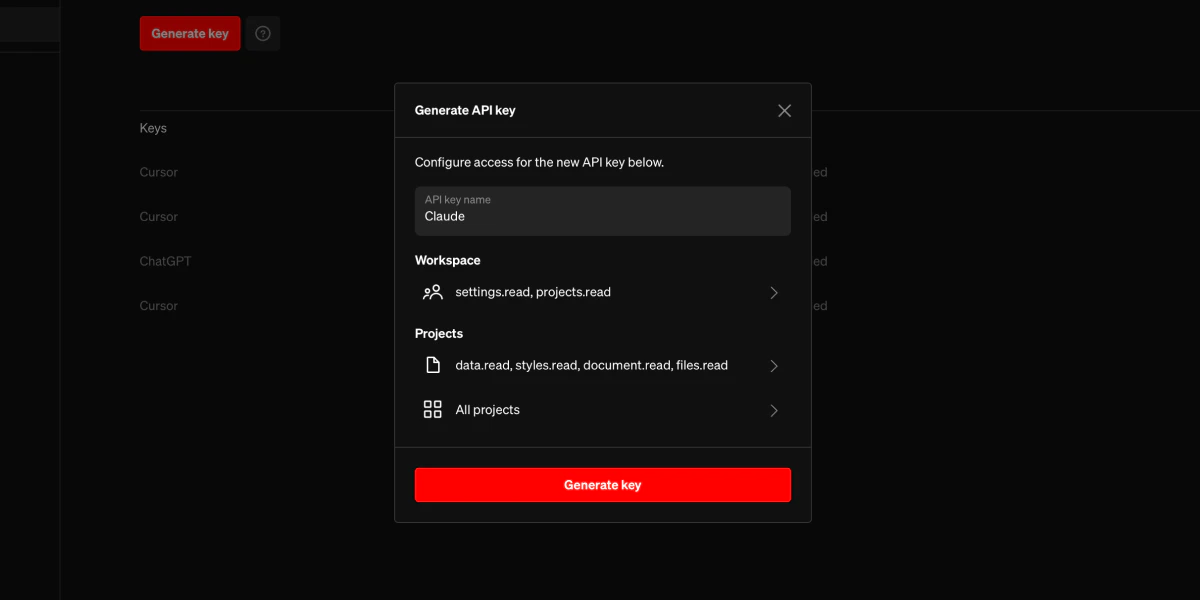
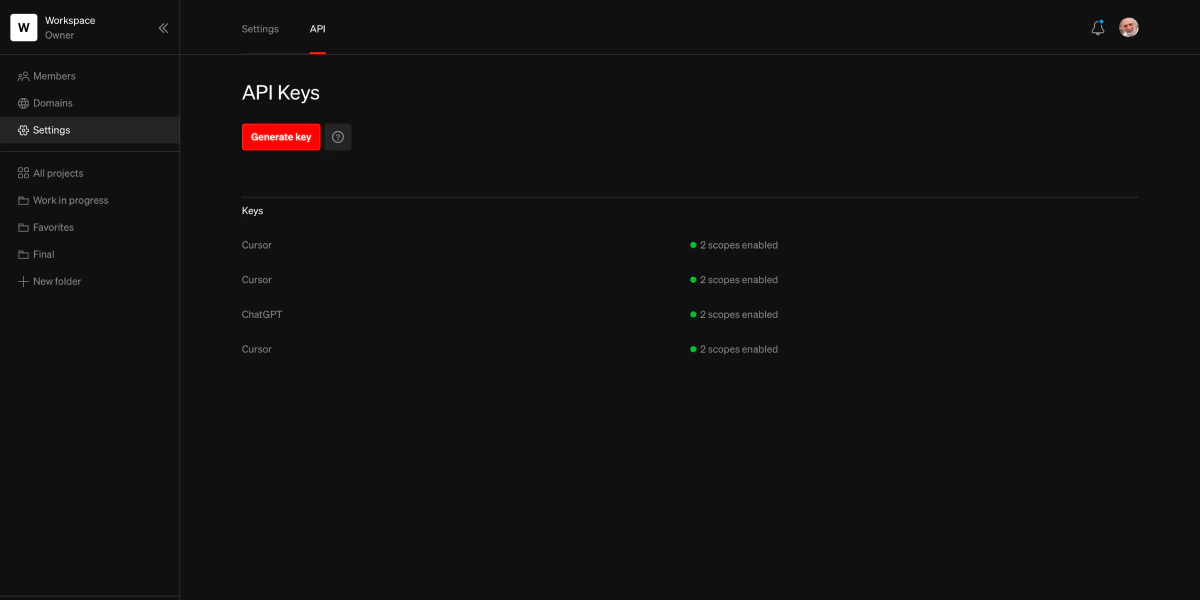 Click the `Generate key` button to configure and create a new API key. In the dialog, enter a name, select the capabilities for the key, and select the projects it will be able to access (if any project capabilities are enabled).
 After clicking `Generate key`, you will be shown a dialog with the `Client ID` and `Client Secret`. These will only be shown once, and cannot be retrieved once the dialog is closed to ensure they remain secure. Store these in a secure location following best practices for your company. [Azure Key Vault](https://azure.microsoft.com/en-us/products/key-vault), [AWS Secrets Manager](https://aws.amazon.com/secrets-manager/), or [Google Cloud Secret Manager](https://cloud.google.com/security/products/secret-manager) are commonly used for this purpose.
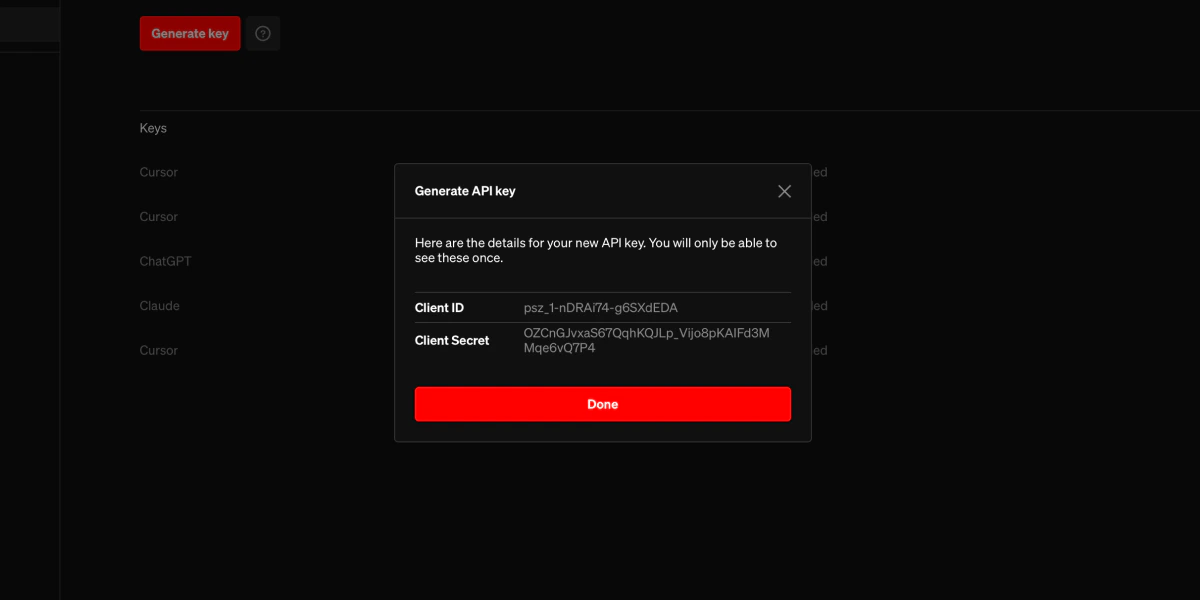 The client id and secret can now be used to retrieve authorization tokens for [making API requests](/api-requests).
## Configuration
### API key name
The name is only used as a label for the key when viewing it in the dashboard. It may be useful to select a name that describes how it will be used and share the name with the entry for the client secret in your secure storage.
### Workspace scopes
If a scope is enabled, requests using this API key made to endpoints requiring the scope will be authorized. The scopes required for each endpoint can be found in the [reference](/api-reference/schema.yaml).
Workspace scopes control access to workspace information.
* `settings.read` Allows workspace information to be retrieved.
* `projects.read` Allows projects in the workspace to be listed with basic information.
### Project scopes
Project scopes control access to project information and content from published sites.
* `data.read` Allows project information to be retrieved.
* `styles.read` Allows styles to be listed along with basic information.
* `files.read` Allows files to be listed along with basic information.
* `document.read` Allows pages to be listed and page content to be retrieved.
### Projects
Project scopes apply to all projects in the workspace by default. When at least one project scope is selected, a project picker will become available to allow restricting to a specific set of projects instead.
The client id and secret can now be used to retrieve authorization tokens for [making API requests](/api-requests).
## Configuration
### API key name
The name is only used as a label for the key when viewing it in the dashboard. It may be useful to select a name that describes how it will be used and share the name with the entry for the client secret in your secure storage.
### Workspace scopes
If a scope is enabled, requests using this API key made to endpoints requiring the scope will be authorized. The scopes required for each endpoint can be found in the [reference](/api-reference/schema.yaml).
Workspace scopes control access to workspace information.
* `settings.read` Allows workspace information to be retrieved.
* `projects.read` Allows projects in the workspace to be listed with basic information.
### Project scopes
Project scopes control access to project information and content from published sites.
* `data.read` Allows project information to be retrieved.
* `styles.read` Allows styles to be listed along with basic information.
* `files.read` Allows files to be listed along with basic information.
* `document.read` Allows pages to be listed and page content to be retrieved.
### Projects
Project scopes apply to all projects in the workspace by default. When at least one project scope is selected, a project picker will become available to allow restricting to a specific set of projects instead.